
1. Kupu Whakataki
This manual provides detailed instructions for the setup, operation, and maintenance of your TELLUR Shade Wireless Mouse (Model 491261). This mouse features multi-device connectivity, silent click buttons, RGB lighting, and adjustable DPI settings for enhanced productivity and comfort across various operating systems.
2. Ihirangi mokete
Manatokona kei roto katoa nga mea kei roto i to kete:
- 1 x TELLUR Shade Wireless Mouse
- 1 x Nano receiver (USB-A)
- 1 x Momo-C taura utu
- 1 x Kaiwhakamahi pukapuka (tenei tuhinga)

Image: The TELLUR Shade Wireless Mouse, accompanied by its USB Nano receiver and Type-C charging cable, illustrating the complete package contents.
3. Hua Neke Atuview
Familiarize yourself with the components of your TELLUR Shade Wireless Mouse:

Whakaahua: Runga-raro view of the TELLUR Shade Wireless Mouse, highlighting the left and right silent click buttons, the main scroll wheel, DPI adjustment button, and the multi-device switch button.
- Pātene Pātene Mauī: Mahi wahangu.
- Pātene Pāwhiri Matau: Mahi wahangu.
- Scroll Wheel (Main): Mo te panuku poutū.
- Patene Whakatikatika DPI: Cycles through DPI settings (800/1200/1600/2400/3200).
- Multi-Device Switch Button: Toggles between connected devices (1, 2, 3, 4).
- Pātene Whakamua: Ka whakatere whakamua ki roto web kaitirotiro ranei file kaihōpara.
- Pātene Whakamuri: Ka whakatere whakamuri ki roto web kaitirotiro ranei file kaihōpara.
- Horizontal Scroll Wheel: For horizontal scrolling.
- Windows Home Button: Minimizes all windows to show the desktop; pressing again restores them.
- Tauranga Whakatau USB-C: Located on the front for recharging the internal battery.
- Whakawhiti Kaha: On/Off switch on the bottom of the mouse.
- Nano Receiver Storage: Compartment on the bottom for storing the USB receiver.
4. Tatūnga
4.1. Te Whakataki i te Kiore
Before initial use, ensure the mouse is fully charged. Connect the provided Type-C charging cable to the USB-C port on the front of the mouse and the other end to a USB power source (e.g., computer USB port, USB wall adapter).

Whakaahua: Taha view of the TELLUR Shade Wireless Mouse, clearly showing the USB-C charging port located at the front for convenient recharging.
The RGB lighting may indicate charging status. A full charge typically provides approximately 20 days of average use.
4.2. Te hono ki tetahi Pūrere
The TELLUR Shade Wireless Mouse supports up to 4 devices simultaneously via Bluetooth and a 2.4GHz USB Nano receiver. Turn on the mouse using the power switch on the bottom.
4.2.1. 2.4GHz Wireless Connection (USB Nano Receiver)
- Locate the USB Nano receiver stored in the compartment on the bottom of the mouse.
- Plug the Nano receiver into an available USB-A port on your computer.
- Press the Multi-Device Switch Button on the mouse to select one of the 2.4GHz channels (usually indicated by a specific LED color or number).
- The mouse should automatically connect. If not, ensure the mouse is powered on and try replugging the receiver.
4.2.2. Hononga Nihokikorangi (BT1, BT2, BT3)
- Press the Multi-Device Switch Button to select one of the Bluetooth channels (BT1, BT2, or BT3). The corresponding indicator light will flash.
- Press and hold the Multi-Device Switch Button for 3-5 seconds until the indicator light flashes rapidly. This puts the mouse into pairing mode.
- I runga i to taputapu (rorohiko, papa, atamai), haere ki nga tautuhinga Nihokikorangi ka rapu mo nga taputapu hou.
- Select "TELLUR Shade Mouse" or a similar name from the list of available devices.
- Once paired, the indicator light on the mouse will stop flashing and remain solid for a few seconds before turning off.
Repeat these steps for additional Bluetooth devices on BT2 and BT3 channels.
5. Nga Tohutohu Whakahaere
5.1. Whakawhiti i waenganui i nga Pūrere
To switch between connected devices, simply press the Multi-Device Switch Button. The mouse will cycle through the 2.4GHz channel and the three Bluetooth channels (BT1, BT2, BT3).
5.2. Whakaritea DPI Tairongo
Press the DPI Adjustment Button to cycle through the available DPI settings: 800, 1200, 1600, 2400, and 3200 DPI. Each press will change the cursor speed, allowing you to find your preferred sensitivity.
5.3. Mana Rarama RGB
The mouse features customizable RGB lighting. To change the RGB lighting mode or turn it off, simultaneously press the Forward and Backward buttons located on the side of the mouse. Continue pressing to cycle through different lighting effects or to disable the lighting.

Whakaahua: Kati-ake view of the TELLUR Shade Wireless Mouse, highlighting the side buttons (Forward and Backward) and the integrated RGB lighting strip.
5.4. Using the Windows Home Button
The dedicated Windows Home Button (often located near the thumb rest) allows for quick desktop access. Pressing this button will minimize all open windows, revealing your desktop. Pressing it again will restore the previously open windows.
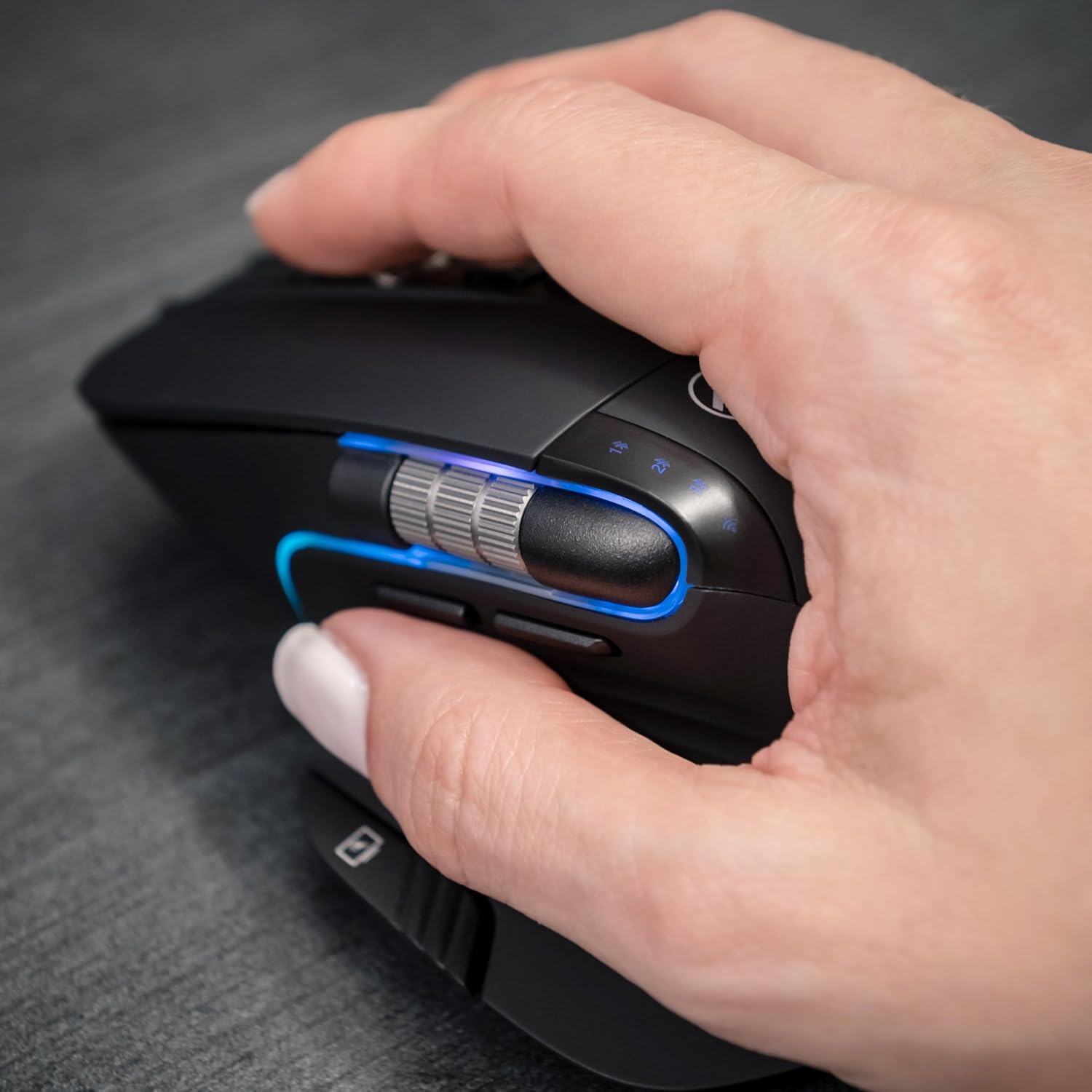
Image: A hand operating the TELLUR Shade Wireless Mouse, demonstrating the ergonomic grip and the placement of the Windows Home button accessible by the thumb.
6. Tiaki
- Te horoi: Whakamahia he kakahu ngohengohe, maroke hei horoi i te kiore. Mo te paru maro, he paku damp Ka taea te whakamahi i te kakahu, engari kia tino kore te makuku e uru ki roto i te taputapu.
- Rokiroki: Ki te kore e whakamahia mo nga wa roa, whakawetohia te kiore kia ora ai te pākahiko. Whakaorangia ki te waahi makariri, maroke.
- Tiaki Pūhiko: Avoid fully discharging the battery frequently. Recharge when the battery indicator is low.
- Aukati i nga Tikanga Tino: Do not expose the mouse to extreme temperatures, direct sunlight, or high humidity.
7. Te Raru
7.1. Kaore Te Kiore e Whakautu
- Me mohio kei te kaha te kiore.
- Tirohia te taumata pākahiko, ā, whakakīia te kiore mēnā e tika ana.
- Verify that the correct connection channel (2.4GHz, BT1, BT2, or BT3) is selected using the Multi-Device Switch Button.
- For 2.4GHz connection, ensure the Nano receiver is securely plugged into a working USB port. Try a different USB port.
- For Bluetooth connection, ensure Bluetooth is enabled on your device and try re-pairing the mouse.
- Tīmataria tō rorohiko, tō pūrere rānei.
7.2. Hononga Wā-poto
- Ensure the mouse is within the effective range (up to 10 meters).
- Whakaitihia te pokanoa mai i ētahi atu taputapu ahokore (hei tauira, ngā pouara Wi-Fi, ētahi atu taputapu Nihokikorangi).
- A ape i te whakamahi i te kiore i runga i nga papa whakarewa, ka raru pea nga tohu ahokore.
7.3. Cursor Movement Issues
- Horoia te pūoko whatu kei raro o te kiore.
- Whakamahia te kiore i runga i te mata ma, kaore i te whakaata, i te papa kiore ranei.
- Adjust the DPI setting using the DPI Adjustment Button.
7.4. Kāore e Mahi ana te Rama RGB
- Me mohio kei te kaha te kiore.
- Press the Forward and Backward buttons simultaneously to cycle through lighting modes or to turn it on if it was previously off.
- Check battery level; low battery might disable RGB lighting to conserve power.
8. Whakatakotoranga
| Waitohu | TELLUR |
| Ingoa Tauira | TLL491261 |
| Tau tauira | 491261 |
| Hangarau Hononga | Bluetooth, 2.4GHz Wireless (via Nano receiver) |
| Huringa Huringa | Optical |
| DPI Tairongo | 800/1200/1600/2400/3200 DPI |
| Te maha o nga Patene | 8 (including silent click, DPI, multi-device switch, forward/backward, horizontal scroll, Windows Home) |
| Takotoranga-ringa | Ambidextrous |
| Nga waahanga motuhake | Silent Click, RGB Light, Multi-device (4 devices), Lightweight, Portable |
| Pūrere Hototahi | Personal Computer, Laptop, Smartphones, Tablets |
| Tautoko Pūnaha Whakahaere | Windows, Mac, iOS, Android, Linux |
| Mokowoko Korekore | Tae atu ki te 10 mita |
| Puna Mana | Pūhiko (Ka taea te whakahou mā te USB-C) |
| Pūhiko Wawaenga Te Ora | Tata ki te 20 nga ra |
| Rauemi | Kirihou |
| Taumaha Tūemi | 0.29 Kirokaramu |
9. Pūtāhui me te Tautoko
For warranty information and technical support, please refer to the warranty card included with your product or visit the official TELLUR webpae. Puritia to riirii hoko hei tohu mo te hoko mo nga kereme whakamana.
Ko ngā mōhiohio whakapā mō te tautoko ka kitea i te paetukutuku a te kaihanga. webte waahi kei runga ranei i te kohinga hua.