
1. Kupu Whakataki
This manual provides detailed instructions for the installation, operation, and maintenance of your Xprinter XP-370B Thermal Barcode Sticker Printer. Please read this manual thoroughly before using the printer to ensure proper functionality and to prevent damage.
2. Nga korero haumaru
- Honoa tonutia te pūreretā ki tētahi putanga hiko e hono ana ki te whenua.
- Do not expose the printer to water or high humidity.
- A ape i te whakatakoto i te kaituhi ki te ra tika, ki te tata ranei ki nga puna wera.
- Use only Xprinter approved accessories and power adapters.
- Kia matara atu te pūreretā i ngā tamariki.
- Do not attempt to disassemble or repair the printer yourself. Contact qualified service personnel for assistance.
3. Ihirangi mokete
Manatokona kei roto katoa nga mea kei roto i te kete:
- Xprinter XP-370B Thermal Barcode Sticker Printer
- Pūurutau Hiko
- Tauira USB
- Aratohu Timata Tere (mehemea kei roto)
4. Hua Neke Atuview
The Xprinter XP-370B is a compact and efficient thermal printer designed for barcode and sticker printing. It features high-speed printing capabilities and supports various connectivity options.

Whakaahua 4.1: Mua-matau view of the Xprinter XP-370B Thermal Barcode Sticker Printer.

Whakaahua 4.2: Taha view illustrating the power button and top cover key for accessing the media compartment.
5. Tatūnga
5.1 Te Wetewete me te Whakanoho
- Āta tango i te pūreretā mai i tōna tākainga.
- Whakanohoia te kaituhi ki runga i te mata papatahi me te whai hau tika.
- Ensure there is enough space around the printer for cable connections and media loading.
5.2 Te hono i te Kaireretā
- Honoa te urutau hiko ki te tauranga hiko o te pūreretā, kātahi ka mono ki te putanga hiko.
- Connect the printer to your computer using the provided USB cable. The printer also supports Serial, Ethernet, and Bluetooth connectivity options depending on the model.
- Turn on the printer using the power button located on the side (refer to Figure 4.2).
5.3 Te uta i ngā pāpāho tā
- Press the top cover key (refer to Figure 4.2) to open the printer's top cover.
- Place the roll of thermal labels into the media compartment. The maximum label diameter supported is 100mm.
- Adjust the paper guide to fit the width of your labels securely.
- Pull a small length of labels past the print head.
- Katia te taupoki o runga kia pāwhiri rā anō ki tōna wāhi tika.
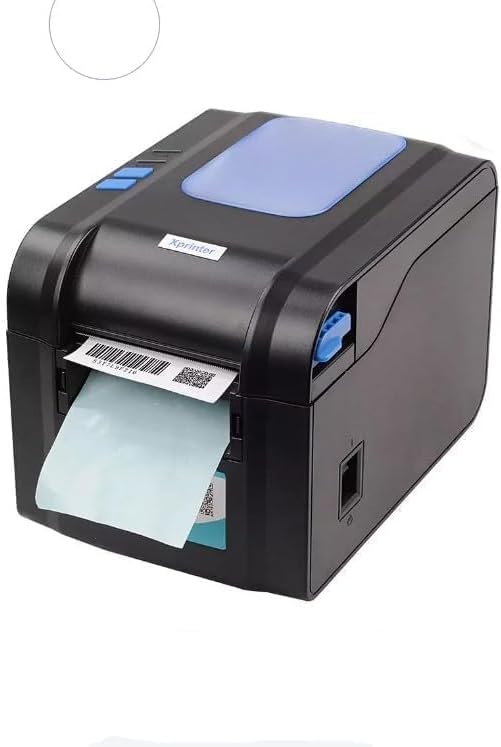
Figure 5.3: The printer demonstrating a label being fed out after printing.
5.4 Tāuta Atekōkiri
- For Windows systems, insert the driver CD (if provided) or download the latest drivers from the official Xprinter webpae. Whaia nga tohutohu i runga-mata mo te whakaurunga.
- For Android and iOS devices, download the appropriate printing application from your device's app store.
6. Nga Tohutohu Whakahaere
6.1 Tuhinga Taketake
- Me mohio kei te hiko te pūreretā me te hono ki tō pūrere.
- Open the document or application from which you wish to print.
- Select the Xprinter XP-370B from your list of available printers.
- Adjust print settings such as label size, orientation, and density as needed.
- Initiate the print command. The printer will begin printing at speeds up to 152mm/s.
7. Tiaki
7.1 Te horoi i te Pūreretā
- Whakawetohia, momotuhia te pūreretā i mua i te horoinga.
- Whakamahia he kakahu ngohengohe, kore karekau dampened with isopropyl alcohol to gently clean the print head.
- Clean the exterior of the printer with a soft, dry cloth.
- Kaua e whakamahi i nga kai horoi me nga whakarewa.
8. Te Raru
- Kāore te pūreretā e whakautu ana: Check power connection, USB/Serial/Ethernet/Bluetooth connection, and ensure drivers are correctly installed.
- Kounga tānga ngoikore: Clean the print head, ensure correct media type is used, and check print density settings.
- tāmi pepa: Open the top cover, carefully remove any jammed labels, and re-load the media correctly.
- Labels not feeding: Ensure labels are loaded correctly and the paper guide is adjusted properly. Check for any obstructions.
9. Whakatakotoranga
| Āhuahira | Whakatakotoranga |
|---|---|
| Waitohu | Xprinter |
| Tau tauira | XP-370B |
| Hangarau Pūreretā | Ngawha |
| Hangarau Hononga | USB, Serial, Bluetooth, Ethernet (options vary) |
| Tere Tā mōrahi | Tae atu ki te 152 mm/s |
| Morahi Rahi Media | 4 x 6 inihi |
| Maximum Label Diameter | 100 mm |
| Papapāho tā | Tapanga |
| Putanga Pūreretā | Monochrome |
| Rahi Tūemi (D x W x H) | 15D x 7W x 10H henimita |
| Taumaha Tūemi | 300 g |
| Pūnaha Whakahaere Tautoko | Windows, Android, iOS |
10. Pūtāhui me te Tautoko
For warranty information and technical support, please refer to the documentation provided with your purchase or visit the official Xprinter webpae. Puritia to riirii hoko hei tohu mo te hoko mo nga kereme whakamana.