
1. Hua Neke Atuview
The ROCAM 11.5-inch Large Display Digital Calendar Clock (Model ROCAM-CR1005) is designed for clear readability, displaying time, period of the day, full day of the week, month, date, and indoor temperature. It features multiple alarm settings, a 5-level adjustable dimmer, and dual USB charging ports for convenience.
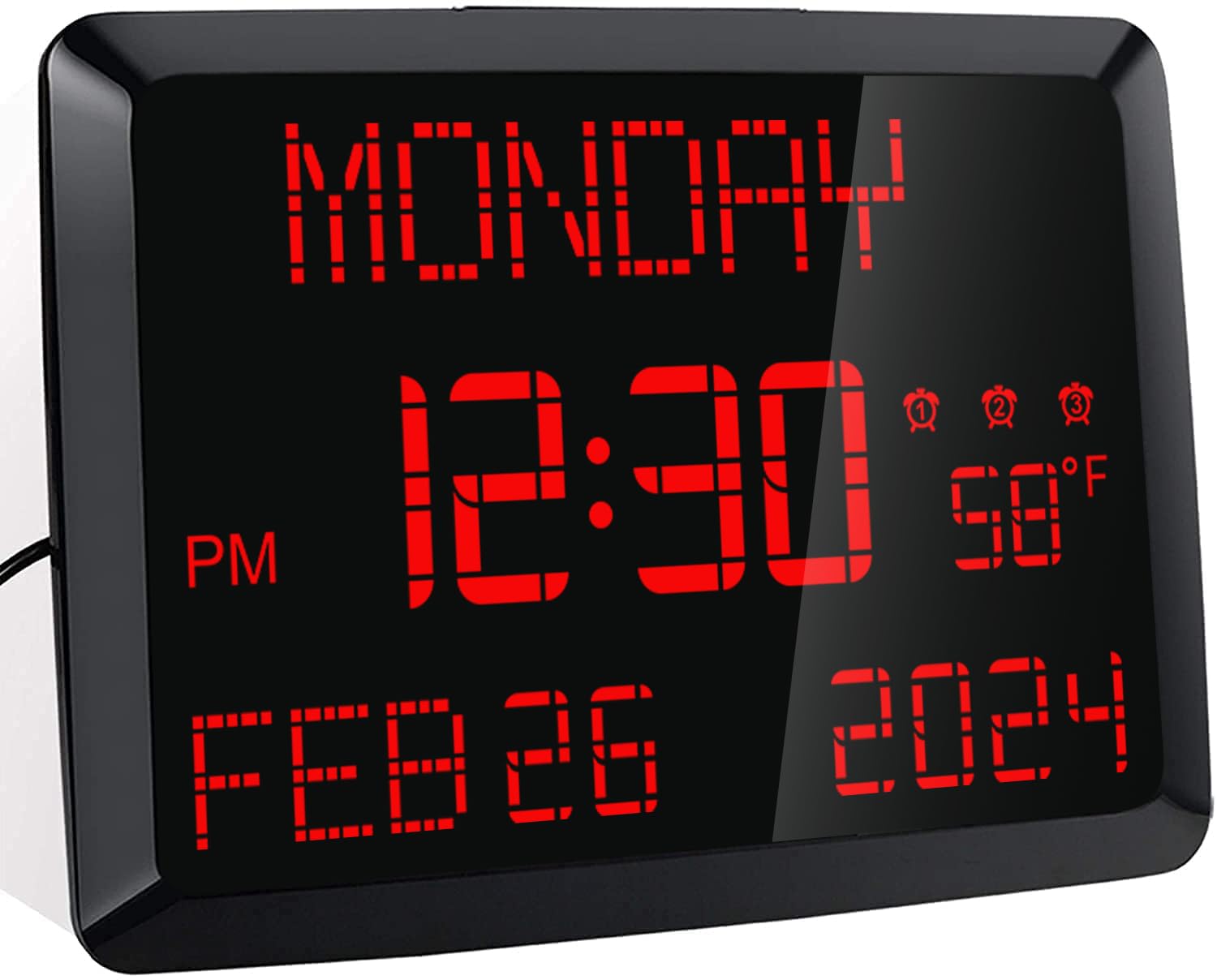
Whakaahua: Mua view of the ROCAM 11.5-inch Digital Calendar Clock displaying time, date, day of the week, and temperature.
2. Ihirangi mokete
Manatokona kei roto katoa nga mea kei roto i te kete:
- ROCAM 11.5" Digital Calendar Clock
- Pūurutau Hiko
- USB Itini taura
- CR2032 Backup Battery (pre-installed or included separately)
- Pukapuka Kaiwhakamahi
- Paepae Turangapu
- Wall Mounting Hardware (if applicable)
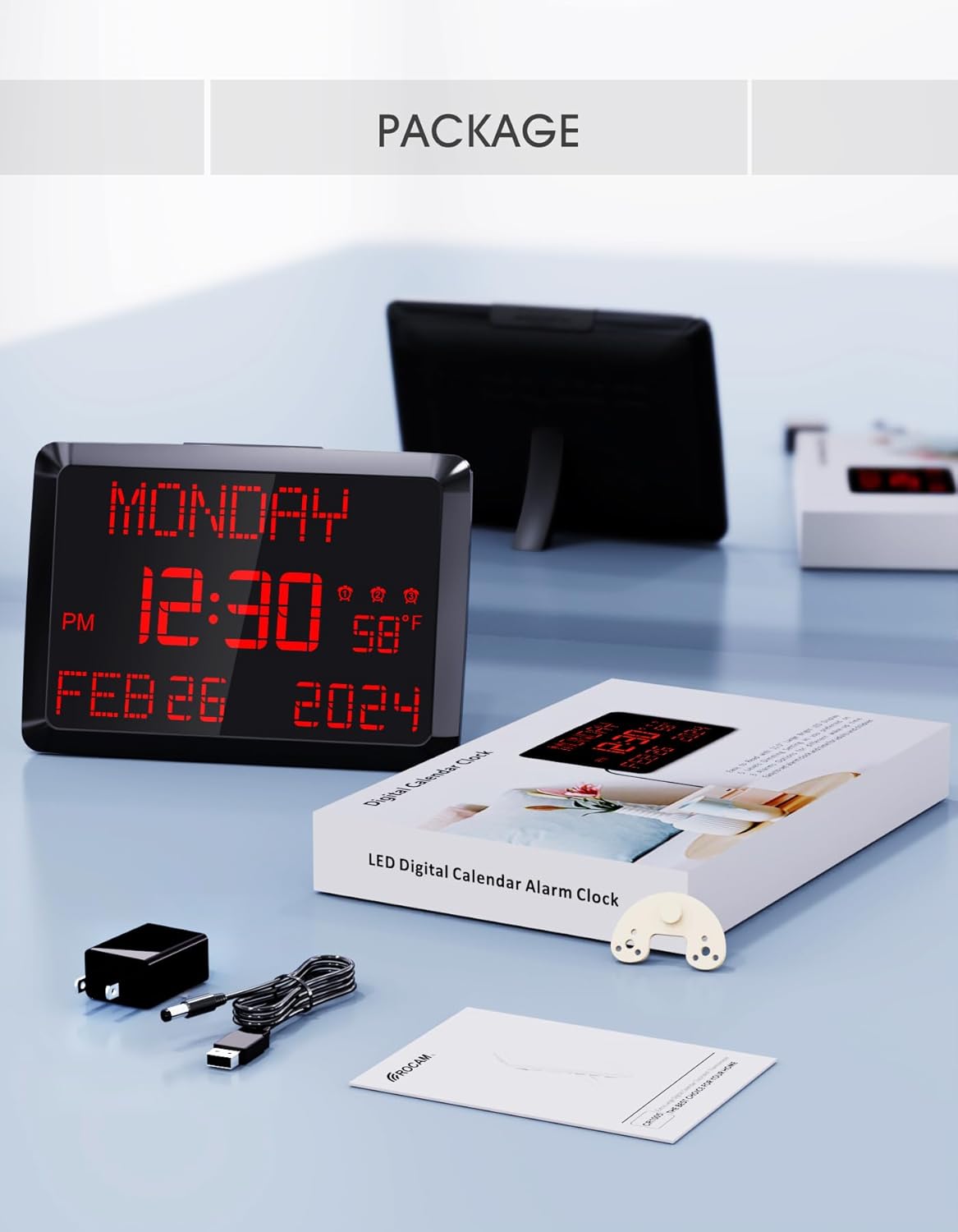
Image: The ROCAM Digital Calendar Clock and its accessories, including the power adapter, USB cable, and user manual.
3. Tohutohu Tatūnga
3.1 Hononga Hiko
- Connect the USB power cable to the clock's DC 5V input port.
- Monohia te urutau hiko ki te putanga hiko paerewa.
- The clock display will illuminate.
Video: Demonstrates plugging in the power cord and connecting it to the clock, showing the clock's display activating. This video also shows the dual USB charging ports in use.
3.2 Backup Battery Installation (if not pre-installed)
The clock includes a CR2032 backup battery to retain time and settings during power outages. If not already installed, locate the battery compartment on the back of the clock and insert the CR2032 battery with the positive (+) side facing up.

Image: Detail of the CR2032 backup battery slot on the rear of the clock, indicating its location for power failure memory.
3.3 Kōwhiringa Whakanoho
The clock can be placed on a desk or mounted on a wall.
- Turanga Papamahi: Attach the provided stand bracket to the back of the clock.
- Whakapiki taiepa: Use the keyhole slot on the back of the clock to hang it on a screw or nail. Ensure the clock is securely mounted and level.

Whakaahua: Rear view of the clock illustrating both the desk stand and the wall hanging hole. Dual USB charging ports are also visible.
4. Nga Tohutohu Whakahaere
4.1 Tautuhi Wā me te Rā
Use the buttons on the back of the clock to adjust the time and date. Specific buttons are provided for RA, MARAMA, TAU, HOUR, a MINI adjustments. Refer to the labels on the back panel for precise control.
- Aratau 12/24: Use the dedicated switch button on the back to toggle between 12-hour and 24-hour time formats.
- Wā Tiaki Awatea (DST): Press the 'DST' button to activate or deactivate Daylight Saving Time.

Image: The clock showing both 12-hour and 24-hour display options, highlighting the switch for changing modes.
4.2 Tautuhinga Whakaoho
The clock supports up to three independent alarms. Use the alarm setting buttons on the back to configure each alarm.
- Press the corresponding alarm button (1, 2, ranei 3) to enter alarm setting mode.
- Whakamahia te '+' me '-' buttons to adjust the alarm time.
- PēhiOK' to confirm the time.
- Select the alarm frequency: Everyday, Weekdays Only (Mon-Fri), or Weekend Only (Sat-Sun).
- To turn off an alarm for 24 hours or permanently, use the 'Whakaoho MATE' button.
- Mahinga Tohu: Press the large 'SNOOZE / DIMMER' button on top of the clock to activate a 9-minute snooze.
- Rōrahi whakaoho: The alarm volume is adjustable with 15 levels (60dB-108dB). Adjust using the volume controls during alarm setup.

Image: Visual guide to setting the three alarms, including options for daily, weekday, or weekend activation, and volume adjustment.
Video: Demonstrates setting the alarm time, adjusting volume, and selecting alarm frequency (Mon-Fri, Mon-Sun, Sat-Sun).
4.3 Te Kanapa o te Whakaaturanga (Te Whakaiti i te Ata)
The clock features a 5-level adjustable dimmer. Press the 'SNOOZE / DIMMER' button on the top of the clock to cycle through the brightness levels to suit your preference.

Image: The clock display at five different brightness settings, illustrating the dimmer function controlled by the top button.
4.4 Tauira USB USB
The clock includes two USB charging ports (5V 1A) on the side, allowing you to charge compatible devices such as smartphones or tablets.

Image: The clock with two devices charging simultaneously via its dual USB ports.
5. Tiaki
To ensure optimal performance and longevity of your ROCAM Digital Calendar Clock, follow these simple maintenance guidelines:
- Te horoi: Gently wipe the clock's surface with a soft, dry cloth. Avoid using abrasive cleaners, solvents, or chemical sprays, as these can damage the display or casing.
- Waea Hiko: Periodically check the power cord for any signs of damage. If the cord is damaged, discontinue use and contact customer support.
- Turanga: Place the clock in a stable location, away from direct sunlight, excessive heat, or moisture.
6. Te Raru
If you encounter issues with your ROCAM Digital Calendar Clock, refer to the following common solutions:
| Raruraru | Rongoa pea |
|---|---|
| Kua weto te whakaaturanga karaka. |
|
| Ka ngaro te wā/ngā tautuhinga i muri i te whakawetonga hikotage. |
|
| Karekau te oro oro, he wahangu rawa ranei. |
|
| He kanapa rawa te whakaaturanga, he atarua rawa ranei. |
|
| USB charging ports are not working. |
|
7. Whakatakotoranga Hua
| Āhuahira | Taipitopito |
|---|---|
| Tau tauira | ROCAM-CR1005 |
| Momo Whakaatu | Arahina Mamati |
| Rahi Whakaatu | 11.5 inihi (hauroki) |
| Hunga Hua | 9.96" W x 7" H |
| Puna Mana | Corded Electric, Outlet Powered (DC 5V) |
| Pūhiko Pūrua | 1 x CR2032 (included, for memory retention only) |
| Whakaoho | 3 independent alarms with 7-5-2 setting modes (Everyday, Weekdays, Weekends) |
| Mahi Whakamoe | meneti 9 |
| Dimmer Levels | 5 levels (manual adjustment) |
| Tauranga Whakatau USB | 2 ports, 5V 1A output each |
| Whakaaturanga Pawera | °F / °C ka taea te whakawhiti |
| Hōputu Wā | 12H / 24H switchable |
| Momo Whakaeke | Maunga Pakitara me te Papa Tēpu |
| Rauemi | Kirihou |
| Taumaha Tūemi | 16 hekere (1 pauna) |
8. Pūtāhui me te Tautoko
ROCAM provides an 18-month warranty for this product. For any questions, technical assistance, or warranty claims, please contact ROCAM customer support. Lifetime free user support is available.
Contact information can typically be found on the product packaging or the official ROCAM webpae.