
1. Hua Neke Atuview
The POLONO P31S is a compact and portable thermal label printer designed for various labeling needs in home, office, and school environments. It connects wirelessly via Bluetooth to your smartphone or tablet, allowing you to design and print labels using the dedicated mobile application. This device features a built-in cutter and operates without ink, utilizing thermal printing technology for clear, durable labels.
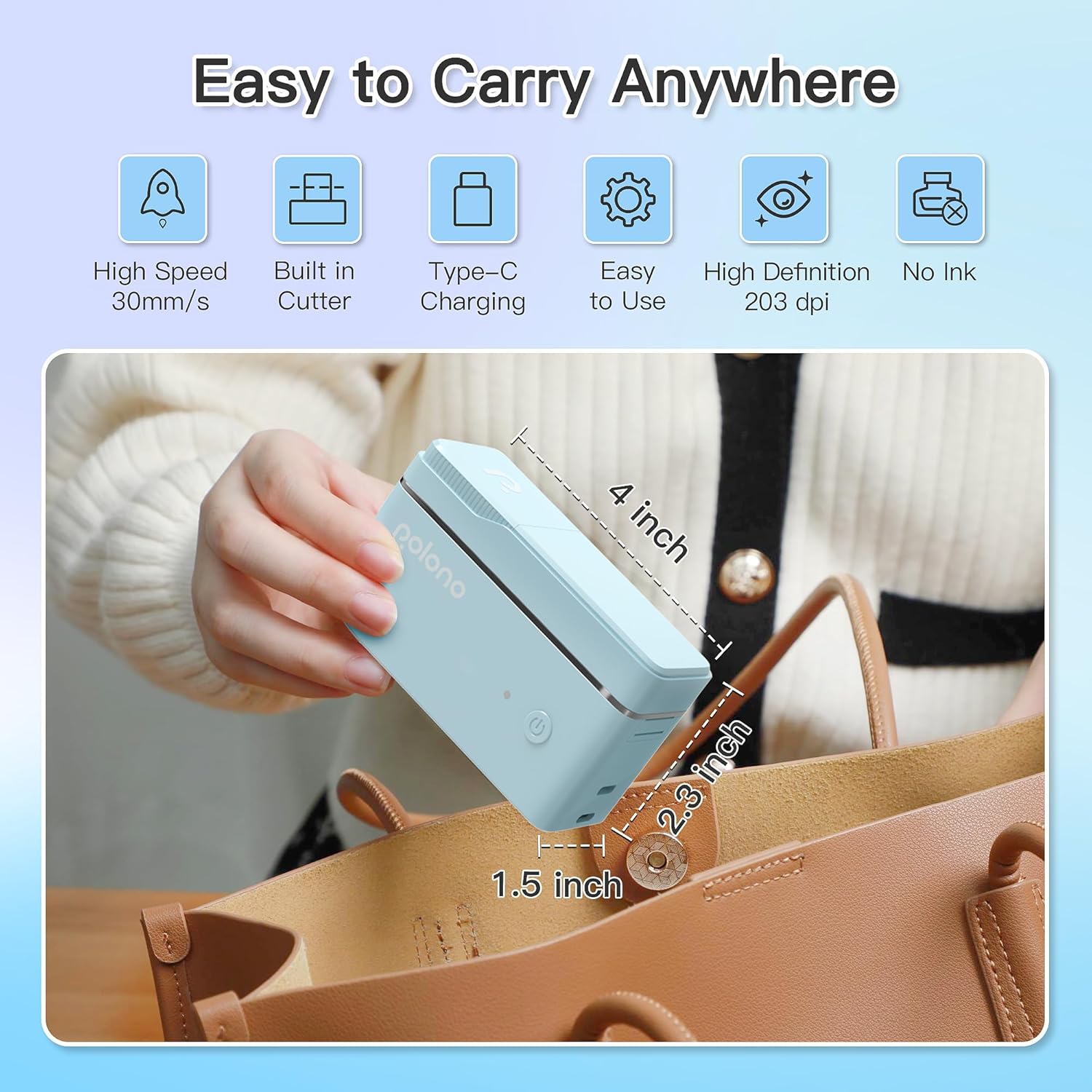
Whakaahua 1: POLONO P31S Label Printer highlighting its compact design and dimensions (approximately 4 inches long, 2.3 inches high, 1.5 inches wide).
Āhuatanga matua:
- Hoahoa kawe me te mama.
- Bluetooth connectivity for wireless printing.
- Thermal printing technology (no ink required).
- Built-in label cutter.
- Supports various label types including text, QR codes, barcodes, and images.
- Pūhiko whakahoki taea.
2. Nga korero haumaru
Please read and understand all safety instructions before using the POLONO P31S label printer to prevent injury or damage to the device.
- Kaua e wetewete, whakatika, whakarereke ranei i te taputapu.
- Tiakina te taputapu mai i te wai, te makuku, me te wera nui.
- Use only POLONO-approved label tapes to ensure optimal performance and prevent damage.
- Avoid touching the print head immediately after printing, as it may be hot.
- Kaua e taea e nga tamariki.
- Use the provided charging cable or a certified equivalent.
3. Ihirangi mokete
Manatokona kei roto katoa nga mea kei roto i te kete:
- POLONO P31S Label Printer
- Label Tape Roll (starter roll)
- Tauira Whakatau USB
- Pukapuka Kaiwhakamahi (tenei tuhinga)
4. Tatūnga
4.1 Te Whakataki i te Pūrere
Before first use, fully charge the label printer. Connect the provided USB charging cable to the printer's charging port and to a USB power adapter (not included) or a computer's USB port. The indicator light will show charging status.
4.2 Installing Label Tape
- Whakatuwheratia te taupoki o te wāhanga tapanga.
- Insert the label tape roll with the printing surface facing up, ensuring it is properly seated.
- Pull a small portion of the label tape out, extending it past the cutter blade.
- Katia te taupoki o te wāhanga tapanga kia mau.

Whakaahua 2: Proper installation of POLONO P31S label tape. Ensure the green sticker on the tape is not removed or damaged, as it contains chip technology for optimal performance. Do not pull the label out directly; use the cutting blade.
4.3 Tikiake Taupānga me te Hononga Nihokikorangi
- Download the "Labelnize" app from the Apple App Store or Google Play Store.
- Turn on the POLONO P31S label printer by pressing and holding the power button.
- Whakahohea te Nihokikorangi i runga i to waea atamai papa ranei.
- Open the "Labelnize" app. The app will prompt you to allow Bluetooth access. Grant permission.
- Within the app, search for available devices and select "P31S" to connect.
- Once connected, the app will indicate a successful connection, and you are ready to create labels.
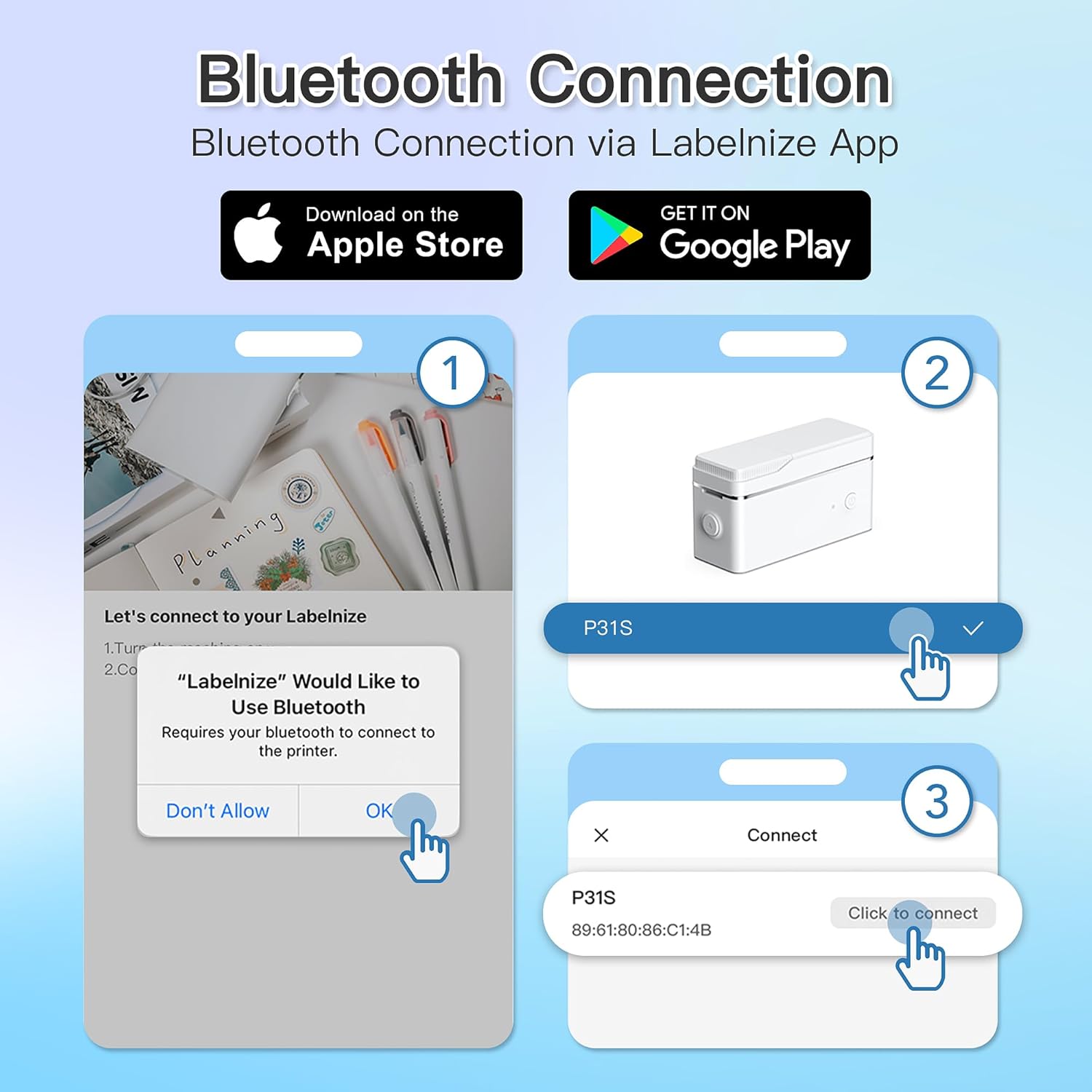
Whakaahua 3: Steps for Bluetooth connection via the Labelnize App. Download the app, allow Bluetooth access, select "P31S" from the device list, and click "Connect".
5. Nga Tohutohu Whakahaere
5.1 Creating Labels with the Labelnize App
The Labelnize app offers a variety of tools to design your labels:
- Kuputuhi: Enter custom text, choose from over 90 fonts, adjust size, style (bold, italic), and alignment.
- Taitapa: Select from over 95 border designs to frame your labels.
- Icons/Graphics: Access a library of over 670 tab icons and other graphics to enhance your labels.
- QR Code/Barcode: Generate QR codes or barcodes for various applications.
- Whakaahua: Insert images from your device's gallery.
- Tātauira: Utilize pre-designed templates for common labeling tasks.

Whakaahua 4: The Labelnize app interface for creating labels, offering extensive customization options including borders, fonts, and icons. The app supports multiple languages.
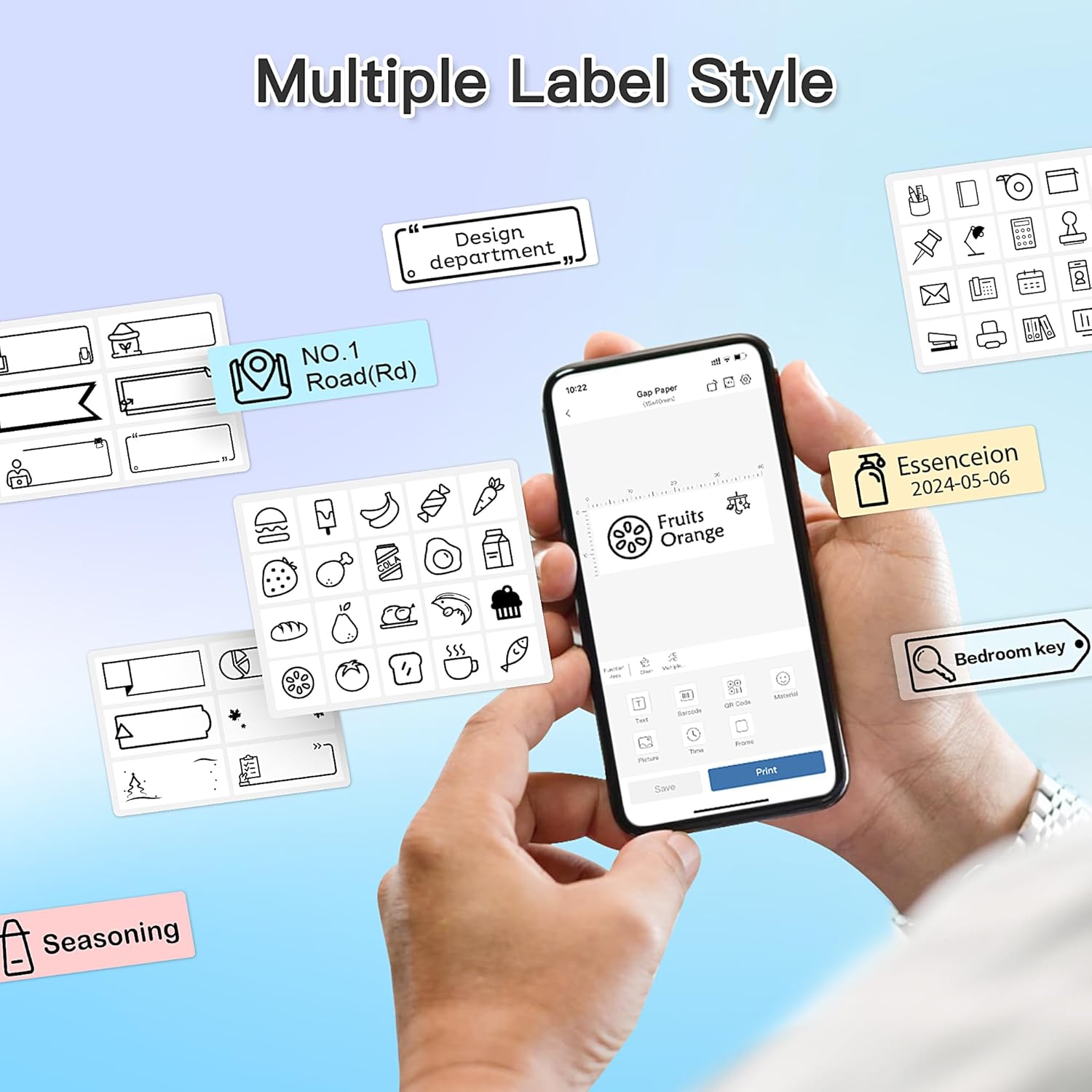
Whakaahua 5: Examples of diverse label styles achievable with the POLONO P31S, demonstrating the flexibility in design for different organizational needs.
5.2 Tapanga Tapanga
After designing your label in the Labelnize app:
- Review your label design on the app screen.
- Tap the "Print" button within the app.
- Confirm print settings (e.g., number of copies) if prompted.
- The printer will automatically feed and print the label.
5.3 Using the Built-in Cutter
The POLONO P31S features a built-in cutter for clean and precise label separation. After printing, gently press the cutter button or lever (depending on model variation) to cut the label. Do not pull the label manually to tear it, as this may damage the printer or result in uneven cuts.
6. Tiaki
6.1 Te horoi i te Upoko Ta
To maintain print quality, clean the print head periodically:
- Whakawetohia te pūreretā, ka momotu i te taura hiko.
- Whakatuwheratia te taupoki o te wāhanga tapanga.
- Mā te ata horoia te pane tā ki te miro miroampka whakakiia ki te waipiro isopropyl.
- Allow the print head to dry completely before closing the cover and turning on the printer.
6.2 Tiaki Pūhiko
- Charge the battery regularly, even if the printer is not used frequently, to prolong its lifespan.
- A ape i te tuku katoa i te pākahiko mo nga wa roa.
- Whakaorangia te pūreretā ki te wāhi mātao, maroke ina kore e whakamahia.
7. Te Raru
| Raruraru | Take pea | Rongoā |
|---|---|---|
| Kāore te pūreretā e tahuri. | He iti te pākahiko, he kore hiko ranei. | Me utu te pūreretā mā te taura USB kua whakaratohia. |
| Kaore e taea te hono ma te Nihokikorangi. | Bluetooth is off, printer is off, or app issue. | Ensure printer is on, Bluetooth is enabled on your device, and restart the Labelnize app. Try re-pairing. |
| He iti te kounga o te tuhi. | Dirty print head, incorrect label tape, or low battery. | Clean the print head (Section 6.1). Ensure you are using POLONO P31S compatible label tape. Charge the printer. |
| Label jam. | Improper tape installation or foreign object. | Turn off the printer, open the cover, carefully remove any jammed tape. Reinstall tape correctly. |
| Printer not responding. | Hapa rorohiko rangitahi. | Restart the printer and the Labelnize app. |
8. Whakatakotoranga
| Āhuahira | Taipitopito |
|---|---|
| Tauira | P31S |
| Hangarau Tā | Ngawha |
| Hononga | Nihokikorangi |
| Whakataunga Tā | 203 x 203 DPI |
| Tere Tā Max (Monochrome) | 15 ppm |
| Te Rahi Media Max | Label rolls (2 inches / 24 millimeters) |
| Tae Waituhi | Mangu (tānga wera) |
| Puna Mana | 1 pākahiko Lithium Polymer (kei roto) |
| Hunga Hua | 7.2 x 7.4 x 12.7cm; 260g |
| Nga Waahanga kei roto | Tapanga |
9. Pūtāhui me te Tautoko
For warranty information and technical support, please refer to the official POLONO webpaetukutuku, whakapā atu ranei ki ta raatau ratonga kaihoko. Puritia to riirii hoko hei tohu mo te hoko mo nga kereme whakamana.
Whaimana Webpae: www.polono.com (Tuhipoka: He waahi tenei URL, tēnā manatokohia te mana tūturu website for POLONO products.)