
SZSINOCAM B0CPXDFVRP
Szsinocam Wi-Fi Camera Outdoor/Indoor User Manual
Model: B0CPXDFVRP | Brand: SZSINOCAM
1. Kupu Whakataki
This manual provides detailed instructions for the installation, operation, and maintenance of your Szsinocam Wi-Fi Camera. Designed for both outdoor and indoor surveillance, this camera offers advanced features to enhance your security and monitoring needs. Please read this manual thoroughly before using the product to ensure proper setup and optimal performance.

Figure 1: Szsinocam Wi-Fi Camera and Mobile Application Interface
2. Nga Hua o te Hua
The Szsinocam Wi-Fi Camera is equipped with a range of features designed for comprehensive surveillance:
- Dual Lens & Dual Screen Monitoring: Features two independent lenses allowing simultaneous monitoring of two different areas.
- Atahanga Whakataunga teitei: Ka hopu i te maamaa me te kiko o te footage with 4-megapixel resolution.
- Flexible Pan & Tilt: Offers a 355° horizontal rotation and 60° vertical tilt for extensive coverage.
- Topa Mamati 6x: Allows for closer inspection of details within the monitored area.
- Three Night Vision Modes: Supports infrared, full-color, and intelligent night vision for clear viewkei roto i nga ahuatanga marama iti.
- Te Motini me nga Matohi: Automatically detects movement and sends instant notifications to your connected device.
- Ororongo Ara-rua: Enables real-time communication through the camera's built-in microphone and speaker.
- Kōwhiringa Rokiroki Maha: Supports both cloud storage and local storage via a Micro SD card (up to 256GB, sold separately).
- Tāuta maha: Can be mounted on a wall, placed on a flat surface, or installed on the ceiling.

Figure 2: Dual Lens and Dual Screen Capability

Figure 3: High-Resolution 4MP Image Quality
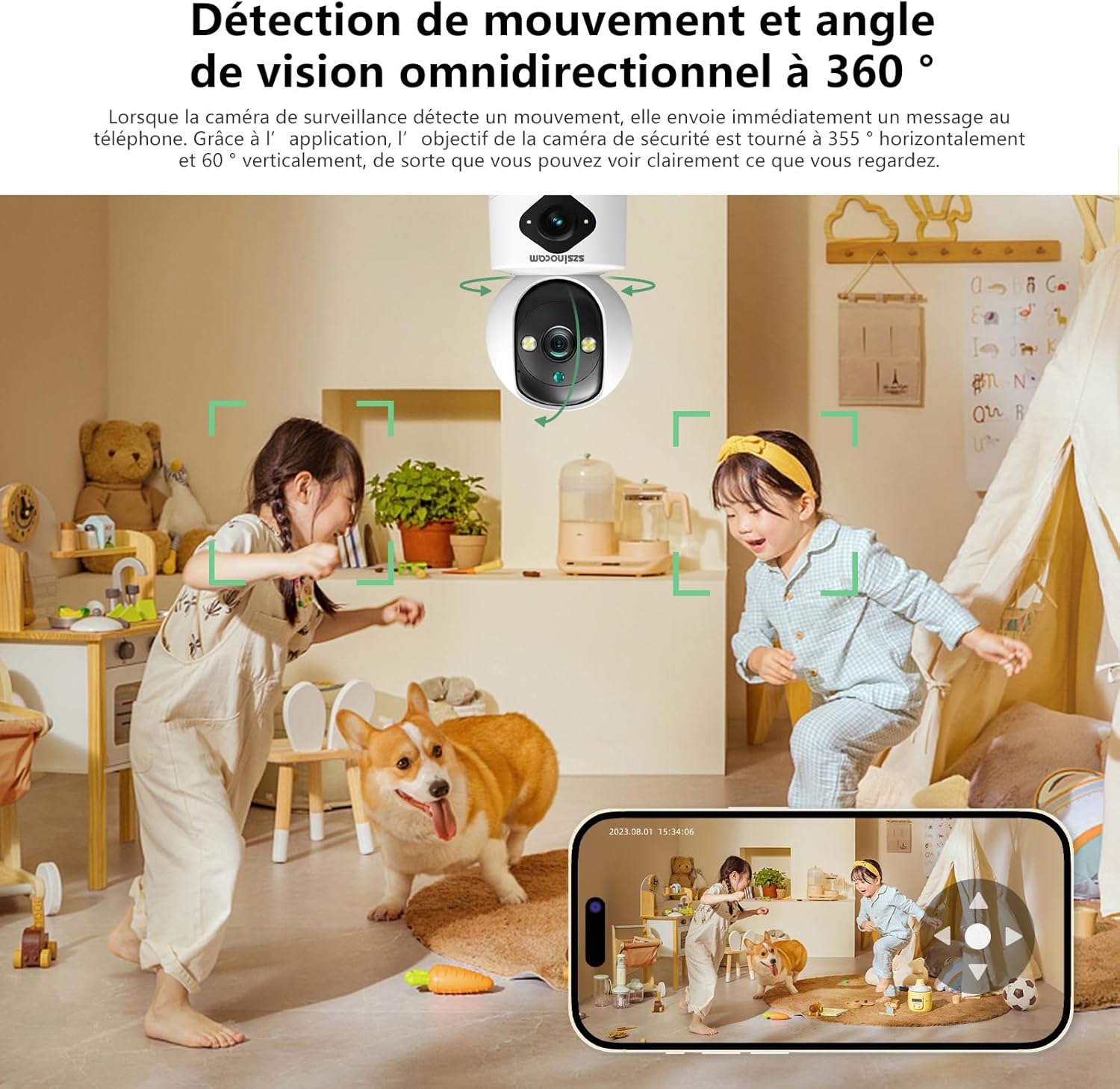
Figure 4: Three Night Vision Modes
3. Aratohu Tatūnga
3.1 Ihirangi mokete
I mua i te haere tonu, kia tino mohio kei roto i te kete ngā taonga katoa:
- Szsinocam Wi-Fi Camera
- Pūurutau Hiko
- Tauira USB
- Whakauranga Taiapa me nga Tiu
- Pukapuka Kaiwhakamahi (tenei tuhinga)
3.2 Whakamana i te Kaamera
- Honoa te taura USB ki te tauranga hiko o te kamera.
- Monohia tetahi pito o te taura USB ki te urutau hiko kua whakaratohia.
- Monohia te urutau hiko ki tētahi putanga hiko paerewa. Ka whakakā te kāmera, ā, ka tīmata tana raupapa tīmatanga.
3.3 Taupānga Taupānga Pūkoro
Hei whakahaere me view your camera, you need to install the dedicated mobile application:
- Scan the QR code provided on the camera packaging or in the quick start guide to download the official application. Alternatively, search for the application name (e.g., "OKAM PRO" or similar) in your device's app store (App Store for iOS, Google Play Store for Android).
- Whakauruhia te tono ki to waea atamai papa ranei.
- Rēhitahia he pūkete hōu, takiuru mai ranei mena kua whai koe i tetahi.
3.4 Whakahoahoa kamera
Follow these steps to pair your camera with the mobile application:
- Ensure your mobile device is connected to a 2.4GHz Wi-Fi network. The camera supports both 2.4GHz and 5GHz Wi-Fi.
- Open the mobile application and select "Add Device" or the '+' icon.
- Choose the camera type (e.g., "Wi-Fi Camera" or "Smart Camera").
- Follow the on-screen prompts to enter your Wi-Fi network name (SSID) and password.
- The application will generate a QR code. Position your camera's lens approximately 15-20 cm (6-8 inches) in front of your phone screen, ensuring the QR code is clearly visible to the camera.
- Wait for the camera to emit a confirmation sound or voice prompt indicating successful connection.
- Ina hono ana, ka taea e koe te whakaingoa i to kamera ka timata te ora viewing.
4. Nga Tohutohu Whakahaere
4.1 Ora View me te Whakahaere
After successful pairing, tap on the camera's name in the application to access the live view. Mai i konei, ka taea e koe:
- Pan & Honga: Use the directional controls on the screen to rotate the camera horizontally (355°) and vertically (60°).
- Topa Mamati: Pinch to zoom in or out on the live feed (up to 6x).
- Ororongo Ara-rua: Pāwhiritia te ata hopuoro hei kōrero mā te kaikorero o te kāmera, ā, whakarongo mā te kaikorero o tō waea.
- Snapshot & Record: Capture still images or record video clips directly to your phone's gallery.
4.2 Te tuhi me te rokiroki
Ka tautokohia e te kamera nga tikanga tuhi tuatahi e rua:
- Rokiroki Kari SD Micro: Insert a Micro SD card (up to 256GB, Class 10 or higher recommended) into the designated slot on the camera. The camera will automatically begin recording based on your settings (continuous, motion-triggered).
- Rokiroki Kapua: Subscribe to the cloud storage service through the mobile application for secure, off-site video backup. This ensures your footage is safe even if the camera is damaged or stolen.

Figure 5: Recording Options: Cloud and Micro SD Card
4.3 Te Motini me nga Matohi
Configure motion detection settings in the application:
- Whakahohe/ Monokia: Turn motion detection on or off.
- Tairongo: Adjust the detection sensitivity to minimize false alarms.
- Matohi: Whiwhi whakamōhiotanga pana i runga i tō pūrere pūkoro ina kitea he nekehanga.
- Rohe Mahi: Tautuhia nga waahanga motuhake i roto i te kamera view mo te kimi nekehanga.

Figure 6: Motion Detection and Wide Angle View
4.4 Aratau Matakitenga Po
The camera offers three night vision modes for optimal viewing in various low-light conditions:
- Aratau Pūkaha: Provides clear black and white images in complete darkness using infrared LEDs.
- Tirohanga Po Tae Katoa: Utilizes built-in spotlights to provide full-color images even in very low light.
- Aratau Maramarama: Ka huri aunoa i waenga i ngā aratau pūwhero me te tae-katoa i runga i ngā āhuatanga nekehanga, mārama rānei kua kitea.
5. Kōwhiringa Tāuta
The Szsinocam Wi-Fi Camera offers flexible installation to suit your needs:
- Whakapiki taiepa: Use the provided mounting bracket and screws to secure the camera to a wall.
- Turanga Mata Papatahi: Simply place the camera on any flat surface like a table, shelf, or desk.
- Whakanuia te tuanui: Attach the camera to the ceiling using the mounting bracket for an overhead view.

Figure 7: Flexible Installation Options
6. Tiaki
- Te horoi: Whakamahia he kakahu ngohengohe, maroke hei horoi i te arotahi kamera me te tinana. Kaua e whakamahi i nga kai horoi wai, i nga taonga abrasive ranei.
- Whakahōu Firmware: Regularly check the mobile application for firmware updates. Keeping your camera's firmware updated ensures optimal performance, new features, and security enhancements.
- Nga Tikanga Taiao: Ensure the camera is operated within its specified temperature and humidity ranges. Avoid direct exposure to extreme weather conditions if installed outdoors without proper protection.
7. Te Raru
| Raruraru | Take pea | Rongoā |
|---|---|---|
| Karekau te kamera i te hiko. | Power adapter or cable faulty; no power from outlet. | Check power connection. Try a different outlet or USB cable/adapter. |
| Unable to pair camera with app. | Incorrect Wi-Fi password; camera too far from router; 5GHz network used; QR code not scanned properly. | Ensure correct 2.4GHz Wi-Fi password. Move camera closer to router. Ensure QR code is clear and camera lens is clean. Reset camera if necessary. |
| Te kounga ahua koretake. | Mata paru; iti rawa te rama; nga take bandwidth whatunga. | Clean the camera lens. Ensure adequate lighting or enable appropriate night vision mode. Check Wi-Fi signal strength. |
| Karekau i tae mai nga matohi kitenga nekehanga. | Motion detection disabled; app notifications turned off; incorrect sensitivity. | Enable motion detection in app. Check phone notification settings. Adjust sensitivity. |
| Ko te kaari SD kaore i te tuhi. | SD card full, faulty, or not formatted; recording settings incorrect. | Format SD card via app. Replace SD card if faulty. Check recording schedule/settings. |
8. Whakatakotoranga
| Āhuahira | Taipitopito |
|---|---|
| Waitohu | SZSINOCAM |
| Tauira | B0CPXDFVRP |
| Whakataunga Tonu Whaihua | 3 MP |
| Tere Marumaru Morahi | 1/30 hēkona |
| Rahi Mokete (L x W x H) | 12.8 x 10.6 x 8.7 henimita |
| Taumaha mōkihi | 0.36 Kirokaramu |
| Hononga | Wi-Fi (2.4GHz/5GHz) |
| Rokiroki | Kaari SD Micro (tae atu ki te 256GB), Kapua Rokiroki |
| Te Ra Wātea Tuatahi | 16 Hakihea 2023 |
Tuhipoka: Ko nga korero ka huri ki te kore korero i mua.
9. Pūtāhui me te Tautoko
For warranty information and technical support, please refer to the contact details provided with your purchase or visit the official SZSINOCAM webpae. Puritia to riirii hoko hei tohu mo te hoko mo nga kereme whakamana.
Mo etahi atu awhina, ka taea ano e koe te whakapiri atu ki te kaihoko ma te papaahi i hokona ai te hua.
Ask a question about this manual
Ask about setup, troubleshooting, compatibility, parts, safety, or missing instructions. Manuals+ will review the question and use this page’s manual context to help answer it.