
1. Kupu Whakataki
The Qubo Smart Air Purifier Q400 is designed to provide cleaner, healthier air in your home. This manual provides essential information for setting up, operating, and maintaining your air purifier to ensure optimal performance and longevity.

Image: The Qubo Smart Air Purifier Q400, a modern white device designed to blend into home environments.
Āhuatanga matua:
- 4-Layer True HEPA H13 Filtration: Effectively removes up to 99.99% of pollutants, including pollen, dust, pet hair, smoke, cooking smells, and PM2.5 particles.
- QSensAI Technology: Built-in AI intelligently detects PM2.5 pollutants and automatically turns the device on/off, optimizing energy consumption.
- Taupānga me te Mana Reo: Control your purifier via the Qubo app or through voice commands with Alexa and Google Assistant.
- Multiple Purification Modes: Choose from Auto, Manual, Sleep, and QSensAI modes to suit your air quality needs.
- High CADR Performance: Purifies rooms up to 400 sq. ft. efficiently.
- Tātari Roa-Whaiaro: Enjoy up to 9000 hours of filter life with easy and cost-effective replacements.
Ataata: Kua mutuview of the Qubo Smart Air Purifier Q400's key features, including app control, voice control, and powerful filtration capabilities.
2. He aha kei roto i te Pouaka
Ina wetewetehia te kete, me whakarite kei reira ngā taonga katoa:
- Qubo Smart Air Purifier Q400 Unit
- Pukapuka Kaiwhakamahi (tenei tuhinga)
3. Tatūnga
Whāia ēnei mahi hei whakarite tere, ngāwari hoki:
- Wetekina te Pūhoro: Me ata tango te para rangi mai i tana putunga.
- Tango i te Taake Tātari: Open the filter compartment (usually located at the back or bottom) and remove the protective plastic packaging from the filter.
- Tāuta Tātari: Place the filter back into the compartment, ensuring it is securely seated. Close the compartment cover.
- Whakaturia te Parapara: Whakatakotoria te kaiwhakapai hau ki runga i tētahi mata papatahi, pumau, me te whakarite kia rawaka te wāhi huri noa kia pai ai te rere o te hau.
- Hono Hono: Monohia te taura hiko ki tetahi putanga hiko pai.
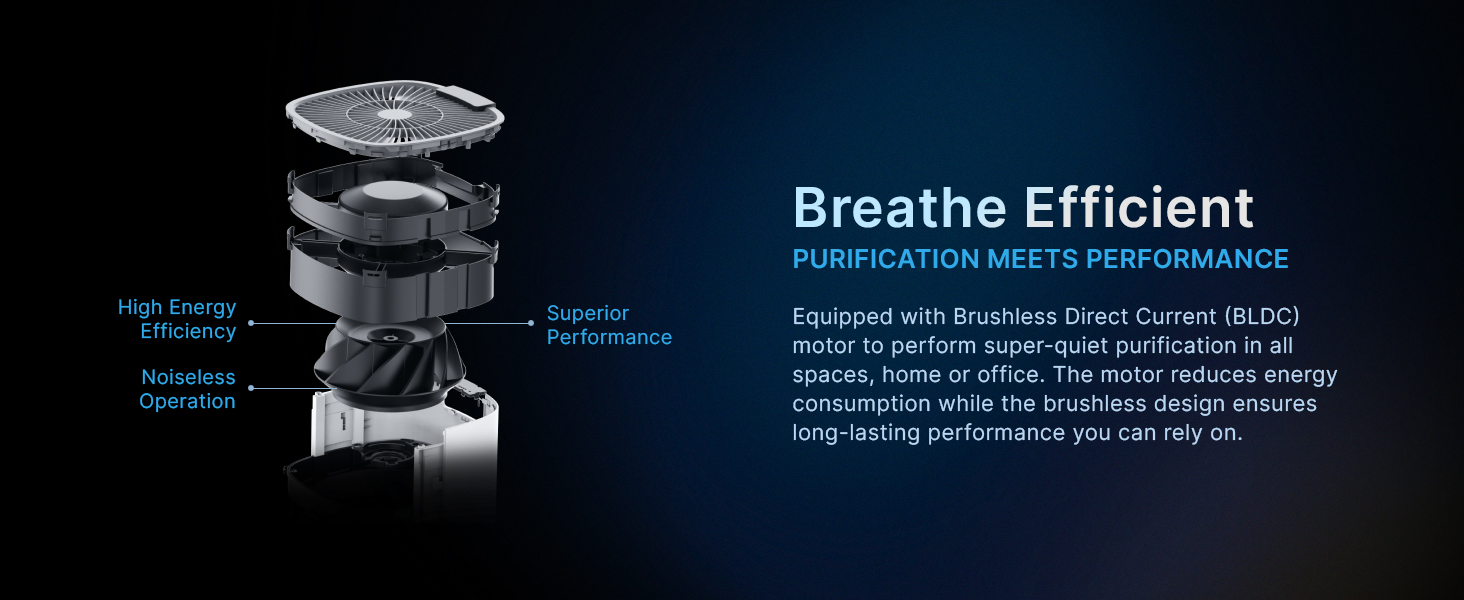
Image: A diagram showing the internal components of the Qubo Smart Air Purifier Q400, highlighting the filter installation process.
Video: Demonstrates the quick and easy setup of the Qubo Smart Air Purifier Q400, including filter installation and initial power-on.
4. Nga Tohutohu Whakahaere
4.1 Hiko / Whakaweto
Press the power button on the top panel of the purifier or use the Qubo app to turn the device on or off.
4.2 Modes of Purification
The Qubo Smart Air Purifier Q400 offers several operating modes:
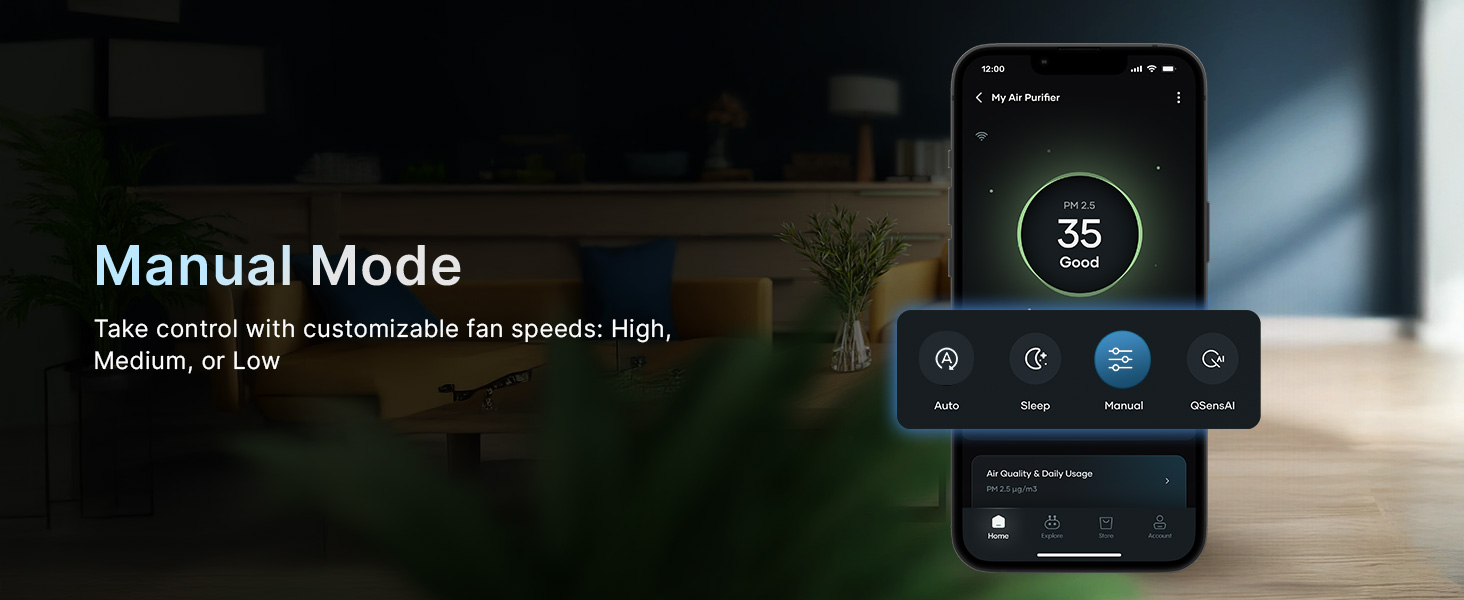
- Aratau Auto: The purifier automatically adjusts fan speed based on real-time air quality levels detected by its sensors.
- Aratau ā-ringa: Allows you to manually select the desired fan speed (e.g., low, medium, high) for customized purification.
- Aratau Moe: Operates at an ultra-quiet fan speed with a turned-off display for undisturbed sleep while maintaining air quality.
- QSensAI Mode: Utilizes built-in AI to intelligently detect PM2.5 pollutants and automatically switches the purifier on/off as needed, reducing energy consumption.
Whakaahua: He pahū view of the Qubo Smart Air Purifier's internal components, emphasizing the Brushless Direct Current (BLDC) motor for efficient and quiet operation.
4.3 Mana Taupānga
Download the Qubo app to control your air purifier remotely and access smart features:
- Whakawhiti Aratau: Change between Auto, Manual, Sleep, and QSensAI modes.
- Real-time AQI: Monitor the Air Quality Index (AQI) in your environment.
- Te Aroturuki i te Ora o te Tātari: Track the remaining life of your filter.
- Whakaritenga Whakaritenga: Set routines for energy-efficient operation, such as turning on before you arrive home.

Image: The Qubo app interface on a smartphone, demonstrating comprehensive control over the air purifier, including real-time AQI display and mode selection.
Video: A demonstration of the QSensAI feature, showing the air purifier automatically adjusting its operation based on detected PM2.5 levels.
4.4 Mana Reo
The Qubo Smart Air Purifier Q400 is compatible with Amazon Alexa and Google Assistant. Connect your purifier to your smart home ecosystem for hands-free control:
- "Alexa, turn on the smart air purifier."
- "Hey Google, set the air purifier to Auto mode."
- "Alexa, turn off the air purifier."

Image: The Qubo Smart Air Purifier Q400 positioned near an Amazon Echo Dot, demonstrating its compatibility with voice assistants for convenient control.
Ataata: He whakaaturanga poto potoasing the voice control functionality of the Qubo Smart Air Purifier Q400 with a smart assistant device.
5. Tiaki
5.1 Tātari Whakakapinga
The Qubo Smart Air Purifier Q400 filter has a life of up to 9000 hours. Regular filter replacement is crucial for maintaining optimal purification performance.
- Monitor filter life through the Qubo app.
- When the filter indicator light illuminates or the app notifies you, replace the filter.
- Replacement filters are available from authorized Qubo retailers.

Image: A detailed diagram of the Qubo Smart Air Purifier's 4-layer filtration system, highlighting its effectiveness against dust, pollen, pet fur, smoke, and other airborne particles.
6. Te Raru
If you encounter issues with your Qubo Smart Air Purifier Q400, refer to the following common troubleshooting tips:
- Kore Mana: Ensure the power cord is securely plugged into both the purifier and the electrical outlet. Check if the outlet is functional.
- Rererangi Heke: Verify that the filter is correctly installed and not obstructed by its packaging. Clean the pre-filter if it appears dusty.
- Haruru rereke: Check for any foreign objects inside the unit or if the filter is improperly seated.
- Nga Take Hononga Taupānga: Ensure your Wi-Fi network is stable and the purifier is within range. Restart both the purifier and your smartphone.
- AQI Reading Not Changing: Allow some time for the purifier to clean the air. Ensure the air intake and outlet are not blocked.
For persistent issues, please contact Qubo customer support.
7. Whakatakotoranga
| Āhuahira | Whakatakotoranga |
|---|---|
| Waitohu | Qubo |
| Tau tauira | HPH02 |
| Tae | Mā |
| Hunga Hua | 30.9D x 67.1W x 30.9H Henemita |
| Taumaha Tūemi | 10 Karamu |
| Puna Mana | Hiko Hiko |
| Tikanga Mana | Taupānga |
| Momo Tātari | HEPA |
| Te Rahi o te Papa | Up to 400 Square Feet (as per product title, specification says 1000 sq ft, but title is more specific to Q400) |
| Rahi Pupuri Matūriki | 0.1 microns (PM0.1) |
| Momo Kaiwhakahaere | Amazon Alexa, Kaiawhina a Google |
| Contaminant Filtration Capability | HEPA H13 |
| Nga waahanga motuhake | App & Voice Control, QSensAI |
| Tātari Ora | Tae atu ki te 9000 haora |
| Kaihanga | Hero Electronix Pvt. Ltd. |
| Whenua Taketake | Inia |

Image: The Qubo Smart Air Purifier Q400 effectively covering a room up to 400 sq. ft., ideal for bedrooms or study rooms.
8. Pūtāhui me te Tautoko
The Qubo Smart Air Purifier Q400 comes with a 1-Tau Whakaputanga Kaihanga.
For warranty claims, technical assistance, or any product-related inquiries, please contact Qubo customer support. Refer to the contact information provided in your product packaging or visit the official Qubo webpae.