
Xprinter XP-Q801K
Xprinter XP-Q801K Thermal Receipt Printer User Manual
Model: XP-Q801K
1. Kupu Whakataki
This manual provides comprehensive instructions for the setup, operation, and maintenance of your Xprinter XP-Q801K Thermal Receipt Printer. This printer is designed for efficient and reliable receipt printing in various business environments, featuring high-speed direct thermal printing and a USB interface for easy connectivity.

Whakaahua 1: Mua view of the Xprinter XP-Q801K Thermal Receipt Printer, showing the paper output slot and control buttons.
2. Tatūnga
2.1 Te Wetewete
Carefully remove the printer and all accessories from the packaging. Verify that all components are present:
- Xprinter XP-Q801K Thermal Receipt Printer
- Pūurutau Hiko
- Tauira USB
- Rōra Pepa (kaiwhakamātautau)
- Pukapuka Kaiwhakamahi (tenei tuhinga)
2.2 Te hono i te Kaireretā
Before connecting, ensure the printer is powered off. Locate the ports on the rear of the printer.
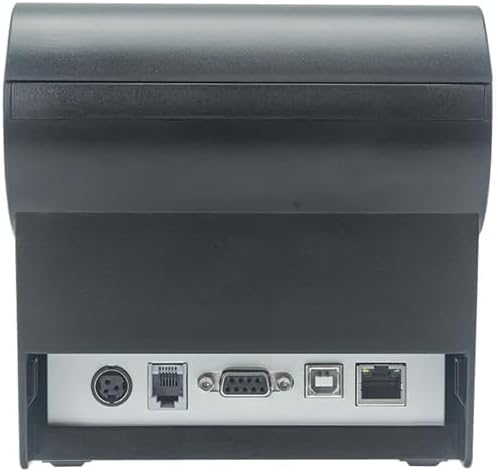
Whakaahua 2: Whakamuri view of the printer, highlighting the power, USB, and other interface ports.
- Hono Hono: Insert the power adapter cable into the printer's power input port (DC 24V/2.5A) and plug the adapter into a suitable electrical outlet (AC 100-240V, 50-60Hz).
- Tūhono USB: Connect one end of the provided USB cable to the USB port on the printer and the other end to an available USB port on your computer.
- Cash Drawer (Optional): If using a cash drawer, connect its cable to the cash drawer port (DC 24V/1A) on the printer.
2.3 Te uta i te Rōra Pepa
The printer uses 80mm wide thermal paper rolls.
- Open the paper cover by pushing the cover open button (usually located on the side or front).
- Insert the thermal paper roll with the printing surface facing the print head. Ensure the roll is seated correctly in the paper compartment.
- Tōia he iti o te pepa ki tua atu i te taputapu tapahi.
- Close the paper cover firmly until it clicks into place.
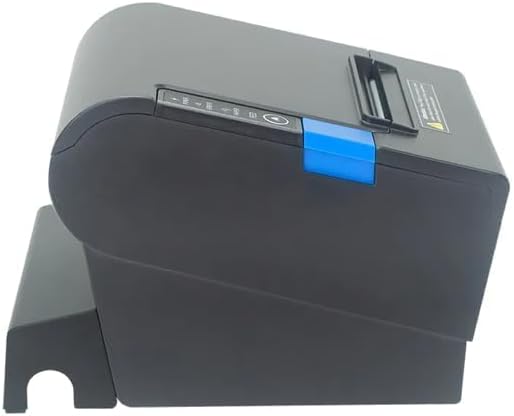
Whakaahua 3: Taha view of the printer, illustrating the paper cover mechanism.
2.4 Tāuta Atekōkiri
The printer requires a driver to communicate with your computer. Drivers are typically available for Windows, Linux, Android, and Mac operating systems.
- For Windows users, the printer often supports plug-and-play installation or requires a specific Windows driver.
- For Linux, Android, and Mac, SDKs (Software Development Kits) are usually provided for integration.
Tirohia ki te kaihanga website or the included driver CD/USB drive for the latest drivers and installation instructions specific to your operating system.
3. Whakahaere i te Kaireretā
3.1 Kei te Hiko / Weto
Locate the power switch on the side or rear of the printer. Flip the switch to the 'ON' position to power on the printer. The 'POWER' indicator light will illuminate. Flip to 'OFF' to power down.
3.2 Ngā Rama Tohu me ngā Pātene
The front panel typically features several indicator lights and buttons:
- MANA: E tohu ana kua whakakāhia te pūreretā.
- HAPA: Illuminates or flashes to indicate an error condition (e.g., paper out, print head overheating, cutter error).
- KAUPAPA: Indicates that the paper roll is low or out.
- Pātene Whangai: Press to manually feed paper. Hold to perform a self-test print (if supported by model).
3.3 Tuhinga Taketake
Once the printer is connected and drivers are installed, you can print receipts from your POS software or application. Ensure the printer is selected as the default or active printer in your system settings.
The printer supports various print speeds up to 300 mm/s and automatic paper cutting after each print job.
4. Tiaki
Mā te tiaki auau ka tino pai te mahi, ā, ka roa ake te ora o tō pūreretā.
4.1 Te horoi i te Upoko Ta
The print head should be cleaned regularly, especially if print quality degrades.
- Whakawetohia te pūreretā, ka momotu i te taura hiko.
- Whakatuwheratia te uhi pepa.
- Kia ngawari te whakamahi i te miro miro dampened with isopropyl alcohol (ethanol) to gently wipe the thermal elements of the print head.
- Tukua kia maroke rawa te pane tā i mua i te katinga o te taupoki me te hono anō i te hiko.
4.2 Te horoi i te Kaitapahi
Paper dust can accumulate around the cutter blade, affecting its performance.
- Whakawetohia te pūreretā, ka momotu i te taura hiko.
- Carefully remove any visible paper dust or debris from around the cutter blade using a soft brush or compressed air.
- Do not use liquids on the cutter.
4.3 Whakapai Whanui
Ūkuia te waho o te pūreretā ki te ngohengohe, damp kakahu. A ape i te whakamahi i nga matū kino, i nga horoi horoi ranei.
5. Te Raru
This section addresses common issues you might encounter with your printer.
| Raruraru | Take pea | Rongoā |
|---|---|---|
| Kāore te pūreretā e whakakā. | Power cable not connected; Power outlet faulty; Power switch off. | Ensure power cable is securely connected. Test power outlet. Turn power switch to 'ON'. |
| No printing. | Paper out; Paper loaded incorrectly; Driver not installed or incorrect; USB cable loose; Printer not selected. | Load new paper roll. Re-load paper correctly. Install/reinstall correct driver. Check USB connection. Select printer in software. |
| ERROR light is on/flashing. | Paper out; Paper jam; Print head overheating; Cutter error. | Load paper. Clear paper jam. Allow printer to cool down. Check cutter for obstructions. |
| He iti te kounga o te tuhi. | Dirty print head; Low quality paper; Old paper roll. | Clean the print head (see Section 4.1). Use high-quality thermal paper. Replace old paper rolls. |
Mena kei te haere tonu te raru i muri i te whakamatau i enei otinga, tena koa whakapā atu ki te tautoko a te kaihoko.
6. Whakatakotoranga
| Āhuahira | Taipitopito |
|---|---|
| Tikanga Ta | Waariki Tika |
| Whanui Pepa | 80 mm |
| Tere Tā | 230 mm/s, 260 mm/s, 300 mm/s |
| Atanga | USB |
| Mokowā Raina | 3.75 mm (adjustable by commands) |
| Character Size (ANK) | Font A: 1.5 × 3.0 mm (12 × 24 dots) Font B: 1.1 × 2.1 mm (9 × 17 dots) |
| Character Size (Chinese/Traditional Chinese) | 3.0 × 3.0 mm (24 × 24 dots) |
| Momo Waehere Pae | UPC-A / UPC-E / JAN13 (EAN13) / JAN8 (EAN8) / CODE39 / ITF / CODABAR / CODE93 / CODE128 |
| Waehere Pae 2D | QR Code / PDF417 |
| NV Flash Memory | 256 KB |
| Te Mana Whakauru | AC 100-240V, 50-60Hz |
| Te Mana Putanga | DC 24V/2.5A |
| Putea Putea Putea | DC 24V/1A |
| Taumaha | 1.0 kg |
| Ahinga (D × W × H) | 194.5 × 145 × 146.4 mm |
| Te Waahi Mahi | 0~45°C |
| Te haumākū whakahaere | 10~80% RH |
| Te ora tapahi | 1.5 miriona tapahi |
| Te Ora Upoko Print | 150 km |
| OS Hototahi | Windows, Linux, Android, Mac |