
Whakaaturanga Amazon Echo 21
Amazon Echo Show 21 Manual Kaiwhakamahi
Tauira: Whakaaturanga Echo 21
1. Kupu Whakataki
Welcome to your new Amazon Echo Show 21. This smart display is designed to be the central hub for your home, offering a large Full HD screen for entertainment, organization, and communication. With built-in Fire TV and Alexa, you can stream content, manage your smart home, make video calls, and keep your family organized with customizable widgets.

Figure 1.1: Amazon Echo Show 21 Overview
The Echo Show 21 integrates seamlessly into your daily life, providing a visual and interactive experience for all your Alexa commands.
2. Te Timata: Tatūnga
2.1 He aha kei roto i te Pouaka
- Echo Show 21 taputapu
- Alexa Voice Remote with batteries (2 AAA included)
- Pūurutau hiko (30W) me te taura 5 putu (mā)
- Wall mount, anchors, screws, mounting template
- He aratohu timata tere
2.2 Tatūnga Tuatahi
The Echo Show 21 is designed for simple setup. You will need a Wi-Fi connection.
- Whakahiko: Honoa te urutau hiko ki tō Echo Show 21 ka mono ki te putanga pakitara. Ka whakakā aunoa te pūrere.
- Hononga Wi-Fi: Follow the on-screen instructions to connect your device to your Wi-Fi network. Amazon Wi-Fi simple setup can automatically connect your device if you are a Prime member and have previously saved your Wi-Fi credentials.
- Takiuru Pūkete Amazon: Takiuru mā te whakamahi i ō taipitopito pūkete Amazon.
- Whakawhaiaro: Customize your home screen, set up profiles, and configure your preferred settings.
- Takirua Mamao: The included Alexa Voice Remote should pair automatically. If not, follow the on-screen instructions or refer to the quick start guide for manual pairing.
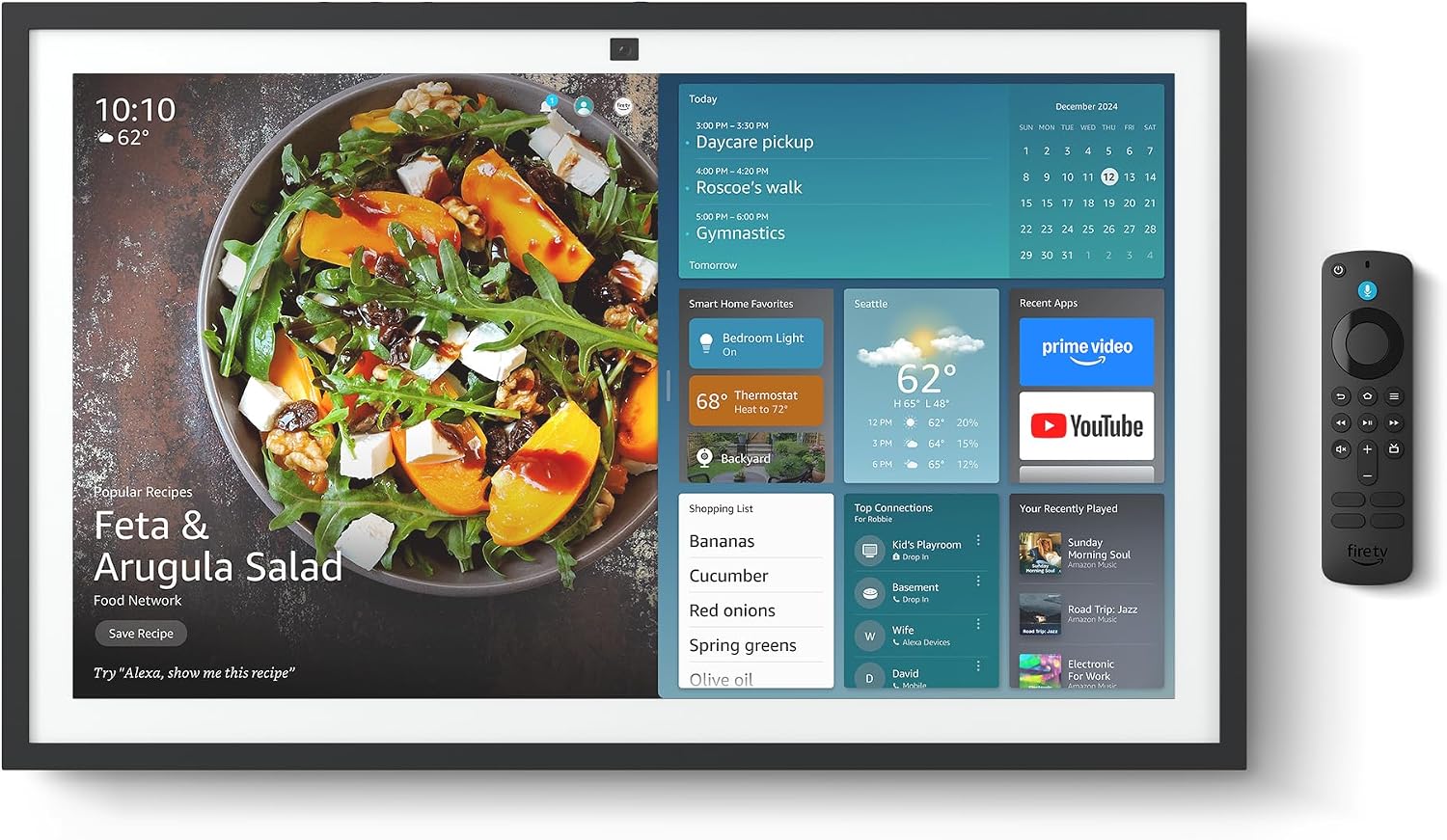
Figure 2.1: Echo Show 21 with Alexa Voice Remote
2.3 Kōwhiringa Whakaeke
The Echo Show 21 can be wall-mounted using the included hardware or placed on a stand (sold separately). Wall mounting requires an electric drill.
3. Te Whakahaere i tō Whakaaturanga Echo 21
3.1 Mana Reo me Alexa
Your Echo Show 21 is primarily controlled by voice using Alexa. Simply say the wake word "Alexa" followed by your command or question.
- Whakahau Whānui: "Alexa, kei te pēhea te āhua o te rangi?", "Alexa, whakatakotoria he taima mō ngā meneti 10."
- Waiata me te Ororongo: "Alexa, play pop music," "Alexa, play my morning playlist."
- Video & Entertainment: "Alexa, open Prime Video," "Alexa, play The Boys on Netflix."
3.2 Whakaurunga Pouaka Whakaata Ahi
Enjoy endless entertainment with built-in Fire TV. Use the included Alexa Voice Remote or voice commands to navigate.

Figure 3.1: Fire TV Interface
- Access thousands of apps like Prime Video, Netflix, YouTube, Apple TV.
- Stream movies, TV shows, and live content.
- The Fire TV remote allows for traditional navigation and playback control.
3.3 Home Screen & Widgets
The 21-inch display is ideal for organizing your day with customizable widgets.

Figure 3.2: Customizable Home Screen Widgets
- Keep important information like calendars, shopping lists, and weather in view.
- Personalize your home screen with family photos.
3.4 Mana Whakahaere Kāinga Atamai
Control compatible smart devices using your voice or the smart home dashboard.

Figure 3.3: Smart Home Dashboard
- Turn lights on/off, adjust thermostats, or view live camera feeds.
- Supports Zigbee, Matter, and Thread Border Router for broad compatibility.
3.5 Video Calling
Connect with family and friends using the 13 MP camera with auto-framing, wide field of vision, 3.3x zoom, and noise reduction.

Figure 3.4: Echo Show 21 as a Digital Photo Frame
The camera can also be used to display your favorite memories as a digital photo frame.
4. Tiaki
To ensure the longevity and optimal performance of your Echo Show 21, follow these maintenance guidelines:
- Te horoi i te Mata: Whakamahia he kakahu ngohengohe, kore karekau hei muru marie i te mata. Mo nga kohukohu pakeke, paku dampen the cloth with water. Avoid abrasive cleaners or sprays directly on the screen.
- Te horoi i te Tinana Pūrere: Wipe the exterior surfaces with a dry, soft cloth. Do not use harsh chemicals or solvents.
- Whakahau: Ensure the device's ventilation openings are not blocked to prevent overheating.
- Whakahōu Pūmanawa: Your Echo Show 21 receives automatic software security updates. Ensure your device is connected to Wi-Fi to receive these updates.
5. Te Raru
If you encounter issues with your Echo Show 21, try the following common solutions:
- Kaore te Pūrere i te whakautu: Try saying "Alexa" again clearly. If unresponsive, unplug the power adapter for a few seconds and then plug it back in to restart the device.
- Karekau he Hononga Wi-Fi: Check your router and modem to ensure they are working correctly. Restart your router. On the Echo Show 21, go to Settings > Network to re-select your Wi-Fi network and re-enter the password.
- Nga Take Ororongo: Ensure the volume is not muted or too low. Say "Alexa, turn up the volume." Check audio settings in the device menu.
- Kāre e Mahi ana te Kāmera: Ensure the physical camera shutter is open and the mic/camera-off button is not activated (red light indicates off).
- Mamao Kaore i te Whakautu: Check the batteries in the Alexa Voice Remote. If necessary, replace them. Re-pair the remote if it becomes disconnected.
6. Whakatakotoranga Hangarau
| Āhuahira | Whakatakotoranga |
|---|---|
| Rahi | 21.4"W x 13.2"H x 1.5"D |
| Taumaha | 10.7 lb |
| Whakaatu | 21” with 1920 x 1080 resolution (landscape or portrait) |
| Kāmera | 13 MP + Ārai |
| Ororongo | Two 2” woofers + two 0.6” tweeters |
| Hononga Wi-Fi | Wi-Fi 6E (802.1ax), Tri-band, pūihi-rua (MIMO). Tautoko 802.11a/b/g/n/ac. |
| Hub Kaa atamai | Zigbee + Matter + Miro Rohe Pouara |
| Tukatuka | Pūnaha Whakahaere Matū-Oketopa me te miihini whatunga io Amazon AZ2 |
| Pūoko | ALS RGB + Ine Whakatere |
| Reo | Ingarihi me Paniora |

Figure 6.1: Echo Show 15 vs. Echo Show 21 Dimensions
7. Ngā Āhuatanga Tūmataitinga
He maha ngā paparanga o ngā mana whakahaere tūmataiti kua hangaia mō te Echo Show 21:
- Mic/Camera-Off Button: He patene tinana hei momotu hiko i nga hopuoro me te kamera.
- Mauri kamera: A built-in physical shutter to cover the camera lens.
- Hangarau Wake Word: Alexa devices only begin recording and sending audio to the cloud after detecting the wake word.
- Tohu Rere: Ka whakaatu nga tohu tirohanga i te wa e rere ana te ororongo, ataata ranei ki te kapua.
- Voice Recording Control: Te kaha ki te view me te whakakore i o rekoata reo.

Figure 7.1: Mic/Camera-Off Button and Camera Shutter
Mo etahi atu korero, tirohia te Alexa Privacy Hub.
8. Āhuatanga Urunga
The Echo Show 21 includes various accessibility features to personalize Alexa to your abilities:
- Pato ki a Alexa: Whakauru atu ki a Alexa mā te pā atu mā roto i ngā taera mata, i te papapātuhi rānei.
- Whakarongo Urutau: Ka nui ake te wa ki te whakaoti korero i mua i te whakautu a Alexa.
- Rereke Korero Manakohia: Whakahaerehia te tere, te puhoi ranei o te korero a Alexa.
- Tapanga: Alexa Captioning, Call Captioning, and Closed Captioning provide text for supported content.
- Whakaatu me te Kōrero: Helps users who are blind or visually impaired identify products.
- ReoView Kaipānui Mata: Enables access for customers who are blind or visually impaired.
- Whakarahi Mata: Topa roto/waho me te panuku huri noa i te mata.
- Kindle Panui Nui: Me pānui ā-waha e Alexa ō pukapuka Kindle.
- Kuputuhi Wā Tūturu: Patohia te kuputuhi ora i roto i te waea ataata.
These features can be enabled via Settings > Accessibility on your device.
9. Pūtāhui me te Tautoko
9.1 Hua Whakatau
Your Echo Show 21 comes with a 1-tau iti pūtāhui me te ratonga. Optional 1-year, 2-year, and 3-year extended warranties are available for U.S. customers, sold separately.
Use of Echo Show 21 and Fire TV on Echo Show 21 is subject to their respective terms of service.
9.2 Tautoko Kiritaki
For further assistance, troubleshooting, or to learn more about your device, please visit the Amazon support webpae, whakapā atu ranei ki te ratonga kaihoko a Amazon.
Ask a question about this manual
Ask about setup, troubleshooting, compatibility, parts, safety, or missing instructions. Manuals+ will review the question and use this page’s manual context to help answer it.