
1. Kupu Whakataki
This manual provides essential information for the proper installation, operation, and maintenance of the Novastar A5S Plus LED Display Receiving Card. Please read this manual thoroughly before using the product to ensure optimal performance and longevity. The Novastar A5S Plus is an advanced receiving card designed to enhance the display effects of LED screens.
2. Hua Neke Atuview me nga ahuatanga
The Novastar A5S Plus Receiving Card offers significant improvements in display quality and control capabilities for LED screens. Key features include:
- Whakahaere Tae: Supports standard color gamuts (Rec.709 / DCI-P3 / Rec.2020) and custom color profiles for precise color reproduction.
- 18bit+ Grayscale Enhancement: Improves LED display grayscale by up to 4 times, preventing grayscale loss at low brightness levels and ensuring smoother image transitions.
- Pixel-Level Brightness and Chroma Calibration: Integrates with NovaStar's calibration system to adjust brightness and chroma for each pixel, achieving high consistency across the display.
- Quick Adjustment of Dark or Bright Lines: Corrects brightness discrepancies at module or cabinet seams for a uniform visual experience.
- Multi-batch Adjustment: Allows brightness adjustment of cabinets or modules to minimize display variations caused by different production batches.
- Rooputanga Iti: Reduces video source latency to 1 frame for PWM driver ICs. Custom firmware may be required for DCLK continuous PWM driver ICs.
- Taumahinga Ahu-3: Compatible with controllers that support 3D output.
- Individual Gamma Adjustment for RGB: Works with NovaLCT to allow separate adjustment of red, green, and blue gamma, improving image uniformity at low grayscale and correcting white balance offset.
- Te Hurihanga Whakaahua 90°: Supports image rotation in multiples of 90° (0°/90°/180°/270°).
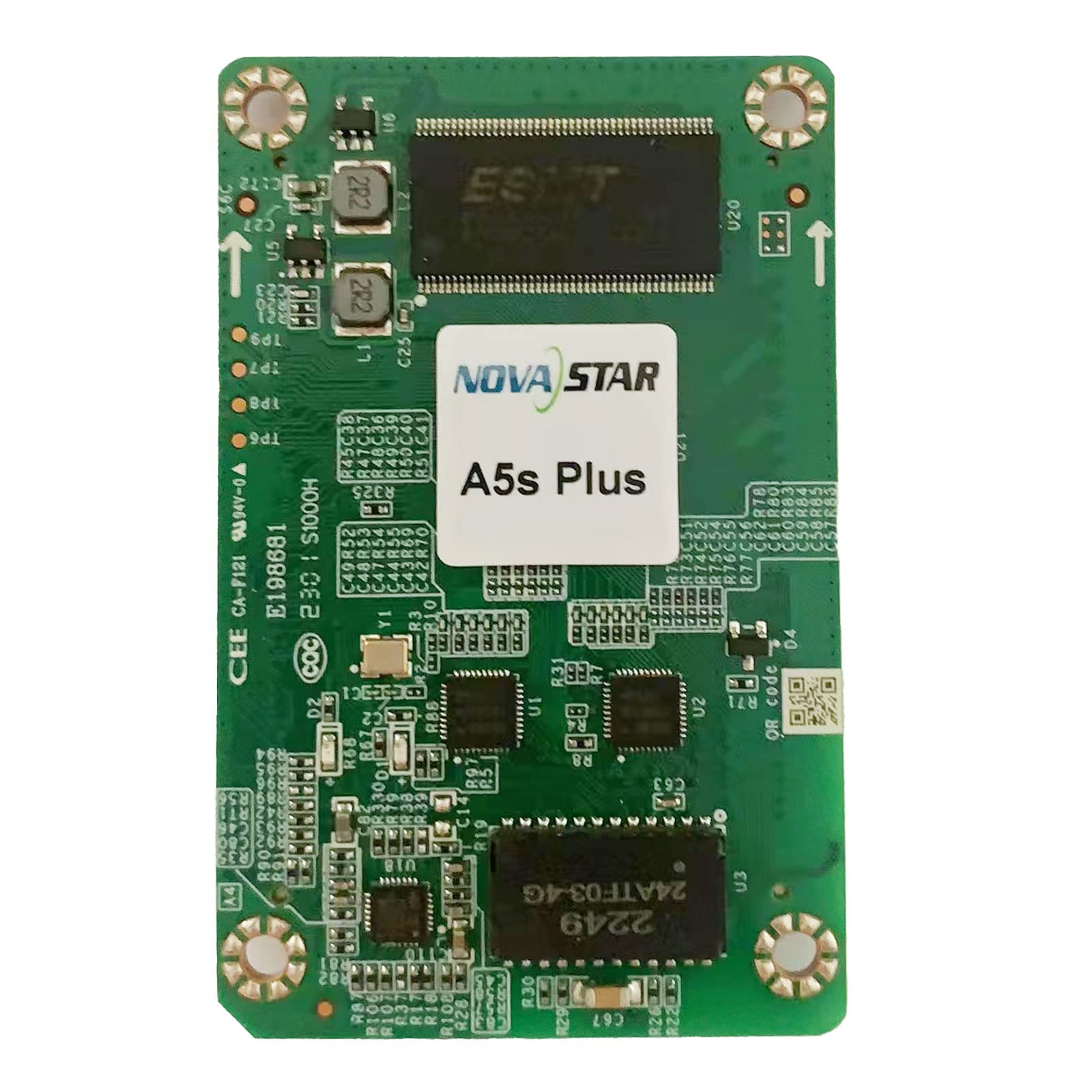
He upoko view of the Novastar A5S Plus LED Display Receiving Card, showcasing its green circuit board with various electronic components, connectors, and integrated circuits. Two prominent multi-pin connectors are visible on the left and right edges, designed for connecting to LED modules. Key components include resistors, capacitors, and a large integrated circuit labeled '2249 24ATF-03-4G' at the bottom.
3. Ihirangi mokete
I te whakatuwheratanga o te kete, tirohia koa kei te noho nga taonga katoa me te kore e pakaru:
- Novastar A5S Plus Receiving Card
- Tuhono teitei-kiato
- Assembly network transformer
- Pukapuka Kaiwhakamahi (tenei tuhinga)
4. Tohutohu Tatūnga
Follow these general steps for installing the Novastar A5S Plus Receiving Card into your LED display system:
- Weto Whakakore: Ensure all power to the LED display and control system is disconnected before installation.
- Kimihia te Mokowā: Identify the designated receiving card slot within your LED display module or cabinet.
- Kōkuhu Kāri: Carefully insert the Novastar A5S Plus card into the slot, ensuring it is seated firmly and correctly. Avoid applying excessive force.
- Connect Data Cables: Connect the data cables from the LED modules to the multi-pin connectors on the receiving card (e.g., JH1, JH2).
- Honoa Taura Whatunga: Connect the network cables from the sending card or control system to the appropriate network ports on the receiving card.
- Whakahiko: Once all connections are secure, restore power to the LED display and control system.
- Whirihoranga Pūmanawa: Use Novastar's control software (e.g., NovaLCT) to configure the receiving card parameters, including screen resolution, module type, and display settings. Refer to the software's user guide for detailed configuration steps.
5. Nga Tohutohu Whakahaere
The Novastar A5S Plus operates in conjunction with a Novastar sending card and control software. Basic operation involves:
- Whakakaha Pūnaha: Power on the sending card, then the LED display modules.
- Mana Pūmanawa: Launch the Novastar control software (e.g., NovaLCT) on your computer.
- Whakaaturanga Whirihoranga: Load the saved configuration file for your LED screen. If necessary, perform initial setup or adjustments.
- Whakahoki Ihirangi: Use the software to send video or image content to the LED display.
- Whakamahinga Ahuahira: Access advanced features like color management, pixel-level calibration, and image rotation through the control software interface to optimize display quality.
- Whakaweto Pūnaha: Power off the LED display modules first, then the sending card.
6. Tiaki
Proper maintenance ensures the longevity and reliable performance of your Novastar A5S Plus Receiving Card:
- Whakapai auau: Keep the card and its connectors free from dust and debris. Use a soft, dry brush or compressed air for cleaning. Ensure power is off before cleaning.
- Mana Taiao: Operate the card within recommended temperature and humidity ranges to prevent damage.
- Whakahōu Firmware: Tirohia te mana o Novastar i ia wā website for firmware updates. Apply updates as recommended to benefit from new features and bug fixes.
- Hononga Haumaru: Regularly inspect all cable connections to ensure they are secure and free from wear or damage.
- Whakahaere Tika: When handling the card, always use anti-static precautions to prevent electrostatic discharge (ESD) damage.
7. Te Raru
If you encounter issues with your Novastar A5S Plus Receiving Card, consider the following:
- No Display/Partial Display:
- Check power supply to the LED modules and receiving card.
- Verify all data and network cables are securely connected.
- Ensure the receiving card configuration in the control software matches the physical display setup.
- Test with a known working receiving card if available.
- Whakaaturanga Pikikī/Kore Pūmau:
- Tirohia mo nga hononga taura wetewete.
- Ensure the network cable quality is sufficient and within recommended lengths.
- Verify refresh rate settings in the control software.
- Incorrect Colors/Image Distortion:
- Perform color calibration using NovaStar's calibration system.
- Check gamma and color management settings in the control software.
- Ensure the correct module type is selected in the software configuration.
- Card Not Detected by Software:
- Verify network connectivity between the sending card and the receiving card.
- Ensure the control software is up-to-date.
- Check the status indicators (LEDs) on the receiving card for error codes.
For persistent issues, contact Novastar technical support.
8. Whakatakotoranga
| Āhuahira | Whakatakotoranga |
|---|---|
| Ingoa Tauira | A5S Plus |
| Te Uta Rahi | 512 × 384 pika |
| Parallel RGB Data Groups | 32 |
| Serial Data Groups | 64 |
| Kaitukatuka Whakairoiro | [Integrated] |
| Atanga Huaputa Ataata | HDMI, DVI (via sending card) |
| Pūrere Hototahi | Desktop (as part of LED display system) |
| Whakaatu Taumira Morahi | 320 x 256 (per card, typical) |
| Atanga Kaari Whakairoiro | PCI-Express x16 (for sending card connection) |
| Media Hanga-roto | High-density connector, Assembly network transformer |
| Kaihanga | Novastar |
9. Pūtāhui me te Tautoko
Novastar products typically come with a limited warranty. Please refer to the warranty card included with your product or visit the official Novastar website for detailed warranty terms and conditions. For technical assistance, troubleshooting, or product inquiries, please contact Novastar customer support through their official channels.