Kupu Whakataki
This manual provides detailed instructions for the setup, operation, maintenance, and troubleshooting of your Perixx PERIBOARD-332 Wired Backlit USB Keyboard. Please read this manual thoroughly before using the product to ensure optimal performance and longevity.

Image: The Perixx PERIBOARD-332 Wired Backlit USB Keyboard, showcasing tona hoahoa kiato.
Ihirangi mokete
Manatokona kei roto katoa nga mea kei roto i te kete:
- Perixx PERIBOARD-332 Wired Backlit USB Keyboard
- Tauira USB whakauru
- Pukapuka Kaiwhakamahi (tenei tuhinga)

Image: The Perixx PERIBOARD-332 keyboard, its integrated USB cable, the user manual, and the product packaging.
Tohutohu Tatūnga
Honoa te Papapātuhi: Locate an available USB port on your computer (PC, laptop, tablet, or smartphone with appropriate adapter). Insert the USB cable from the PERIBOARD-332 into the USB port.
Tāuta Atekōkiri: The keyboard is plug-and-play and typically does not require additional drivers for basic functionality on Windows, macOS, Linux, or Chrome OS. Your operating system should automatically detect and configure the device.
Turanga: Place the keyboard on a stable, flat surface. The compact design is ideal for small workspaces.
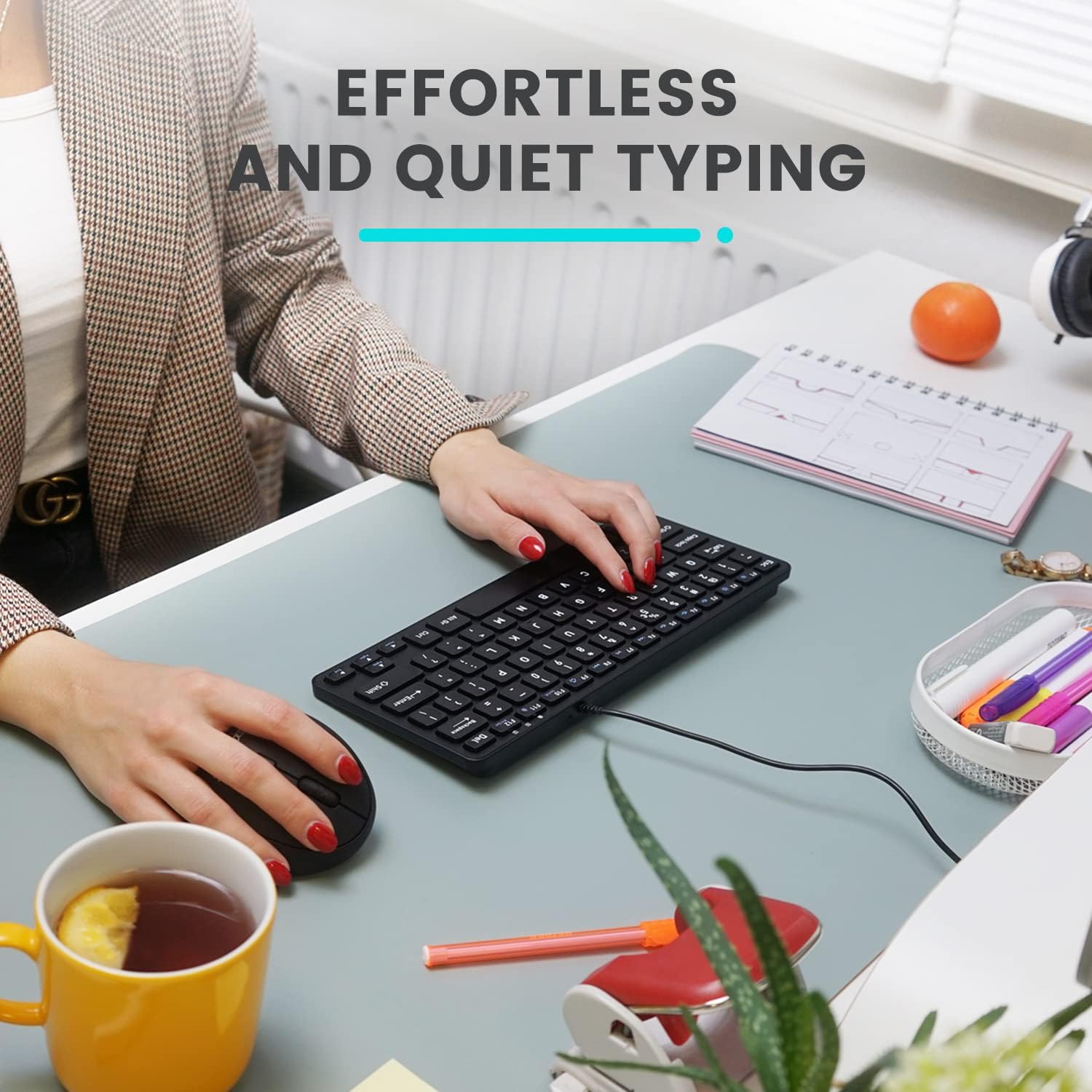
Image: A user typing on the Perixx PERIBOARD-332 keyboard, demonstrating its compact size and wired connection on a desk.
Nga Tohutohu Whakahaere
Whakamahinga Whanui
The Perixx PERIBOARD-332 features a standard US English QWERTY layout with 84 keys. Its low-profile scissor keys provide a quiet and comfortable typing experience, similar to laptop keyboards. The compact design helps optimize desk space.

Image: A user typing on the Perixx PERIBOARD-332 keyboard, highlighting its compact size and ergonomic placement in a workspace.

Whakaahua: Kati-ake view of the sculpted, low-profile scissor keys of the Perixx PERIBOARD-332, highlighting their design.
Function Keys (Fn Hotkeys)
The keyboard includes integrated Fn hotkeys for quick access to multimedia and system functions. These functions are primarily designed for Windows operating systems. For other operating systems (macOS, Linux, Chrome OS), their functionality may vary or require specific system settings/configurations.
- Fn+F1: Raka Fn
- Fn+F2: Backlight Brightness Adjustment (Cycle through levels)
- Fn+F3: Wahangu
- Fn+F4: Rōrahi Whakararo
- Fn+F5: Rōrahi Whakarunga
- Fn+F6: Tuhinga o mua
- Fn+F7: Purei/Tatari
- Fn+F8: Riro Panuku
- Fn+F9: Tatari
- Fn+F10: Panuku Maukati
- Fn+F11: Kōkuhu
- Fn+F12: Mata Tā
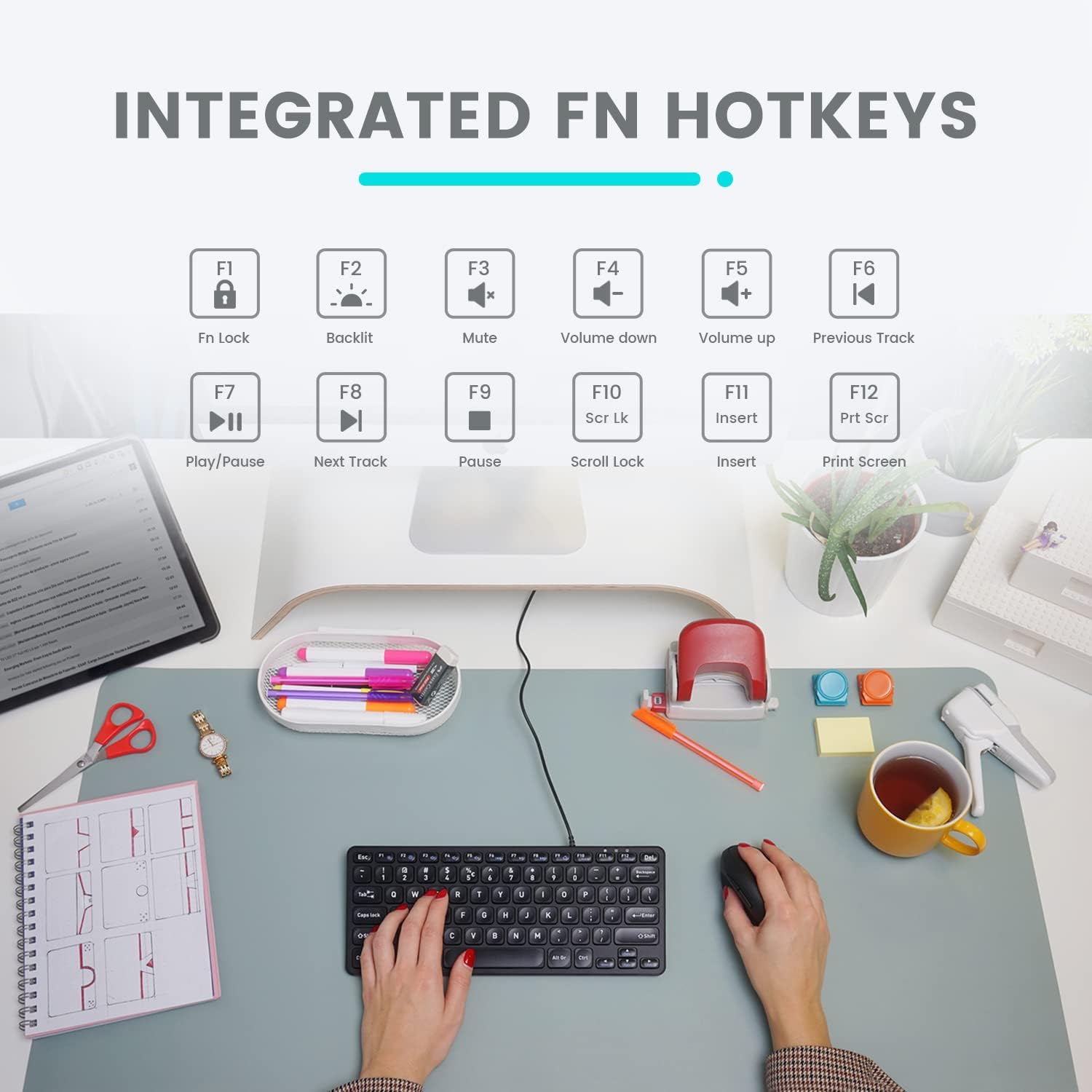
Image: Diagram illustrating the integrated Fn hotkeys on the Perixx PERIBOARD-332, showing the function of each F-key when pressed with the Fn key.
Mana Whakamuri
The PERIBOARD-332 features white LED backlighting with adjustable brightness. To adjust the backlight brightness, press the Fn + F2 keys simultaneously. Repeatedly pressing this combination will cycle through different brightness levels (including off).
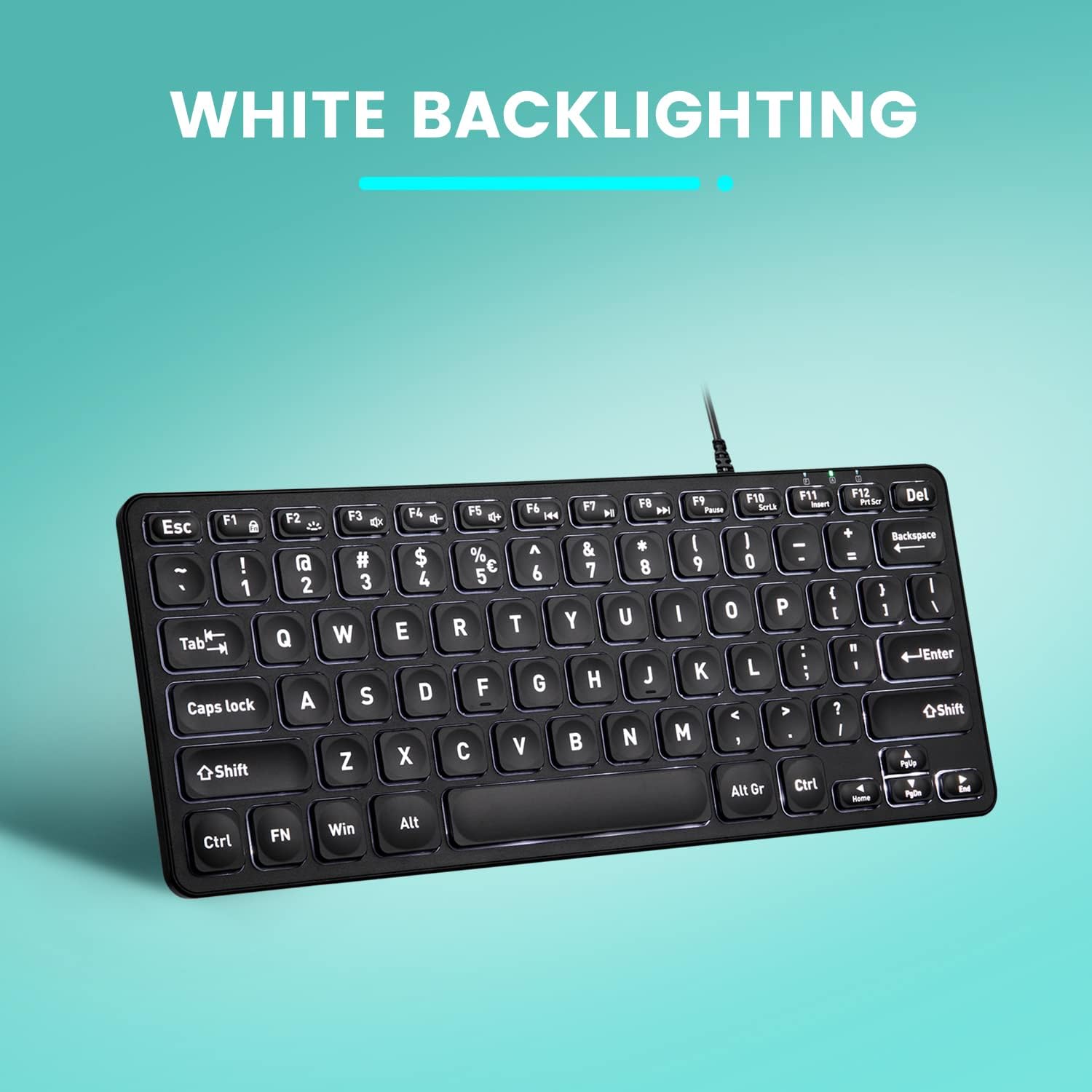
Whakaahua: Runga-raro view of the Perixx PERIBOARD-332 keyboard with its white LED backlighting illuminated, showcasing the clear, large font on the keys.
Te tiaki
To ensure the longevity and proper functioning of your keyboard, follow these maintenance guidelines:
- Te horoi: Whakamahia he kakahu ngohengohe, karekau he ngongo paku damphe wai, he otinga horoi ngawari ranei hei muru i te mata o te papapātuhi. A ape i te makuku nui. Kaua e rehu tika nga kai horoi ki te papapātuhi.
- Tango Puehu: Whakamahia te hau kōpeke hei tango i te puehu me te para i waenganui i nga ki.
- A ape i te pakaru: Keep liquids away from the keyboard to prevent damage. The keyboard is not water-resistant.
- Rokiroki: Ki te kore e whakamahia, penapenahia te papapātuhi ki tetahi taiao ma, maroke kia matara atu i te wera nui.
Raparongoā
If you encounter issues with your Perixx PERIBOARD-332, refer to the following common solutions:
Papapātuhi Kaore i te Whakautu
- Tirohia te Hononga USB: Ensure the USB cable is securely plugged into both the keyboard and the computer's USB port. Try a different USB port.
- Tīmata anō Rorohiko: Sometimes, a simple computer restart can resolve connectivity issues.
- Whakamātautau ki tētahi atu Pūrere: Connect the keyboard to another computer or device to determine if the issue is with the keyboard or the original computer.
Backlight Not Working or Adjusting
- Check Brightness Setting: Perehi Fn + F2 repeatedly to cycle through all brightness levels, including off. Ensure it's not set to the lowest or off setting.
- Puna Hiko: Ensure the keyboard is properly connected to a powered USB port.
Kaore nga Kī e Mahi Tika
- Maama Kī: Check for any debris or obstructions under the affected keys. Use compressed air to clear them.
- Papā Pūmanawa: If specific keys are not working, check for any software or driver conflicts on your computer.
Multimedia Keys Not Working on macOS/Linux/Chrome OS
- Hototahitanga Pūnaha Whakahaere: The multimedia shortcut keys are primarily designed for Windows. On other operating systems, their functionality may vary or require specific system settings/configurations.
Whakatakotoranga
| Āhuahira | Taipitopito |
|---|---|
| Waitohu | Perixx |
| Tau tauira | PERIBOARD-332 |
| Hangarau Hononga | USB (Waea) |
| Whakaahuatanga Papapātuhi | US English QWERTY |
| Āhuahira Motuhake | Backlit (White LED) |
| Momo Whakawhiti | Scissor Switches |
| Te maha o nga Kī | 84 |
| Rahi Hua (L x W x H) | 11.22" x 4.57" x 0.83" (28.5 cm x 11.6 cm x 2.1 cm) |
| Taumaha Tūemi | 0.79 lbs (12.3 Ounces / 350 grams approx.) |
| Pūrere Hototahi | PC, Laptop, Tablet, Smartphone (with compatible USB port/adapter) |
| Hototahitanga Pūnaha Whakahaere | Windows 7, 8, 10, 11; macOS; Linux; Chrome OS |
| Rauemi | Kirihou |
Pūtāhui me te Tautoko
Nga korero Whakaputanga
Your Perixx PERIBOARD-332 keyboard comes with a 12 marama iti pūtāhui from the date of purchase. This warranty covers manufacturing defects and workmanship under normal use. It does not cover damage caused by misuse, accidents, unauthorized modifications, or external factors.
Tena koa pupurihia to tohu mo te hoko mo nga kereme whakamana.
Tautoko Kiritaki
For technical assistance, warranty claims, or any questions regarding your Perixx product, please visit the official Perixx website or contact their customer support team. Contact information can typically be found on the Perixx webte waahi kei roto ranei i te kohinga hua.
Ka taea hoki e koe te toro ki te Toa Perixx i runga i a Amazon mo etahi atu korero me nga rauemi tautoko.