
Kupu Whakataki
Thank you for choosing the DAREU EK815 Wireless Mechanical Gaming Keyboard. This manual provides detailed instructions for setting up, operating, and maintaining your keyboard to ensure optimal performance and longevity. Please read this manual thoroughly before using the product.

Image: The DAREU EK815 keyboard integrated into a typical gaming workstation, showcasing its design and backlighting.
Ihirangi mokete
Me mohio kei roto katoa nga mea kei roto i te kete:
- DAREU EK815 Wireless Mechanical Gaming Keyboard
- Paetukutuku Puller
- Kaari Raati
- Taura USB (mō te hononga waea me te utu)
Nga waahanga hua
- Rarama RGB taea te whakarite: Customize your gaming atmosphere with various rainbow light effects and modes.
- Hanga Roa: Features double-shot keycaps for enhanced durability and an aluminum alloy metal panel for resistance against rust, falls, sweat, and corrosion.
- Whakawhiti Hangarau: Available with Brown, Red, or Blue mechanical switches, tested for over 50 million keystrokes for long-lasting performance.
- Anti-Ghosting: Advanced anti-ghosting technology ensures simultaneous key presses are registered accurately without conflict, enhancing gaming precision.
- Kī Whakahōtaka: Utilize a dedicated driver to customize key functions and lighting effects to suit your preferences.
- Multimedia Function Buttons: Quick access to essential operations, saving time during use.
Mechanical Switch Types
The DAREU EK815 keyboard is available with different mechanical switch types, each offering a distinct typing and gaming experience.
Brown Switches

Whakaahua: Taipitopito view of a brown mechanical switch, highlighting its tactile bump and specifications like 4mm key stroke travel, 50±4G key elastic force, and 65 million keystroke life.
Brown switches offer a tactile bump without an audible click, providing feedback for typing and gaming without being overly loud.
Whakawhiti Kahurangi

Whakaahua: Taipitopito view of a blue mechanical switch, illustrating its clicky feedback mechanism and specifications.
Blue switches are known for their distinct tactile bump and audible click, providing clear feedback with each keypress.
Ngā Pātene Whero

Whakaahua: Taipitopito view of a red mechanical switch, showing its linear actuation and specifications.
Red switches are linear, meaning they have a smooth, consistent keystroke without a tactile bump or audible click, ideal for fast-paced gaming.
Tatūnga
- Wewetehia te Papapātuhi: Tangohia marietia te papapātuhi me ngā taputapu katoa i roto i te takai.
- Tūhono mā USB: Plug the USB cable into the keyboard's port and connect the other end to an available USB port on your computer. The keyboard will automatically install necessary drivers.
- Turanga: Place the keyboard on a stable, flat surface. Adjust the integrated foot pads for your preferred typing angle.
- Whakaha Uepu: Utilize the three cable routing outlets on the underside of the keyboard to manage the USB cable neatly.
Nga Tohutohu Whakahaere
Whakamahi Papapātuhi Taketake
The DAREU EK815 functions as a standard mechanical keyboard. Simply connect it to your computer, and it will be ready for use. The anti-ghosting technology ensures that multiple key presses are registered accurately, which is beneficial for gaming.
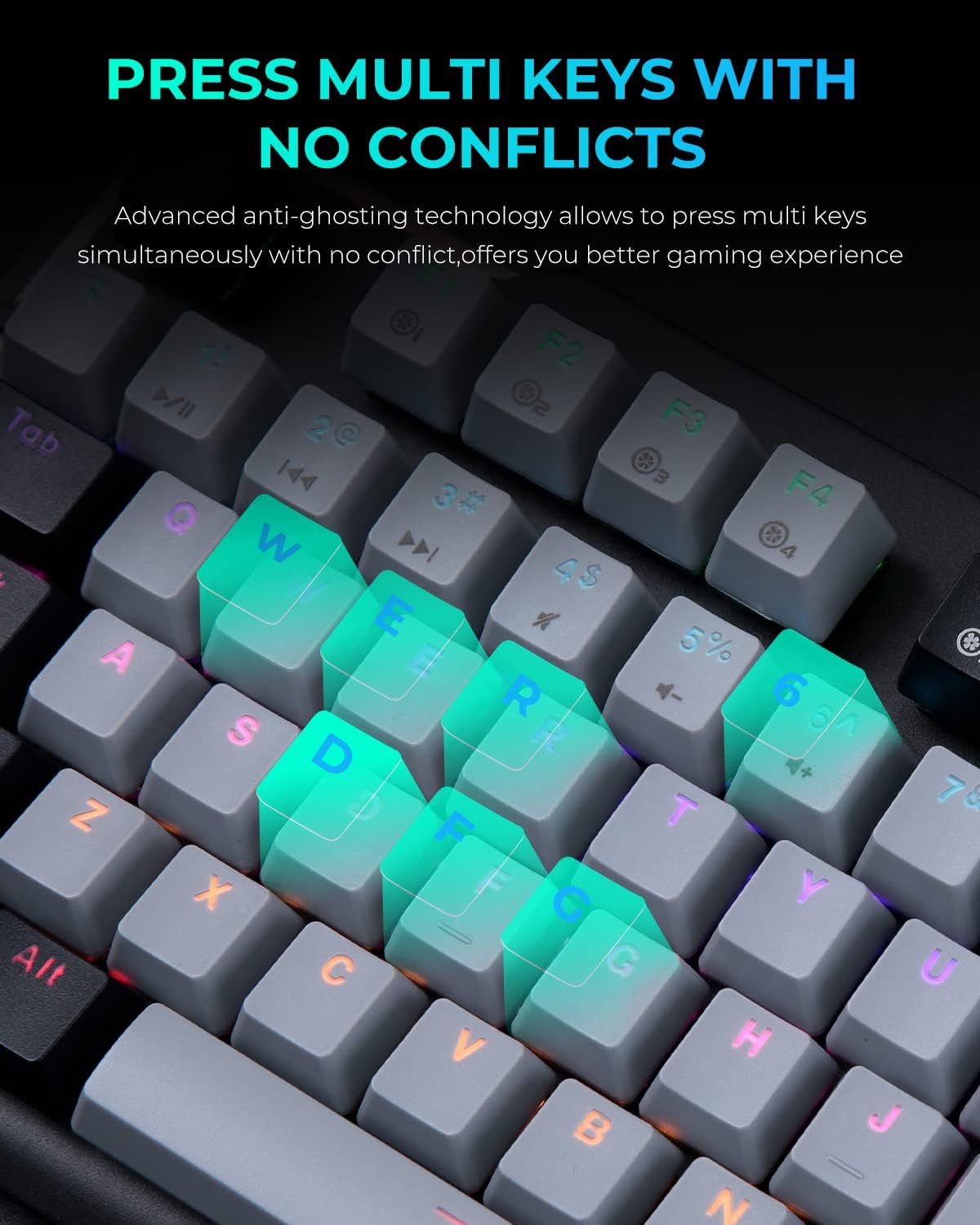
Image: A close-up of the keyboard with several keys (Q, W, E, R, D, F, G) illuminated, illustrating the anti-ghosting feature that allows simultaneous key presses without conflict.
Te whakatikatika i te rama RGB
The keyboard features multiple RGB lighting modes. Use the following shortcut keys to adjust the lighting effects:
- FN + F11: Cycle through various light modes.
- FN + PgUp / PgDn: Adjust lighting speed.
- FN + = / -: Whakaritehia nga taumata kanapa.
- FN + Ins / Del: Adjust sidelight speed.
- FN + Kāinga: Toggle sidelight mode.

Image: The DAREU EK815 keyboard displaying its vibrant RGB flank rainbow backlighting, illustrating the customizable lighting effects.
Using Shortcut Keys and Programmable Functions
The keyboard features dedicated shortcut keys and programmable functions to enhance efficiency. Use the FN key in combination with other keys for quick access to multimedia controls and lighting adjustments.

Image: A visual guide detailing the shortcut key combinations (FN + F-keys, FN + PgUp/PgDn, etc.) for controlling lighting effects and other functions on the DAREU EK815 keyboard.
For advanced customization, download the official DAREU driver from the manufacturer's website. This software allows you to remap keys and create custom lighting profiles.
Te tiaki
- Te horoi: Use a soft, dry cloth to wipe the keyboard surface. For deeper cleaning, use the provided keycap puller to remove keycaps and clean underneath with compressed air or a small brush.
- Ārai Horoinga: While the keyboard features an aluminum alloy panel for durability, avoid exposing it to excessive liquids. In case of a spill, disconnect the keyboard immediately and allow it to dry completely before reconnecting.
- Rokiroki: Penapenahia te papapātuhi ki te wāhi hauhautanga, maroke, kia matara atu i te rā tika me ngā pāmahana tino kino ina kore e whakamahia mō te wā roa.
Raparongoā
- Papapātuhi Kaore i te whakautu:
- Me mohio kei te hono pai te taura USB ki te papapātuhi me te rorohiko.
- Ngana ki te hono i te papapātuhi ki tetahi tauranga USB rereke.
- Tīmataria anō tō rorohiko.
- Te Rarama Kaore i te Mahi/Heke:
- Check if the lighting is turned off or set to a very low brightness using the FN + = / - shortcuts.
- Cycle through different lighting modes using FN + F11.
- Ensure the keyboard's software (if installed) is up to date and correctly configured.
- Kī Kāore i te Rēhita:
- Clean the affected keycap and switch area for any debris.
- If using custom key bindings, reset them to default via the keyboard software.
Whakatakotoranga
| Hunga Hua | 17.72 x 5.51 x 1.57 inihi |
| Taumaha Tūemi | 2.29 pauna |
| Tauira Tuemi | EK815 |
| Hangarau Hononga | USB |
| Whakaahuatanga Papapātuhi | Hangaia |
| Nga Whakamahinga Manakohia | petipeti, Tari |
| Nga waahanga motuhake | Backlit, Customizable Display Keys, Ergonomic, RGB, Water Resistant |
| Tautoko Tae Whakamuri Papapātuhi | RGB |
| Rauemi | Konumohe |
Pūtāhui me te Tautoko
The DAREU EK815 Mechanical Gaming Keyboard comes with a 1-Tau Pūtāhui from the date of purchase. This warranty covers manufacturing defects and ensures the product meets quality standards.
If you encounter any quality issues or require technical assistance within the warranty period, please contact DAREU customer support. Refer to the warranty card included in your package for specific contact details and warranty terms.
For the latest drivers and support information, please visit the official DAREU webpae.