
1. Kupu Whakataki
Thank you for choosing the iPega PG-P4008 Wireless Game Controller. This manual provides detailed instructions on how to set up, operate, and maintain your controller. The PG-P4008 offers broad compatibility with PS4, PS3, Android (10.0+), iOS (13.0+), and Windows PC, connecting wirelessly via Bluetooth for an enhanced gaming experience.
2. Hua Neke Atuview
The iPega PG-P4008 is designed for versatile gaming across multiple platforms. It features a comfortable ergonomic design, responsive controls, and several advanced functionalities to immerse you in your games.
Āhuatanga matua:
- Wireless Bluetooth connectivity (BT2.1+EDR) with up to 8 meters range.
- No driver installation required for connection.
- Integrated colored LED light indicator for operational status.
- Dual motors for realistic vibration feedback during gameplay.
- Built-in three-dimensional acceleration sensor and gyroscope sensor with six-axis induction.
- Integrated speaker and 3.5mm earphone jack for game audio.
- Dual-point capacitive touchpad for enhanced control.
- Compatible with PS4, PS3, Android (10.0+), iOS (13.0+), and Windows PC.
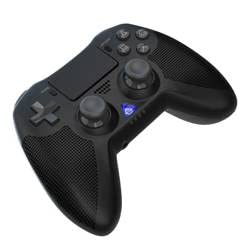
Whakaahua 1: Mua view of the iPega PG-P4008 Wireless Game Controller. This image displays the controller's ergonomic design, dual analog sticks, D-pad, action buttons, touchpad, and the central LED indicator.
3. Tatūnga me te Hononga
The PG-P4008 controller connects wirelessly via Bluetooth. Follow these steps to pair your controller with your device:
- Whakahiko: Ensure the controller is charged. Press and hold the Patene PS (or equivalent power button) to turn on the controller.
- Aratau takirua:
- For PS4/PS3: Connect the controller to the console using a USB cable. Once recognized, you can disconnect the cable for wireless play. The connection method is similar to the official P4 controller.
- For Android/iOS: Activate Bluetooth on your mobile device. On the controller, press and hold the SHARE button + PS button simultaneously until the LED indicator flashes rapidly, indicating pairing mode. Select "PG-P4008" (or similar) from your device's Bluetooth list to connect.
- For Windows PC: Ensure your PC has Bluetooth capability. On the controller, press and hold the PS button + OPTIONS button simultaneously until the LED indicator flashes rapidly. On your PC, go to Bluetooth settings, add a new device, and select "PG-P4008" (or similar) to pair.
- Hononga Angitu: Once connected, the LED indicator on the controller will change to a solid color, indicating a successful pairing.
Tuhipoka: No additional driver software is required for operation. The controller supports a stable connection up to 8 meters.
4. Nga Tohutohu Whakahaere
Tohu LED:
The built-in colored LED light indicates the controller's operational status and player assignment, similar to the official PS4 controller. Different colors will signify different stages or player numbers.
Urupare Wiri:
The controller features dual motors embedded in the handles, providing tactile vibration feedback to enhance your gaming immersion. This feedback will vary based on in-game events.
Papapa:
The dual-point capacitive touchpad allows for intuitive control in games that support touch input, offering an additional layer of interaction.
Taumahinga Ororongo:
Connect your 3.5mm earphones to the integrated jack on the controller to experience game audio directly, providing a private and immersive sound experience.
5. Tiaki
- Keep the controller dry and away from moisture to prevent damage to internal components.
- Clean the controller regularly with a soft, dry cloth. Avoid using harsh chemicals or abrasive materials.
- Whakaorangia te kaiwhakahaere ki te waahi makariri, maroke ina kore e whakamahia.
- Avoid exposing the controller to extreme temperatures or direct sunlight.
- Do not attempt to disassemble or modify the controller, as this will void any potential warranty and may cause damage.
6. Te Raru
- Karekau te kaiwhakahaere e hono ana:
- Me mohio kei te whakakiia te kaiwhakahaere.
- Manatokona kei te whakahohea a Nihokikorangi ki to taputapu.
- Make sure the controller is in the correct pairing mode for your device (refer to Section 3).
- Ngāna anō kia tīmata anō te pūmana me tō pūrere.
- Tangohia nga takirua o mua mai i te rarangi Nihokikorangi o to taputapu ka ngana ki te hono ano.
- Taurua, momotuhia ranei:
- Ensure you are within the 8-meter operating range.
- Whakaitihia te pokanoa mai i etahi atu taputapu ahokore.
- Check for any physical obstructions between the controller and the device.
- Kāore te wiri e mahi:
- Ensure the game you are playing supports vibration feedback.
- Tirohia nga tautuhinga-a-roto ki te whakarite kia taea te wiri.
- Audio not working via 3.5mm jack:
- Ensure your earphones are properly plugged in.
- Check the volume settings on your device and in-game.
- Test with another pair of earphones to rule out earphone issues.
7. Whakatakotoranga
| Tau tauira | PG-P4008 |
| Waitohu | iPega |
| Hononga | Bluetooth (BT2.1+EDR) |
| Mokowoko Korekore | Tae atu ki te 8 mita |
| Pūrere Hototahi | PS4, PS3, Android (10.0+), iOS (13.0+), Windows PC |
| Nga waahanga motuhake | Wireless, Touchpad, Vibration, 6-axis Gyroscope, Built-in Speaker, 3.5mm Audio Jack |
| Rahi Pātene | 17 |
| Puna Mana | Pūhiko Powered |
8. Pūtāhui me te Tautoko
Information regarding product warranty and customer support is not provided within this manual. Please refer to the product packaging or the retailer's webpae mo nga taipitopito mo te kapi whakamana me pehea te whakapā atu ki te tautoko a nga kaihoko mo te awhina.