
Avision AD340G

Pukapuka Kaiwhakamahi mō te Matawai Tuhinga Avision AD340G Tere-Tirohia
Model: AD340G
Kupu Whakataki
This manual provides comprehensive instructions for the setup, operation, maintenance, and troubleshooting of your Avision AD340G Compact High Speed Duplex Document Scanner. Please read this manual thoroughly before using the scanner to ensure proper and safe operation.
Nga korero haumaru
Kia mau ki nga whakaritenga haumaru e whai ake nei hei aukati i te whara me te kino o te matawai:
- Whakamahia anake te urutau hiko i tukuna tahitia me te matawai.
- Kaua e tukuna te matawai ki te wai, ki te makuku nui ranei.
- Whakatakotoria te matawai ki runga i tētahi mata pumau, papatahi.
- Keep the scanner away from direct sunlight and heat sources.
- Unplug the scanner before cleaning or if it will not be used for an extended period.
Ihirangi mokete
Manatokona kei roto katoa nga mea kei roto i te kete:
- Avision AD340G Document Scanner
- Pūurutau Hiko
- Tauira USB
- Aratohu Timata Tere
- Software CD (or download instructions)
Ka mutu te huaview
Familiarize yourself with the main components of the Avision AD340G scanner.
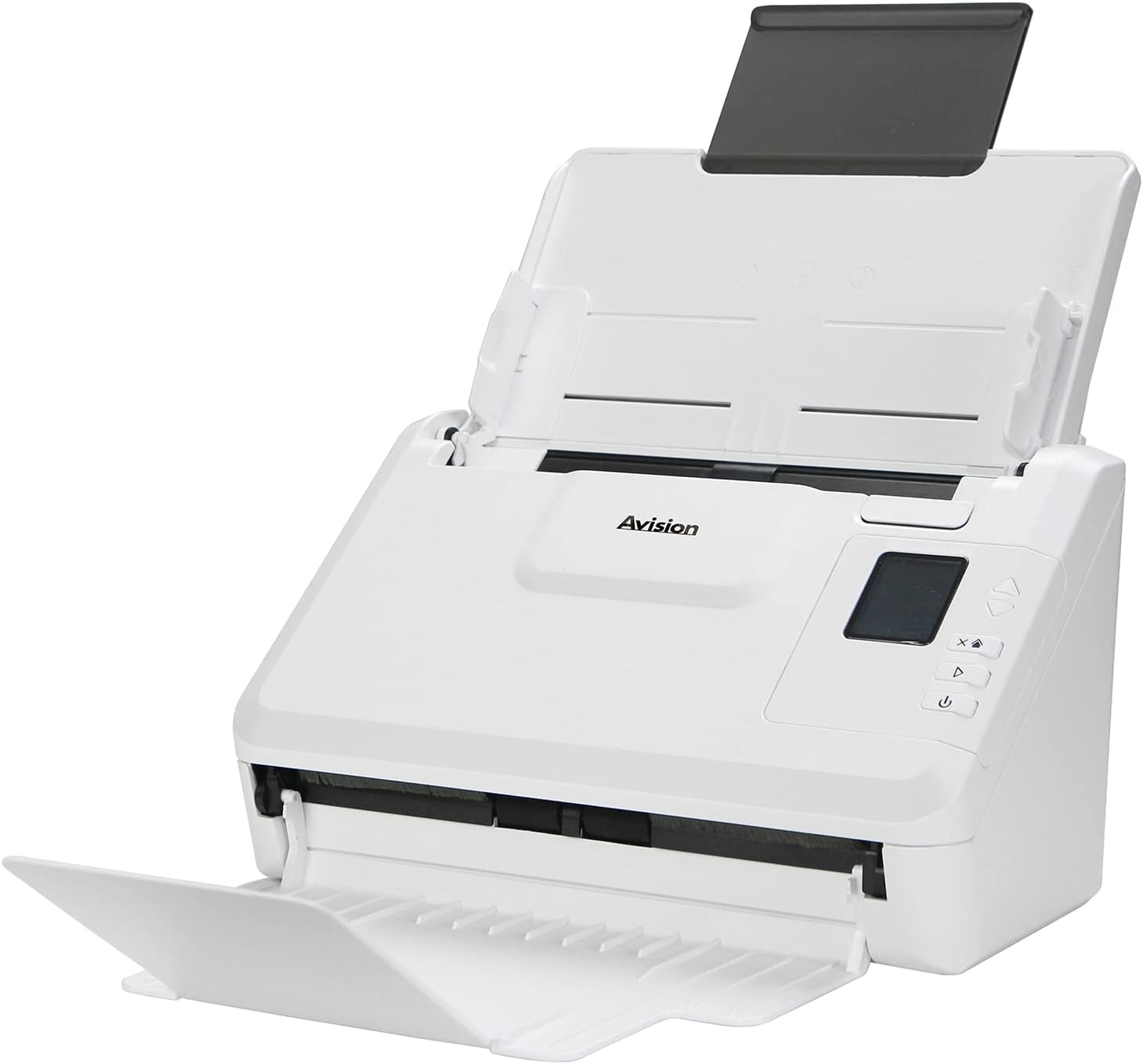
Atahanga: The Avision AD340G scanner shown with its input and output trays extended, ready for document feeding. This view highlights the compact design and accessible paper path.
- Document Feeder Tray: Te wāhi e utaina ai ngā tuhinga hei matawai.
- Paepae Huaputa: Te wāhi e tukuna atu ai ngā tuhinga kua matawaihia.
- Paewhiri Mana: Buttons and display for scanner operation.
- Tauranga USB: Mo te hono ki te rorohiko.
- Tauranga Hiko: Mo te hono i te urutau hiko.
Tatūnga
1. Tatūnga Tinana
- Wewetehia te Matawai: Me ata tango te matawai me nga taputapu katoa mai i te kete.
- Place the Scanner: Position the scanner on a flat, stable surface with adequate space for the input and output trays.
- Hono Hono:
- Connect the power adapter to the scanner's power port.
- Monohia te urutau hiko ki tetahi putanga hiko.
- Hono ki Rorohiko:
- Connect one end of the USB cable to the scanner's USB port.
- Honoa te pito o te taura USB ki tetahi tauranga USB e waatea ana i runga i to rorohiko.
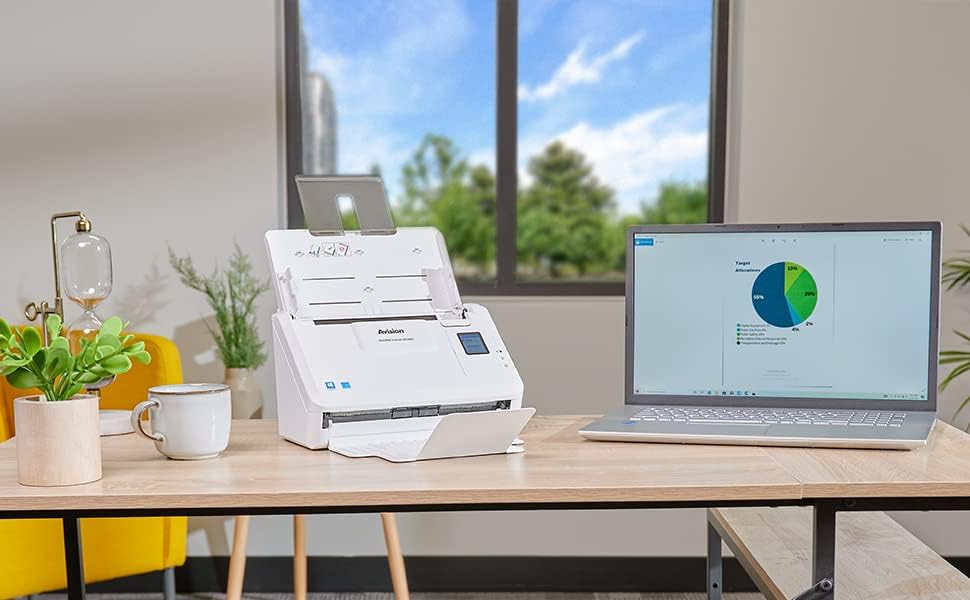
Atahanga: The Avision AD340G scanner set up on a desk next to a laptop, illustrating a typical connected environment. This shows the scanner's compact footprint when in use.
2. Tāuta Pūmanawa
Install the necessary drivers and scanning software from the provided CD or by downloading them from the official Avision webpae.
- Insert the software CD into your computer's CD/DVD drive, or navigate to the Avision support website to download the latest drivers and utilities for the AD340G model.
- Follow the on-screen instructions to complete the installation. This typically includes installing the TWAIN/ISIS drivers and the Avision scanning utility software.
- Tīmataria anō tō rorohiko mēnā ka ākina.
Te whakahaere i te Matawai
1. Te Utaina o ngā Tuhinga
- Open the document feeder tray and extend the output tray.
- Whakatikatikahia ngā aratohu pepa kia ōrite ki te whānui o ō tuhinga.
- Place the documents face-down in the input tray, ensuring they are neatly stacked and aligned. The scanner supports up to 50 sheets.

Atahanga: A hand carefully placing a stack of documents into the input tray of the Avision AD340G scanner, demonstrating the correct loading procedure.
2. Scanning Procedure
- Whakakāngia te matawai mā te pēhi i te pātene hiko.
- Launch the Avision scanning software on your computer.
- Select your desired scanning profile (e.g., color, grayscale, black & white, resolution). The AD340G supports duplex scanning (both sides simultaneously).
- Click the "Scan" button in the software or press the scan button on the scanner's control panel.
- The scanner will feed and process the documents. Once scanning is complete, the images will appear in the software.
- Review the scanned images, make any necessary adjustments (e.g., rotate, crop), and save them to your desired location and format (e.g., PDF, JPEG, TIFF).
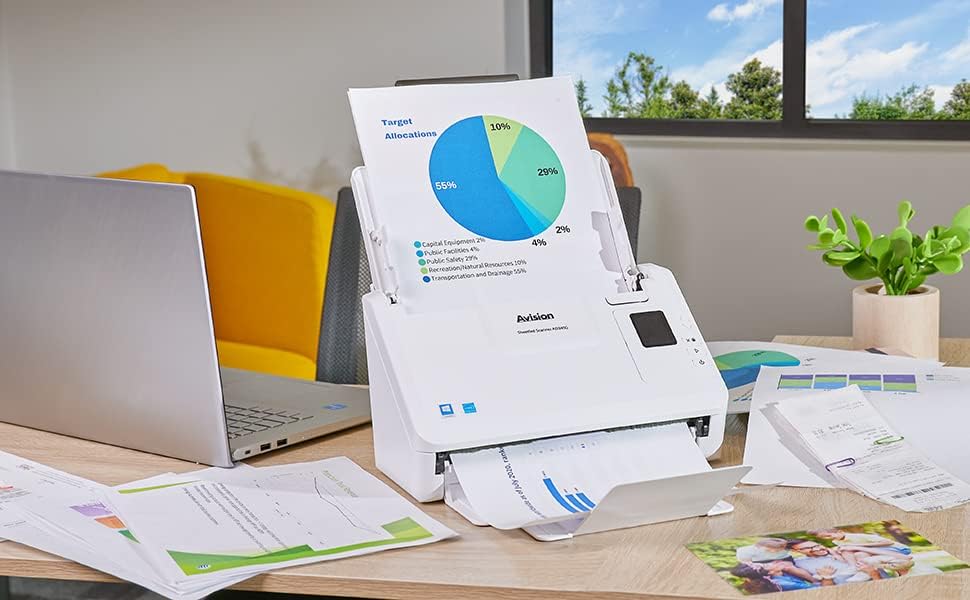
Atahanga: The Avision AD340G scanner in operation, feeding a document with a pie chart. This illustrates the scanner's ability to handle various document types efficiently.
Te tiaki
Te horoi i te Matawai
Ko te horoi i nga wa katoa ka tino pai te mahi me te whakaroa i te ora o to matawai.
- Whakawetohia ka Wewetehia: Always turn off the scanner and disconnect the power adapter and USB cable before cleaning.
- Ma waho: Wipe the exterior of the scanner with a soft, lint-free cloth lightly dampkua whakakikoruatia ki te wai, ki te kaihoroi ngawari, kore-abrasive ranei.
- Clean Interior (Rollers and Glass):
- Open the scanner cover to access the rollers and glass scanning surfaces.
- Gently wipe the feed rollers with a clean, lint-free cloth. If necessary, use a small amount of isopropyl alcohol on the cloth for stubborn residue.
- Clean the glass scanning strips with a soft cloth and glass cleaner (non-ammonia based).
- Allow all components to dry completely before closing the cover and reconnecting power.
Raparongoā
| Raruraru | Take pea | Rongoā |
|---|---|---|
| Karekau te Matawai i te hiko. | Ko te taura hiko kaore i te hono; take putanga hiko. | Me whakarite kia honoa te taura hiko. Whakamātauria he putanga hiko rerekē. |
| Documents jam frequently. | Misaligned paper guides; worn rollers; dirty rollers. | Adjust paper guides. Clean the feed rollers. If problem persists, rollers may need replacement. |
| Ko nga whakaahua kua karapahia he rangirua, he raina ranei. | Dirty scanning glass; incorrect resolution settings. | Clean the scanning glass. Adjust scanning resolution in the software. |
| Scanner not detected by computer. | Kua momotu te taura USB; kāore te taraiwa i tāutahia, i pakaru rānei. | Check USB cable connection. Reinstall scanner drivers. Try a different USB port. |
Whakatakotoranga
Key technical specifications for the Avision AD340G Document Scanner:
- Tauira: AD340G
- Momo Matawai: ADF Duplex Document Scanner
- Hononga: USB
- Whakatau: 600 dpi (Optical)
- Tere Matawai: 40 ppm (pages per minute) / 80 ipm (images per minute)
- Hōhonu Tae: 48 bits input / 24 bits output
- Raukaha Rau Paerewa: 50 rau
- Hangarau Pūoko Optical: CIS (Whakapā Atahanga Atahanga)
- Rahi Hua: 11 x 6.1 x 6.5 inihi
- Taumaha Tūemi: 8 pauna
- Nga Whakaritenga Pūnaha Iti: Windows XP/7/8/10
Pūtāhui me te Tautoko
For warranty information, technical support, or service inquiries, please refer to the warranty card included with your product or visit the official Avision webpae. Ko ngā mōhiohio whakapā mō te tautoko kiritaki ka kitea i runga i te paetukutuku a te kaihanga webpae.
Avision Official Webpae: www.avision.com
Ask a question about this manual
Ask about setup, troubleshooting, compatibility, parts, safety, or missing instructions. Manuals+ will review the question and use this page’s manual context to help answer it.