
Kupu Whakataki
This manual provides detailed instructions for the installation, operation, and maintenance of your IEI DM-F12A/R-R30 12-inch XGA LCD Monitor. This industrial-grade monitor features a 600 cd/m² brightness, an aluminum front panel, and a USB R-touch screen, designed for robust performance in various environments. It supports a wide 9~36VDC input range.
Ihirangi mokete
Please verify that all items are present and in good condition upon unpacking. If any items are missing or damaged, contact your vendor immediately.
- IEI DM-F12A/R-R30 LCD Monitor
- Power Adapter (if included with specific model variant)
- USB Cable for Touch Function
- VGA/HDMI Cable (depending on model configuration)
- Whakaekea nga taputapu (mehemea e tika ana)
- Documentation (Quick Start Guide, Driver CD if applicable)
Tatūnga
1. Whakapiki i te Aroturuki
The DM-F12A/R-R30 monitor is designed for various mounting options, including panel mount or VESA mount. Refer to the specific mounting instructions provided with your mounting kit.
2. Hononga taura
- Waitohu Ataata: Connect a VGA or HDMI cable (depending on your system and monitor's available ports) from your computer's video output to the corresponding input port on the monitor.
- USB Touch: Connect the supplied USB cable from your computer's USB port to the USB port on the monitor. This enables the R-touch screen functionality.
- Mana: Connect the 9~36VDC power input to the monitor. Ensure the power source matches the specified voltage awhe.
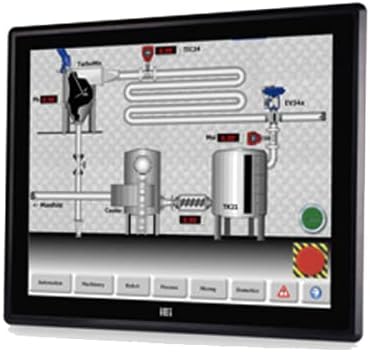
Figure 1: The IEI DM-F12A/R-R30 monitor, showcasing its display and industrial design. This image illustrates the monitor's appearance and typical use in a control system interface.
3. Kei te Hiko Nei
After all cables are securely connected, power on your computer and then the monitor. The monitor should automatically detect the input signal.
Te whakahaere
Basic Display Functions
The monitor will display the video output from your connected computer. Adjust display settings such as resolution and refresh rate through your computer's operating system display settings for optimal performance.
Using the R-Touch Screen
The R-touch screen functions as a standard mouse input. Once the USB cable is connected and recognized by your operating system, you can interact with the display by touching the screen directly. Calibration may be required for precise touch input, typically accessible through your operating system's tablet PC or touch screen settings.
- Paato Kotahi: Equivalent to a left-click.
- Paoa ka Mau: Equivalent to a right-click (may vary by OS settings).
- Tōia: Touch and move your finger across the screen to move items or scroll.
Te tiaki
Te horoi i te Aroturuki
- Whakawetohia i nga wa katoa ka wetewetehia te kaitirotiro i mua i te horoi.
- Whakamahia he kakahu ngohengohe, karekau he ngongo paku dampened with water or a non-abrasive LCD screen cleaner.
- Do not use alcohol, ammonia-based cleaners, or abrasive materials, as these can damage the screen surface or casing.
- Me ata muru te mata me te casing. Avoid spraying liquid directly onto the screen.
Nga Whakaaro Taiao
Ensure the monitor is operated within its specified temperature and humidity ranges. Avoid exposing the monitor to direct sunlight, excessive dust, or extreme temperatures.
Raparongoā
| Raruraru | Take pea | Rongoā |
|---|---|---|
| Karekau he whakaaturanga ki te mata |
|
|
| Kare te mata pa e whakautu |
|
|
| Ko te atahanga he rangirua, he korikori ranei |
|
|
Whakatakotoranga
| Āhuahira | Taipitopito |
|---|---|
| Tauira | DM-F12A/R-R30 |
| Waitohu | IEI |
| Rahi Mata | 12 Inihi |
| Whakatau | XGA |
| Tirohanga | 600 cd/m² |
| Tuhinga o mua | Konumohe |
| Momo Mata Pa | USB R-Touch |
| Whakauru Voltage | 9~36VDC |
| Mata Mata | Moataata |
| Āhuahira Motuhake | Mata pa |
| Kaihanga | Hangarau IEI |
Pūtāhui me te Tautoko
For warranty information and technical support, please refer to the documentation included with your product or visit the official IEI Technology website. Contact details for customer service are typically available on the manufacturer's support page.
Kaihanga Webpae: www.ieiworld.com


