
Zirakana 72299
Zircon MultiScanner A250 User Manual
All-In-One Stud Finder, Metal Detector, and Live AC Wire Scanner
Kupu Whakataki
The Zircon MultiScanner A250 is an advanced electronic stud finder, metal detector, and live AC scanner designed for both home improvement enthusiasts and professional contractors. This versatile tool features a comfortable ergonomic grip, an ultra-bright LCD screen, and patented SpotLite Pointing System for accurate target indication. It incorporates Auto Correcting Technology (ACT) to minimize user errors and includes a WireWarning Detection feature for enhanced safety.

Figure 1: Zircon MultiScanner A250
Tatūnga
Tāuta Pūhiko
The MultiScanner A250 requires one 9V alkaline battery (not included). For optimal performance, ensure the battery is fresh and fully charged.
- Kimihia te uhi o te wahanga pākahiko kei muri o te waeine.
- Kiriata te uhi kia tuwhera.
- Insert a new 9V alkaline battery, matching the positive (+) and negative (-) terminals correctly.
- Katia kia mau te uhi o te wahanga pākahiko.
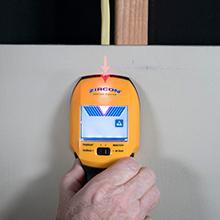
Figure 2: Battery compartment and 9V battery
Whakatikatika Tuatahi
Before each scan, the tool must be calibrated. Place the MultiScanner A250 flat against the surface to be scanned, ensuring no hands are touching the surface. Press and hold the Power Button. Wait for the unit to complete calibration (indicated by a beep and full display segments) before moving the tool.
Aratau Mahi
The Zircon MultiScanner A250 features four distinct scanning modes, easily selectable via the mode switch.

Figure 3: MultiScanner A250 LCD display and mode selection
1. StudScan Mode
This mode locates the center, edges, and direction of wood and metal studs behind walls, floors, and ceilings. It scans up to 0.75 inches (19 mm) deep.
- Select "StudScan" on the mode switch.
- Calibrate the tool on the surface.
- Slowly slide the tool horizontally across the surface. The display will indicate when you are approaching a stud edge.
- The patented SpotLite Pointing System will illuminate, and an audio tone will sound when the center of a stud is detected.
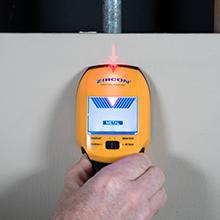
Figure 4: Using StudScan mode to find a stud
2. DeepScan Mode
DeepScan Mode doubles the scanning depth to 1.5 inches (38 mm) for locating deeper studs.
- Select "DeepScan" on the mode switch.
- Follow the same scanning procedure as StudScan Mode.
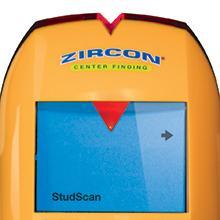
Figure 5: Using DeepScan mode for deeper stud detection
3. Metal Scan Mode
This mode locates non-ferrous metal (e.g., copper pipes) up to 1.5 inches (38 mm) deep and ferrous metal (e.g., rebar) up to 3 inches (75 mm) deep. It is also useful for finding studs behind lath and plaster walls, tile, drywall, and stucco by identifying screw or nail heads.
- Select "Metal Scan" on the mode switch.
- Calibrate the tool on the surface.
- Slowly slide the tool horizontally. The signal strength indicator bars will increase as you approach metal.
- The SpotLite Pointing System will illuminate when the tool is directly over a metal object.
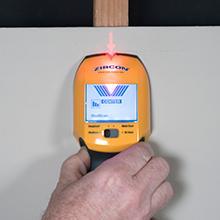
Figure 6: Using Metal Scan mode to detect pipes
4. AC Scan Mode
AC Scan Mode detects, locates, maps, and traces live, unshielded electrical wires up to 2 inches (50 mm) deep. This mode is crucial for avoiding electrical hazards.
- Select "AC Scan" on the mode switch.
- Calibrate the tool on the surface.
- Slowly slide the tool horizontally. The signal strength indicator bars will increase as you approach live AC wiring.
- The SpotLite Pointing System will illuminate when the tool is directly over a live wire.

Figure 7: MultiScanner A250 detecting live AC electrical wires
Rauemi Hototahi
The MultiScanner A250 is designed to work effectively on a variety of common building materials, including:
- Te parekura
- Papa Rakau
- Papakowhai
- Gypsum Drywall
- Over Plywood Sheathing

Figure 8: Materials compatible with MultiScanner A250
Nga waahanga taapiri
- WireWarning Detection: This feature is active in StudScan, DeepScan, and Metal Scan modes and alerts you to the presence of live, unshielded electrical wires up to 2 inches (50 mm) deep.
- ACT (Auto Correcting Technology): Automatically corrects common user errors, such as when scanning begins over a stud, ensuring accurate results.
- Tohu Kaha Waitohu: Helps distinguish between shallow and deep targets.
- Tohu Pūhiko Iti: Alerts you when the battery needs replacement for optimal performance.
Te tiaki
Te horoi
Wipe the tool with a clean, dry cloth. Do not use abrasive cleaners or solvents, as they may damage the unit.
Whakakapinga Pūhiko
When the Low Battery Indicator appears on the display, replace the 9V alkaline battery promptly to ensure continued accurate operation.
Rokiroki
Store the MultiScanner A250 in a dry, dust-free environment away from extreme temperatures. Remove the battery if the tool will not be used for an extended period.
Raparongoā
If you encounter issues with your Zircon MultiScanner A250, consider the following common solutions:
- Nga Panui Heke: Ensure the tool is properly calibrated on the wall surface before scanning. Avoid placing hands on the scanned surface during operation.
- Karekau he kitenga: Check the battery level. A low battery can affect performance. Ensure you are using the correct scan mode for the target (e.g., StudScan for studs, Metal Scan for pipes).
- False Positives (AC Scan): Electrical field locators may not detect live AC wires if the wires are more than 2 inches (51 mm) from the scanned surface, in concrete, or encased in conduit, present behind a plywood shear wall or metallic wall covering, or if moisture is present in the environment or scanned surface.
- Mahinga Whanui: The MultiScanner A250 constantly scans its surroundings and recalibrates itself if necessary. If issues persist, try re-calibrating the tool in a different spot on the wall.
WARNING: DO NOT ASSUME THERE ARE NO LIVE ELECTRICAL WIRES IN THE WALL. DO NOT TAKE ACTIONS THAT COULD BE DANGEROUS IF THE WALL CONTAINS A LIVE ELECTRICAL WIRE. ALWAYS TURN OFF THE ELECTRICAL POWER, GAS, AND WATER SUPPLIES BEFORE PENETRATING A SURFACE. FAILURE TO FOLLOW THESE INSTRUCTIONS MAY RESULT IN ELECTRIC SHOCK, FIRE, AND/OR SERIOUS INJURY OR PROPERTY DAMAGE.
For more detailed troubleshooting or specific issues, please refer to the official user guide: Zircon MultiScanner A250 User Manual (PDF).
Whakatakotoranga
| Āhuahira | Taipitopito |
|---|---|
| Waitohu | Zircono |
| Tauira | A250 (Tauira nama: 72299) |
| Tae | Kōwhai |
| Puna Mana | Battery Powered (9V alkaline battery required, not included) |
| Rauemi | Kirihou |
| Taumaha Tūemi | 8 hekere |
| Hunga Hua | 7.72"L x 1.8"W x 3.23"H |
| Whakatauranga Tiaki o te Ao | IP54 |
| Momo Whakaatu | LCD |
| StudScan Depth | Tae atu ki te 0.75 inihi (19 mm) |
| DeepScan Depth | Tae atu ki te 1.5 inihi (38 mm) |
| Metal Scan Depth (Non-ferrous) | Tae atu ki te 1.5 inihi (38 mm) |
| Metal Scan Depth (Ferrous) | Tae atu ki te 3 inihi (75 mm) |
| AC Scan Depth | Tae atu ki te 2 inihi (50 mm) |

Figure 9: MultiScanner A250 dimensions
Pūtāhui
The Zircon MultiScanner A250 comes with a He Rarangi Momo Ora. Please retain your proof of purchase for warranty claims. For full warranty details, refer to the official Zircon webpae, whakapā atu ranei ki te tautoko a te kaihoko.
Tautoko
For additional information, frequently asked questions, or customer support, please visit the official Zircon resources:
- Official Zircon Store on Amazon: Visit the Zircon Store
- Product Information Page: Zircon MultiScanner A250
- Contact Zircon: 408-963-4500

Figure 10: Additional product information and contact details
Tuhinga e pa ana - 72299
 |
Zircon Wood Stud SuperScan Advanced Stud Finder User Manual Comprehensive user manual for the Zircon Wood Stud SuperScan Advanced Stud Finder, detailing features, operating modes (Auto, Edge, DeepScan), WireWarning detection, installation, scanning techniques, and troubleshooting. |
 |
Zircon SuperScan A2 Advanced Stud Finder User Manual and Instructions Comprehensive guide to using the Zircon SuperScan A2 Advanced Stud Finder for locating studs, wiring, and pipes behind walls. Features Target Control (TCTM) and WireWarning detection. |
 |
Zircon SuperScan® ID Matawai Taiepa Arā Atu Anō: He Pukapuka Kaiwhakamahi me nga Tohutohu He pukapuka mo nga kaiwhakamahi mo te Zircon SuperScan® ID Arā Taiepa Matawai. Akohia me pehea te kite i nga papa, nga mea whakarewa, nga mea iti-kiato, me nga waea AC ora. Kei roto ko te tatūnga, te mahi, te rapurongoa me nga korero whakamana. |
 |
Zircon Wood Stud SuperScan® Advanced Stud Finder User Manual & Guide Comprehensive guide to using the Zircon Wood Stud SuperScan® Advanced Stud Finder with Target Control® and FILTERz™ technology. Learn about modes, scanning techniques, troubleshooting, and warranty information. |
 |
Zircon StudSensor Pro SL-AC Stud Finder Manual Kaiwhakamahi He aratohu matawhānui mo te whakamahi i te Zircon StudSensor Pro SL-AC stud finder, te whakamaarama i te whakaurunga, te whakatikatika, nga momo matawai, AC voltage rapunga, me te rapurongoā mo te kimi tika me te kimi waea. |
 |
Zircon MultiScanner x85 OneStep Multifunction Wall Scanner User Manual Comprehensive user manual for the Zircon MultiScanner x85 OneStep, detailing its features for detecting studs, AC wires, and thermal signatures, with operating instructions and troubleshooting tips. |
Ask a question about this manual
Ask about setup, troubleshooting, compatibility, parts, safety, or missing instructions. Manuals+ will review the question and use this page’s manual context to help answer it.