
Kupu Whakataki
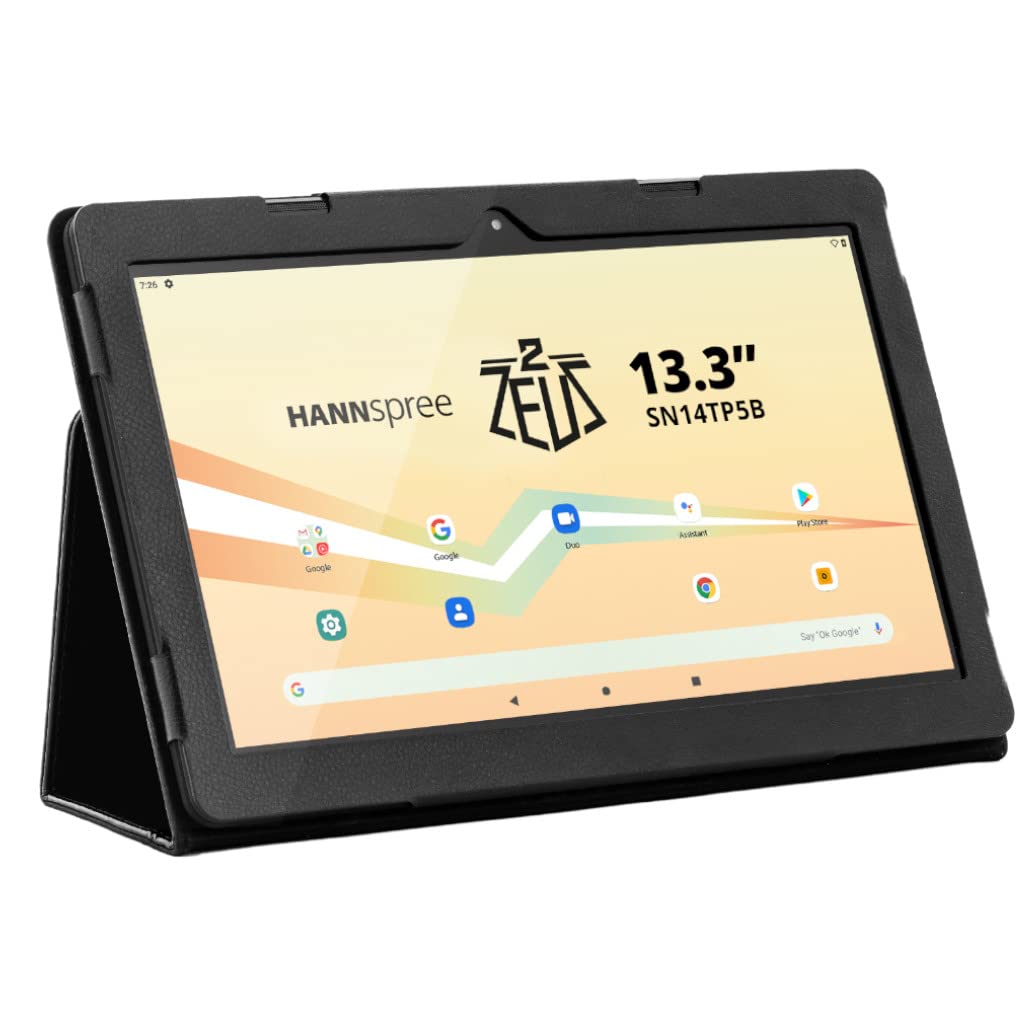
This manual provides essential information for setting up, operating, and maintaining your Hannspree Zeus II MT8183 tablet. Please read it thoroughly to ensure optimal performance and longevity of your device.
He aha kei roto i te Pouaka
- Hannspree Zeus II MT8183 Tablet (Model: SN14TP5B)
- Protective Smart Cover
- Aratohu Timata Tere
- Nga korero Whakaputanga
- USB-C ki USB-A Cable
- USB-A ki USB-C Whāurutau
- USB-A to Micro USB Adapter
- Maha-voltage Main Charger with UK and European Adapters
Image: The Hannspree Zeus II MT8183 tablet and its accessories laid out on a light grey surface. The tablet is in the center, with the protective cover, quick start guide, warranty information, various cables, and power adapters arranged around it.
The main image shows the Hannspree Zeus II MT8183 tablet, its protective cover, quick start guide, warranty information, USB-C to USB-A cable, USB-A to USB-C adapter, USB-A to Micro USB adapter, and the multi-voltage main charger with UK and European adapters. These are the items included in the product package.
Whakatakotoranga
| Rahi Whakaatu | 13.3 Inihi |
| Whakatau Mata | 1920 x 1080 pika (Katoa HD) |
| RAM | 4 GB |
| Rahi Mahara Kohiko | 64 GB |
| Waitohu Tukatuka | MediaTek (Octa-matua) |
| Pūnaha Mahi | Android 10 |
| Whakamuri Webcam Resolution | 5 MP |
| Mua Webcam Resolution | 5 MP |
| Momo Ahokore | Bluetooth, Dual-band Wi-Fi |
| Taumaha Tūemi | 2.76 pauna |
| Hunga Hua | 14.22 x 0.46 x 8.63 inihi |
| Pūhiko | 1 te pākahiko Lithium Ion e hiahiatia ana |
Tatūnga
Hia Tuatahi
- Unpack the tablet and all accessories from the box.
- Press and hold the Power On/Off button (located on the top edge) until the Hannspree logo appears on the screen.
- Whāia ngā tohutohu kei te mata hei whakaoti i te tatūnga tuatahi, tae atu ki te kōwhiringa reo, te hononga Wi-Fi, me te takiuru ki te pūkete Google.
Te Whakataki i te Papa
The tablet can be charged using the provided main charger or via the USB-C port. Connect the appropriate adapter to the main charger and plug it into a power outlet. Then, connect the barrel connector to the tablet's power input port or use the USB-C cable with a compatible USB power adapter.
Te whakahaere i to Papa
Atanga Android 10
The Hannspree Zeus II MT8183 runs on Android 10, offering a user-friendly interface. Swipe up from the bottom of the screen to access the app drawer, or swipe down from the top right corner to view whakamohiotanga me nga tautuhinga tere.
Tono-mua
The tablet comes with a standard suite of Google applications pre-installed, including Gmail, Maps, YouTube, Google Chrome, and the Google Play Store. Additional applications can be downloaded from the Google Play Store.
Hononga
- Wi-Fi: Connect to available Wi-Fi networks via the Settings menu to access the internet. The tablet supports dual-band Wi-Fi for stable connections.
- Nihokikorangi: Pair with Bluetooth devices such as headphones or speakers through the Connected Devices section in Settings.
- HDMI: Use the Mini HDMI port to connect your tablet to an external display for a larger viewte wheako.
- Tauranga USB: Utilize the USB-C and Micro USB ports for data transfer or connecting peripherals with the provided adapters.
Taumahinga Camera
The tablet features 5 MP cameras on both the front and rear. Access the camera application from the home screen or app drawer to capture photos and videos. For best results, ensure adequate lighting for your subjects.
Te tiaki
Te horoi i to Papa
Hei horoi i te mata, whakamahia he kakahu ngohengohe, kore-puru. Mo nga kohukohu pakeke, paku dampen the cloth with water or a screen-cleaning solution. Avoid using harsh chemicals or abrasive materials. For the body, wipe with a soft, dry cloth.
Tiaki Pūhiko
To prolong battery life, avoid exposing the tablet to extreme temperatures. It is recommended to fully charge the tablet before its first use. For long-term storage, charge the battery to about 50% and store it in a cool, dry place.
Raparongoā
- Kāore te papa e tahuri ana: Ensure the tablet is charged. Connect it to the power adapter and wait a few minutes before attempting to power it on again.
- Karekau te mata i te aro: If the screen is not responding to touch, try restarting the tablet by holding the power button for 10-15 seconds. If this doesn't work, use a thin object (like a paperclip) to press the reset button located on the side edge.
- Nga take hononga Wi-Fi: Check if Wi-Fi is enabled in Quick Settings or the Settings menu. Restart your Wi-Fi router. If the issue persists, try forgetting the network and reconnecting.
- Taupānga e takataka ana, e whakatio ana ranei: Close and reopen the app. If the problem continues, clear the app's cache and data in Settings > Apps & notifications. As a last resort, uninstall and reinstall the app.
Pūtāhui me te Tautoko
Your Hannspree Zeus II MT8183 tablet comes with a manufacturer's warranty. Please refer to the included warranty information document for details on coverage, terms, and conditions. For technical support or service inquiries, please visit the official Hannspree website or contact their customer service as per the information provided in your warranty documentation.
Keep your proof of purchase and serial number (located on the back of the tablet and on the packaging) handy when contacting support.