
Kupu Whakataki
This manual provides essential information for setting up, operating, maintaining, and troubleshooting your HP 2022 14-inch HD Laptop. Please read this guide thoroughly to ensure proper use and to maximize the performance and longevity of your device.
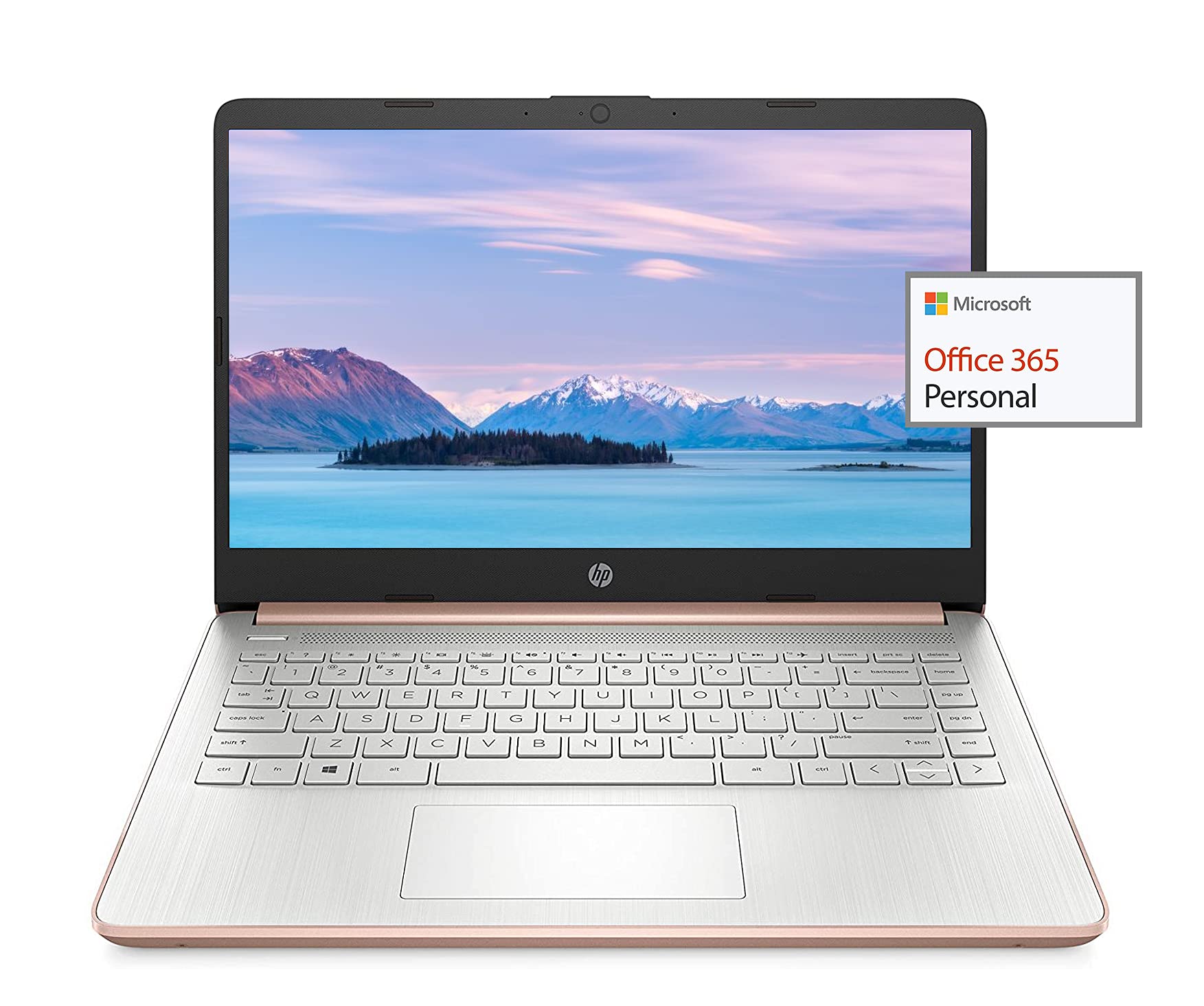
Image: The HP 14-inch HD Laptop, showcasing tona hoahoa kiko.
Tatūnga
1. Te Hia-Ai Tuatahi
Connect the power adapter to the laptop and a power outlet. Open the laptop lid. The laptop should power on automatically or by pressing the power button, typically located on the keyboard deck.
2. Tatūnga Pūnaha Whakahaere
Follow the on-screen prompts to complete the Windows 10 setup. This includes selecting your region, connecting to a Wi-Fi network, and creating a user account.
3. Activating Microsoft Office 365
Your laptop includes a 1-year subscription to Microsoft Office 365. To activate:
- Launch any Office application (e.g., Word, Excel).
- Sign in with your Microsoft account. If you do not have one, create a new account.
- Click "Activate Office" and follow the subsequent prompts.
- Complete steps 1, 2, and 3 as instructed.
- Click "Refresh" once Office is ready.
- Open a document and accept the license agreement to finalize activation.

Image: The HP laptop displaying Microsoft Office 365 applications.
4. Switching Out of Windows 10 S Mode
Windows 10 in S mode is designed for security and performance, exclusively running apps from the Microsoft Store. If you need to install apps from outside the Microsoft Store, you can switch out of S mode. This is a one-way switch and cannot be undone.
- Haere ki Tautuhinga > Whakahou me te Haumarutanga > Whakahohenga.
- I te wāhanga "Huri ki te Windows 10 Kāinga" "Huri ki te Windows 10 Pro" rānei, tīpakohia Haere ki te Toa.
- I runga i te Whakawetohia te aratau S (he whārangi rite rānei) e puta mai ana i te Toa Microsoft, pāwhiritia te Tikina pātene.
- After confirming, you will be able to install apps from outside the Microsoft Store.
5. Tuhono Pikitia
He maha ngā tauranga o tō pona hei hono i ngā taputapu o waho:
- USB Type-A & Type-C: For connecting USB devices like external drives, mice, and keyboards.
- HDMI: Mō te hono atu ki ngā whakaaturanga o waho, ki ngā pūwhakaata rānei.
- Wae-oro/Microphone Combo Jack: Mo te ororongo whakauru/putanga.
- Pānui Kāri Pāpāho: For inserting SD cards.

Whakaahua: Taha view of the HP laptop, highlighting the SuperSpeed USB Type-A, USB Type-C, HDMI 1.4b, and headphone/microphone combo ports.

Pikitia: Taha whakarara view of the HP laptop, showing the media card reader slot.
Nga Tohutohu Whakahaere
1. Whakahaere Mana
- Whakahiko: Patohia te paatene mana.
- Aratau Moe: Katia te taupoki, pēhia rānei te pātene mana mō te wā poto.
- Whakaweto: Haere ki te Tīmata > Mana > Whakaweto.
- Tīmata anō: Haere ki te Tīmata > Mana > Tīmata Anō.
2. Whakaatu Whakamahinga
The laptop features a 14-inch HD (1366 x 768) display with a micro-edge bezel design and WLED-backlit BrightView technology. Adjust brightness using the function keys (F2/F3) or through Windows display settings.

Image: The HP laptop display showcasing its micro-edge bezel and HD resolution.
3. Papapātuhi me te Papapātuhi
The standard keyboard provides comfortable typing. The integrated touchpad supports multi-touch gestures for navigation. Refer to Windows settings for customizing touchpad sensitivity and gestures.
4. Webkamera me te Ororongo
The HP True Vision 720p HD camera with integrated dual array digital microphones is suitable for video calls. The laptop features HP custom-tuned dual speakers for clear audio output.

Image: The HP laptop showing the webcam in use and highlighting the dual speaker setup.
5. Hononga Ahokore
- Ipurangi Ahokore 5 (1x1): Connect to wireless networks for internet access. Manage Wi-Fi connections via the network icon in the taskbar.
- Nihokikorangi 5.0: Pair with Bluetooth-enabled devices such as headphones, speakers, or mice. Access Bluetooth settings via Windows Settings > Devices > Bluetooth & other devices.
Te tiaki
1. Tiaki Pūhiko
The laptop's battery provides up to 10.5 hours of video playback and up to 9 hours of wireless streaming. To prolong battery life:
- A ape i te wera nui.
- Kaua e tino tukuna te pākahiko i nga wa katoa.
- Utilize HP Fast Charge for quick recharging.
- Whakatikatikahia ngā tautuhinga hiko i roto i te Windows hei whakapai ake i te whakamahinga pākahiko.
2. Whakahaere Rokiroki
Your laptop is equipped with 256GB SSD and 64GB eMMC storage. Regularly manage your files to ensure sufficient free space. Use Disk Cleanup and Storage Sense features in Windows to remove unnecessary files.
3. Te horoi i te pona
- Whakamahia he kakahu ngohengohe, karekau he ngongo paku damphoroia ki te wai, ki te wai horoi mata rānei mō te whakaaturanga.
- Mo te papapātuhi me te tahuhu, whakamahia he kakahu ngohengohe. A ape i nga matū kino.
- Me whakaweto te mana o te pona, ā, me momotu hoki i te hiko i mua i te horoinga.
4. Whakahōu Pūmanawa
Keep your operating system and drivers updated. Windows Update automatically handles system updates. Check the HP support webpae tukutuku mō ngā whakahōutanga taraiwa e pā ana ki tō tauira.
Raparongoā
Nga take me nga otinga noa:
- Kāore te pona e whakakā ana: Me whakarite kia mau te hononga o te urutau hiko, ā, kia rawaka te utu o te pākahiko. Whakamātauria tētahi putanga hiko rerekē.
- Whakaatu take: Check display cable connections if using an external monitor. Adjust brightness settings.
- Karekau he tangi: Verify volume levels, check audio output device settings in Windows, and ensure headphones are properly connected.
- Ngā raruraru hononga Wi-Fi: Tīmata anō i tō pouara me tō pona. Tirohia ngā tautuhinga Wi-Fi, ā, kia mohio kei te whakawetohia te aratau rererangi.
- Mahinga puhoi: Katia ngā tono kāore e hiahiatia. Tirohia mēnā he tukanga papamuri. Me whakarite kia nui te wāhi rokiroki wātea.
For more detailed troubleshooting or persistent issues, refer to the HP support webpaetukutuku, whakapā atu rānei ki te ratonga kiritaki a HP.
Whakatakotoranga
| Āhuahira | Whakatakotoranga |
|---|---|
| Waitohu | HP |
| Ingoa Tauira | HP 2022 |
| Rahi Mata | 14 Inihi |
| Tukatuka | AMD 3020e (2 Cores, 4 Threads, 1.2GHz Base, 2.6GHz Max Boost) |
| RAM | 8 GB DDR4 |
| Rokiroki | 256GB SSD + 64GB eMMC (Total 320 GB) |
| Whakairoiro | Ngā Whakairoiro AMD Radeon Whakauru |
| Pūnaha Mahi | Windows 10 Home in S mode (upgradeable) |
| Hononga | Wi-Fi 5 (1x1), Bluetooth 5.0 |
| Tauranga | USB Type-A, USB Type-C, HDMI 1.4b, Headphone/Microphone Combo, Media Card Reader |
| Webkamera | HP True Vision 720p HD Camera |
| Te ora o te Pūhiko (Tutatari) | Tae atu ki te 10.5 haora (whakahoki ataata) |
| Taumaha | 3.24 Pauna |
| Ahu (L x W x Th) | 8.86"L x 12.76"W x 0.71"Th |

Whakaahua: Ka mutuview of the HP 14 laptop's key features including AMD 3020e processor, battery life, Windows 10 S mode, HP Fast Charge, and Wi-Fi 5 & Bluetooth 5.0.
Pūtāhui me te Tautoko
Your HP laptop comes with a standard manufacturer's warranty. Please refer to the warranty documentation included with your purchase for specific terms and conditions. For technical support, driver downloads, and service information, visit the official HP support website or contact HP customer service directly.
Mō te tiakitanga atu, whakaarohia te hokoasing extended protection plans from your retailer.