
1. Kupu Whakataki
This manual provides instructions for the DOYOKY Wireless Switch Controller, model YS32-01. This controller is designed for use with Nintendo Switch and Switch Lite consoles, offering an enhanced gaming experience with features such as customizable LED lighting, precise motion control, dual vibration feedback, and a turbo function.
Please read this manual thoroughly before using the product to ensure proper operation and to maintain the device's longevity.
2. Hua Neke Atuview
The DOYOKY Wireless Switch Controller features an ergonomic design for comfortable gameplay and includes various buttons and functions for comprehensive control.

Whakaahua 2.1: Mua view of the DOYOKY Wireless Switch Controller YS32-01. This image displays the controller's overall layout, including the D-pad, ABXY buttons, joysticks with LED rings, Home button, Capture button, Plus and Minus buttons, and shoulder buttons.
2.1 Nga Waahanga Kaiwhakahaere
- Rikareti Mauī: Mō te nekehanga aronga.
- Rikareti Matau: Mō te whakahaere kāmera, mō te whai rānei.
- Papa-D: Directional pad for precise input.
- Patene A/B/X/Y: Ngā pātene mahi.
- Ngā Pātene L/R: Ngā pātene pakihiwi maui me te matau.
- Ngā Pātene ZL/ZR: Ngā pātene whakaoho maui me te matau.
- Pātene KĀINGA: Returns to the console's home screen, also used for wake-up function.
- CAPTURE Button: Takes screenshots.
- PLUS (+) / MINUS (-) Buttons: Start/Select functions.
- Pātene TURBO: Whakahohe/whakakore i te mahi turbo.
- Tohu LED: Player number and charging status.
- Tauranga USB-C: Mo te utu me te hononga waea.
3. Tatūnga
3.1 Te Whakataki i te Kaiwhakahaere
The controller is equipped with a built-in Lithium Ion battery. Before first use, fully charge the controller.
- Connect the provided USB-C cable to the charging port on the controller.
- Connect the other end of the USB-C cable to a USB power source (e.g., Nintendo Switch dock, USB wall adapter, computer USB port).
- The LED indicators on the controller will show the charging status. Once fully charged, the indicators will change or turn off.
A full charge provides approximately 8 hours of gameplay. The controller can be used while charging.

Whakaahua 3.1: Illustration of the controller's high-performance battery, indicating 8 hours of service and a 600mAh capacity. This image highlights the internal battery and its specifications.
3.2 Pairing with Nintendo Switch / Switch Lite
The controller connects wirelessly to your Nintendo Switch or Switch Lite console.
- Mai i te Tahua KĀINGA Nintendo Switch, tīpakohia "Ngā Kaiwhakahaere" > "Hurihia te Pupuri/Te Tono".
- On the DOYOKY controller, press and hold the dedicated pairing button (often a small button on the top or back, refer to controller diagram if available) until the LED indicators begin to flash rapidly.
- Once the controller is successfully paired, the corresponding player LED(s) on the controller will remain solid.
- Hei whakaara i te papatohu mai i te aratau moe, pēhi noa i te pātene HOME i runga i te kaiwhakahaere.
The wireless connection range is approximately 23 feet (7 meters).
4. Nga Tohutohu Whakahaere
4.1 LED Colors and Lighting Modes
The controller features customizable LED lighting around the joysticks, offering 7 different colors and three lighting modes.
- Tae Wātea: Red, Orange, Green, Cyan, Blue, Purple, and Rainbow.
- Aratau Rama: Palette (static color), Breathe (fading in/out), Rainbow Breathe (cycling rainbow colors).
Refer to the controller's specific button combinations (usually a combination of a function button and a joystick click) to cycle through colors and modes. This allows for personalization based on game or preference.

Whakaahua 4.1: Kati-ake view of the controller's joysticks with illuminated LED rings, demonstrating the "6 Colors Breathing LED" feature. This image illustrates the various color options and lighting effects.
4.2 Mana Motini
The controller incorporates a 6-axis gyro sensor for precise motion control, enhancing gameplay in titles that utilize tilt and movement inputs.
- The gyro sensor provides accurate detection of the controller's orientation and movement in 3D space.
- This feature is automatically active in compatible games.
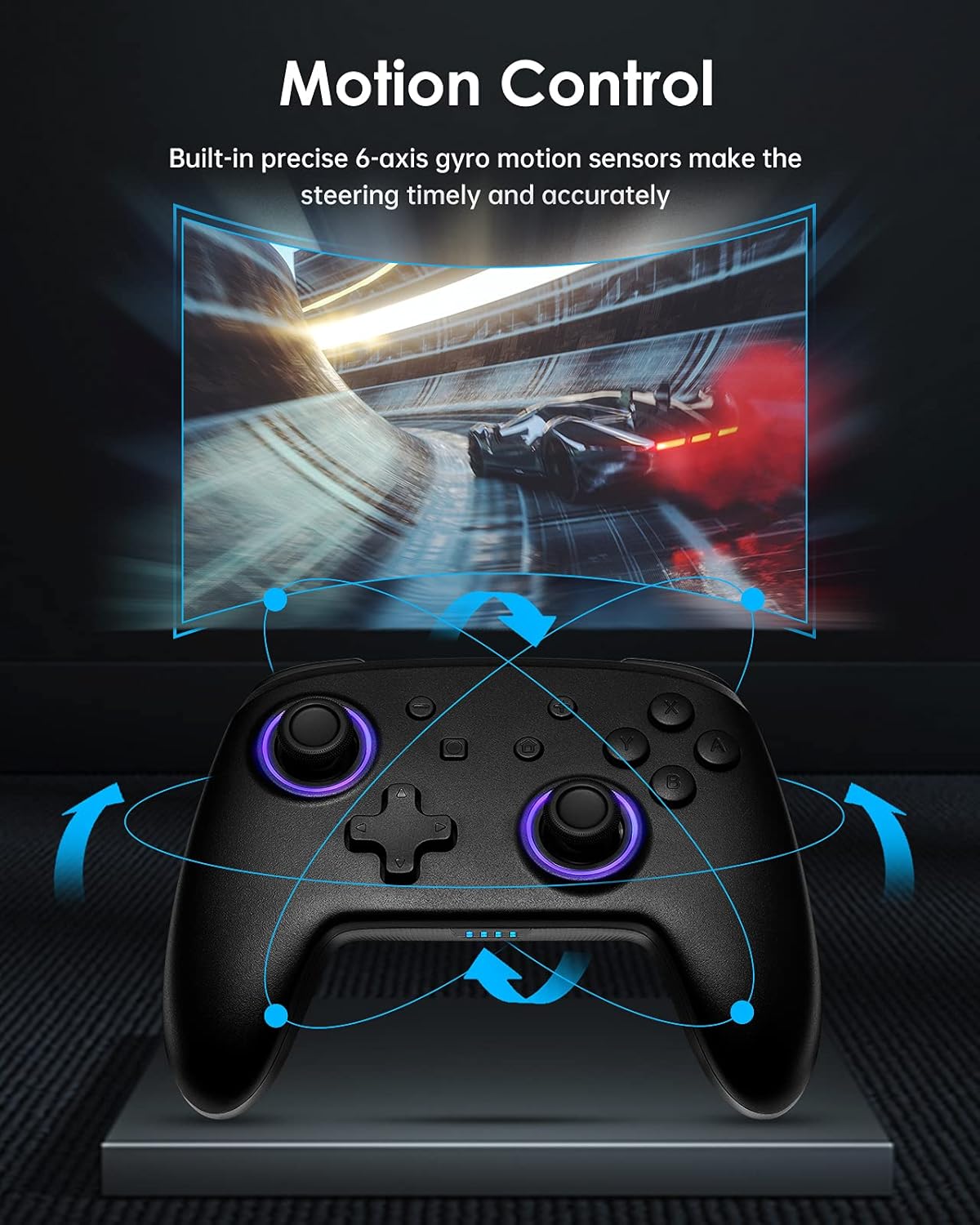
Whakaahua 4.2: Diagram illustrating the motion control capabilities of the controller, showing how tilting and movement translate into in-game actions, such as steering in a racing game.
4.3 Wiri Rua
Experience immersive feedback with the controller's dual vibration motors, providing timely and varied haptic responses to in-game events.
- The controller features 4-level built-in dual motors for different intensities of vibration.
- Vibration feedback is automatically triggered by compatible games.

Whakaahua 4.3: Pahū view of the controller highlighting the dual vibration motors and illustrating the different levels of vibration feedback.
4.4 Mahi TURBO
The TURBO function allows for continuous rapid input of a selected button, useful in games requiring fast, repeated presses.
- The controller supports a three-gear adjustable turbo speed.
- To activate TURBO: Press and hold the TURBO button, then press the desired action button (e.g., A, B, X, Y, L, R, ZL, ZR). The button will now continuously input when held.
- To adjust TURBO speed: While TURBO is active, press the TURBO button and move the Right Joystick Up or Down to cycle through speeds (e.g., 5/s, 12/s, 20/s).
- To deactivate TURBO: Press and hold the TURBO button, then press the same action button again.

Whakaahua 4.4: Graphic illustrating the TURBO function with three adjustable speeds (5/s, 12/s, 20/s) and how the 'T' button activates this feature.
5. Tiaki
Proper care and maintenance will extend the life of your DOYOKY controller.
- Puritia te pūmana kia maroke. Āta karohia te makuku, ngā wai rānei.
- Horoia te pūmana ki te kakahu ngohengohe, maroke. Kaua e whakamahi i ngā matū kaha, i ngā kaihoroi whakakoi rānei.
- Avoid extreme temperatures. Store the controller in a cool, dry place.
- Do not attempt to disassemble or modify the controller, as this will void any warranty and may cause damage.
6. Te Raru
Mena ka pāngia koe e ngā raruraru me tō pūmana, tirohia ngā otinga noa e whai ake nei:
- Controller does not connect or frequently disconnects:
- Me mohio kei te whakakiia te kaiwhakahaere.
- Ngāna anō te tukanga takirua e ai ki te whakaahuatanga i te Wāhanga 3.2.
- Ensure the controller is within the 23-foot wireless range of the console.
- Takina mo tetahi pokanoa ahokore mai i etahi atu taputapu.
- If the issue persists, try restarting both the controller and the Nintendo Switch console.
- Buttons or joysticks are unresponsive:
- Ensure the controller is properly connected to the console.
- Tirohia mēnā kei te iti te pākahiko o te kaiwhakahaere.
- Clean around the buttons and joysticks with a soft, dry cloth to remove any debris.
- Test the controller in a different game or on a different console (if available) to determine if the issue is with the controller or the game/console settings.
- LEDs are not working or displaying incorrectly:
- Refer to Section 4.1 for instructions on changing LED colors and modes.
- Ensure the controller has sufficient battery power.
7. Whakatakotoranga
| Āhuahira | Taipitopito |
|---|---|
| Tau tauira | YS32-01 |
| Hototahi | Nintendo Whakawhiti, Nintendo Whakawhiti Lite |
| Hononga | Ahokore |
| Momo Pūhiko | 1 Lithium Ion battery (built-in) |
| Ora Pūhiko | Tae atu ki te 8 haora (approx.) |
| Ahu (L x W x H) | 16.51 x 11.18 x 6.86 cm |
| Taumaha | 290 g |
| Nga waahanga motuhake | 7 LED Colors, 3 Lighting Modes, 6-axis Gyro Motion Control, Dual Vibration (4 levels), 3-gear TURBO Function |
8. Pūtāhui me te Tautoko
Warranty information for the DOYOKY Wireless Switch Controller YS32-01 is typically provided with the product packaging or available on the manufacturer's official webpae. Tena koa pupurihia to tohu mo te hoko mo nga kereme whakamana.
For technical support or further inquiries, please refer to the contact information provided by your retailer or visit the official DOYOKY support channels.