
NEXT 8000
Pukapuka Kaiwhakamahi mō te Kaiwhiwhi Ataata NEXT 8000 Full HD
Tauira: 8000
Kupu Whakataki
Thank you for choosing the NEXT 8000 Full HD Satellite Receiver. This manual provides detailed instructions for the proper installation, operation, and maintenance of your device. Please read this manual thoroughly before using the receiver to ensure optimal performance and safety.
The NEXT 8000 is designed to deliver a high-quality viewing experience with its Full HD capabilities, multi-satellite search, and media playback features. It supports various languages and offers convenient software upgrades via USB.
Ihirangi mokete
Tena koa tirohia kei roto nga taonga katoa kei roto i te kete:
- NEXT 8000 Satellite Receiver Unit
- Mana Mamao
- Tauera HDMI
- Tauira USB
- Pūurutau Hiko

Image: The NEXT 8000 Full HD Satellite Receiver unit shown alongside its remote control.
Aratohu Tatūnga
1. Te hono i te Kaiwhiwhi
Follow these steps to connect your satellite receiver to your television and satellite dish:
- Satellite IN: Connect the coaxial cable from your satellite dish to the 'LNB IN' port on the back of the receiver.
- Hononga HDMI: Use the provided HDMI cable to connect the 'HD OUT' port on the receiver to an available HDMI input on your television. Note the HDMI input number on your TV (e.g., HDMI 1, HDMI 2).
- AV Connection (Optional): If your TV does not have an HDMI input, use an AV cable (not included) to connect the 'AV' port on the receiver to the corresponding AV inputs on your television.
- Hononga Hiko: Connect the power adapter to the 'DC 12V' input on the receiver, then plug the adapter into a power outlet.
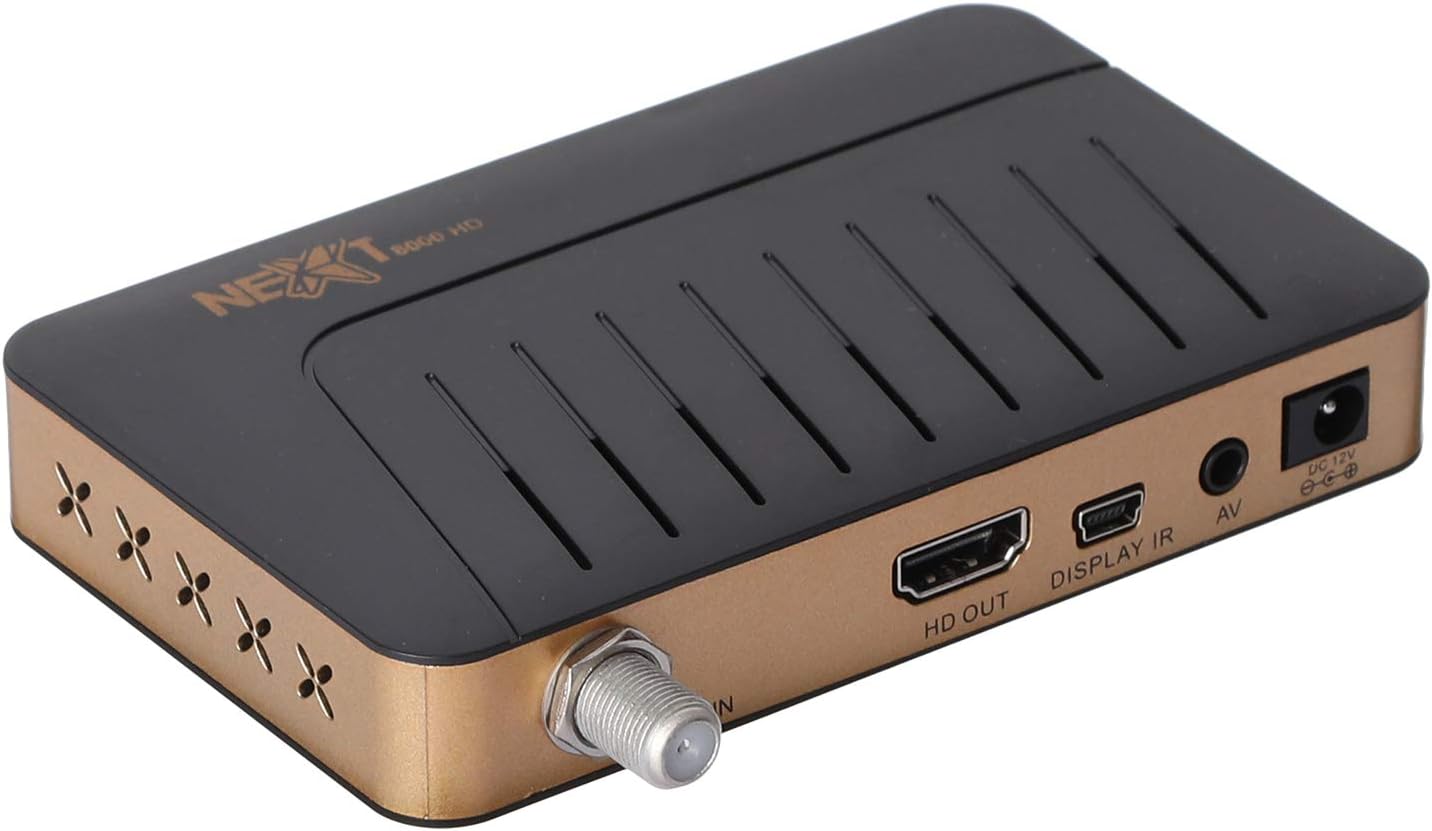
Whakaahua: Rear view of the NEXT 8000 receiver, highlighting the LNB IN, HD OUT (HDMI), AV, and DC 12V power input ports.
2. Te Hiko Tuatahi me te Tatūnga
I muri i te hono i ngā taura katoa:
- Turn on your television and select the correct HDMI or AV input source.
- The receiver will power on automatically. The initial setup wizard should appear on your screen.
- Follow the on-screen instructions to select your preferred language, time zone, and perform a channel scan. Refer to the 'Operating Instructions' section for details on channel scanning.
3. Mana Mamao Nekeview
Kia mohio koe ki nga mahi o te mana mamao:

Image: The remote control for the NEXT 8000 satellite receiver, showing various buttons for power, navigation, volume, channel, and special functions.
- Pātene Hiko: Turns the receiver on/off or to standby mode.
- MENU: Ka uru atu ki te tahua matua mō ngā tautuhinga me ngā āhuatanga.
- OK: Confirms selections or displays channel list.
- Patene Pere (Runga/Raro/Maui/Matau): Ka whakatere i roto i nga tahua me nga whiringa.
- EXIT: Ka hoki ki te mata o mua, ka puta ranei i te tahua.
- VOL +/-: Te whakatika i te rahinga.
- CH +/-: Huri hongere.
- EPG: Ka whakaatu i te Aratohu Papatono Hiko.
- SAT: Selects satellite.
- USB: Accesses USB media playback.
- Huringa Wā: Activates the Timeshift function (requires USB storage).
Nga Tohutohu Whakahaere
1. Channel Search and Management
To find and organize channels:
- Pehia te MENU pātene i runga i te mana mamao.
- Navigate to 'Installation' or 'Channel Search' using the arrow buttons and press OK.
- Select 'Multi-satellite search' or 'Network search' based on your setup.
- Follow the on-screen prompts to initiate the scan. The receiver will automatically detect available channels.
- After the scan, you can access options to 'Program lock', 'Delete', 'Move', or 'Rename' channels within the channel management menu.
2. Media Playback via USB
The receiver supports media playback from a USB flash drive.
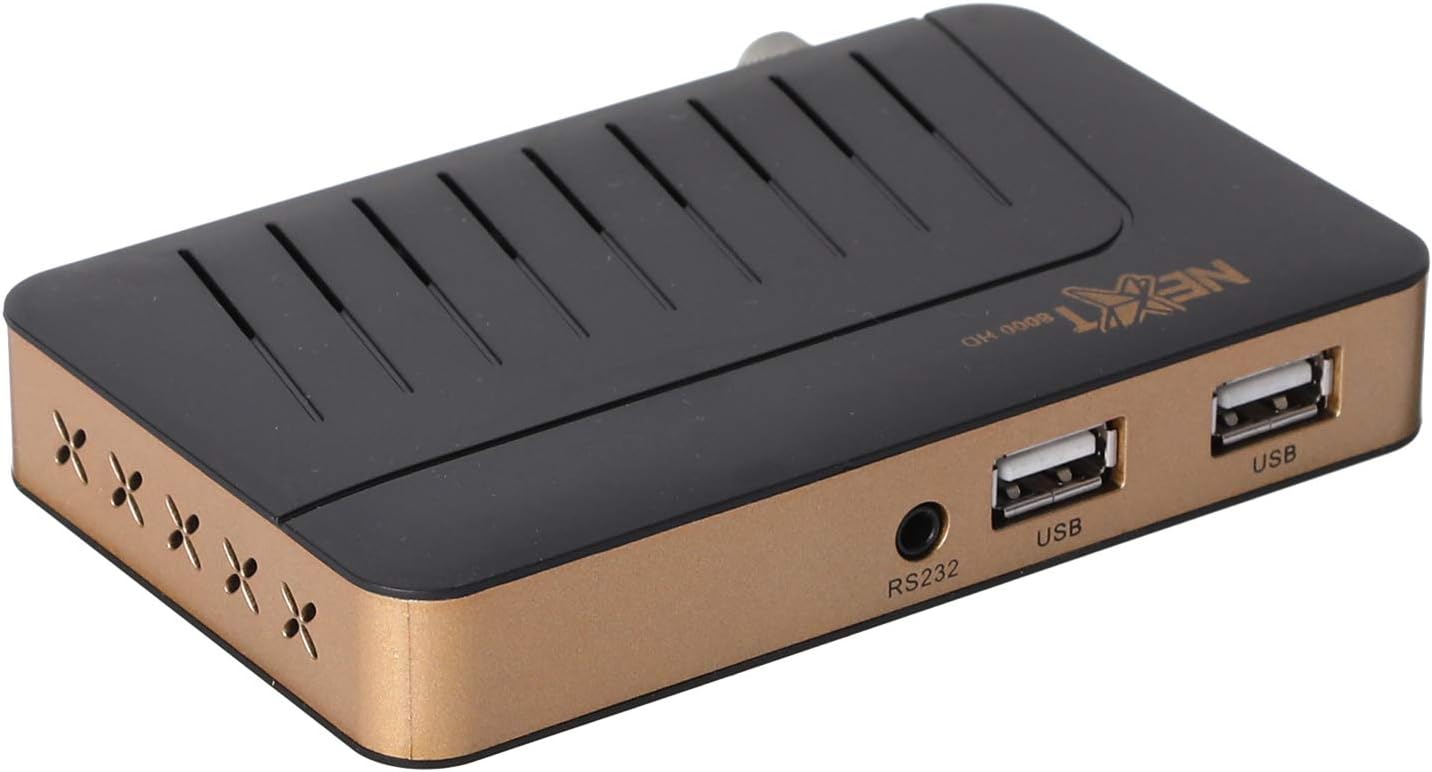
Whakaahua: Mua view of the NEXT 8000 receiver, showing the two USB ports available for connecting external storage devices.
- Insert a USB flash drive into one of the USB ports on the receiver.
- Pehia te USB button on the remote control or navigate to the 'Media' menu.
- Select the type of media you wish to play (e.g., Video, Music, Photo).
- Browse your USB drive content and select the desired file. The receiver supports AVI, MKV, TS, TP, TRP, MPG, and MP4 files.
3. Te tuhi me te Huri Waa
To record programs or use the Timeshift function, a USB storage device must be connected.
- Te tuhi: I a koe e mātaki ana i tētahi hōtaka, pēhi i te pātene Tuhia button (usually a red circle) on the remote control to start recording. Press it again to stop. Recorded content will be saved to the connected USB drive.
- Huringa Wā: Pehia te Huringa taima button on the remote control to pause live TV. You can then fast-forward or rewind within the buffered content.
4. Aratohu Hōtaka Hiko (EPG)
Pehia te EPG paatene i runga i te mana mamao ki view the 7-day electronic program guide. This allows you to see upcoming programs and set reminders or recordings.
5. Parental Lock
To restrict access to certain channels or menus, navigate to the 'System Settings' or 'Parental Control' menu. You can set a password to lock programs or specific functions.
Te tiaki
1. Software Upgrade via USB
To ensure your receiver has the latest features and bug fixes, you can upgrade its software:
- Tikiake i te pūmanawa hou file from the official NEXT website to a USB flash drive. Ensure the file is placed in the root directory of the USB drive.
- Insert the USB flash drive into the receiver's USB port.
- Haere ki MENU > 'System Settings' > 'Software Upgrade' (or similar option).
- Select 'Upgrade by USB' and choose the software file.
- Confirm the upgrade. The receiver will restart automatically after the upgrade is complete. Do not power off the receiver during the upgrade process.
2. Te horoi
To clean the receiver, disconnect it from the power supply. Use a soft, dry cloth to wipe the exterior surfaces. Do not use liquid cleaners or abrasive materials.
Raparongoā
If you encounter issues with your NEXT 8000 receiver, refer to the following table:
| Raruraru | Take pea | Rongoā |
|---|---|---|
| Kaore he pikitia, he tangi ranei | Incorrect TV input selected; Loose HDMI/AV cable; Receiver not powered on. | Select correct TV input; Check all cable connections; Ensure receiver is powered on. |
| Karekau he hongere i kitea | Satellite dish not aligned; Incorrect LNB settings; Channel scan not performed. | Check satellite dish alignment; Verify LNB settings in menu; Perform a channel scan. |
| Ko te mana mamao kaore e mahi | Dead batteries; Obstruction between remote and receiver; Remote sensor blocked. | Replace batteries; Remove obstructions; Ensure receiver's IR sensor is clear. |
| Ko te pāpāho USB kaore i te purei | Kore i tautokona file format; USB drive not properly inserted; Corrupted file. | Takina file format compatibility; Re-insert USB drive; Try a different USB drive or file. |
Mena ka mau tonu te raru i muri i te whakamatau i enei otinga, tena koa whakapā atu ki te tautoko a te kaihoko.
Whakatakotoranga
Key technical specifications for the NEXT 8000 Full HD Satellite Receiver:
- Tauira: 8000
- Taumira Huaputa Ataata: 576i, 576p, 720p, 1080i, 1080p (50/60 Hz)
- Hononga: HDMI, USB (2 ports), RS232, AV
- Hōputu Ororongo Tautokona: Dolby Digital, DTS, AAC, PCM
- Supported Video/Media Formats: AVI, MKV, TS, TP, TRP, MPG, MP4
- Pūmahara Rokiroki: 100 satellites, 4000 frequencies, 8000 channels
- Tukatuka: Sunplus
- Āhuatanga: Recording by USB flash, Screen enlargement, Multi-satellite search, Network search, Media playback, 7-day Electronic Program Guide (EPG), Teletex, Timeshift, Parental lock.
- Ahu: 19.6 x 17.4 x 6.6 cm
- Taumaha: 396 g
Pūtāhui me te Tautoko
For warranty information and technical support, please refer to the documentation provided with your purchase or visit the official NEXT product support webpae. Puritia to riirii hoko hei tohu mo te hoko mo nga kereme whakamana.
Ask a question about this manual
Ask about setup, troubleshooting, compatibility, parts, safety, or missing instructions. Manuals+ will review the question and use this page’s manual context to help answer it.