
Kupu Whakataki
Welcome to the user manual for your Apple iPhone 12 Pro. This guide provides essential information for setting up, operating, maintaining, and troubleshooting your device. This iPhone 12 Pro is a renewed product, ensuring full functionality and coming with generic or original accessories.

Whakaahua: Mua me muri view of the Apple iPhone 12 Pro in Silver.
Tatūnga
1. Te Wetewete me te Tirotiro Tuatahi
Upon receiving your iPhone 12 Pro, carefully unbox it and inspect the device for any visible damage. The package should include the iPhone and a generic (Mfi certified) charging cable. Headphones and a SIM card are not included.
2. Tāuta Kāri Sim
Locate the SIM card tray on the side of your iPhone. Use a SIM ejector tool (not included) to open the tray. Insert your compatible SIM card into the tray, ensuring it is correctly oriented, then reinsert the tray into the phone.
3. Initial Power On and Activation
Press and hold the Power button (located on the right side) until the Apple logo appears. Follow the on-screen prompts to set up your device. Connect to a Wi-Fi network when prompted to activate service and complete the setup process.
4. Te Whakataki i to Pūrere
Connect the provided charging cable to the Lightning port at the bottom of your iPhone and plug the other end into a compatible USB power adapter (not included). The battery icon on the screen will indicate charging status.
Operating Your iPhone 12 Pro
1. Whakaterenga Taketake
The iPhone 12 Pro features a multi-touch display. Use gestures such as tap, swipe, pinch, and zoom to navigate the interface. The side button (Power button) can be used to wake/sleep the device or access Siri. Volume buttons are on the left side.
2. Te Waea
Open the Phone app, tap 'Keypad', and dial the number. Tap the green call button to initiate a call. To answer an incoming call, swipe the green answer button. To end a call, tap the red end call button.
3. Karere
Open the Messages app to send and receive text messages. Tap the new message icon to compose a new message. Enter the recipient's contact or phone number and type your message in the text field.
4. Whakamahinga Camera
The iPhone 12 Pro is equipped with an advanced camera system capable of capturing high-quality photos and videos. Open the Camera app, select your desired mode (Photo, Video, Portrait, etc.), and tap the shutter button to capture. The rear camera system includes multiple lenses for versatile photography.

Whakaahua: Taipitopito view of the triple-lens camera system on the iPhone 12 Pro.
Te tiaki
1. Hauora Pūhiko
Your renewed iPhone 12 Pro is guaranteed to have a minimum battery capacity of 80%. To check your battery health, go to Settings > Battery > Battery Health & Charging.
2. Te horoi i to Pūrere
To clean your iPhone, use a soft, lint-free cloth. Avoid abrasive materials, aerosols, or cleaning sprays. Do not submerge your iPhone in water as it is not water resistant.
3. Whakahōu Pūmanawa
Regularly check for and install software updates to ensure your iPhone has the latest features, security enhancements, and performance improvements. Go to Settings > General > Software Update.
Raparongoā
Nga take me nga otinga noa
- Pūrere kore aro: If your iPhone is unresponsive, try a force restart. Press and quickly release the Volume Up button, then press and quickly release the Volume Down button, then press and hold the Side button until you see the Apple logo.
- Nga take hononga whatunga: Ensure your SIM card is properly installed and your cellular plan is active. Try toggling Airplane Mode on and off, or reset network settings (Settings > General > Transfer or Reset iPhone > Reset > Reset Network Settings).
- Kāore te taupānga i te whakautu: Force close the app by swiping up from the bottom of the screen (or double-clicking the Home button on older models) to view open apps, then swipe the problematic app upwards to close it. Reopen the app.
- Ngā take oro: Check the volume settings and ensure the Silent switch on the left side of the phone is not engaged.
Whakatakotoranga
| Waitohu | Aporo |
| Ingoa Tauira | iPhone 12 Pro |
| Pūnaha Mahi | iOS 14 |
| Te Rokiroki Mahara | 256 GB |
| Rahi kua whakauruhia te mahara RAM | 6 GB |
| Rahi Mata | 6.1 Inihi |
| Whakatau | 2532 x 1170 Pika |
| Tauira PTM | Ko etahi atu |
| Tere PTM | 1398 MHz |
| Tae | Hiriwa |
| Kaiwhakarato Ahokore | Kua Wewete mo nga Kaihoko Katoa |
| Hangarau Pūkoro | 5G |
| Pūhiko Raukaha | 2815 Miliamp Nga haora |
| Taumaha Tūemi | 7 hekere |
| Te Ahu o te Tuemi | 9.5 x 15.5 x 0.5 inihi |
Amazon Renewed Product Conditions
This device is an Amazon Renewed product, meaning it has been professionally inspected and tested to work and look like new. All Amazon Renewed products are fully functional and come with generic or original accessories and packaging. Cosmetic damage is categorized as follows:
- Tino pai: No cosmetic damage visible from 12 inches away. Screen has no scratches. Battery life is greater than 80%.
- Pai: Light scratches, barely visible from 12 inches away. Screen has no scratches. Battery life is greater than 80%.
- Ka whakaaetia: Light scratches, clearly visible from 12 inches away. Screen may have scratches, invisible when turned on. Battery life is greater than 80%.
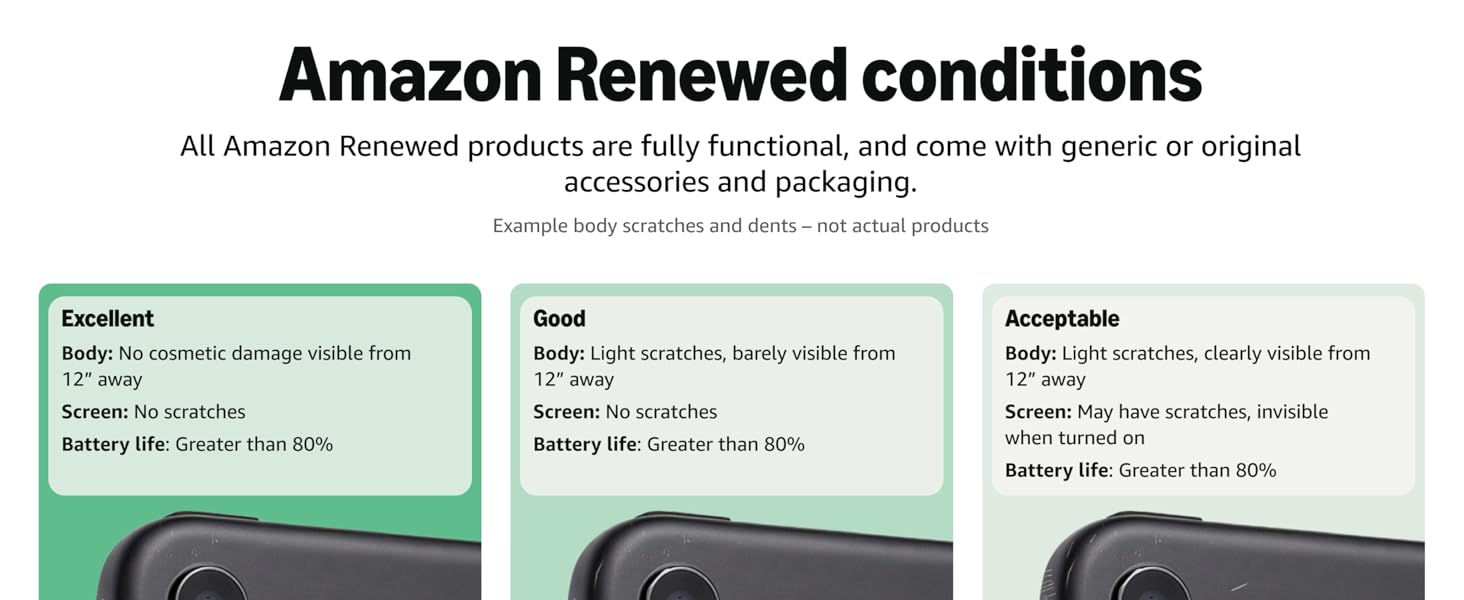
Image: Visual guide to Amazon Renewed cosmetic conditions.
Pūtāhui me te Tautoko
Nga korero Whakaputanga
Your renewed iPhone 12 Pro comes with a 90-Day Warranty. Please refer to the specific terms and conditions provided at the time of purchase for full details regarding coverage and claims.
Tautoko Kiritaki
For further assistance, technical support, or warranty claims, please contact the seller or Amazon Renewed customer service. Contact information can typically be found on your order details page or the Amazon Renewed webpae.