
1. Kupu Whakataki
The GameSir GK300 is a wireless mechanical gaming keyboard designed for high performance and versatility. It features dual-mode connectivity (2.4GHz and Bluetooth), TTC Blue mechanical switches, and a durable aluminum alloy construction. This manual provides instructions for setting up, operating, and maintaining your GK300 keyboard.
Ihirangi mokete
I te wa e wetewete ana, tirohia nga mea katoa e whai ake nei:
- 1x GameSir GK300 Gaming Keyboard
- 1x 2.4GHz Wireless Dongle
- 1x Waea Micro-USB
- 1x Manual Kaiwhakamahi

Image 1.1: GameSir GK300 Wireless Mechanical Gaming Keyboard with wrist rest.
2. Tatūnga me te Hononga
Nga Whakaritenga Pūnaha
- PC: Windows 7 (or higher) / macOS / Linux
- Pūrere Pūkoro: Android 4.0 (or higher) / iOS 7.0 (or higher)
- Hononga: PC with USB port for 2.4GHz dongle.
Hiranga: Please fully charge the GameSir GK300 wireless mechanical gaming keyboard before its first use.
Kei te utu i te papapātuhi
Connect the provided Micro-USB cable to the keyboard's charging port and the other end to a USB power source (e.g., computer USB port, USB wall adapter). A red light will indicate charging status.

Atahanga 2.1: Whakatata view of the GameSir Zinger USB dongle for 2.4GHz wireless connection.
Aratau Hononga
The GameSir GK300 supports two wireless connection modes:
- 2.4GHz Wireless Technology (Agility X):
This mode provides an instant wireless connection with 1ms ultra-low latency, ideal for gaming. Insert the 2.4GHz wireless dongle into an available USB port on your computer. The keyboard should automatically connect.
- Hononga Nihokikorangi:
This mode is suitable for connecting to smartphones, tablets, and other Bluetooth-enabled devices. To activate Bluetooth pairing, refer to the operating instructions for specific key combinations.

Image 2.2: Diagram illustrating 2.4GHz wireless technology and Bluetooth connection options.
3. Mahi
Function Key Combinations (FN Keys)
Utilize the FN key in combination with other keys to access special functions:
- FN + F7: Rōrahi heke
- FN + F8: Runga ake
- FN + F11: Whakaari puoro / okioki
- FN + SL: Switch between Windows / macOS layouts
- FN + PB: Reset under wireless mode
- FN + Kī Windows: Lock / Unlock Windows key
- FN + ← / →: Switch lighting effects
- FN + ↑ / ↓: Whakaritea te kanapa rama tuara
Nga Painga Whakamuri
The GK300 features a 6500K pure white LED backlight with multiple effects and 5 levels of brightness. Use FN + ← / → to cycle through lighting effects and FN + ↑ / ↓ ki te whakatika wherikotanga.

Image 3.1: Visual representation of various backlight effects including Wave & Ripple, Steady, Breathing, and Off modes.
TTC Blue Mechanical Switches
The keyboard is equipped with 104 TTC mechanical blue switches, known for their tactile bump and audible click feedback. These switches offer a keystroke lifespan of up to 50 million presses.

Atahanga 3.2: Whakatata view of the TTC Blue mechanical switches on the GameSir GK300 keyboard.
10-Key Rollover Anti-Ghosting
The 10-Key Rollover Anti-ghosting technology ensures that multiple simultaneous key presses are registered accurately, providing precise performance during intense gaming sessions.
4. Tiaki
Te horoi
Hei horoi i to papapātuhi, ata horoia te mata ki te ngohengohe, damp cloth. Avoid using harsh chemicals or abrasive materials. For deeper cleaning, you may use compressed air to remove debris from between the keycaps.
Whakahaere Pūhiko
The GK300 is equipped with a 3600mAh battery. Battery life can last up to 30 hours with medium backlight brightness or up to 300 hours without backlight. To conserve battery, the backlight will automatically turn off after 30 seconds of inactivity, and the keyboard will switch to sleeping mode after 1 minute without operation.
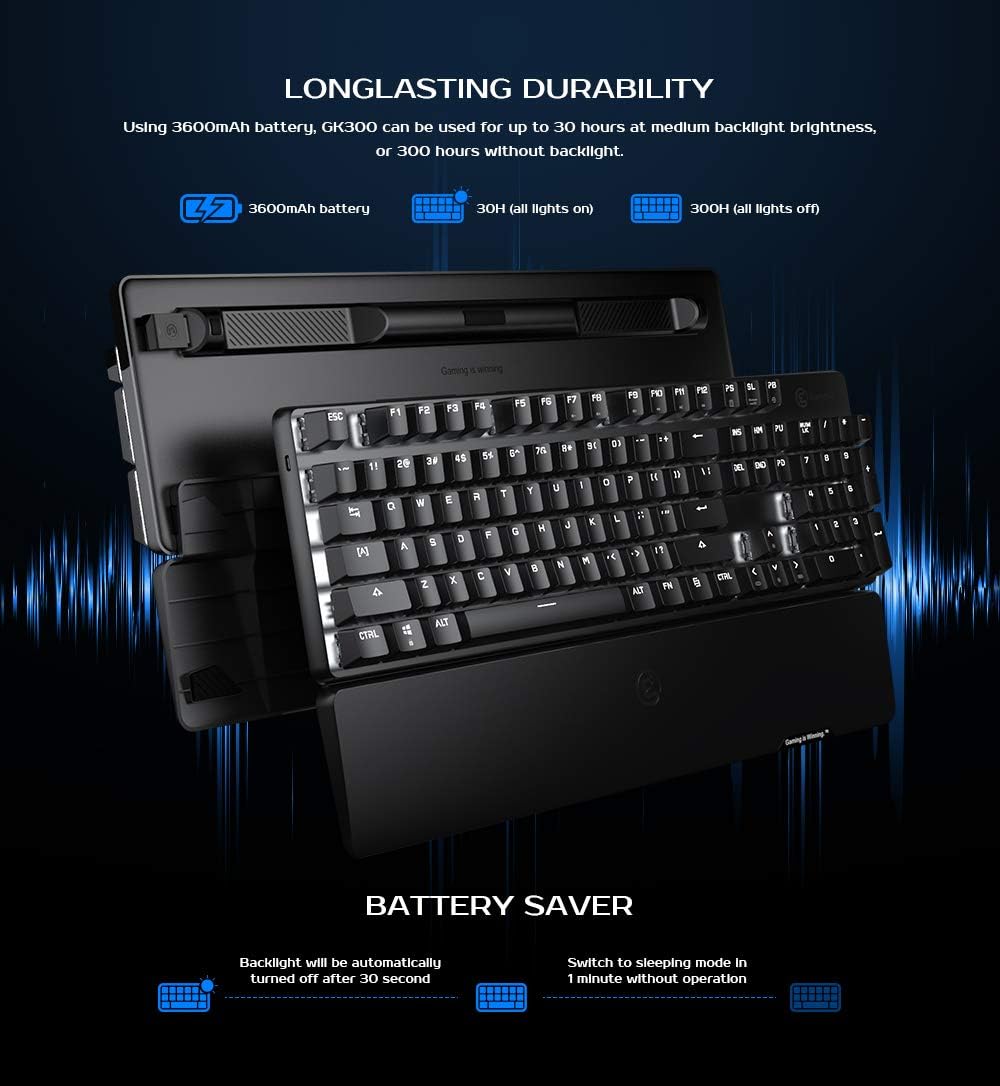
Image 4.1: Information on the 3600mAh battery, showing estimated battery life with and without backlight, and battery saver features.
5. Te Raru
Nga Take Hononga
- 2.4GHz Dongle Not Connecting: Ensure the dongle is fully inserted into a USB port. Try a different USB port. Ensure the keyboard is in 2.4GHz mode (if applicable, check keyboard indicator).
- Te Rahunga o te Hononga Nihokikorangi: Ensure Bluetooth is enabled on your device. Make sure the keyboard is in Bluetooth pairing mode. Remove any previous GK300 pairings from your device and try again.
- Papapātuhi Kaore i te whakautu: Check battery level. Recharge the keyboard if necessary. Try resetting the keyboard using FN + PB in wireless mode.
Backlight Malfunction
- If the backlight is not functioning correctly, ensure the keyboard is charged. Cycle through lighting effects using FN + ← / → and adjust brightness with FN + ↑ / ↓.
6. Whakatakotoranga
| Hunga Hua | 17.24 x 5.08 x 1.65 inihi |
| Taumaha Tūemi | 2.95 pauna |
| Kaihanga | GameSir |
| Tau tauira | GK300 |
| Pūhiko | 2 nga pākahiko Lithium Ion e hiahiatia ana (kei roto) |
| Pūrere Hototahi | Pona, PC, Papa |
| Hangarau Hononga | Nihokikorangi, Ahokore 2.4GHz |
| Whakaahuatanga Papapātuhi | Ergonomic Modern Ambidextrous |
| Āhuahira Motuhake | Nihokikorangi, Ahokore |
| Tae | Pango |
| Rauemi | Acrylonitrile Butadiene Styrene, Aluminium |
| Nga Waahanga kei roto | USB Cable, 2.4GHz Wireless Dongle, User Manual |
7. Pūtāhui me te Tautoko
For the most up-to-date warranty information and customer support, please visit the official GameSir website. Firmware updates for the GK300, if available, can also be found on the official webpae.
Tuhipoka: Product specifications and features are subject to change without prior notice. For any issues not covered in this manual, please contact GameSir customer support.