
Kupu Whakataki
This manual provides comprehensive instructions for the ChamZA Built-in Motion Plus 2 in 1 Wireless Remote Controller Gamepad, designed for use with Wii and Wii U consoles. Please read this manual thoroughly before using the product to ensure proper operation and longevity.
Nga waahanga matua
- 2 i roto i te 1 Hoahoa: Integrates remote control and Motion Plus functionality.
- Hototahi: Fully compatible with both Wii and Wii U consoles.
- Hononga Ahokore: Utilizes Bluetooth for a stable connection with a range of up to 8 meters.
- Ngā Pūoko Whakauru: Features a built-in COMS sensor for infrared light detection from the sensor bar, providing accurate light-spot moving information and supporting sensitivity switching.
- Urupare Ororongo: Includes a built-in sound module to convey induction sound from the console to the speaker, and a dedicated speaker for sound output.
- Urupare Wiri: Equipped with a built-in motor for immersive vibration sensing feedback.
- Puna Hiko: Requires 2 x AA batteries (not included).
- Tauranga Whakawhānui: Features an extension terminal for connecting peripheral devices such as a Nunchuck controller.
Tatūnga
1. Tāuta Pūhiko
- Open the battery compartment cover on the back of the remote controller.
- Insert two AA dry batteries, ensuring correct polarity (+/-).
- Katia kia mau te uhi o te wahanga pākahiko.
2. Connecting to the Console (Synchronization)
- Ensure your Wii or Wii U console is powered on and the sensor bar and AV cable are properly connected.
- Locate the red "SYNC" button on the back of the remote controller (usually under the battery cover). Press this button. The four LED indicators on the front of the remote will begin blinking rapidly, indicating it is searching for a connection. Ensure sufficient battery power for this step.
- On your Wii console, locate and press the red code pair button. This button is typically found behind the small flap on the front of the console or inside the battery compartment of the console itself.
- Once synchronization is successful, one of the LED indicators on the remote will remain solid bright, indicating a stable connection.

Figure 1: Location of the SYNC button on the remote and console for pairing. The remote shown is black, but the process is identical for the Sky Blue model.
Nga Tohutohu Whakahaere
1. Mana Taketake
The remote controller functions as a primary input device for your Wii/Wii U console. It detects motion, tilt, and infrared light from the sensor bar to translate your movements into in-game actions. Buttons on the remote allow for various commands and selections.
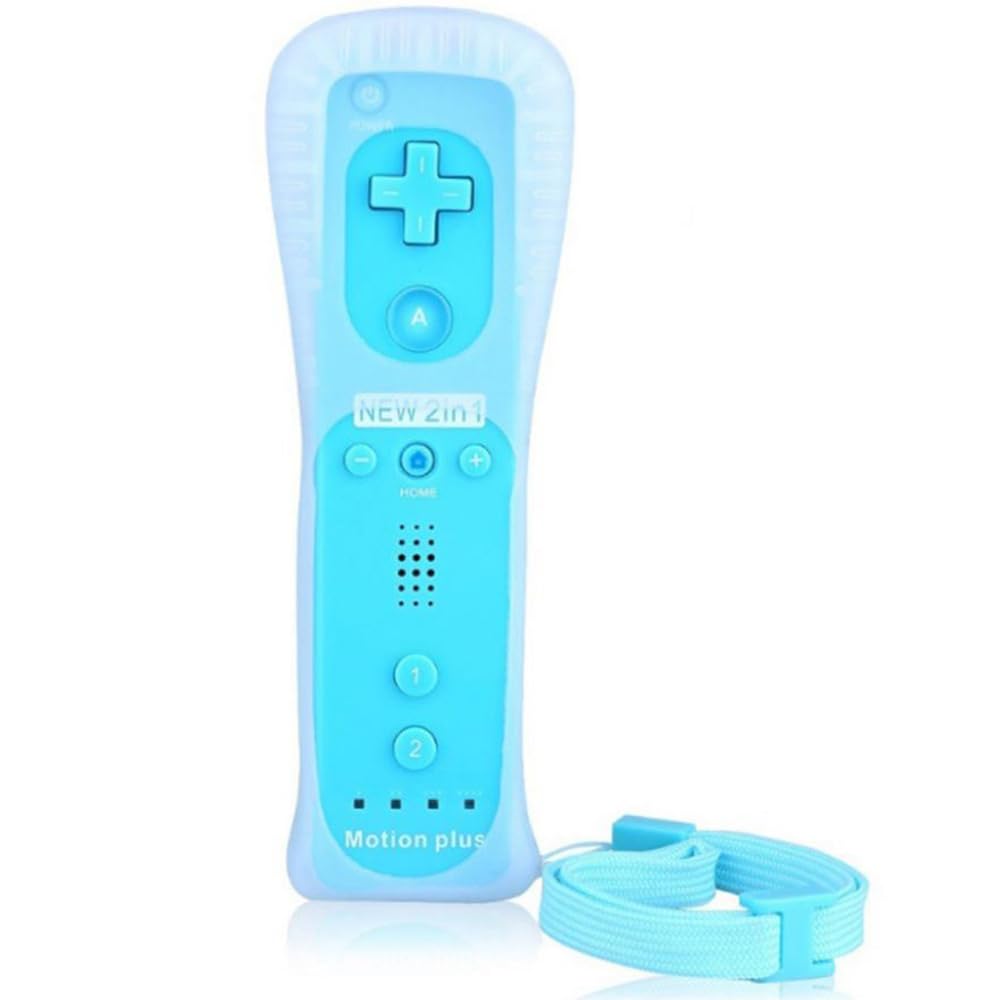
Figure 2: ChamZA Built-in Motion Plus 2 in 1 Wireless Remote Controller in Sky Blue.
2. Nunchuck Controller Connection
For games requiring additional analog control and button inputs, connect a Nunchuck controller to the extension terminal at the bottom of the remote. The Nunchuck enhances gameplay by providing a joystick and two additional trigger buttons.

Whakaahua 3: Example of a Wii Remote and Nunchuck Controller setup. The controllers shown are black, but the connection method is universal.

Figure 4: The Nunchuck controller's accelerometer detects movement, enhancing first-person shooter games by allowing natural aiming and firing.
3. Motion Plus Functionality
The built-in Motion Plus technology provides enhanced precision and accuracy for motion-controlled games, judging movement and tilt with greater detail. This eliminates the need for an external Motion Plus adapter.

Figure 5: The remote features built-in Motion Plus for precise movement and tilt detection. The remote shown is black.
4. Wireless Range and Multiple Controllers
The controller maintains a stable Bluetooth connection up to 8 meters. Up to four controllers can be connected to a single console for multi-player gaming.

Figure 6: Stable Bluetooth connectivity allows for an 8-meter wireless range. The remote shown is black.

Figure 7: A single console can support up to four controllers for multiplayer sessions. The remote shown is black.
Te tiaki
- Te horoi: Wipe the controller with a soft, dry cloth. Avoid using harsh chemicals or abrasive cleaners.
- Rokiroki: Whakaorangia te pūmana ki te wahi matao, maroke atu i te ra tika me te wera nui.
- Tiaki Pūhiko: Tangohia ngā pākahiko mēnā kāore te kaiwhakahaere e whakamahia mō te wā roa hei ārai i te turuturu.
- Puhi Tiaki: Using the included shockproof silicone case can help protect the controller from accidental drops and impacts.
Raparongoā
1. Cannot Connect with Wii Console
- Reset Remotes: Try resetting the remote by pressing the SYNC button again.
- Clear Bluetooth Links: If multiple Bluetooth devices have been paired, the console might have too many active links. Try deleting all existing Bluetooth links from your console's settings and then attempt to connect the remote again.
2. Glitches or Screen Flashing
- Press the red SYNC button on the battery cover of the remote and the START button on your main console simultaneously. This can help re-establish a stable connection.
3. Controller Stops Working After a Period
- Perform ZERO CLEARING: Press the red SYNC button on your main console to perform a 'Zero Clearing' and then re-sync the remote.
- Tirohia nga Pikohiko: Ensure batteries have sufficient power. Replace with fresh AA batteries if needed.
Whakatakotoranga
| ASIN | B0883FHKJS |
| Taumaha Tūemi | 4.8 hekere |
| Ahu mōkihi | 8 x 2.3 x 1.6 inihi |
| Hononga | Nihokikorangi Ahokore |
| Mokowoko Korekore | Tae atu ki te 8 mita |
| Puna Mana | 2 x Pahiko AA (kaore i whakauruhia) |
| Hototahi | Nintendo Wii, Nintendo Wii U |
Pūtāhui me te Tautoko
For warranty information or technical support, please refer to the product packaging or contact ChamZA customer service directly. Contact details are typically provided with the product documentation or on the manufacturer's official webpae.