
Elo E931896
EloPOS 15" Point of Sale System User Manual
Tauira: E931896
1. Hua Neke Atuview
The EloPOS System is a versatile point-of-sale solution designed for commercial environments. It features a 15-inch 4:3 touchscreen display, an Intel 8th generation i3 processor, and an integrated expansion hub for connecting various peripherals. This system is built for durability and continuous public use, making it suitable for traditional POS and self-service applications.
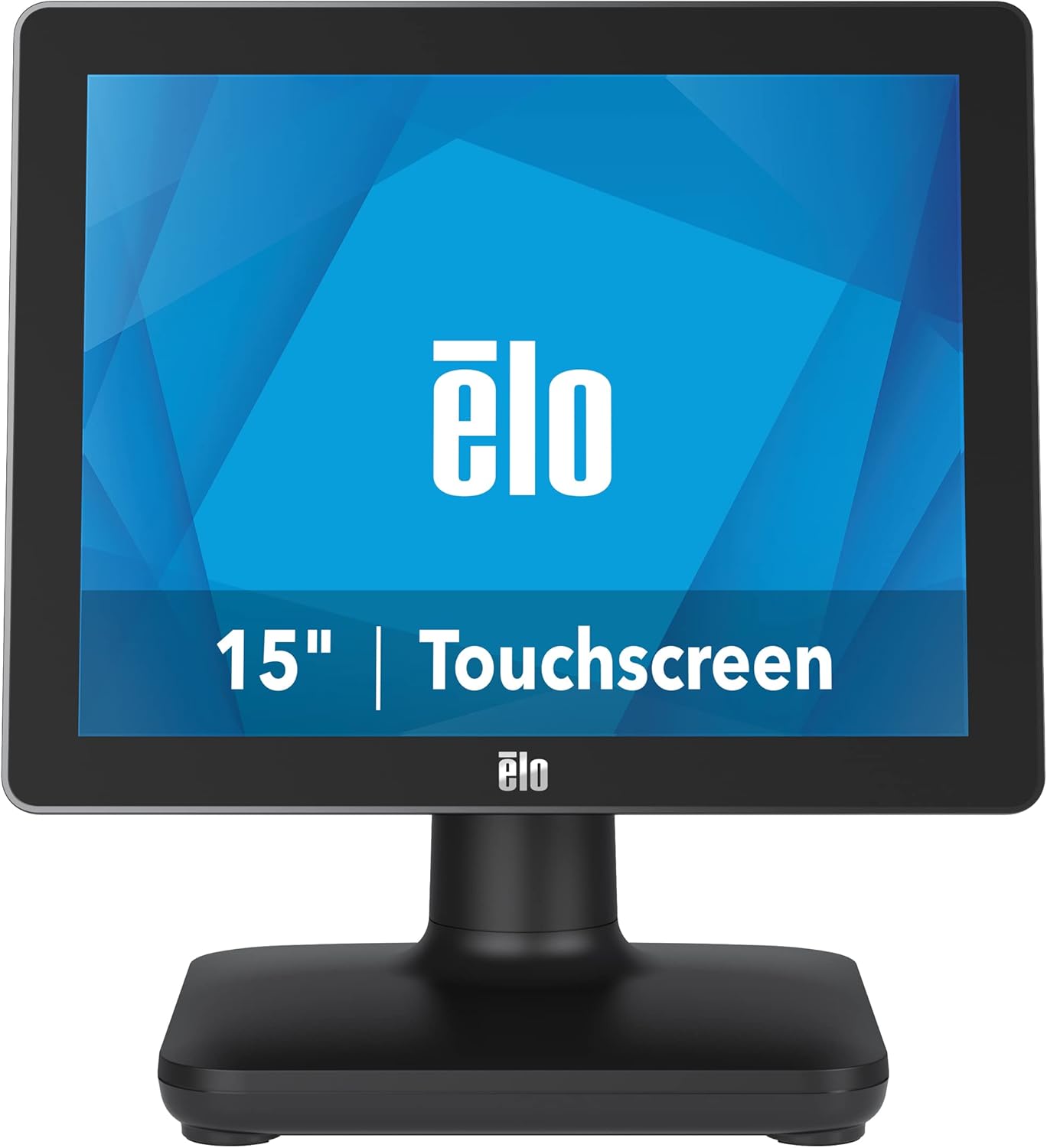
Whakaahua 1: Mua view of the EloPOS System.
The system's robust design ensures reliability in demanding retail environments, providing a stable platform for your business operations.
2. Ihirangi mokete
Verify that all items listed below are included in your EloPOS system package:
- EloPOS System Unit
- NA Power Cord
- Uea hiko EU
- Power Adapter - 180W
- Cable RJ-45 to DB-9
- Cable Cover Locking Screw
- Tohutohu Tāuta Tere (QIG)
3. Nga waahanga matua
The EloPOS System is equipped with several features designed to enhance its functionality and durability:
- Integrated Expansion Hub: The included stand features an integrated expansion hub, allowing connection of various POS peripherals such as cash drawers, printers, barcode scanners, and payment devices.
- Windows 10 Operating System: Utilizes the reliable performance and security of Intel 8th Generation processors, integrated Trusted Platform Modules, Intel vPro, and the Windows 10 operating system.
- Maumau Tauhokohoko-Koeke: Features a splash-proof housing and a rugged retail-hardened design, built to withstand adverse conditions common in commercial environments.
- Hononga USB-C: Enables easy connection of a 1302L customer-facing display, providing touch, data, and power through a single cable (second display sold separately).
- Elo Edge Connect: Allows seamless attachment of up to four peripherals (sold separately) to the edge of the touchscreen, including fingerprint scanners, EMV readers, barcode scanners, or MSRs.
4. Aratohu Tatūnga
4.1. Te Wetewete me te Whakanoho
Carefully remove the EloPOS system and all components from the packaging. Place the unit on a stable, flat surface, ensuring adequate ventilation around the device.
4.2. Te Mana Hononga
- Connect the 180W power adapter to the power input port on the back of the EloPOS system.
- Connect the appropriate power cord (NA or EU) to the power adapter.
- Monohia te taura hiko ki roto i te putanga hiko kua tu.
4.3. Tuhono Pikitia
The EloPOS system features an integrated expansion hub for connecting various peripherals. Refer to the image below for port locations.

Whakaahua 2: Whakamuri view with connection hub.
- Tauranga USB: Connect USB devices such as keyboards, mice, barcode scanners, or payment terminals to the available USB 2.0 or USB 3.0 ports.
- Tauranga Itarangi: Honoa he taura Itarangi mo te hononga whatunga.
- Tauranga Rangatū: Use the RJ-45 to DB-9 cable for connecting serial devices if required.
- Tauranga USB-C: For connecting compatible USB-C devices, including the Elo 1302L customer-facing display.
5. Mahi
5.1. Te Whakakaha/Weto
To power on the system, press the power button, typically located on the side or back of the display unit. To power off, use the standard Windows shutdown procedure or press and hold the power button for a few seconds.
5.2. Te whakamahi i te Mata Paa
The EloPOS system features a responsive touchscreen display. Use your finger or a compatible stylus for navigation and input. Ensure the screen is clean for optimal touch performance.
6. Tiaki
Regular maintenance helps ensure the longevity and optimal performance of your EloPOS system:
- Te horoi i te Mata: Kia ngawari te whakamahi i te kakahu ngohengohe, karekau he ngongo dampened with a non-abrasive, ammonia-free glass cleaner. Do not spray cleaner directly onto the screen.
- Te horoi i te Casing: Horoia te waho casing me te ngohengohe, damp kakahu. A ape i nga matū kino, i nga taonga abrasive ranei.
- Whakahau: Ensure that the ventilation openings on the system are not blocked to prevent overheating.
- Whakahōu Pūmanawa: Regularly check for and install operating system and driver updates to maintain system security and performance.
7. Te Raru
This section provides solutions to common issues you might encounter with your EloPOS system.
| Raruraru | Take pea | Rongoā |
|---|---|---|
| Kaore te punaha i te hiko. | Power cord not connected, power adapter faulty, power outlet issue. | Check power cord connections. Ensure power adapter is securely plugged in. Test the power outlet with another device. |
| Kare e aro mai te mata pa. | Screen dirty, drivers not installed/corrupted, system frozen. | Clean the screen. Restart the system. Check device manager for touchscreen driver status. |
| Peripheral (e.g., printer) not detected. | Incorrect port, driver issue, peripheral not powered on. | Ensure peripheral is powered on and connected to the correct port. Install or update peripheral drivers. |
| Ka puhoi te oma o te pūnaha. | He nui rawa ngā taupānga e rere ana, kāore i te rawaka te RAM, he wera rawa. | Close unnecessary applications. Check system resources. Ensure proper ventilation. |
8. Whakatakotoranga Hangarau
| Āhuahira | Whakatakotoranga |
|---|---|
| Te rahi o te whakaaturanga whakaatu mata tu | 15 Inihi |
| Whakatau Mata | 1024x768 |
| Taumira Mata Max | 1366x768 |
| Tukatuka | 3.1 GHz core_i3 (Intel 8th Generation) |
| RAM | 4 GB DDR4 |
| Puku Maama | 128 GB SSD |
| Kaitukatuka Whakairoiro | Intel HD Whakairoiro 520 |
| Pūnaha Mahi | Matapihi 10 |
| Te maha o nga Tauranga USB 2.0 | 2 |
| Te maha o nga Tauranga USB 3.0 | 3 |
| Tau tauira tūemi | E931896 |
| Taumaha Tūemi | 11.6 pauna |
| Rahi Hua (LxWxH) | 8.71 x 14.16 x 13.37 inihi |
| Tae | Pango |
| Puna Mana | AC |
| Voltage | 240 Volts |
9. Nga Korero Whakaputanga
The EloPOS System is backed by Elo's standard 3-year warranty. This warranty covers defects in materials and workmanship under normal use. For detailed terms and conditions, please refer to the official Elo warranty policy document or contact Elo customer support.
10. Tautoko me te Whakapā
For further assistance, technical support, or service inquiries, please visit the official Elo website or contact their customer support. You can find more information and resources at the Elo Store on Amazon.
Ask a question about this manual
Ask about setup, troubleshooting, compatibility, parts, safety, or missing instructions. Manuals+ will review the question and use this page’s manual context to help answer it.