
1. Hua Neke Atuview
The Dino-Lite AM4025X is a 1.3-megapixel USB eyepiece camera designed to convert traditional optical microscopes into digital imaging systems. It captures high-resolution images and videos, allowing for digital observation, documentation, and analysis. This device integrates seamlessly with various traditional microscopes by fitting into standard eyepiece slots.

Image 1.1: The Dino-Lite AM4025X USB Eyepiece Camera, highlighting its compatibility with traditional microscopes, Windows & Mac software, USB 2.0 connectivity, and measurement capabilities.
2. He aha kei roto i te Pouaka
Upon unpacking your Dino-Lite AM4025X, please verify that all the following components are included:
- Dino-Lite AM4025X Eyepiece Camera with integrated USB cable
- Quick Start Guide and Software Download Link
- Carry Pouch for storage and transport
- Calibration Target for accurate measurements
- Various Adapters for different eyepiece diameters (23mm, 30mm, 30.5mm, C-mount)

Image 2.1: All components included in the Dino-Lite AM4025X package, including the eyepiece camera, cables, quick start guide, carry pouch, calibration target, and adapters.
3. Tohutohu Tatūnga
Follow these steps to set up your Dino-Lite AM4025X eyepiece camera with a traditional microscope:
- Prepare the Microscope: Ensure your traditional microscope is stable and powered on. Remove one of the existing eyepieces from the microscope's ocular tube.
- Kōwhiria te Pūurutau Tika: Choose the appropriate adapter ring from the provided set that matches the diameter of your microscope's ocular tube (23mm, 30mm, 30.5mm, or C-mount).
- Install the Eyepiece Camera: Gently insert the Dino-Lite AM4025X camera, with the selected adapter, into the microscope's ocular tube. Ensure it is seated firmly and securely.
- Hono ki Rorohiko: Plug the USB cable from the AM4025X camera into an available USB port on your Windows or Mac computer.

Image 3.1: A hand demonstrating the installation of the Dino-Lite eyepiece camera into the ocular lens of a traditional microscope.
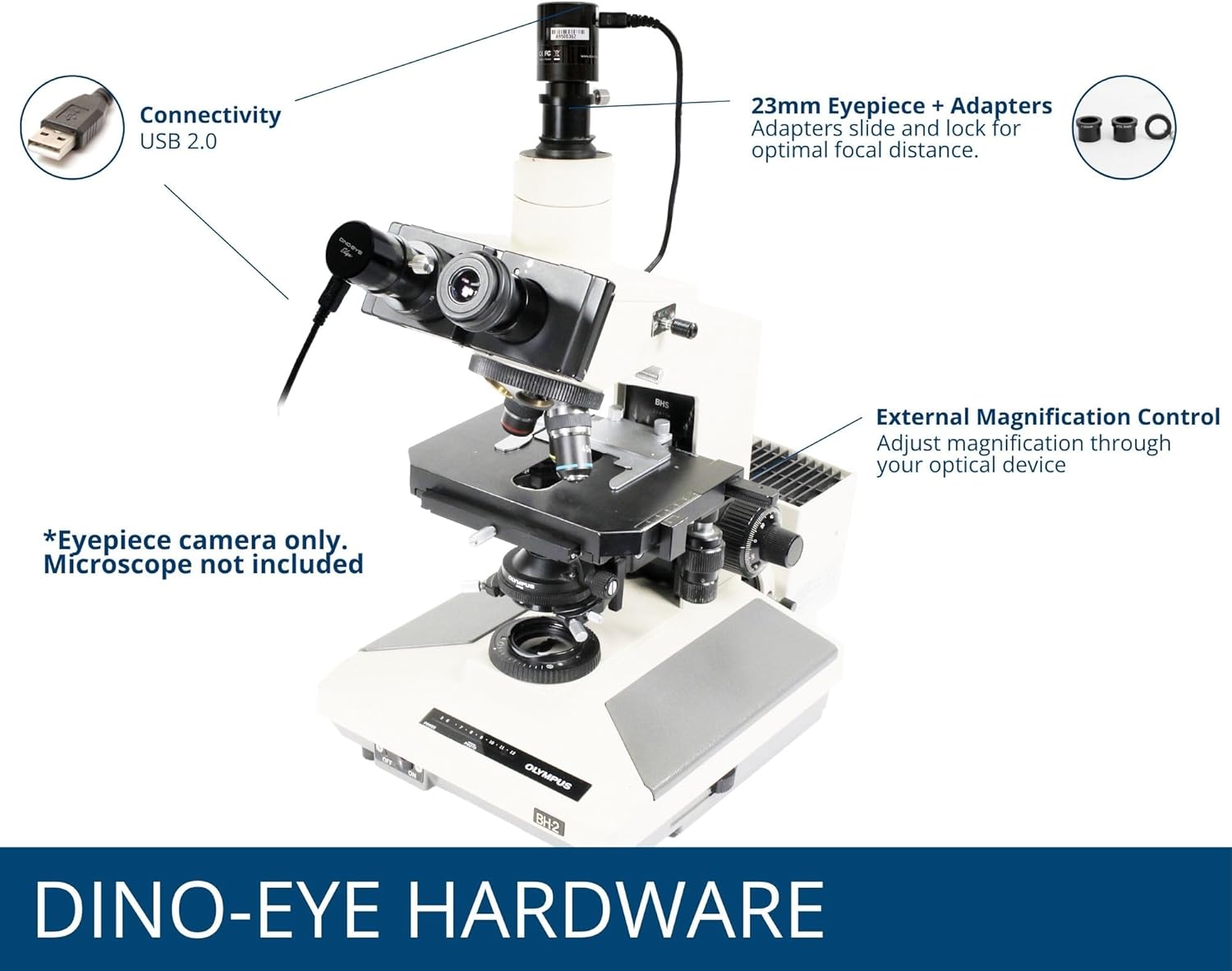
Image 3.2: The Dino-Lite AM4025X camera properly installed on a traditional microscope, showing the USB connection and adapter placement.
4. Software Installation and Use
The Dino-Lite AM4025X requires dedicated software for operation. The package includes a link to download the latest versions of DinoCapture for Windows and DinoXcope for Mac.
4.1. Tāuta Pūmanawa
- Tikiake Pūmanawa: Visit the provided software download link (usually found in the Quick Start Guide) and download the appropriate software for your operating system (DinoCapture for Windows, DinoXcope for Mac).
- Tāuta Pūmanawa: Follow the on-screen instructions to install the software. You may need administrator privileges.
- Pūmanawa Whakarewa: Once installed, launch the DinoCapture or DinoXcope application.
4.2. Mahi Taketake
With the camera connected and software launched, you should see a live image from your microscope on your computer screen.
- Arotahi: Use the coarse and fine focus knobs on your traditional microscope to bring the specimen into sharp focus on the computer screen.
- Whakanui: Adjust the magnification by changing the objective lenses on your traditional microscope. The AM4025X utilizes the optical magnification of the microscope.
- Image/Video Capture: The software provides tools to capture still images (1280 x 1024 resolution) and record videos (30 FPS). Refer to the software's help documentation for detailed instructions on these functions.
- Measurement and Annotation: DinoCapture and DinoXcope offer advanced features for annotating images and performing various measurements directly on the live feed or captured images.

Image 4.1: The DinoCapture software interface displayed on a laptop, showing live microscope feed and various tools for image capture, annotation, and analysis.
5. Nga Aratohu Whakahaere
To ensure optimal performance and longevity of your Dino-Lite AM4025X, observe the following guidelines:
- Always handle the camera and microscope with care to avoid damage to optical components.
- Ensure the USB connection is secure during operation to prevent interruptions.
- Use the microscope's built-in illumination for best image quality, as the AM4025X does not have an integrated light source.
- A ape i te tuku i te kaamera ki nga wera nui, makuku ranei.

Whakaahua 5.1: Example digital images captured through the AM4025X, showing a pine needle cross-section at 4x, 10x, 40x, and 100x objective lens magnifications.
6. Tiaki
Proper maintenance will help preserve the quality and functionality of your eyepiece camera.
- Te horoi i te Arotahi: Use a soft, lint-free cloth specifically designed for optical lenses to gently wipe the camera's lens. For stubborn smudges, a small amount of lens cleaning solution can be applied to the cloth, not directly to the lens.
- Whakapai Whānui: Wipe the exterior of the camera with a soft, dry cloth. Do not use harsh chemicals or abrasive cleaners.
- Rokiroki: When not in use, store the camera in its carry pouch in a clean, dry, and dust-free environment. Avoid areas with extreme temperature fluctuations.
- Tiaki taura: Kaua e whakapiko rawa, kaua hoki e whakapiko i te taura USB. Puritia kia pai kia kore ai e pakaru.
7. Te Raru
If you encounter issues with your Dino-Lite AM4025X, refer to the following common problems and solutions:
| Raruraru | Take pea | Rongoā |
|---|---|---|
| No image displayed in software |
|
|
| Ko te atahanga he pukoro, kua kore ranei e aro |
|
|
| Ka pakaru, ka kati rānei te pūmanawa |
|
|
| Poor image quality (dark, grainy) |
|
|
8. Whakatakotoranga
Detailed technical specifications for the Dino-Lite AM4025X USB Eyepiece Camera:
| Āhuahira | Whakatakotoranga |
|---|---|
| Tau tauira | AM4025X |
| Whakatau Atahanga | 1280 x 1024 (1.3 Megapixels) |
| Reiti Tāpare Ataata | Tae atu ki te 30 FPS |
| Hononga | USB 2.0 |
| Compatible Eyepiece Slots | 23mm, 30mm, 30.5mm, C-mount |
| Pūnaha Whakahaere Hototahi | Matapihi, Mac |
| Pūmanawa kei roto | DinoCapture (Windows), DinoXcope (Mac) |
| Momo Puna Maama | From Traditional Microscope (No integrated light) |
| Whakarahi Morahi | 50x (dependent on microscope objective) |
| Hunga Hua | 1.26 x 1.26 x 3.15 inihi |
| Taumaha Tūemi | 13.7 hekere (0.39 Kirokaramu) |
| Rauemi | Kirihou |
| Tae | Pango |
| Voltage | 5 Volts (USB powered) |
| Whakaahuatanga o te Arotahi Whāinga | Achromatic |
9. Pūtāhui me te Tautoko
For warranty information, please refer to the documentation included with your product or visit the official Dino-Lite website. Dino-Lite provides customer support for technical assistance, software inquiries, and troubleshooting.
Rauemi ipurangi:
- Official Dino-Lite Webpae: www.dino-lite.com
- Dino-Lite Store on Amazon: Dino-Lite Store
When contacting support, please have your product model (AM4025X) and any relevant purchase information ready.