
Kupu Whakataki
This manual provides instructions for the Speedlink PIAVO Wireless Ergonomic Vertical Mouse (Model SL-630019-BK-01). This ergonomic mouse is designed to promote a natural, relaxed wrist posture, reducing strain on the hand, arm, shoulder, and neck during extended computer use. It features 5 buttons, adjustable DPI settings, and wireless 2.4 GHz connectivity.

Whakaahua 1: Speedlink PIAVO Wireless Ergonomic Vertical Mouse, front view. This image shows the overall ergonomic design of the mouse.
Ihirangi mokete
Tena koa tirohia kei roto nga taonga katoa kei roto i te kete:
- Speedlink PIAVO Wireless Ergonomic Vertical Mouse
- USB-A Kaiwhiwhi
- Battery (pre-installed or included separately)
- Pukapuka Tohutohu (tenei tuhinga)

Whakaahua 2: Packaging of the Speedlink PIAVO Wireless Ergonomic Vertical Mouse. The box indicates "Wireless Vertical Mouse" and "10m Range".
Tatūnga
- Kōkuhu Pūhiko: If the battery is not pre-installed, open the battery compartment on the underside of the mouse and insert the included battery, ensuring correct polarity.
- Honoa Kaiwhiwhi USB: Locate an available USB-A port on your computer or laptop. Insert the USB-A receiver into the port.
- Hiko Kiore: Kimihia te whakakaera Whaka/Weto i te taha o raro o te kiore. Kiriata te whakakā ki te tūnga "Kei".
- Tāuta Atekōkiri: The mouse is designed for plug-and-play operation. Your operating system (e.g., Windows) should automatically detect and install the necessary drivers. This process typically takes a few seconds.
- Whakamātautau: Once installed, move the mouse to test cursor movement. If the cursor does not respond, ensure the mouse is powered on and the USB receiver is securely connected.

Whakaahua 3: Underside of the mouse, illustrating the battery compartment and the On/Off switch. Ensure the switch is in the 'On' position for operation.
Nga Tohutohu Whakahaere
The Speedlink PIAVO mouse features 5 buttons and adjustable DPI settings for optimal control.
- Pātene Pātene Mauī: Paerewa mahi pāwhiri tuatahi.
- Pātene Pāwhiri Matau: Paerewa pawhiri tuarua mahi.
- Panuku Wira: For scrolling through documents and web pages. Can also be pressed for a middle-click function.
- Patene Whakawhiti DPI: Located near the scroll wheel. Press this button to cycle through the available DPI settings (800, 1200, 1600 DPI). This adjusts the cursor speed and sensitivity.
- Patene Whakamua/Whakamuri: Located on the side of the mouse, typically used for navigation in web kaitirotiro ranei file kaihōpara.
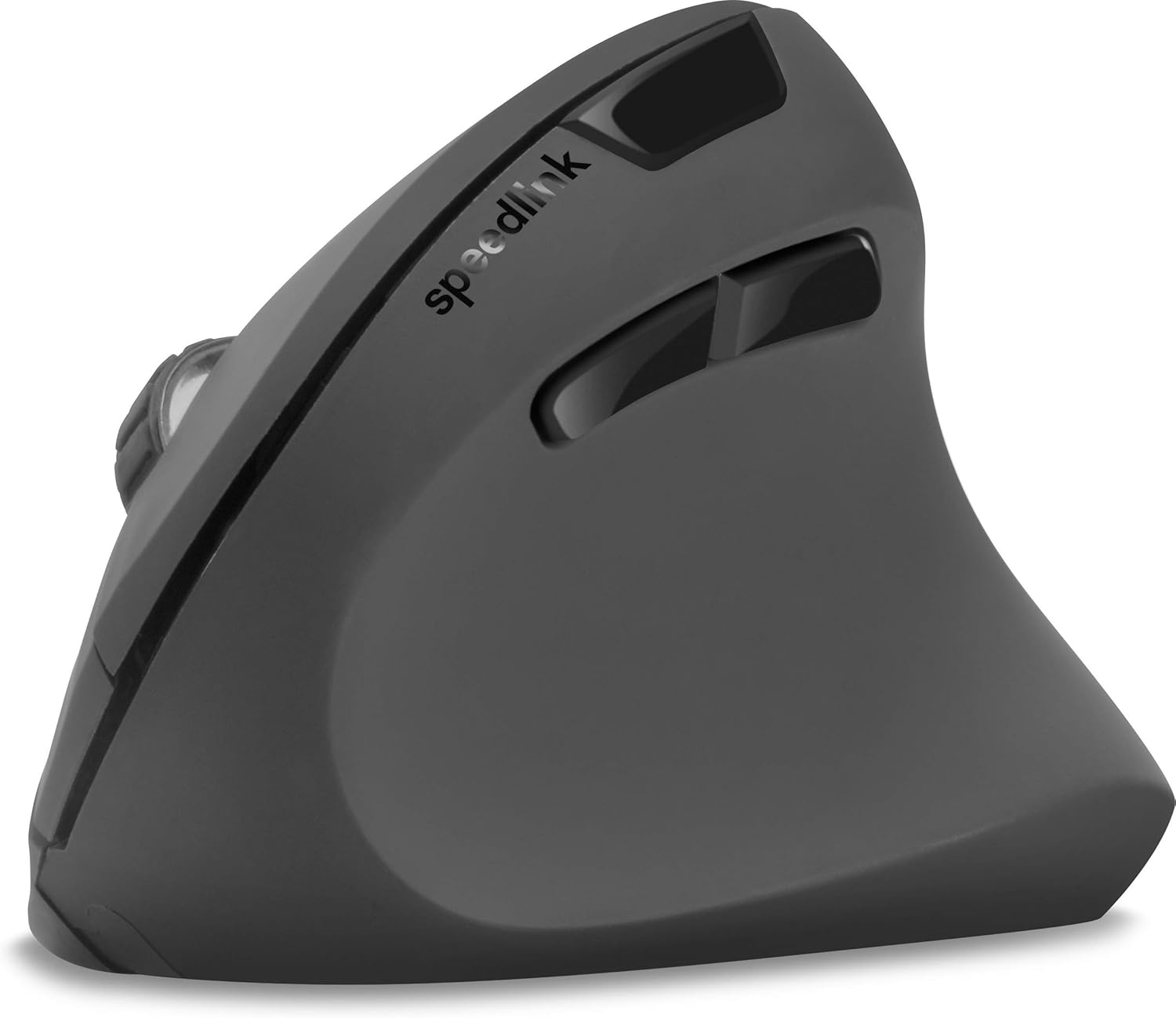
Whakaahua 4: runga-iho view of the mouse, highlighting the left/right click buttons, scroll wheel, and DPI switch button.

Whakaahua 5: Te taha view of the mouse, illustrating the ergonomic grip and the forward/backward navigation buttons.
Aratau Tiaki Energy
The mouse features an energy-saving mode to conserve battery life. If the mouse is inactive for a period, it will enter a sleep state. To wake it up, simply move the mouse or press any button.
Te tiaki
To ensure the longevity and optimal performance of your Speedlink PIAVO mouse, follow these maintenance guidelines:
- Te horoi: Whakamahia he kakahu ngohengohe, maroke hei horoi i te taha waho o te kiore. Mō te paru uaua, he iti noa te paru.amp cloth can be used, but ensure no moisture enters the mouse. Avoid using harsh chemicals or abrasive cleaners.
- Horoi Sensor: Occasionally, dust or debris may accumulate around the optical sensor on the underside of the mouse. Use a soft brush or compressed air to gently clean the sensor area.
- Whakakapinga Pūhiko: When the mouse performance degrades or it stops responding, it may be time to replace the battery. Open the battery compartment, remove the old battery, and insert a new one of the same type, observing polarity.
- Rokiroki: When not in use for extended periods, it is recommended to switch off the mouse using the On/Off switch to conserve battery life. Store the mouse and USB receiver in a dry, dust-free environment.
Raparongoā
| Raruraru | Take pea | Rongoā |
|---|---|---|
| Kāore te kiore e aro mai / Kāore te kiore e neke. |
|
|
| Te nekehanga pehu pohehe. |
|
|
| DPI setting resets after sleep/reboot. | This is a known characteristic for some mice; the DPI setting may revert to default. | Press the DPI switch button to select your preferred sensitivity after waking the mouse or restarting the computer. |
Whakatakotoranga
| Tau tauira | SL-630019-BK-01 |
| Hononga | Wireless 2.4 GHz via USB-A Receiver |
| Huringa Huringa | Optical |
| Te maha o nga Patene | 5 |
| Tautuhinga DPI | 800, 1200, 1600 DPI (Adjustable) |
| Takotoranga-ringa | ringa-matau |
| Mokowoko Korekore | Tae atu ki te 10 mita |
| Puna Mana | Battery-powered (Battery included) |
| Pūnaha Whakahaere Hototahi | Matapihi |
| Taumaha | 106 Karamu |
| Tae | Pango |
Pūtāhui me te Tautoko
Information regarding specific warranty terms and customer support contact details is not available in the provided product data. Please refer to the product packaging or the manufacturer's official website for the most current warranty information and support options.
Mo etahi atu awhina, ka toro atu koe ki te Speedlink official webpae.