
1. Kupu Whakataki
The Unitek Y-3036 is a tool-free external enclosure designed for 2.5-inch SATA I/II/III Hard Disk Drives (HDDs) and Solid State Drives (SSDs). It provides a convenient solution for connecting your 2.5-inch drives to a computer via USB 3.0, offering fast data transfer speeds and easy portability. This manual provides detailed instructions for the proper installation, operation, and maintenance of your Unitek Y-3036 enclosure.
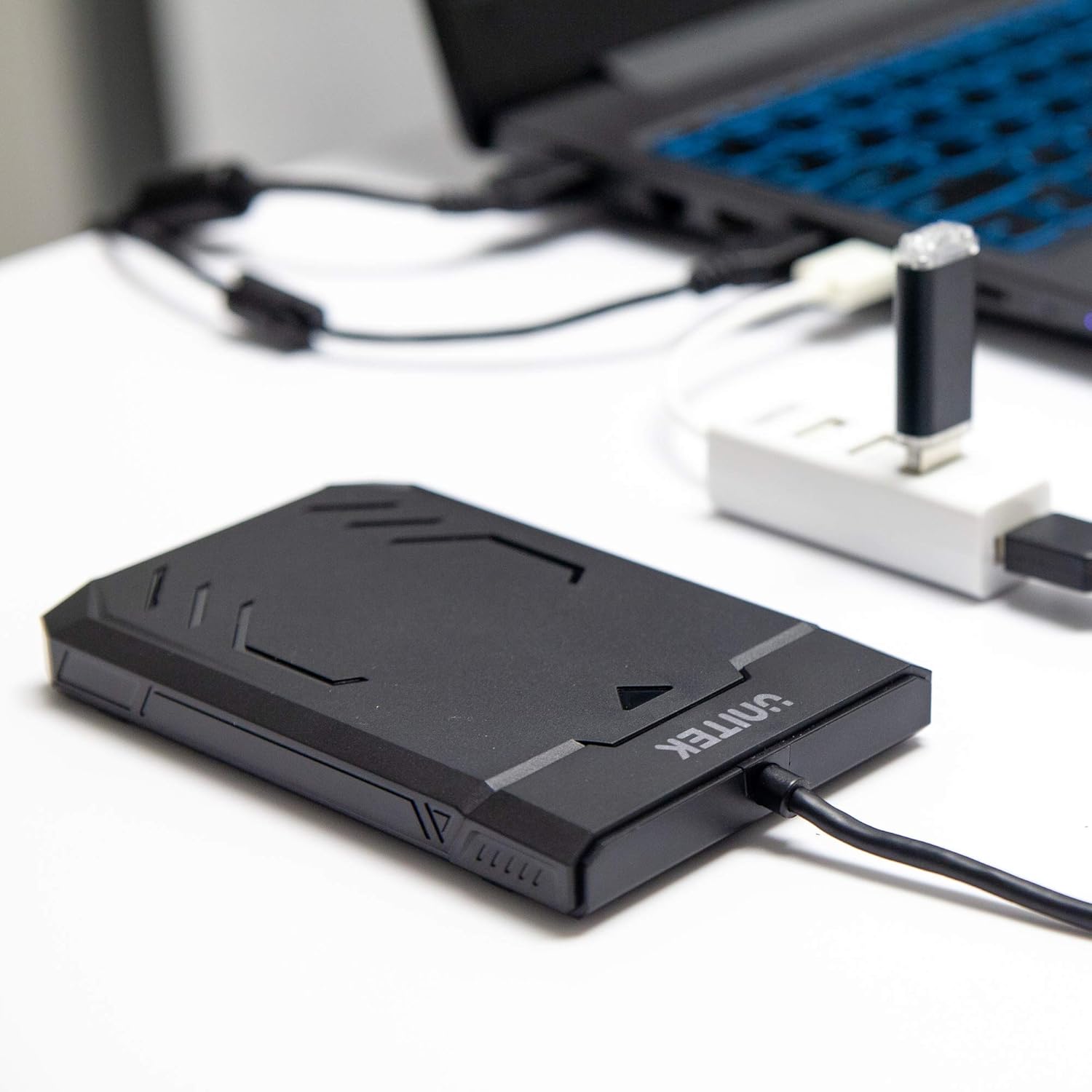
Image 1.1: Unitek Y-3036 enclosure connected to a laptop.
2. Ihirangi mokete
Tena koa tirohia kei roto katoa nga taonga kei roto i to kete:
- Unitek Y-3036 2.5-inch Hard Drive Enclosure with integrated USB 3.0 cable
- Foam pad for drive stability
- Pukapuka Tohutohu (tenei tuhinga)

Image 2.1: Enclosure with integrated cable and foam pad.
3. Whakatakotoranga
| Tauira | Unitek Y-3036 |
| Momo Puku Hototahi | 2.5-inch SATA I/II/III HDD/SSD (up to 9.5mm thickness) |
| Atanga | USB 3.0 (whakamuri hototahi ki te USB 2.0) |
| Rere Whakawhiti Raraunga | Up to 6Gbps (SATA III), supports UASP |
| Ahu (L x W x H) | 130mm x 85mm x 15mm (5.12" x 3.27" x 0.59") |
| Rauemi | Kirihou |
| Ngā āhuatanga | Tool-free assembly, Plug & Play, LED indicator, Sleep function, Built-in USB cable |

Whakaahua 3.1: Te rahi o te hua.
4. Tatūnga me te Tāuta
The Unitek Y-3036 enclosure features a tool-free design for easy installation of your 2.5-inch HDD or SSD.
- Whakatuwheratia te Whakapiri: Gently slide the top cover of the enclosure to open it.
- Kōkuhu te Puku: Align your 2.5-inch SATA HDD or SSD with the SATA connector inside the enclosure. Carefully push the drive into the connector until it is firmly seated. Ensure the drive is oriented correctly.
- Add Foam Pad (Optional): If your drive is thinner than 9.5mm, you may use the included foam pad to secure it snugly within the enclosure and prevent movement. Place the foam pad on top of the drive before closing the cover.
- Katia te Whakapiri: Slide the top cover back into place until it clicks securely.

Image 4.1: Enclosure open with a 2.5-inch HDD inserted.

Whakaahua 4.2: Taipitopito view of drive insertion.
5. Nga Tohutohu Whakahaere
Once your drive is installed in the enclosure, follow these steps to use it with your computer:
- Hono ki Rorohiko: Plug the integrated USB 3.0 cable from the enclosure into an available USB port on your computer. For optimal performance, use a USB 3.0 port.
- Tohu LED: The enclosure features an LED indicator. When connected, the LED will illuminate, indicating power. It will flash during data transfer activity.
- Ahukahuka Puku: Your operating system should automatically detect the new drive. If it's a new drive, you may need to initialize and format it through your operating system's disk management utility before it appears in 'My Computer' or 'Finder'.
- Tango Haumaru: Me pana marie te puku mai i tō pūnaha whakahaere i mua i te momotu i te taura USB hei ārai i te pirau o ngā raraunga.
6. Tiaki
To ensure the longevity and optimal performance of your Unitek Y-3036 enclosure:
- Te horoi: Whakamahia he kakahu ngohengohe, maroke hei horoi i waho o te papa. A ape i te whakamahi i nga kai horoi wai, i nga whakarewa ranei.
- Rokiroki: Ki te kore e whakamahia, penapenahia te papa ki tetahi waahi makariri, maroke kia matara atu i te ra me te wera nui.
- Te whakahaere: Handle the enclosure with care to avoid drops or impacts, which could damage the internal drive or the enclosure itself.
7. Te Raru
If you encounter issues with your Unitek Y-3036 enclosure, refer to the following common problems and solutions:
- Kaore i kitea te Puku:
- Me whakarite kei te hono tika te taura USB ki te pouaka me te rorohiko.
- Ngana ki te hono atu ki tetahi tauranga USB rereke i runga i to rorohiko.
- Verify that the 2.5-inch HDD/SSD is properly seated in the enclosure's SATA connector.
- Check your computer's Disk Management (Windows) or Disk Utility (macOS) to see if the drive is recognized but uninitialized or unformatted.
- Test the enclosure with a different 2.5-inch SATA drive, or test your drive directly with another enclosure/adapter if available.
- Nga Tere Whakawhiti Puturi:
- Ensure you are connected to a USB 3.0 port on your computer. USB 2.0 ports will operate at slower speeds.
- Manatokohia kei te hou tonu tō pūnaha whakahaere me ngā taraiwa.
- The actual speed depends on the performance of the installed HDD/SSD.
- Tohu Arahina Kaore i te Maama:
- Confirm the USB cable is fully plugged into a powered USB port.
- Ngana ki tetahi atu tauranga USB.
8. Nga korero haumaru
Kia mau ki nga aratohu haumaru e whai ake nei:
- Do not expose the enclosure to water, moisture, or extreme temperatures.
- Avoid dropping or subjecting the enclosure to severe impacts.
- Do not attempt to open or modify the enclosure beyond the intended drive installation. This may void any warranty and could cause damage.
- Kaua e taea e nga tamariki.
9. Pūtāhui me te Tautoko
Unitek products are designed for reliability and performance. For warranty information or technical support, please refer to the official Unitek webpaetukutuku, whakapā atu ranei ki to kaihokohoko o to rohe. Puritia to riirii hoko hei tohu mo te hoko mo nga kereme whakamana.