
Kupu Whakataki
Thank you for choosing the EZQuest USB C Hub Docking Station 8-in-1. This manual provides detailed instructions for setting up, operating, and maintaining your device. Please read this manual thoroughly before use to ensure optimal performance and longevity of your product.
Ka mutu te huaview
The EZQuest USB C Hub Docking Station 8-in-1 is designed to expand the connectivity of your USB-C enabled devices, offering a comprehensive solution for various peripherals and display needs. It features multiple ports for data transfer, video output, network connection, and power delivery.
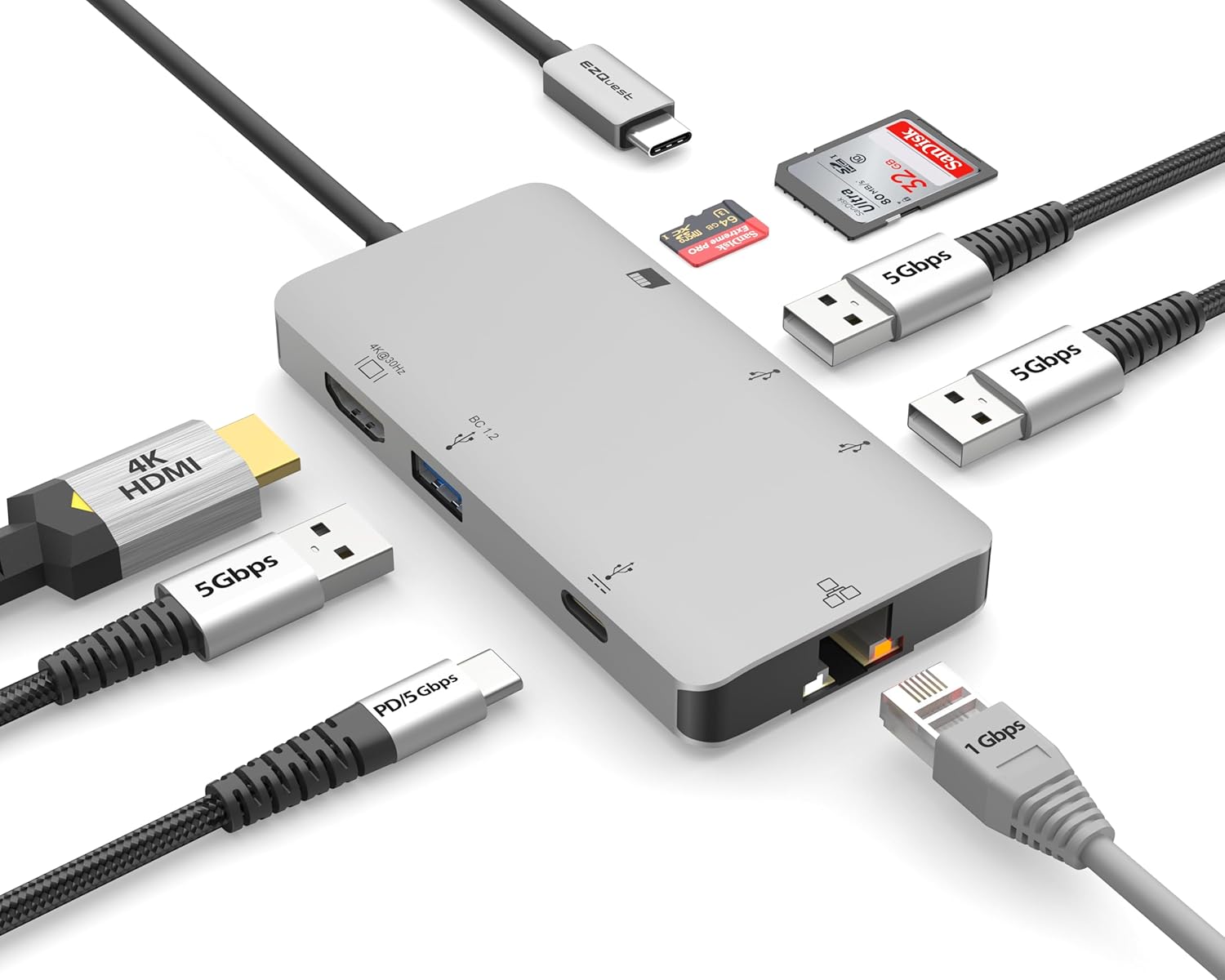
Image: The EZQuest USB C Hub Docking Station 8-in-1, showcasintōna hoahoa kiato me te taura USB-C kua whakauruhia.

Image: A diagram illustrating the 8-in-1 expansion capabilities of the hub, including HDMI, USB-C PD, USB 3.0, Ethernet, and card readers.
Tohutohu Tatūnga
- Tūhono ki te Pūrere Kaihautū: Plug the integrated USB-C cable of the EZQuest hub into an available USB-C/Thunderbolt 3/4 port on your laptop, tablet, or smartphone.
- Tuku Hiko (Kōwhiringa): For charging your host device, connect your USB-C power adapter to the USB-C Power Delivery port on the hub. The hub supports up to 100W input with 85W pass-through charging.
- Whakaaturanga HDMI: Connect an HDMI cable from your monitor to the HDMI port on the hub for 4K 30Hz video output.
- Hononga Itarangi: For a stable wired network, connect an Ethernet cable to the Gigabit Ethernet port on the hub.
- Pikitia USB: Connect your USB-A devices (e.g., mouse, keyboard, external hard drive) to the three USB-A 3.0 ports.
- SD/Micro SD Cards: Insert your SD or Micro SD cards into the respective slots for data transfer.

Image: A user connecting the EZQuest USB C Hub to a laptop's USB-C port.

Image: Illustrates connecting a power adapter to the hub for pass-through charging of a laptop.
Nga Tohutohu Whakahaere
Whakaatu Putanga (HDMI)
The HDMI port supports 4K resolution at 30Hz. Connect an HDMI-enabled display to extend or mirror your desktop for enhanced productivity or multimedia viewing. Ensure your display and device support 4K 30Hz for optimal performance. Note that the USB-C ports on the hub are for data and power delivery, not for connecting a monitor.
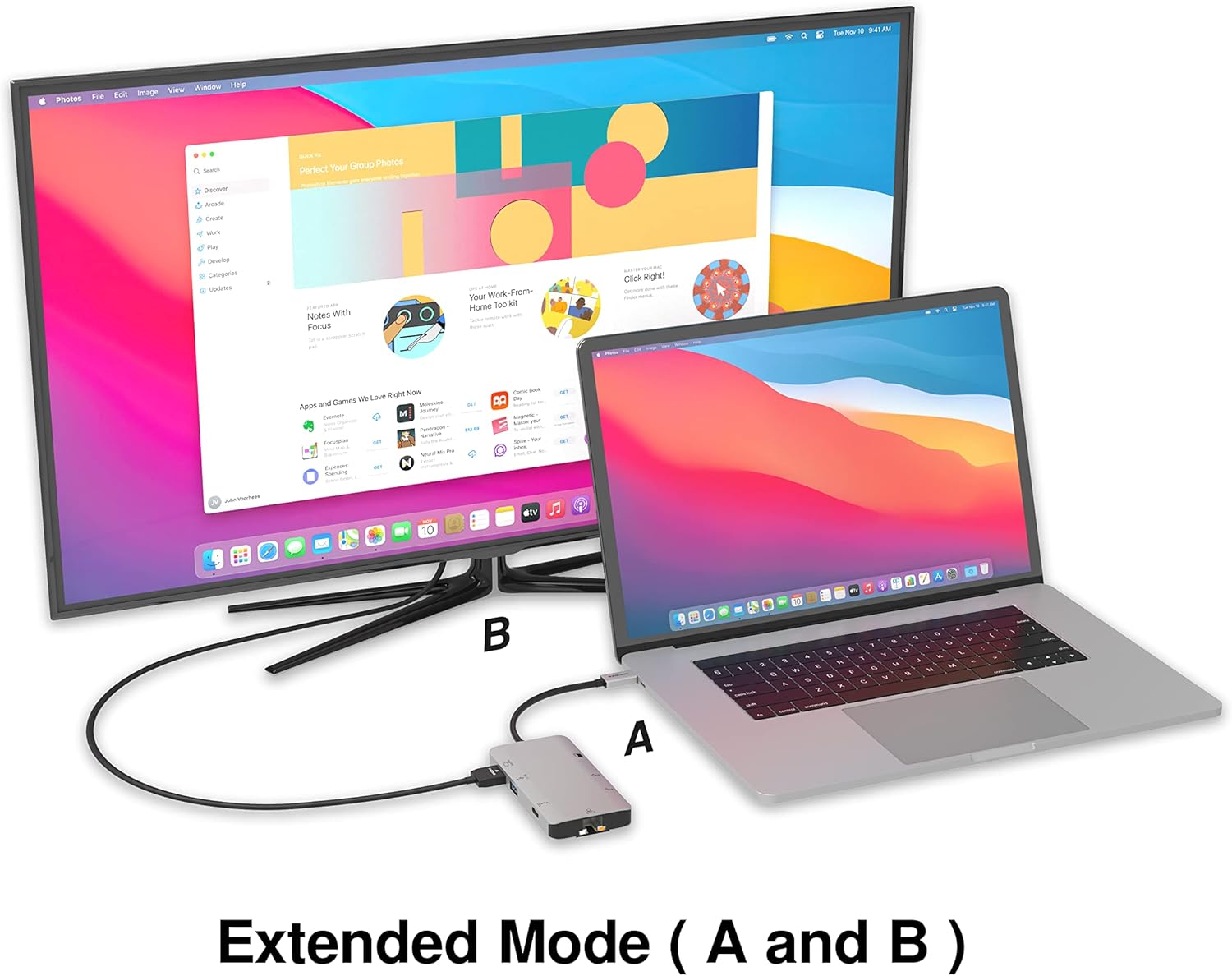
Image: A laptop connected to an external monitor via the hub, demonstrating extended display mode.
Data Transfer (USB-A & SD/Micro SD)
The three USB-A 3.0 ports offer data transfer speeds up to 5Gbps. The SD and Micro SD card slots allow for simultaneous read and write operations, facilitating quick file transfers from memory cards.

Image: Various devices like USB drives, SD cards, and an Ethernet cable connected to the EZQuest hub.
Network Connection (Gigabit Ethernet)
The Gigabit Ethernet port provides a stable and high-speed wired internet connection, ideal for large downloads, uploads, or streaming where Wi-Fi might be unreliable. An LED indicator confirms network activity.
Tohanga Mana
The USB-A ports distribute power efficiently. One USB-A port with BC1.2 outputs 5V/1.5A (7.5W), while the other two USB-A ports deliver 5V/0.9A (4.5W) each. The total shared power when all ports are in use is 10 watts.

Image: A diagram detailing the power output and data transfer speeds of the USB-A ports on the hub.
Nga waahanga me nga Tauranga
| Momo Tauranga | Te nui | Taumahinga |
|---|---|---|
| HDMI | 1 | 4K @ 30Hz Video Output (Extended/Mirror Mode) |
| USB-C Power Delivery/Data | 1 | Up to 100W Power Input (85W Pass-Through), 5Gbps Data Transfer |
| USB-A 3.0 | 3 | 5Gbps Data Transfer (One port BC1.2 5V/1.5A, two ports 5V/0.9A) |
| Gigabit Itarangi | 1 | 10/100/1000 Mbps Wired Network Connection with LED Indicator |
| Kaipānui Kāri SD | 1 | SDHC/SDXC Read/Write |
| Kaipānui Kāri SD Micro | 1 | Micro SDHC/SDXC Read/Write |
Hototahi
This USB C Hub is compatible with a wide range of devices:
- Computers featuring USB-C, USB 4, Thunderbolt 4, or Thunderbolt 3 ports.
- USB-C smartphones and tablets equipped with OTG (On-The-Go) support.
Unsupported Device:
- The USB-A ports on this docking station do not support Apple SuperDrive. For connecting an Apple SuperDrive, an alternative adapter (e.g., EZQuest X40100 USB-C to USB-A Female Mini Adapter) directly to your Mac is recommended.
Raparongoā
- Kore Putanga Whakaatu:
- Ensure your host device's USB-C port supports video output (DisplayPort Alternate Mode).
- Check all cable connections (USB-C from hub to device, HDMI from hub to monitor).
- Verify your monitor input source is set correctly to HDMI.
- Whakamātauria tētahi atu taura HDMI, tētahi atu mata rānei mēnā e wātea ana.
- Nga take utu:
- Ensure your USB-C power adapter is connected to the hub's USB-C PD port.
- Me manatoko kei te rawaka te wai e tukuna ana e tō urutau hikotage (up to 100W recommended for laptops).
- Check if the host device's USB-C port supports Power Delivery.
- Whakawhiti Raraunga Puturi:
- Me whakarite kei te whakamahi koe i ngā taputapu me ngā taura e hototahi ana ki te USB 3.0 mō ngā tere tino pai.
- The total shared power for USB-A ports is 10W; excessive power draw from multiple devices may affect performance.
- Ethernet Not Working:
- Tirohia te hononga taura Ethernet ki te pokapū me tō pouara/modem.
- Manatokohia ngā tautuhinga whatunga i runga i tō pūrere manaaki.
- Ensure the LED indicator on the Ethernet port is active.
- SD/Micro SD Card Not Recognized:
- Ensure the card is fully inserted into the correct slot.
- Try reinserting the card or using a different card.
- Check if the card is damaged or corrupted.
Whakatakotoranga
| Āhuahira | Taipitopito |
|---|---|
| Tau tauira | X40030 |
| Hunga Hua | 0.81 x 1.63 x 0.2 inihi |
| Taumaha Tūemi | 1.6 hekere |
| Atanga Pūmārō | Momo USB C |
| Huaputa HDMI | 4K @ 30Hz |
| USB-C PD Whakauru | Tae atu ki te 100W |
| USB-C PD Putanga | Tae atu ki te 85W |
| USB-A 3.0 Data Speed | 5Gbps |
| Tere Itarangi | 1 Gigabit (10/100/1000 Mbps) |
| Tautoko Pānui Kāri | SDHC, SDXC, Micro SDHC, Micro SDXC |
| Rauemi | Anodized Aluminum Housing |
Te tiaki
- Te horoi: Whakamahia he kakahu ngohengohe, maroke hei horoi i te waahi. A ape i te horoi wai, aerosol ranei.
- Rokiroki: Whakaorangia te waahi ki tetahi waahi maroke me te waatea mai i te ra tika me te wera nui.
- Te whakahaere: Avoid dropping the device or subjecting it to strong impacts. Do not attempt to disassemble the hub.
Pūtāhui me te Tautoko
The EZQuest USB C Hub Docking Station 8-in-1 comes with a 1-Tau Pūtāhui Āwangawanga-Kore. This warranty covers manufacturing defects and ensures peace of mind regarding your investment.
For technical support, warranty claims, or any product-related inquiries, please visit the official EZQuest website or contact their customer service team through the contact information provided with your product packaging.