
BRONDI 10275074
Brondi Président Gold 10275074 User Manual
Tauira: 10275074
Kupu Whakataki
This manual provides essential instructions for the proper use and maintenance of your Brondi Président Gold clamshell feature phone. Please read this manual thoroughly before operating the device to ensure optimal performance and longevity.

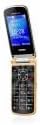
Image: The Brondi Président Gold phone in its closed, clamshell state. The front panel features a sleek gold finish with a vertical black strip displaying illuminated icons for incoming calls (green phone), new messages (green envelope), and battery status (red battery).
Tatūnga
1. Tāuta Pūhiko me te Whakatau
- Whakatuwheratia te Waea: Gently open the clamshell phone.
- Tango Uwhi Whakamuri: Locate the notch on the back cover and carefully pry it open to remove.
- Kōkuhu Pūhiko: Align the contacts of the Lithium-ion battery with the terminals inside the battery compartment and press down gently until it clicks into place.
- Whakakapia te Uhi Whakamuri: Place the back cover over the battery compartment and press firmly until it snaps securely.
- Utu Pūhiko: Connect the Micro USB charging cable to the phone's charging port and plug the other end into a power adapter. Allow the phone to charge fully before initial use. The battery indicator on the front display will show charging status.
2. Tāutanga Kāri SIM me te Kāri Micro SD
The Brondi Président Gold supports dual SIM cards and a Micro SD card for expandable memory up to 32GB.
- Access Card Slots: With the back cover removed (as described in battery installation), locate the SIM card slots and the Micro SD card slot.
- Whakauruhia ngā Kāri SIM: Carefully slide your SIM cards into the designated slots with the gold contacts facing down. Ensure they are fully seated.
- Kōkuhu Kāri SD Micro: Slide the Micro SD card into its slot until it locks into place.
- Whakakapia te Uhi Whakamuri: Reattach the back cover securely.
Whakaahua: He taha profile of the Brondi Président Gold phone, highlighting the Micro USB port at the bottom for charging and data transfer, and the volume control buttons located on the side.
3. Te Whakakaha/Weto
- Hei Whakahiko: Press and hold the Power/End Call button (usually red) until the screen illuminates.
- Hei Whakaweto: Press and hold the Power/End Call button until the power-off options appear, then select 'Power Off'.
Nga Tohutohu Whakahaere
1. Basic Navigation and Keypad
The Brondi Président Gold features a 3-inch display and a physical keypad for navigation and input.


Image: Left, the Brondi Président Gold phone opened, revealing its 3-inch screen displaying numerical input and the full physical keypad below. Right, a close-up of the phone's keypad, showing clearly labeled numeric and function keys.
- Kī Whakaterenga: Use the directional pad (up, down, left, right) to navigate through menus and options. The center key typically acts as a 'Select' or 'Confirm' button.
- Kī Waea: Press the green call key to initiate a call or answer an incoming call.
- Whakamutu Waea/Kī Mana: Press the red key to end a call or return to the home screen. Long press to power the device on or off.
- Papapātuhi Tau: Use the numeric keys (0-9, *, #) for dialing numbers and entering text.
2. Hanga me te Whiwhi Waea
- Te Waea: Enter the phone number using the keypad and press the green call key.
- Whakautu i te Karanga: When the phone rings, press the green call key to answer.
- Whakamutua te Waea: Press the red end call key.
3. Karere
- Whakatere ki te tahua 'Karere'.
- Select 'New Message' or 'Create SMS'.
- Tāuruhia te nama waea o te kaiwhiwhi ka patohia tō karere mā te whakamahi i te papapātuhi.
- Patohia te 'Tukua'.
4. Mahi Kāmera
The phone is equipped with a 1.3 Megapixel camera.
- Navigate to the 'Camera' application from the main menu.
- Hangaia to kopere ma te whakamahi i te whakaaturanga.
- Press the designated camera button (or center navigation key) to capture the image.
- Images are saved to the phone's memory or the inserted Micro SD card.
5. Hononga Nihokikorangi
The Brondi Président Gold supports Bluetooth for wireless connections.
- Haere ki 'Tautuhinga' > 'Hononga' > 'Nihokikorangi'.
- Whakakāhia te Nihokikorangi.
- Tīpakohia 'Rapua devices' to find other Bluetooth-enabled devices.
- Tīpakohia te taputapu e hiahiatia ana mai i te rarangi ka whai i nga tohu o runga-mata kia takirua.
Te tiaki
- Te horoi: Use a soft, dry cloth to clean the phone's exterior. Avoid liquid cleaners or abrasive materials.
- Tiaki Pūhiko: Hei whakaroa i te ora o te pākahiko, kaua e waiho te waea ki ngā pāmahana tino wera. Kaua e waiho kia pau rawa te pākahiko mō te wā roa.
- Rokiroki: Rokirokihia te waea ki te wāhi hauhautanga, maroke, kia matara atu i te rā tika me te makuku.
- Te whakahaere: Kia tūpato te whakahaere i te waea. Kaua e taka, kaua hoki e tukua kia pāngia e te kaha.
Raparongoā
- Phone does not power on: Ensure the battery is correctly installed and sufficiently charged. Connect the charger and try again.
- Kāore e taea te waea/te whiwhi waea: Tirohia mēnā kua tika te whakaurunga me te whakahohenga o te kāri SIM. Manatokohia te kaha o te tohu whatunga.
- He pai te kounga ororongo: Ensure the speaker and microphone are not obstructed. Adjust volume settings.
- Nga take takirua Nihokikorangi: Ensure both devices have Bluetooth enabled and are within range. Try restarting both devices.
- Kāore i kitea te kāri mahara: Ensure the Micro SD card is correctly inserted. Try reinserting it or using a different card to check for card malfunction.
Whakatakotoranga
| Āhuahira | Taipitopito |
|---|---|
| Waitohu | BRONDI |
| Ingoa Tauira | Président Gold |
| Tau tauira | 10275074 |
| Pūnaha Mahi | Linux (Proprietary) |
| Rahi Whakaatu | 3 Inihi |
| Whakataunga kamera | 1.3 Megapixels |
| Te Roha Mahara | Up to 32GB Micro SD |
| Hononga | Nihokikorangi, Micro USB |
| Hangarau Pūkoro | GSM (Dual SIM) |
| Momo Pūhiko | Lithium-ion (1 A) |
| Tae | Koura |
Pūtāhui me te Tautoko
For warranty information and technical support, please refer to the documentation included with your purchase or visit the official Brondi webpae. Puritia to tohu hoko mo nga kereme whakamana.
Ask a question about this manual
Ask about setup, troubleshooting, compatibility, parts, safety, or missing instructions. Manuals+ will review the question and use this page’s manual context to help answer it.