
XVIM US-D8-8AHD7-1T-205-3D
XVIM 8CH 1080P Wired Security Camera System User Manual
Model: US-D8-8AHD7-1T-205-3D | Brand: XVIM
Kupu Whakataki
This user manual provides comprehensive instructions for the installation, operation, and maintenance of your XVIM 8CH 1080P Wired Security Camera System. Please read this manual thoroughly before using the product to ensure proper setup and functionality. Keep this manual for future reference.
He aha kei roto i te Pouaka
Manatokohia kei te noho nga waahanga katoa i roto i te kete:
- 8 x nga kamera
- 1 x DVR
- 2 x 1-to-4 Splitter Cable
- 2 x Camera power supply
- 1 x DVR power supply
- 1 x 1TB Hard Drive (pre-installed)
- 8 x 60ft BNC Cable
- 1 x Tihihiore
- 8 x Tiuri

Image: All components included in the XVIM 8CH 1080P Wired Security Camera System package.
Aratohu Tatūnga
1. Hononga Pūmārō Tuatahi
- Connect the cameras to the DVR using the provided BNC cables. Ensure a secure connection for both video and power.
- Connect the camera power supplies to the 1-to-4 splitter cables, then connect the splitter cables to the cameras.
- Connect the DVR power supply to the DVR.
- Honoa he mata tirotiro ki te DVR mā te whakamahi i te tauranga VGA, HDMI rānei.
- Connect the USB mouse to the DVR for navigation.
- For remote access, connect the DVR to your router using an Ethernet cable.

Whakaahua: Taipitopito view of the DVR's rear panel with labeled ports for cameras, audio, video output, and network connection.

Image: Step-by-step connection diagram for the DVR, cameras, power supplies, and router.
2. Remote Access Setup (3 Easy Steps)
- Hono ki te Ipurangi: Ensure your DVR is connected to your home router via an Ethernet cable.
- Tikiake i te Taupānga Koreutu: Rapua "HoMeYe Pro" in your mobile device's app store (available for Android and iOS).
- Add Device ID & View: Open the "HoMeYe Pro" app, add your device ID (found on the DVR or packaging), and you can monitor your cameras anytime, anywhere via your mobile device.

Image: Visual guide for downloading the HoMeYe Pro app and setting up remote viewing.
Nga Tohutohu Whakahaere
Recording Modes & Storage
The H.265 security camera system includes a pre-installed 1TB hard drive for immediate recording. You can select from the following recording modes:
- Aratau Auto: Continuous recording based on a set schedule.
- Aratau ā-ringa: Start and stop recording manually.
- Motion-Detection Mode: Recording is triggered only when motion is detected, saving storage space.
Kua tuhia te footagka taea e viewed or played back remotely via the exclusive HoMeYe Pro app at any time.
HD Image & Night Vision
The system is equipped with 8 x 1080P waterproof outdoor cameras, providing clear 1920x1080 resolution images during both day and night. The cameras feature a night vision range of up to 65 feet and a 75° viewing angle, ensuring comprehensive property protection.
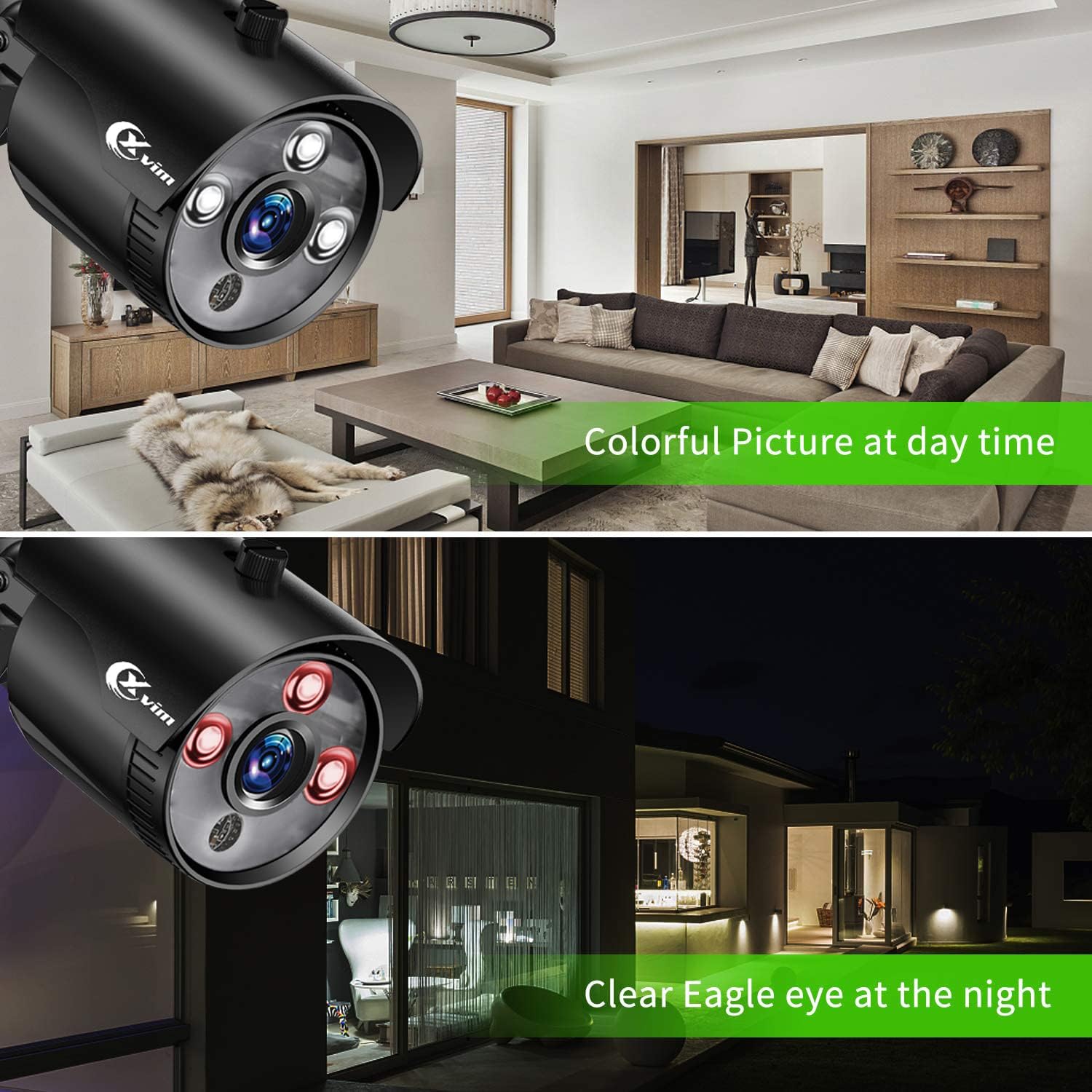
Image: Visual comparison demonstrating clear day vision and infrared night vision capabilities.
Precise Motion Detection & Timely Alerts
You can freely set specific motion-detection areas on the DVR to minimize false alarms. When motion is detected within these defined zones, the HoMeYe Pro app will send instant push notifications to your mobile device.

Whakaahua: Example of a motion detection alert received on a mobile phone.
Te tiaki
Te Pūmau o te Kāmera
The cameras are IP66-rated, ensuring they are waterproof and dust-proof. This robust protection allows them to withstand harsh weather conditions and operate stably in various outdoor environments such as courtyards and doorways, as well as indoor settings like warehouses and corridors.

Whakaahua: Examples of camera placement in indoor (kitchen, living room) and outdoor (doorway, courtyard) settings.
Raparongoā
For common issues, please refer to the official Installation Manual (PDF) linked in the support section. Basic troubleshooting steps often include:
- Kore he Tohu Ataata: Check all cable connections (BNC, power). Ensure cameras and DVR are powered on. Verify correct input selection on your monitor.
- Kāore he Uru Mamao: Confirm DVR is connected to the internet. Check network settings on the DVR and ensure the "HoMeYe Pro" app is correctly configured with the device ID.
- Nga take hopu: Verify hard drive status. Check recording schedules and motion detection settings.
Whakatakotoranga
| Āhuahira | Taipitopito |
|---|---|
| Waitohu | XVIM |
| Hangarau Hononga | Waea |
| Whakataunga Hopu Ataata | 1080p |
| Āhuahira Motuhake | High Efficiency Video Coding, Motion Sensor |
| Te maha o nga hongere | 8 |
| Te Rokiroki Mahara | 1 TB |
| Tae | Black 8-camera |
| Puna Mana | AC |
| Te rahi o te mea L x W x H | 17.44 x 12.68 x 6.85 inihi |
| Hōputu Tohu | Tauritenga |
| Hangarau marama iti | Matakitenga Po |
| Awhe Tirohanga Po | 65 Puawai |
| Auau anga | 15fps, 30fps |
| Aratau tuhi | manual, motion detection |
| Hangarau Pūoko Optical | CMOS |
| Tauranga USB katoa | 1 |
| Atanga Pūmārō | Itarangi |
| Momo Arotahi | Whakaritea |
| Whakauru Ataata | BNC |
| Viewing Koki | 75 Waeine |
| Kaihanga | XVIM |
| UPC | 675234631926 |
| Taumaha Tūemi | 12.82 pauna |
| ASIN | B07MZPV6BW |
| Tau tauira tūemi | US-D8-8AHD7-1T-205-3D |
| Te Ra Tuatahi Wātea | Hanuere 21, 2019 |
Pūtāhui me te Tautoko
For detailed warranty information and further support, please refer to the official Installation Manual (PDF) provided by XVIM. You can access it directly via the link below:
For additional software downloads and resources, visit the XVIM download page: http://www.topslink.net/download/xvr.html
Ask a question about this manual
Ask about setup, troubleshooting, compatibility, parts, safety, or missing instructions. Manuals+ will review the question and use this page’s manual context to help answer it.