
Kupu Whakataki
The Xfinity HD 720p Wireless Indoor/Outdoor Home Security Camera allows you to monitor your home environment with live video accessible from anywhere. Designed for both indoor and outdoor use, this camera provides essential security features to keep you informed.
He aha kei roto i te Pouaka
- Xfinity HD 720p Wireless Security Camera (Model: SCHC2AEW)
- Pūurutau Hiko
- Tauira USB
- Whakaekea nga taputapu (nguu me nga punga)

Image: Xfinity Home Security Camera and accessories neatly packaged in its box.
Aratohu Tatūnga
- Hononga Hiko: Connect the camera to the power adapter using the provided USB cable, then plug the adapter into a standard electrical outlet.
- Tikiake Taupānga: Download the official Xfinity Home app from your smartphone's app store (iOS App Store or Android Google Play).
- Takirua Pūrere: Open the Xfinity Home app and follow the on-screen instructions to add a new device. You will typically need to scan a QR code on the camera or manually enter its details to pair it with your home Wi-Fi network. Ensure your Wi-Fi network is 2.4 GHz for compatibility.

Image: The Xfinity Home Security Camera placed on a surface, ready for setup.
Nga Tohutohu Whakahaere
Ora View and Basic Controls
Once paired, access the live video feed through the Xfinity Home app. The app provides controls for:
- Rere Ora: View wā-tūturu footage mai i to kamera.
- Te tuhi: Tuhia ā-ringa ngā topenga ataata.
- Whakaahuamata: Hopu atahanga mai i te whangai ora.
- Ororongo Ara-rua: Speak through the camera's speaker and hear audio from its microphone.
Matakitenga Po
The camera features night vision capabilities for clear monitoring in low-light conditions. This feature automatically activates when ambient light is insufficient, providing a black-and-white image. Some models may offer color night vision depending on ambient light and settings.
Te Motini me nga Matohi
Configure motion detection settings within the Xfinity Home app to receive alerts on your smartphone when activity is detected. You can customize sensitivity levels and notification preferences.
Kōwhiringa Rokiroki
The camera supports local storage via a MicroSD card (not included). Insert a compatible MicroSD card into the designated slot to store recorded video clips directly on the device. Cloud storage options may also be available through your Xfinity Home service subscription.
Tāuta me te Whakapuru
The Xfinity Home Security Camera can be placed on a flat surface or mounted to a wall. Use the included mounting hardware for secure wall installation. Ensure the camera is positioned to cover the desired monitoring area.
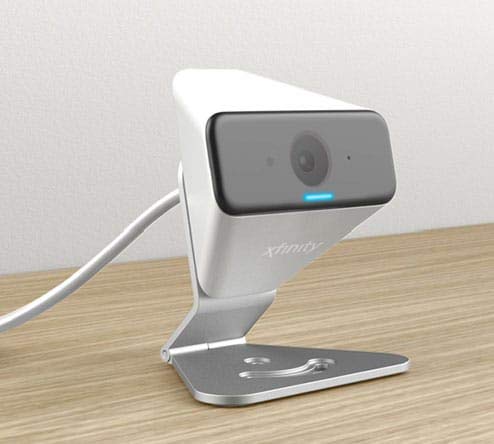
Image: The Xfinity Home Security Camera positioned on a desk, demonstrating its compact design.
Whakatakotoranga Hua
| Āhuahira | Taipitopito |
|---|---|
| Tau tauira | SCHC2AEW |
| Whakataunga Hopu Ataata | 720p |
| Hangarau Hononga | Ahokore (Wi-Fi) |
| Kawa Hononga | Wi-Fi (2.4 GHz compatible) |
| Mahinga o roto/waho | Roto, Waho |
| Nga waahanga motuhake | Pūoko Nekehanga, Tirohanga Pō |
| Puna Mana | DC (12 Volts, 1 Watt) |
| Ahu (L x W x H) | 3 x 3 x 2 inihi |
| Taumaha Tūemi | 1.57 pauna |
| Whakatauranga Tiaki o te Ao | IP65 |
Raparongoā
- Kore Mana: Ensure the power adapter is securely connected to both the camera and a working electrical outlet.
- Nga take hono: Verify your Wi-Fi network is 2.4 GHz. Restart your router and the camera. Ensure the camera is within range of your Wi-Fi signal.
- Taupānga Kaore i te whakautu: Close and reopen the Xfinity Home app. If the issue persists, try reinstalling the app.
- Kounga Ataata Kino: Tirohia te kaha o tō tohu Wi-Fi. Me whakarite kia ma te arotahi o te kāmera, ā, kia kore he mea e arai ana.
Pūtāhui me te Tautoko Kiritaki
For warranty information, please refer to the documentation included with your purchase or visit the official Xfinity support website. For technical assistance or customer service, please contact Xfinity customer support directly.