
Kupu Whakataki
Thank you for choosing the INPHIC PM-9 Wireless Rechargeable Silent Mouse. This manual provides detailed instructions for setting up, operating, and maintaining your new mouse. Please read this manual carefully before use to ensure optimal performance and longevity of your device.
Ihirangi mokete
Tena koa tirohia te kete mo nga mea e whai ake nei:
- 1 x INPHIC Wireless Mouse
- 1 x USB Nano-receiver
- 1 x USB ki te Micro-USB taura utu
- 1 x Kaiwhakamahi pukapuka
Ka mutu te huaview
Familiarize yourself with the key components of your INPHIC PM-9 mouse:

Image: Underside of the INPHIC PM-9 mouse, highlighting the USB receiver storage, ON/OFF switch, Micro-USB charging port, and DPI adjustment button.
- Tauranga Whakakona Micro-USB: Located at the front of the mouse for charging.
- ON / WAWHI Whakawhiti: Located on the bottom of the mouse to power the device on or off.
- DPI Setting Button: Located on the bottom of the mouse, allows adjustment of cursor sensitivity.
- Mokamoka Kaiwhiwhi USB: A dedicated compartment on the bottom of the mouse for storing the USB Nano-receiver when not in use.
Tohutohu Tatūnga
Follow these steps to set up your INPHIC PM-9 wireless mouse:
- Locate and Connect the USB Receiver:
Gently slide down the back cover on the bottom of the mouse to reveal the USB Nano-receiver. Remove the receiver from its slot.
Image: Visual guide for locating and removing the USB Nano-receiver from the mouse.
Plug the USB Nano-receiver into an available USB port on your computer (PC, laptop, or MacBook). If your device only has USB-C ports, use the included USB-C adapter (if applicable) to connect the receiver.

Image: The USB Nano-receiver connected to a laptop, illustrating the 2.4G wireless transmission.

Image: Instructions for connecting the USB receiver to devices with traditional USB ports and to MacBooks with USB-C ports using an adapter.
- Mana i runga i te Kiore:
Flip the ON/OFF switch on the bottom of the mouse to the "ON" position. The mouse should now be connected to your computer.
- Whakatakina te Kiore:
Before first use, or when the mouse battery is low, connect the provided Micro-USB charging cable to the charging port on the front of the mouse and to a USB power source (e.g., computer USB port, USB wall adapter). A full charge can last up to 500 hours of use.

Image: The INPHIC mouse being charged via its Micro-USB port, indicating its rechargeable battery feature.
Tatūnga Ataata Aratohu
Video: This video demonstrates the initial setup of the INPHIC PM-9 wireless mouse, including locating the USB receiver, connecting it to a laptop, and basic operation.
Nga Tohutohu Whakahaere
- Whakatikatika DPI:
The mouse features 3 adjustable DPI levels (1000, 1200, 1600) to change cursor sensitivity. Press the DPI setting button on the bottom of the mouse to cycle through the available DPI settings. Choose the sensitivity that best suits your needs.

Image: Illustration of the adjustable DPI settings (1000, 1200, 1600) and the location of the DPI button on the mouse.
- Silent Click Feature:
The INPHIC PM-9 mouse is designed with silent click technology, providing a noiseless experience. This is ideal for environments where quiet operation is preferred, such as libraries, offices, or late-night use. Please note that only the left and right main keys support silent click.
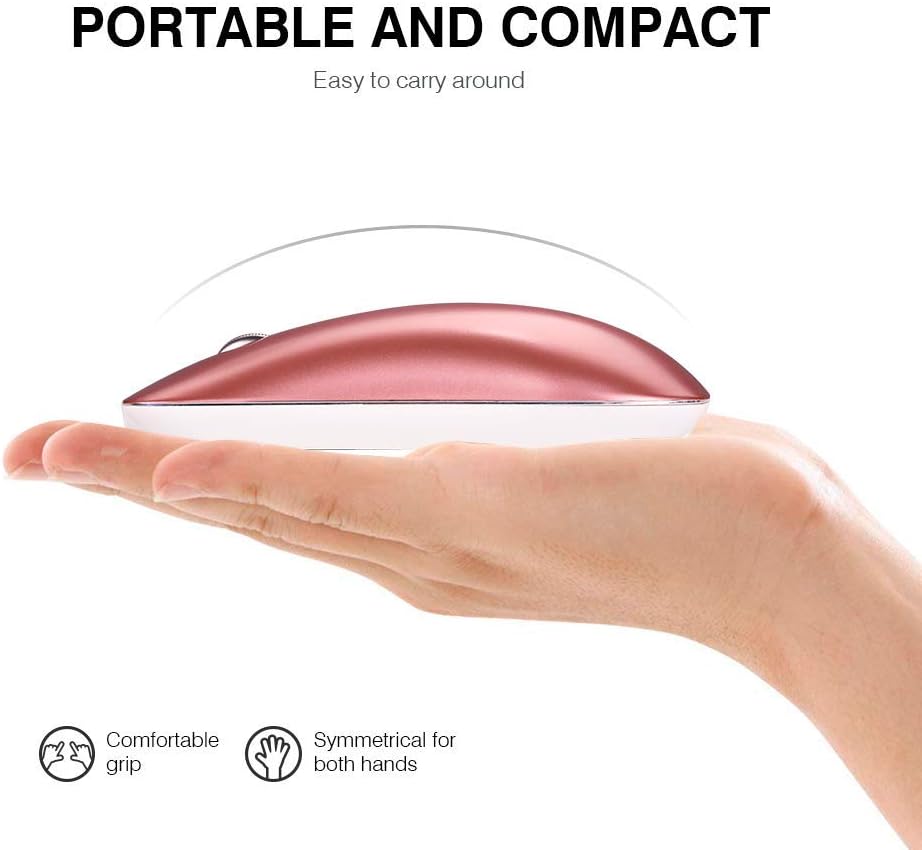
Image: A user operating the mouse quietly, with an icon indicating silent operation, highlighting the silent click feature.
- Aratau Moe-Aunoa:
To conserve battery life, the mouse will automatically enter sleep mode after 3 minutes of inactivity. To wake the mouse, simply move it gently. For extended periods of non-use, it is recommended to turn off the mouse using the ON/OFF switch on the bottom.
Te tiaki
- Te horoi: Whakamahia he kakahu ngohengohe, maroke hei horoi i te kiore. A ape i te whakamahi i nga matū kino, i nga taonga abrasive ranei.
- Rokiroki: When not in use, store the USB Nano-receiver in its dedicated slot on the bottom of the mouse to prevent loss. Store the mouse in a cool, dry place.
- Tiaki Pūhiko: Recharge the mouse regularly to maintain battery health. Avoid fully depleting the battery frequently.
Raparongoā
- Kaore te kiore e whakautu:
- Me mohio kei te KIA te kiore.
- Check if the USB Nano-receiver is securely plugged into your computer's USB port.
- Whakamātauria te mono i te kaiwhiwhi ki tetahi tauranga USB rereke.
- Whakahoutia te kiore mēnā he iti te pākahiko.
- Hononga mokowhiti:
- Me whakarite kei roto te kiore i te awhe mahi 10-mita o te kaiwhiwhi.
- Avoid using the mouse on metallic surfaces, which can interfere with the wireless signal.
- Remove any large metal objects between the mouse and the receiver.
- He pohehe te nekehanga pehu:
- Horoia te pūoko whatu kei raro o te kiore.
- Try using the mouse on a different surface or a mouse pad.
- Whakaritea te tautuhinga DPI ki te uara iti mena he tairongo rawa te pehu.
Whakatakotoranga
| Āhuahira | Taipitopito |
|---|---|
| Tau tauira | PM-9 |
| Hangarau Hononga | 2.4G Ahokore (Kaiwhiwhi USB) |
| Huringa Huringa | Optical |
| Nga taumata DPI | 1000 / 1200 / 1600 (Ka taea te whakarite) |
| Patene | 3 (Mauī, Matau, Panuku Wira) |
| Momo Pūhiko | Katote Lithium Rechargeable |
| Waa Whakatau | 2-3 haora |
| Ora Pūhiko | Tae atu ki te 500 hāora (i muri i te utunga katoa) |
| Mokowoko Korekore | Tae atu ki te 10 mita (33 putu) |
| Hunga Hua | 4.33 x 2.48 x 0.91 inihi (110 x 63 x 23 mm) |
| Taumaha Tūemi | 2.57 hekere (72.86 g) |
| Hototahi | Windows 10/8/7/XP, Vista, Linux, Mac OS |
Pūtāhui me te Tautoko
The INPHIC PM-9 Wireless Mouse comes with a standard warranty. For specific warranty details, returns, or technical support, please refer to the product packaging or contact your retailer. You may also visit the official INPHIC webpae mo etahi atu awhina.