
Nga Korero Haumaru Nui
Read all instructions carefully before using this product. Keep this manual for future reference.
- A ape i te tuku i te pane ki te tino wera me te makuku.
- Kaua e wetewete, ka ngana ranei ki te whakatika i te pane i a koe ano.
- Clean the headset with a soft, dry cloth. Do not use liquid cleaners.
- Ko te roa o te whakarongo ki nga taumata oro nui ka raru pea te whakarongo.
Ihirangi mokete
Manatokona kei roto katoa nga mea kei roto i te kete:
- NUBWO HW02 USB Computer Headset
- Tauira USB
- Pukapuka Kaiwhakamahi (tenei tuhinga)
Tatūnga
Connecting to a Computer (USB)
- Kimihia he tauranga USB e waatea ana i runga i to rorohiko.
- Plug the USB connector of the NUBWO HW02 headset into the USB port.
- Ko te punaha whakahaere ka whakauru aunoa i nga taraiwa e tika ana. He wa poto pea tenei.
- Once installed, the headset should be recognized as an audio input and output device.
- You may need to select the "NUBWO HW02" headset as your default audio device in your computer's sound settings.
Connecting to a Device (3.5mm Jack)
The NUBWO HW02 headset features a 3.5mm jack for broader compatibility.
- Locate the 3.5mm audio jack on your device (e.g., gaming console controller, smartphone, tablet).
- Insert the 3.5mm connector from the headset into the device's audio jack.
- Kia mau te hononga.
- Adjust audio settings on your device as needed to select the headset for input and output.
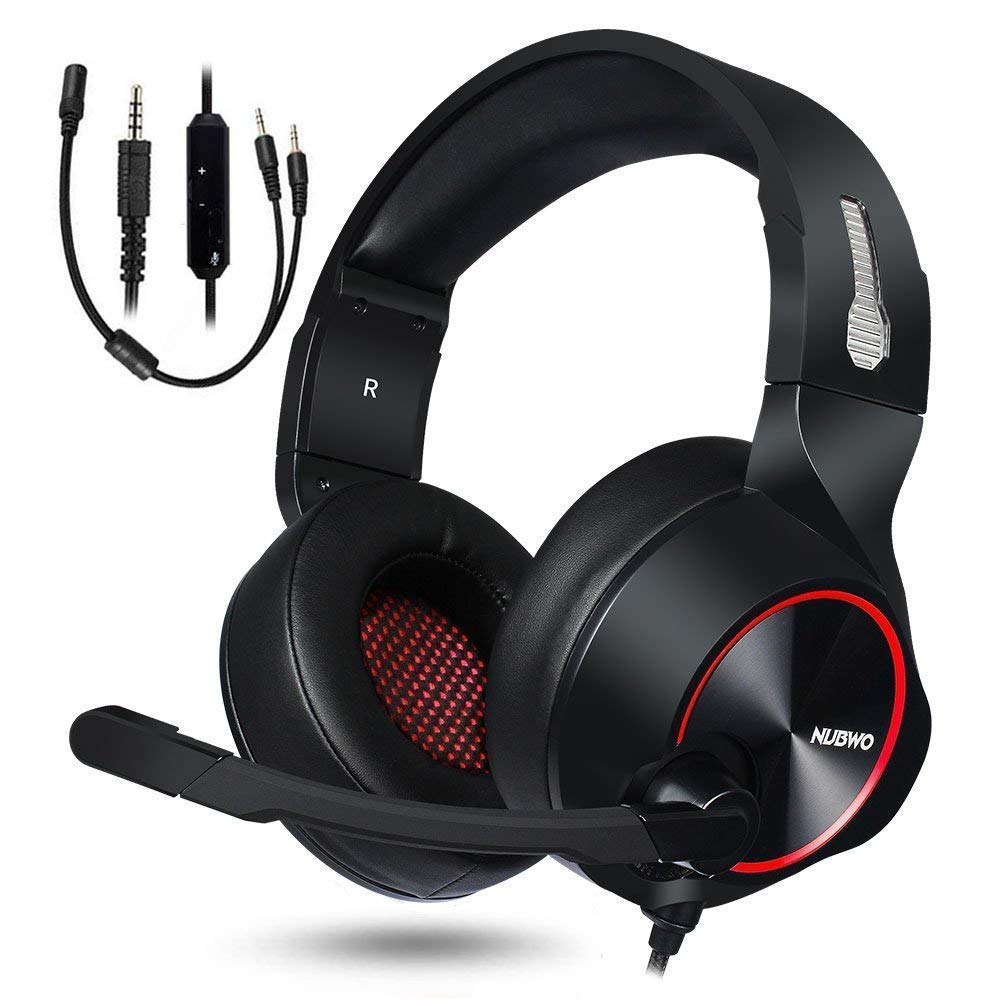
Image: NUBWO HW02 USB Computer Headset. This image displays the overall design of the headset, featuring orange accents on the earcups and headband, with a flexible microphone arm.
Nga Tohutohu Whakahaere
Te whakatikatika i te Paneoro
- Whakatikatika Pane: Āta nekehia ake, āta pahekehia rānei ngā kapu taringa i te taha o te tipare kia pai ai te mau ki runga i ō taringa.
- Turanga Waorooro: Bend the flexible microphone arm to position the microphone approximately 1-2 inches from your mouth for optimal voice clarity.
Mana Rōrahi
The NUBWO HW02 headset features an in-line volume control.
- Whakanuia te Volume: Roll the volume wheel upwards.
- Whakaheke Rahi: Roll the volume wheel downwards.
Mahi Whakangū i te Hopuoro
An in-line switch allows you to mute or unmute the microphone.
- Wahangu Microphone: Slide the switch to the "Mute" position.
- Whakakorea te reo o te hopuoro: Slide the switch to the "Unmute" position.
Te tiaki
- Te horoi: Use a soft, dry, lint-free cloth to wipe down the earcups and headband. Do not use abrasive cleaners, alcohol, or solvents.
- Rokiroki: Ki te kore e whakamahia, rongoatia te pane whakarongo ki te wāhi ma, maroke, kia matara atu i te rā tika me te pāmahana tino kino.
- Tiaki taura: Āta karohia ngā piko koi, te tōia nui rānei o te taura hei ārai i te pakaru.
Raparongoā
| Raruraru | Take pea | Rongoā |
|---|---|---|
| Kaore he tangi mai i te pane | Kaore i tika te hono o te pane. He iti rawa te rōrahi. Ko te taputapu whakaputa ororongo hē i tohua. | Ensure USB or 3.5mm jack is fully inserted. Increase volume using in-line control and computer/device settings. Select "NUBWO HW02" as the default playback device in your sound settings. |
| Kaore e mahi ana te hopuoro | Wahanguhia te hopuoro. Ko te taputapu whakauru ororongo hē i tohua. Kāore i te tika te whakanoho o te hopuoro. | Check the in-line mute switch. Select "NUBWO HW02" as the default recording device in your sound settings. Whakaritea te waahi hopuoro kia tata atu ki to waha. |
| Ko te kounga oro he kino, he kino ranei | Tino teitei rawa te rōrahi. Hononga wewete. Te pokanoa. | Whakaitihia te rōrahi. Re-seat the USB or 3.5mm connection. Ngana ki te hono atu ki tetahi tauranga USB rereke, taputapu ranei. |
Whakatakotoranga
- Tauira: HW02
- Hononga: Wired (USB, 3.5mm Jack)
- Whakatakoto Taringa: Ki runga Taringa
- Mana Haruru: Whakakore Haruru Hohe
- Hototahitanga papa: Papatohu petipeti, PC
- Rauemi: Hikaona
- Taumaha Tūemi: 1.11 pauna
- Rahi Hua: 9 x 7 x 4 inihi
Pūtāhui me te Tautoko
For warranty information or technical support, please refer to the NUBWO official webpaetukutuku, whakapā atu ranei ki ta raatau ratonga kaihoko. Puritia to riiki hoko hei tohu mo te hoko.
NUBWO Official Webpae: Visit the NUBWO Store on Amazon