
Kupu Whakataki
This manual provides instructions for the setup, operation, maintenance, and troubleshooting of your Rampage KM-RX9 CYPHER Gaming Keyboard and Mouse Set. This set includes a USB wired keyboard with rainbow ground illumination and a wired gaming mouse. Please read this manual thoroughly before using the product to ensure proper functionality and longevity.
Nga korero haumaru
- Keep the device away from liquids and excessive moisture.
- Kaua e tukuna te taputapu ki nga wera nui.
- A ape i te tuku, te tuku ranei i te taputapu ki nga paanga kaha.
- Kaua e ngana ki te wetewete, ki te whakatika ranei i te taputapu. Tirohia nga kaimahi ratonga whai tohu.
- Whakamahia anake me ngā tauranga USB hototahi.
Ihirangi mokete
Please check the package contents upon unboxing. The standard package should include:
- Rampage KM-RX9 CYPHER Gaming Keyboard
- Rampage KM-RX9 CYPHER Gaming Mouse
- Pukapuka Kaiwhakamahi (tenei tuhinga)
Tatūnga
Follow these steps to set up your Rampage KM-RX9 CYPHER Gaming Keyboard and Mouse Set:
- Honoa te Papapātuhi: Locate an available USB port on your computer. Plug the USB connector of the Rampage KM-RX9 keyboard into the USB port.
- Honoa te Kiore: Locate another available USB port on your computer. Plug the USB connector of the Rampage KM-RX9 mouse into the USB port.
- Tāuta Atekōkiri: The keyboard and mouse are typically plug-and-play devices. Your operating system (Windows, macOS, Linux) should automatically detect and install the necessary drivers. This process may take a few moments.
- Manatoko: Once drivers are installed, the keyboard and mouse should be ready for use. Test by typing on the keyboard and moving/clicking the mouse. The keyboard's rainbow illumination should activate automatically.
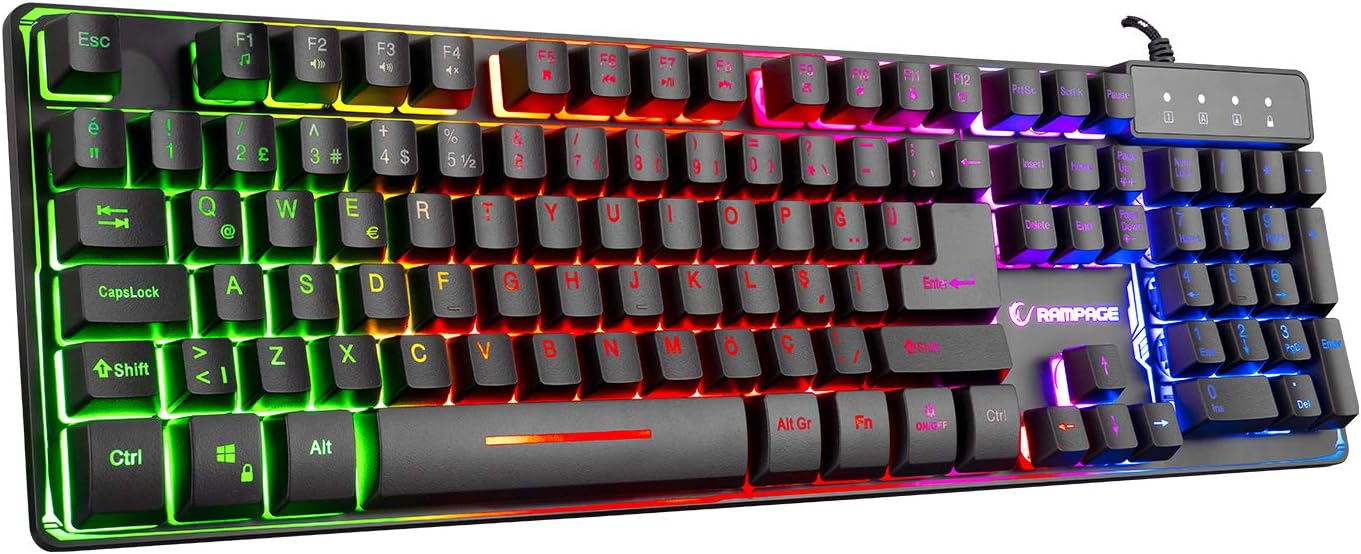
Whakaahua 1: Runga view o te Rampage KM-RX9 CYPHER Gaming Keyboard, showcasing its full QWERTY layout and vibrant rainbow backlighting.
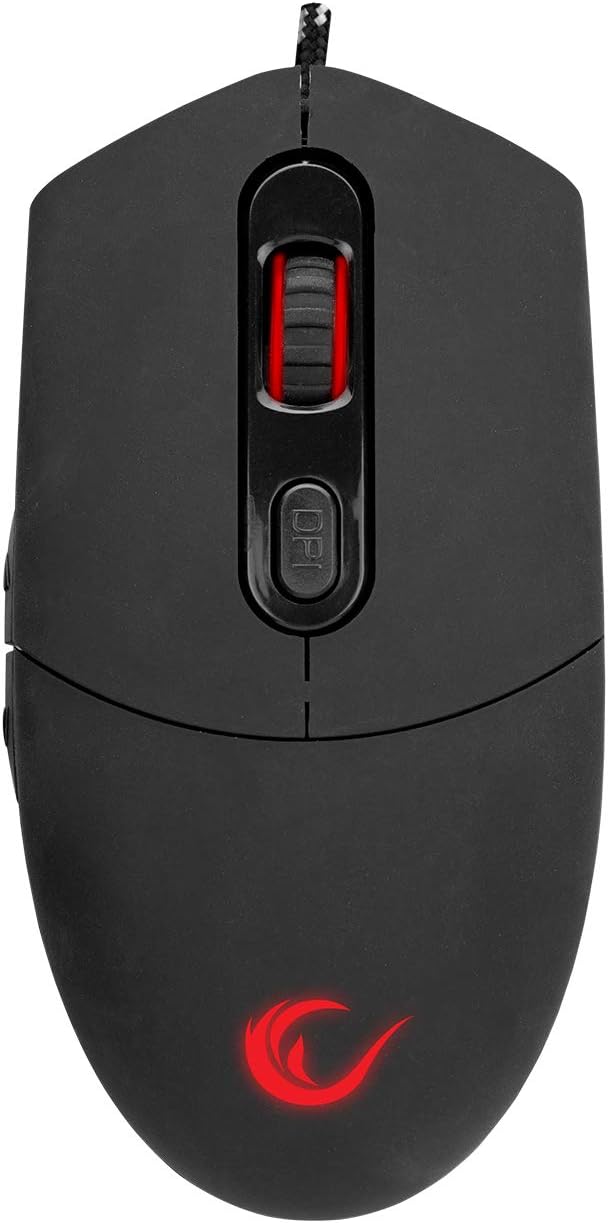
Whakaahua 2: Runga view o te Rampage KM-RX9 CYPHER Gaming Mouse, featuring the scroll wheel and DPI adjustment button.
Te whakahaere i te Papapātuhi
Nga Mahi Taketake
- Pato: The keyboard features a standard QWERTY layout for general typing and gaming.
- Pātuhi Taumahi (F1-F12): These keys may have secondary multimedia or system functions when pressed in combination with the Fn kī. Tirohia ngā pūrākau taupoki kī mō ngā mahi motuhake (hei tauira, te whakahaere oro, te purei pāpāho).
Mana Whakamaarama
The KM-RX9 keyboard features rainbow ground illumination. Specific controls for lighting modes or brightness are typically managed via dedicated keys or key combinations:
- Look for keys with light bulb icons or specific 'Fn' key combinations (e.g., Fn + Panuku Maukati or Fn + Page Up/Down) to cycle through lighting effects or adjust brightness.
- The illumination is designed to provide a consistent rainbow effect across the keyboard's base.
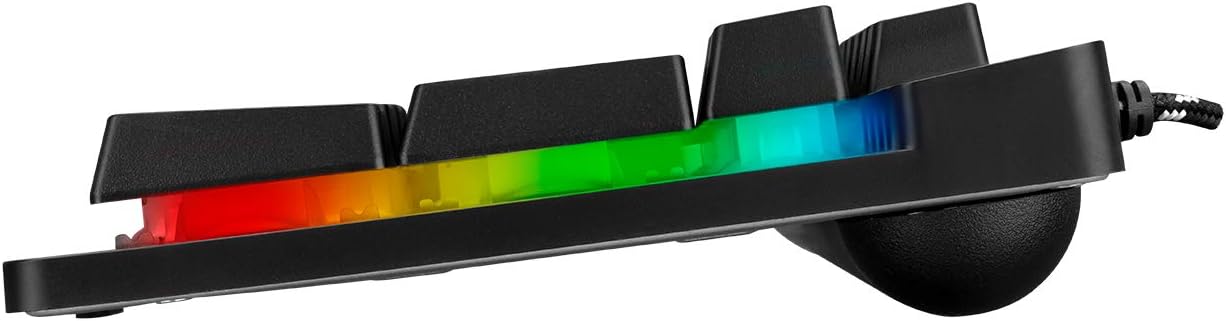
Whakaahua 3: Te taha profile o te Rampage KM-RX9 keyboard, illustrating the distinct rainbow ground illumination effect.
Te whakahaere i te Kiore
Nga Mahi Taketake
- Pāwhiri Mauī: Pātene mahi matua.
- Pāwhiri Matau: Pātene mahi tuarua, mō ngā tahua horopaki te tikanga.
- Panuku Wira: Whakamahia mō te panuku i ngā tuhinga me web whārangi. Ka taea hoki te mahi hei pātene pāwhiri waenga.
- Patene taha: The mouse features additional side buttons, commonly used for forward/backward navigation in web browsers or programmable for in-game actions.
Whakatikatika DPI
The mouse includes a DPI (Dots Per Inch) adjustment button, usually located near the scroll wheel. Pressing this button cycles through different sensitivity levels, allowing you to adjust cursor speed on the fly to suit your preferences or game requirements.
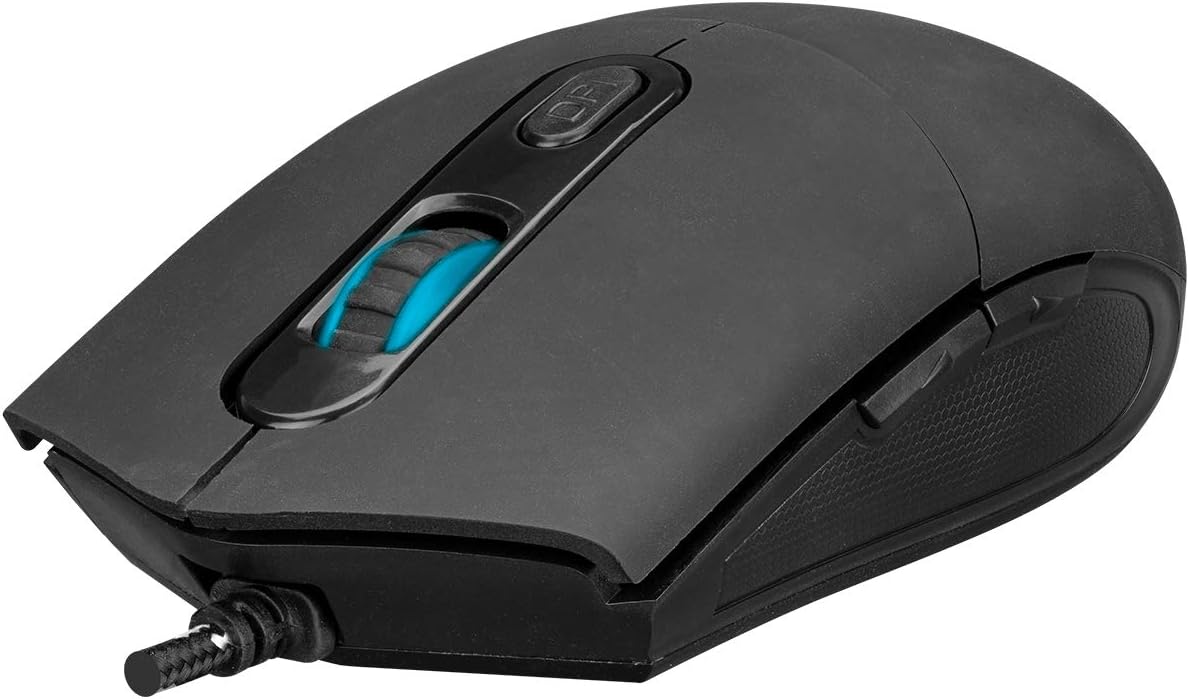
Whakaahua 4: Koki view o te Rampage KM-RX9 mouse, highlighting the scroll wheel and the DPI adjustment button.

Whakaahua 5: Taha view o te Rampage KM-RX9 mouse, showcasing its ergonomic design and textured grip for enhanced control.
Te tiaki
Proper maintenance ensures the longevity and performance of your gaming set:
- Te horoi i te papapātuhi: Use a soft, dry cloth to wipe down the keyboard surface. For dust between keys, use compressed air. Do not use harsh chemicals or abrasive cleaners.
- Te horoi i te Kiore: Horoia te mata o te kiore ki te wai ngohengohe, paku mākūkūamp cloth. Ensure no moisture enters the device. Clean the optical sensor area on the bottom of the mouse with a cotton swab if tracking issues occur.
- Rokiroki: When not in use for extended periods, store the keyboard and mouse in a clean, dry environment, away from direct sunlight and extreme temperatures.
Raparongoā
If you encounter issues with your Rampage KM-RX9 set, try the following solutions:
- Papapātuhi/Kiore Kaore i te whakautu:
- Ensure the USB cables are securely plugged into your computer's USB ports.
- Whakamātauria te mono i ngā pūrere ki ngā tauranga USB rerekē.
- Tīmataria anō tō rorohiko.
- Check your computer's Device Manager (Windows) or System Information (macOS/Linux) to see if the devices are recognized.
- Illumination Not Working (Keyboard):
- Verify that the keyboard is properly connected.
- Press the dedicated lighting control keys or Fn key combinations to ensure illumination is not turned off or set to a very dim mode.
- Nga Take Aroturuki Kiore:
- Horoia te pūoko whatu kei raro o te kiore.
- Me whakarite kei te whakamahia te kiore i runga i tētahi mata e tika ana (hei tauira, he papa kiore, kaua i runga i tētahi mata whakaata, mata mārama rānei).
- Whakatikatikahia ngā tautuhinga DPI mā te whakamahi i te pātene DPI.
Whakatakotoranga
| Tauira Hua | KM-RX9 |
| Waitohu | Rampage (Everest Ramptau) |
| Hangarau Hononga | Waea USB |
| Tahora Papapātuhi | QWERTY |
| Nga waahanga motuhake | Rainbow Ground Illuminated Keyboard, DPI Adjustable Mouse |
| Pūrere Hototahi | Papamahi, Pona, Papaaho |
| Hototahitanga Pūnaha Whakahaere | Windows, macOS, Linux |
| Hunga Hua | Keyboard: 54 x 17 x 4.2 cm; 830 g |
| Puna Mana | Electric Corded (USB) |
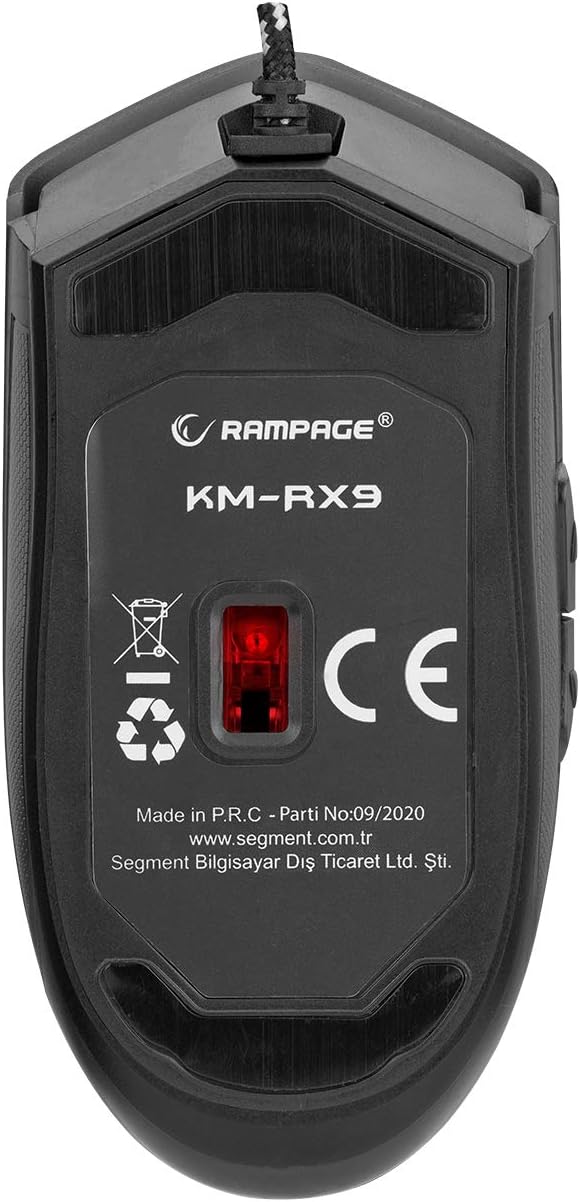
Whakaahua 6: Raro view o te Rampage KM-RX9 mouse, displaying the model number and optical sensor.
Pūtāhui me te Tautoko
For warranty information and customer support, please refer to the documentation provided at the time of purchase or contact your retailer. You may also visit the official Ramptau webpae mo etahi atu awhina.