
1. Kupu Whakataki
The Chord Electronics Poly is a revolutionary network streaming module designed to seamlessly integrate with your Chord Mojo portable DAC/headphone amplifier. It transforms your Mojo into a high-resolution wireless streamer, offering versatile connectivity options including Wi-Fi, Bluetooth, DLNA, and an SD card reader. The Poly is fully portable, featuring a LiPo battery that provides approximately nine hours of playback on a single charge.
This manual provides essential information for setting up, operating, maintaining, and troubleshooting your Poly network module to ensure optimal performance and enjoyment.
2. Tatūnga
2.1 Te Wetewete me te Tirotiro Tuatahi
Carefully remove the Poly from its packaging. Inspect the device for any signs of damage. The package should contain one Chord Poly unit.
2.2 Charging the Poly
Before first use, fully charge the Poly. Connect the supplied USB cable to the Poly's charging port and a suitable USB power adapter. A full charge typically takes less than four hours. The P.status LED will indicate charging status.

Atahanga: Whakamuri view of the Chord Poly. This image highlights the charging port, P.status and M.status LEDs, the Micro SD card slot, and the 'Config' button, which are crucial for setup and operation.
2.3 Connecting Poly to Chord Mojo
The Poly is designed to physically connect to the Chord Mojo. Align the Poly with the Mojo and slide them together until they are securely connected. Ensure the connection is firm to maintain audio integrity and power transfer.

Atahanga: The Chord Poly module securely attached to a Chord Mojo unit, demonstrating the integrated form factor. A Micro SD card is visible in its slot, indicating readiness for local music playback.
2.4 GoFigure App Installation and Initial Configuration
Download the Chord GoFigure app from your device's app store (compatible with iPhones, iPads, Android smartphones and tablets). This app is essential for initial setup and managing your Poly's network settings.
- Install the GoFigure app on your smartphone or tablet.
- Power on your Poly (and Mojo, if connected).
- Open the GoFigure app and follow the on-screen instructions to connect to your Poly. This typically involves connecting to Poly's temporary Wi-Fi hotspot and then configuring it to join your home Wi-Fi network.
- Configure Wi-Fi and Bluetooth settings as prompted by the app.
2.5 Te whakauru i te Kaari SD Micro
The Poly features a Micro SD card slot for local music storage. Insert a formatted Micro SD card into the slot until it clicks into place. Ensure the card is inserted correctly to avoid damage.
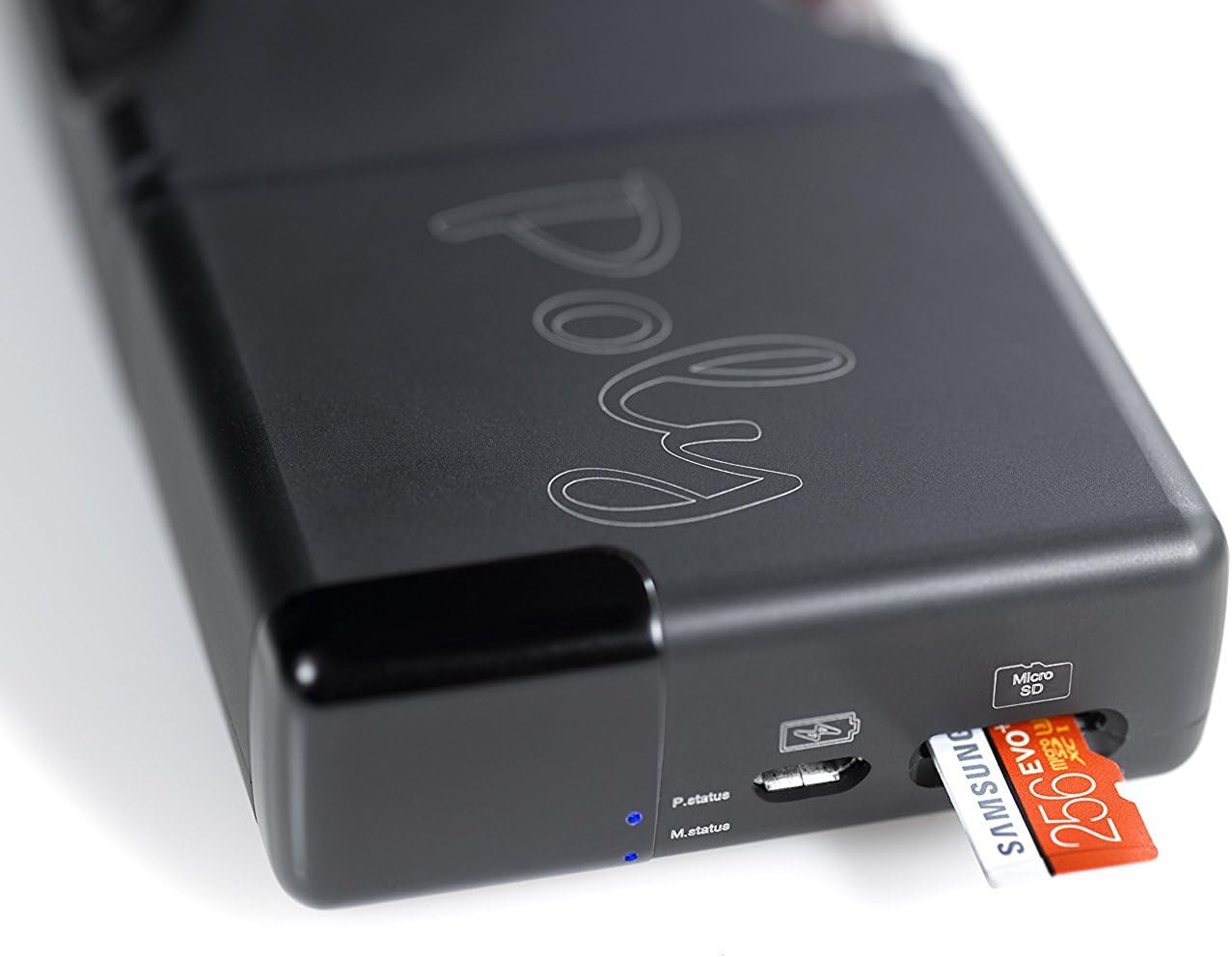
Atahanga: He taipitopito view of the Chord Poly's Micro SD card slot with a card being inserted. This illustrates the correct orientation for adding local storage to the device.
3. Nga Tohutohu Whakahaere
3.1 Kei te Hiko / Weto
To power on the Poly, press and hold the power button (often integrated with the Mojo's power button when connected, or a dedicated button on Poly). The status LEDs will illuminate. To power off, press and hold the power button again until the LEDs extinguish.
3.2 Wi-Fi Streaming (DLNA, NAS)
Once configured with your home Wi-Fi network via the GoFigure app, the Poly can stream audio from various sources:
- DLNA: Use a compatible DLNA client app on your smartphone or computer to stream music from your network-attached storage (NAS) or other DLNA servers to the Poly.
- AirPlay: For Apple devices, use AirPlay to stream audio wirelessly to the Poly.
- Other Streaming Services: Depending on firmware and app compatibility, the Poly can integrate with various streaming services. Refer to the GoFigure app for supported services and configurations.
3.3 Hononga Nihokikorangi
The Poly acts as a Bluetooth receiver, allowing you to stream audio wirelessly from any Bluetooth-enabled device (smartphones, tablets, computers). To pair:
- Ensure Bluetooth is enabled on your Poly via the GoFigure app.
- Enable Bluetooth on your source device and search for available devices.
- Select 'Chord Poly' from the list to pair.
3.4 SD Card Playback (MPD)
Music stored on the Micro SD card can be played back directly through the Poly. This typically utilizes a Music Player Daemon (MPD) server running on the Poly. You will need a compatible MPD client app (e.g., 8Player, Flacbox) on your smartphone or tablet to browse and control playback of your SD card music library.

Atahanga: He taha profile of the Chord Poly, showcasing its compact design and black anodized aluminum finish. This view emphasizes its portability and robust construction.
3.5 Ngā Mahi a te Wāhi Wera
The Poly can create its own Wi-Fi hotspot, allowing you to stream music wirelessly even when no external Wi-Fi network is available. This is particularly useful for mobile listening, enabling your smartphone to connect directly to the Poly for streaming apps.
4. Tiaki
4.1 Te horoi
To clean the Poly, use a soft, dry, lint-free cloth. Do not use abrasive cleaners, solvents, or aerosol sprays, as these can damage the finish or internal components.
4.2 Tiaki Pūhiko
The Poly uses a Lithium-polymer battery. To prolong battery life:
- A ape i te tino tuku i te pākahiko i nga wa katoa.
- Whakaorangia te taputapu ki te waahi makariri, maroke ki te kore e whakamahia mo te wa roa.
- Charge the device regularly, even if not used, to maintain battery health.
4.3 Whakahoutanga Firmware
Chord Electronics periodically releases firmware updates to improve performance and add new features. Check the GoFigure app or the Chord Electronics website for available updates and follow the instructions provided for installation.
5. Te Raru
If you encounter issues with your Chord Poly, please refer to the following common troubleshooting steps:
- Nga Take Hononga (Wi-Fi/Nihokikorangi): Ensure the Poly is within range of your Wi-Fi router or Bluetooth source device. Restart both the Poly and your source device. Verify network settings in the GoFigure app.
- GoFigure App Problems: If the app is unresponsive or fails to connect, try restarting the app or reinstalling it. Ensure your Poly's firmware is up to date.
- Kore Putanga Ororongo: Check that the Poly is securely connected to the Mojo. Verify volume levels on both the Poly (if applicable) and your source device. Ensure the correct input/output is selected in your streaming app.
- SD Card Playback Issues: Ensure the Micro SD card is properly inserted and formatted. Use a compatible MPD client app to access the music files.
- Karekau te pākahiko i te utu: Tirohia te taura USB me te urutau hiko. Me whakarite kia ma te tauranga utu, ā, kia kore he paru.
For more detailed troubleshooting or persistent issues, consult the Chord Electronics webpaetukutuku, whakapā atu ranei ki a raatau tautoko kaihoko.
6. Whakatakotoranga
| Āhuahira | Whakatakotoranga |
|---|---|
| Waitohu | Chord Hikohiko |
| Tauira | CHOPOLYNEW |
| Pūrere Hototahi | Chord Mojo, iPhones, iPads, Android smartphones/tablets, Windows smartphones/tablets, Mac OS X computers, DAPs (e.g., Astell & Kern) |
| Nga waahanga motuhake | Kawe |
| Ngā Hōputu Ororongo Tautokohia | ACC, WAV, FLAC, AIFF, OGG VORBIS, ALAC, WMA, MP3 |
| Hononga Tukuoro | Ahokore (Nihokikorangi, Wi-Fi) |
| Momo Pūhiko | Lithium-polymer |
| Ora Pūhiko | Approx. 9 hours playback |
| Waa Whakatau | Iti iho i te 4 haora |
| Momo Tuhono | Nihokikorangi, Wi-Fi |
| Casing Rauemi | Konumohe anodized pango |
| Rahi Hua (L x W x H) | 5 x 6.2 x 2.2 cm |
| Taumaha | 100 g |
7. Pūtāhui me te Tautoko
For information regarding warranty coverage, please refer to the documentation included with your purchase or visit the official Chord Electronics website. For technical support, product inquiries, or service, please contact Chord Electronics customer support directly through their official channels.