
Kupu Whakataki
Mauruuru koe mo te hokoasing the Klip Xtreme BluWave II KWS-616 2.1 Channel Stereo System. This system is designed to provide a rich audio experience for music, games, and movies. It features Bluetooth connectivity, USB and SD card playback, and an auxiliary input for versatile audio sources. Please read this manual thoroughly before operating the device to ensure proper use and to maximize your listening experience.
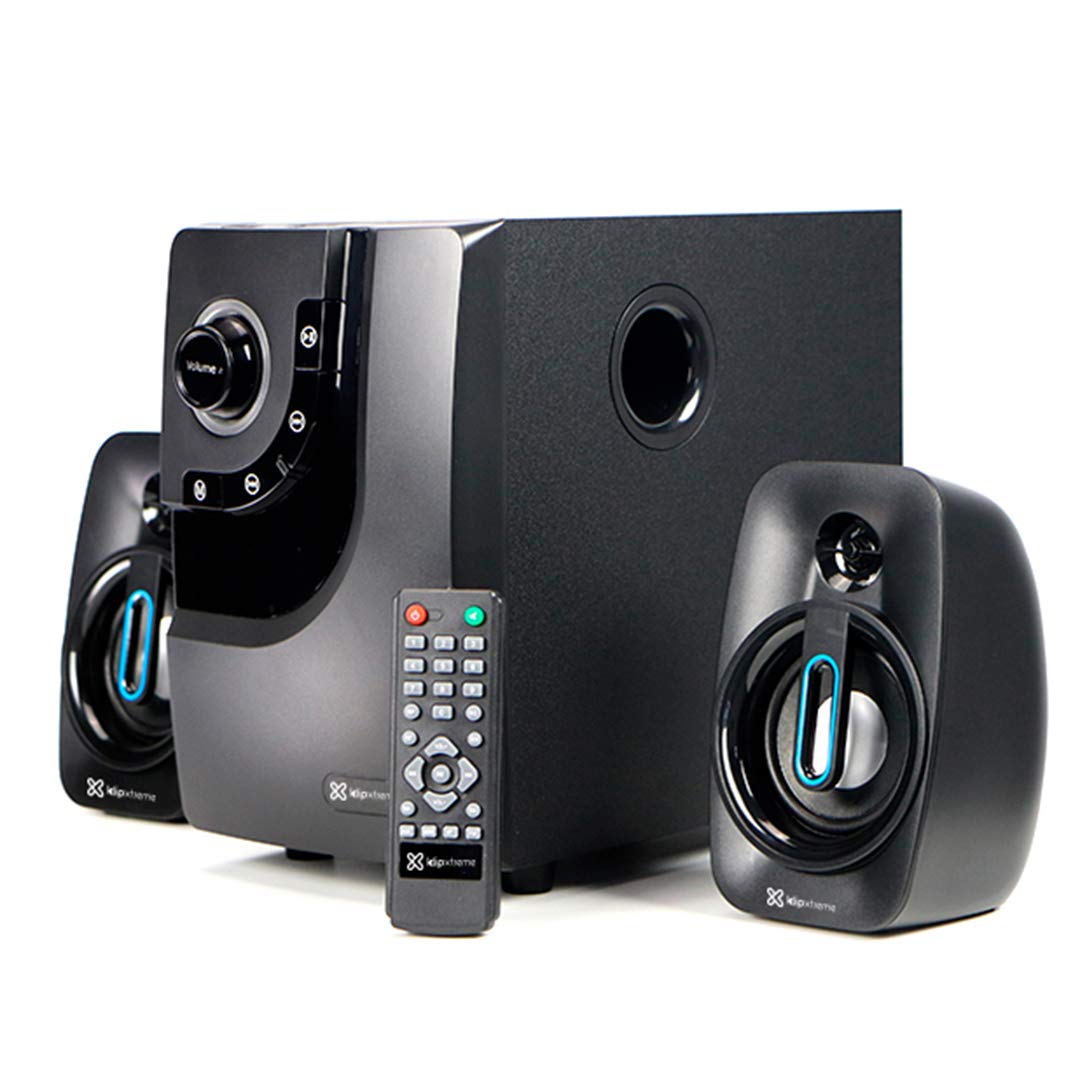
Image: The Klip Xtreme BluWave II KWS-616 system, including the subwoofer, two satellite speakers, and remote control, shown with its packaging and connecting cables.
Ihirangi mokete
Me whakarite kei roto katoa nga taonga kei roto i te kete:
- Wāhanga Wūruiti
- Satellite Speakers (x2)
- Mana Mamao
- 3.5mm Waea Ororongo
- Pukapuka Kaiwhakamahi (tenei tuhinga)

Image: The Klip Xtreme BluWave II KWS-616 system components, including the subwoofer, satellite speakers, remote, and cables, displayed alongside its retail packaging.
Ka mutu te huaview
Subwoofer Front Panel Controls

Whakaahua: He taipitopito view of the subwoofer's front panel, showing the volume knob with blue LED illumination, mode button, playback controls, and digital display.
- Matapihi Rōrahi: Rotate to adjust the master volume. Press to change input mode (Bluetooth, USB, SD, AUX).
- Pūpāpaoro: Whakaritea te taumata panguru.
- Mana Purei: Purei/Tatari, Riu o mua, Riu Panuku.
- Whakaaturanga Mamati: Shows current mode, track number, or volume level.
Subwoofer Rear Panel Connections

Image: The rear panel of the subwoofer, displaying input and output ports, power switch, and AC power input.
- Input (R/L): Ko te whakaurunga tiwharewha RCA hei hono i nga puna oro o waho.
- Output (R/L): Connects to the satellite speakers.
- Tauranga USB: Mo nga puku kohiko USB.
- Mokamoka Kaari SD: Mo nga kaari mahara SD.
- Whakawhiti Kaha: Turns the system ON or OFF.
- Tāuru AC: Ka hono ki te taura hiko.
Tatūnga
1. Hononga Kaikōrero
- Connect the cables from the satellite speakers to the "Output (R/L)" ports on the rear panel of the subwoofer. Ensure correct polarity.
- Position the satellite speakers to the left and right of your listening area for optimal stereo separation. The subwoofer can be placed on the floor or a sturdy surface.
2. Hononga Mana
- Ensure the power switch on the rear of the subwoofer is in the OFF position.
- Connect the AC power cord to the "AC Input" on the subwoofer's rear panel.
- Plug the other end of the power cord into a standard wall outlet (110V/220V 60Hz/50Hz auto-sensing).
Nga Tohutohu Whakahaere
Te Hiko / Whakaweto
Flip the power switch on the rear panel of the subwoofer to the ON position to power on the system. Flip it to the OFF position to power off.
Volume and Bass Control
- Rōrahi: Rotate the large knob on the front of the subwoofer or use the volume buttons on the remote control to adjust the overall volume.
- Paoro: Use the dedicated bass knob on the front of the subwoofer or the bass control buttons on the remote to adjust the bass intensity.
Aratau Whakauru
Press the Volume knob on the front panel or the "Mode" button on the remote control to cycle through available input modes: Bluetooth, USB, SD, and AUX.
Tauira Nihokikorangi
- Switch the system to Bluetooth mode. The digital display will show "BT" and an indicator light may flash, indicating it's in pairing mode.
- I runga i tō pūrere Nihokikorangi (waea atamai, papa, rorohiko), whakahohea te Nihokikorangi, ka rapu mō ngā pūrere e wātea ana.
- Select "Klip Xtreme KWS-616" (or similar name) from the list of devices.
- Once paired, the system will confirm the connection, and you can begin playing audio from your device. The effective wireless range is approximately 33 feet (10 meters).
Whakahoki USB/SD
- Insert a USB flash drive or an SD card containing audio files into the respective port on the subwoofer's rear panel.
- Switch the system to USB or SD mode. The system will automatically detect and begin playing audio files.
- Use the playback controls on the front panel or remote control to play, pause, skip tracks, or adjust volume.
Hononga AUX
- Connect one end of the provided 3.5mm audio cable to the "Input (R/L)" RCA ports on the subwoofer (using an adapter if necessary).
- Connect the other end of the 3.5mm audio cable to the headphone jack or audio output of your external audio device (e.g., TV, DVD player, gaming console, MP3 player).
- Switch the system to AUX mode.
- Purei ororongo mai i to taputapu hono.
Nga Mahi Mana Mamao
The included remote control provides convenient access to all major functions:
- Mana: Turns the system on/off (standby).
- Aratau: Cycles through input sources (Bluetooth, USB, SD, AUX).
- Rōrahi +/-: Whakaritea te rōrahi matua.
- Nguru +/-: Whakaritea te taumata panguru.
- Wahangu: Wahangu/whakakore ororongo.
- Purei/Tatari: Controls playback for USB/SD/Bluetooth.
- Tōmua/Panuku: Skips tracks for USB/SD/Bluetooth.
Te tiaki
- Puritia te pūnaha kia matara atu i te rā tika, i ngā pūtake wera, me te makuku.
- Clean the exterior surfaces with a soft, dry cloth. Do not use abrasive cleaners or solvents.
- Me whakarite kia tika te hau huri noa i te subwoofer hei ārai i te wera nui.
- Do not block the subwoofer's bass port.
Raparongoā
| Raruraru | Rongoa pea |
|---|---|
| Karekau he kaha |
|
| Karekau he tangi |
|
| Ka rahua te takirua Nihokikorangi |
|
| Oro kerekere |
|
Whakatakotoranga

Image: The Klip Xtreme BluWave II KWS-616 subwoofer and satellite speakers displayed with rulers to indicate their physical dimensions.
| Momo Pūrere | 2.1 speaker system with Bluetooth technology |
| Putanga Hiko Morahi (RMS) | 40W (80W Peak Power) |
| Whakauru AC | 110V/220V 60Hz/50Hz (autosensing) |
| Satellite Driver Unit | 3 inihi (76mm) |
| Satellite RMS Power | 10W each (20W total) |
| Satellite Frequency Response | 120Hz-18kHz |
| Satellite Impedance | 8Ω |
| Subwoofer Driver Unit | 4 inihi (102mm) |
| Subwoofer RMS Power | 20W |
| Whakautu Auautanga Subwoofer | 20Hz-150Hz |
| Āraitanga o te Wūruiti | 4Ω |
| Tauwehenga Waitohu ki te Haruru | 60dB |
| Hononga | Bluetooth, SD, USB, 3.5mm (via RCA input) |
| Mokowoko Korekore | Tae atu ki te 33 putu (10 mita) |
| Nga Ahu Oruoro (WxHxD) | 6.1 x 9.8 x 10.8 inihi (15.5 x 24.9 x 27.4 cm) |
| Ngā Ahurea o te Amiorangi (WhxHxD) | 3.9 x 6.3 x 3.8 inihi (9.9 x 16.0 x 9.7 cm) |
| Taumaha Hua | 6.8 lbs (3.08 kg) |
| Te roa o te taura | 4.9 putu (1.5 mita) |
| Tau tauira | KWS-616 |
Pūtāhui me te Tautoko
The Klip Xtreme BluWave II KWS-616 system comes with a kotahi tau iti pūtāhui mai i te ra o te hokonga. Ka kapi tenei raihana i nga hapa o nga rawa me nga mahi i raro i te whakamahinga noa. Kaore e kapi i te kino i puta mai i te whakamahi kino, i nga aitua, i nga whakarereketanga kore mana, i nga take o waho ranei.
For technical support or warranty claims, please contact your local Klip Xtreme authorized dealer or visit the official Klip Xtreme webpae mo nga korero whakapā.