
Microsoft ST9-00001
Pukapuka Kaiwhakamahi mō te Microsoft Surface Pro 3
Model: ST9-00001
Kupu Whakataki
This manual provides essential information for setting up, operating, maintaining, and troubleshooting your Microsoft Surface Pro 3. The Surface Pro 3 is a versatile device designed to function as both a tablet and a laptop, powered by the Windows 10 operating system.
It features a 12-inch high-resolution screen, ample internal storage, dual HD cameras, and robust connectivity options, including a full-size USB 3.0 port. Its integrated kickstand allows for comfortable viewing in various positions, and the magnesium frame ensures a lightweight and durable design.
Nga korero haumaru
- Kaua e tukuna te taputapu ki te wera nui, te ra tika, te makuku nui ranei.
- A ape i te tuku, te tuku ranei i te taputapu ki te pa kaha.
- Use only Microsoft-approved power adapters and accessories.
- Keep the device away from liquids. In case of liquid contact, power off immediately and seek professional assistance.
- Kaua e ngana ki te wetewete, ki te whakatika ranei i te taputapu. Ma tenei ka whakakorehia te whakamana ka pa he kino.
- Ensure proper ventilation when using the device to prevent overheating.
Tatūnga
1. Te Wetewete me te Tirotiro Tuatahi
Carefully remove the Surface Pro 3 and all accessories from the packaging. Inspect the device for any visible damage. Retain the packaging for future transport or service needs.
2. Te Whakakaha me te Tatūnga Tuatahi
- Connect the power supply to the Surface Pro 3 and a power outlet.
- Press the power button located on the top edge of the device.
- Follow the on-screen prompts to complete the Windows 10 initial setup, including language selection, network connection, and user account creation.
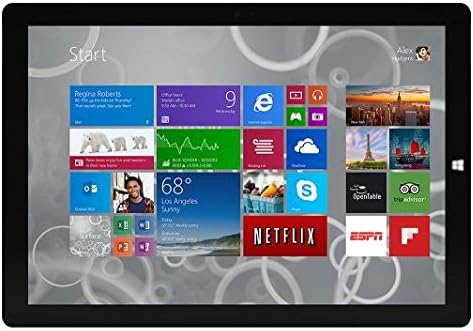
Figure 1: Windows 10 Start Screen during initial setup.
This image shows the Microsoft Surface Pro 3 screen displaying the Windows 10 Start menu, characterized by a grid of live tiles representing various applications and services. This is typically seen during the initial setup or when navigating the operating system.
3. Attaching Accessories (Sold Separately)
The Surface Pro 3 is compatible with various accessories, such as the Surface Type Cover keyboard and the Surface Pen, which are sold separately.
- Surface Type Cover: Align the magnetic connector of the Type Cover with the bottom edge of the Surface Pro 3 until it clicks into place.
- Pene Mata: The Surface Pen can be magnetically attached to the side of the Surface Pro 3 for storage. For initial pairing, follow the instructions provided with the pen.
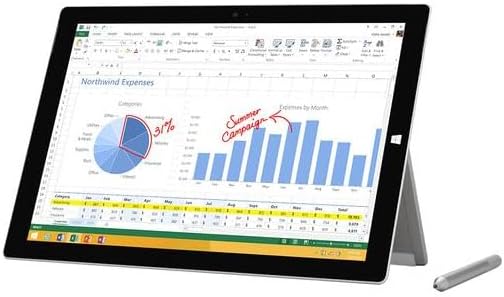
Figure 2: Surface Pro 3 with optional Surface Pen.
This image illustrates the Microsoft Surface Pro 3 in use, displaying an Excel spreadsheet on its screen. A Surface Pen is positioned next to the device, highlighting its compatibility for precise input and navigation.
4. Expanding Storage with a MicroSD Card
You can expand the internal storage of your Surface Pro 3 using a microSD card (sold separately).
- Locate the microSD card slot on the side of the Surface Pro 3, typically behind the kickstand.
- Whakauruhia te kāri microSD ki roto i te mokowā kia pāwhiri rā anō ki tōna tūranga.
- The device will automatically detect the card. You may need to format it if it's a new card or if prompted by the system.

Figure 3: MicroSD card slot.
This close-up image shows the microSD card slot on the side of the Microsoft Surface Pro 3, with a microSD card partially inserted, demonstrating how to expand the device's storage.
Nga Tohutohu Whakahaere
1. Te whakatere i te Windows 10
- Tahua Tīmata: Pāwhiritia te ata Windows kei te kokonga maui-raro hei uru atu ki ngā taupānga, ngā tautuhinga, me ngā kōwhiringa mana.
- Mata pa: Use gestures for navigation, zooming, and scrolling.
- Edge Browser: Utilize the pre-installed Edge browser for web browsing, which includes features for marking up web wharangi.

Figure 4: Using the Surface Pro 3 for productivity.
This image depicts the Microsoft Surface Pro 3 in an active use scenario, showcasing a note-taking application open on its screen. The display features handwritten notes, diagrams, and sketches, illustrating the device's capability for creative and productive tasks.
2. Using the Integrated Kickstand
The multi-position kickstand allows you to adjust the viewing angle for optimal comfort, whether you are typing, watching videos, or drawing.
- Gently pull the kickstand out from the back of the device.
- Adjust it to your desired angle. The kickstand offers a wide range of positions for versatility.
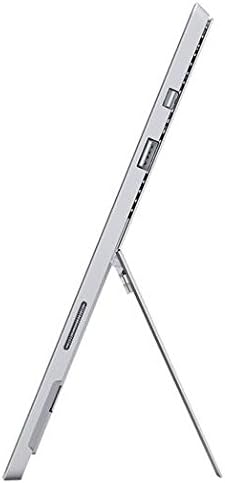
Figure 5: Adjustable kickstand.
Ka whakaratohia e tenei whakaahua tetahi taha view of the Microsoft Surface Pro 3, clearly showing its integrated kickstand extended to support the device at an angle, demonstrating its versatile viewnga kaha.
3. Taumahinga Camera
The Surface Pro 3 is equipped with 5.0MP front and rear cameras.
- Open the Camera application from the Start Menu.
- Switch between front and rear cameras as needed for photos or video calls.

Figure 6: Front camera.
This close-up image focuses on the front-facing camera and associated sensors located at the top edge of the Microsoft Surface Pro 3 screen.
4. Hononga
The full-size USB 3.0 port allows for connecting various peripherals and transferring data.
- Insert USB devices (e.g., flash drives, external hard drives, printers) into the USB 3.0 port.
- The device also supports Wi-Fi (802.11a/b/g/n/ac) for wireless internet connectivity.
Te tiaki
1. Cleaning Your Surface Pro 3
- Whakamahia he kakahu ngohengohe, kore karekau damphoroia ki te wai, ki tētahi atu taputapu horoi mata rānei i hangaia mō ngā taputapu hiko.
- A ape i te whakamahi i nga matū kino, te horoi horoi, te rehu aerosol ranei.
- Murua ata te mata me nga papa o waho.
2. Whakahōu Pūmanawa
Tirohia me te tāuta i ngā whakahōutanga Windows i ia wā, kia mōhio ai kei tō pūrere ngā papaki haumarutanga me ngā whakapainga mahi hou rawa atu.
- Haere ki Tautuhinga > Whakahou me te Haumarutanga > Windows Update.
- Pāwhiritia "Tirohia ngā whakahōutanga" ka tāuta i ngā whakahōutanga e wātea ana.
3. Whakahaere Rokiroki
To maintain optimal performance, manage your device's storage space.
- Me whakakore i nga wa katoa kaore e tika files me nga tono.
- Utilize cloud storage services or external drives for large files.
- Consider using the Disk Cleanup tool in Windows to remove temporary files.
Raparongoā
E pā ana tēnei wāhanga ki ngā take noa ka pā mai pea ki a koe me tō Surface Pro 3.
Kaore te Pūrere i te hiko
- Me whakarite kei te hono pono te pūtake hiko ki te pūrere me te putanga hiko e mahi ana.
- Whakamātauria he putanga hiko rerekē.
- Press and hold the power button for 10-15 seconds to perform a forced shutdown, then press it again to restart.
Nga Take Hononga Wi-Fi
- Tirohia mēnā kua whakahohea te Wi-Fi i ngā tautuhinga Windows.
- Tīmataria anō tō pouara Wi-Fi.
- Wareware te whatunga ka hono anō, me te whakauru anō i te kupuhipa.
- Whakahaerehia te Rapu Rapanga Whatunga Windows.
Mahinga Puturi
- Katia nga tono koretake e rere ana i te papamuri.
- Tirohia me te whakauru i nga whakahōu Windows e tatari ana.
- Me whakarite he rawaka to waahi rokiroki kore utu.
- Whakahaerehia he matawai huaketo.
For more detailed troubleshooting or issues not covered here, please refer to the official Microsoft Support webpae, whakapā atu ranei ki te ratonga kiritaki.
Whakatakotoranga
| Āhuahira | Taipitopito |
|---|---|
| Tauira | Microsoft Surface 1631 Pro 3 |
| Pūnaha Mahi | Matapihi 10 |
| Rahi Mata | 12 Inihi |
| Whakatau Mata | 2160 x 1440 |
| Tukatuka | Intel Core i3 1.5 GHz |
| RAM | 4 GB |
| Rokiroki Roto | 128 GB Flash Storage |
| Kaitukatuka Whakairoiro | Intel HD Whakairoiro |
| Nga kamera | 5.0MP Front and Rear |
| Momo Ahokore | 802.11b, 802.11a, 802.11g |
| Tauranga | Full-size USB 3.0 |
| Taumaha Tūemi | 1.8 pauna |
| Hunga Hua | 11.5 x 0.36 x 7.93 inihi |
| Tae | Hiriwa |
Pūtāhui me te Tautoko
Your Microsoft Surface Pro 3 comes with a standard manufacturer's warranty. For detailed warranty terms and conditions, please refer to the documentation included with your purchase or visit the official Microsoft support webpae.
For technical assistance, troubleshooting guides, driver downloads, and service requests, please visit the Tautoko Microsoft Surface wharangi.