
1. Kupu Whakataki
The WISE TIGER AX200NGW Wireless Card is an advanced Wi-Fi 6 (802.11AX) module designed to provide high-speed wireless connectivity and Bluetooth 5.1 capabilities. This internal WiFi adapter offers significantly improved data rates and capacity compared to previous Wi-Fi standards, ensuring a fast and smooth experience for demanding applications like HD video streaming and online gaming. It is engineered for low latency and reliable connections, making it an ideal upgrade for compatible systems.

Image: The WISE TIGER AX200NGW Wireless Card shown alongside its compact retail packaging.
2. Nga Hua o te Hua
- Wi-Fi 6 (802.11AX) Standard: Supports the latest Wi-Fi 6 standard, delivering up to 2.4Gbps throughput on the 5GHz band and 574Mbps on the 2.4GHz band. This provides nearly 3X higher peak data rates and 4X capacity compared to 802.11ac.
- Hototahi Whakamuri: Fully compatible with older Wi-Fi standards including IEEE 802.11ac/a/b/g/n, ensuring seamless integration with existing network equipment.
- Nihokikorangi 5.1: Features the newest Bluetooth 5.1 technology, offering 4X the range and double the data transfer speed over Bluetooth 4.2. This enhances connectivity for Bluetooth devices and provides improved data broadcasting.
- Low Latency and Reliability: Designed for reduced latency and highly reliable connections, optimizing performance for real-time applications.
- Hononga Haumaru: Supports WPA/WPA2/WPA3 security protocols for enhanced network security.
- Putanga Hiko: Offers approximately 40% power saving compared to previous generations.
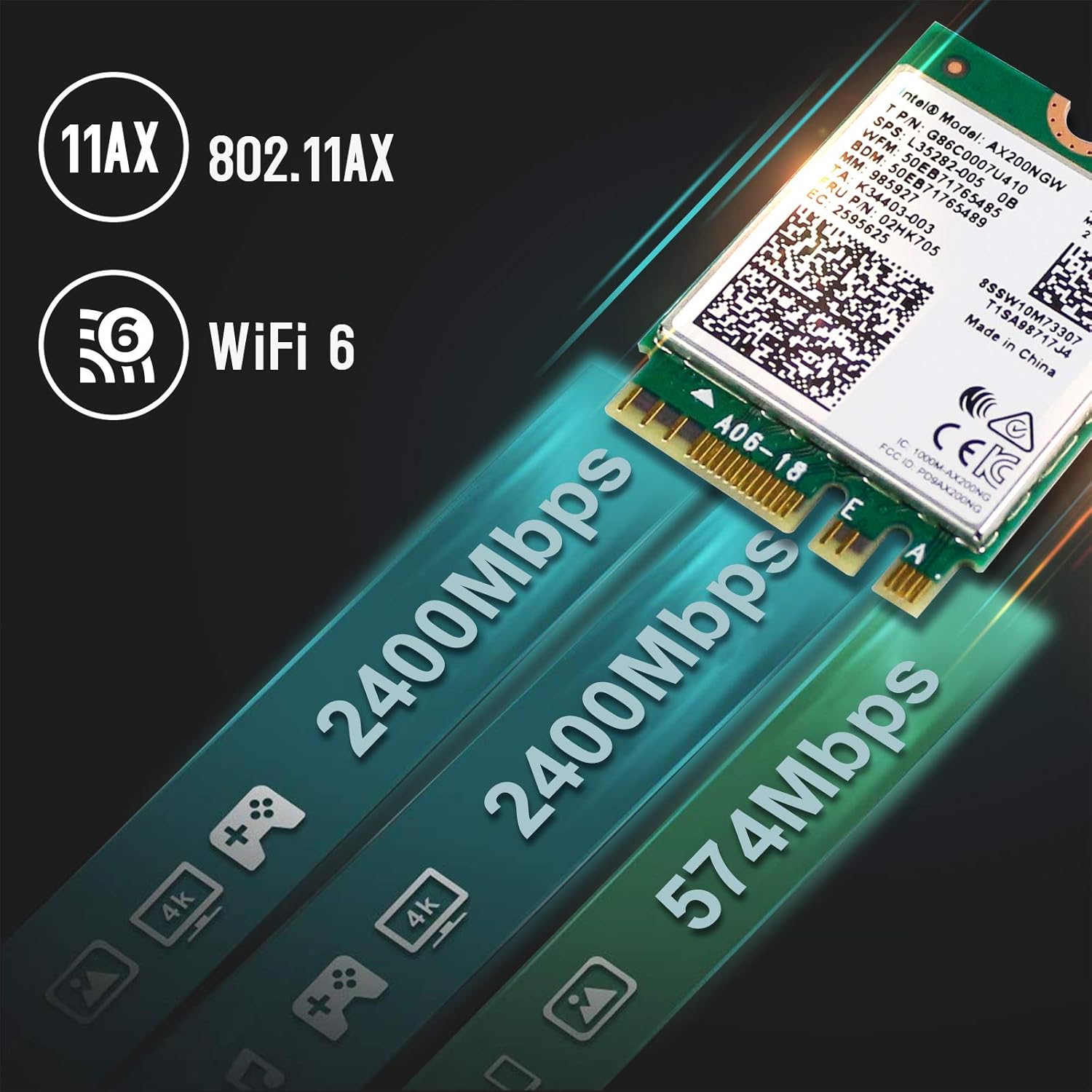
Image: Visual representation of the high-speed data transfer capabilities of the AX200NGW card, highlighting 2400Mbps and 574Mbps speeds.
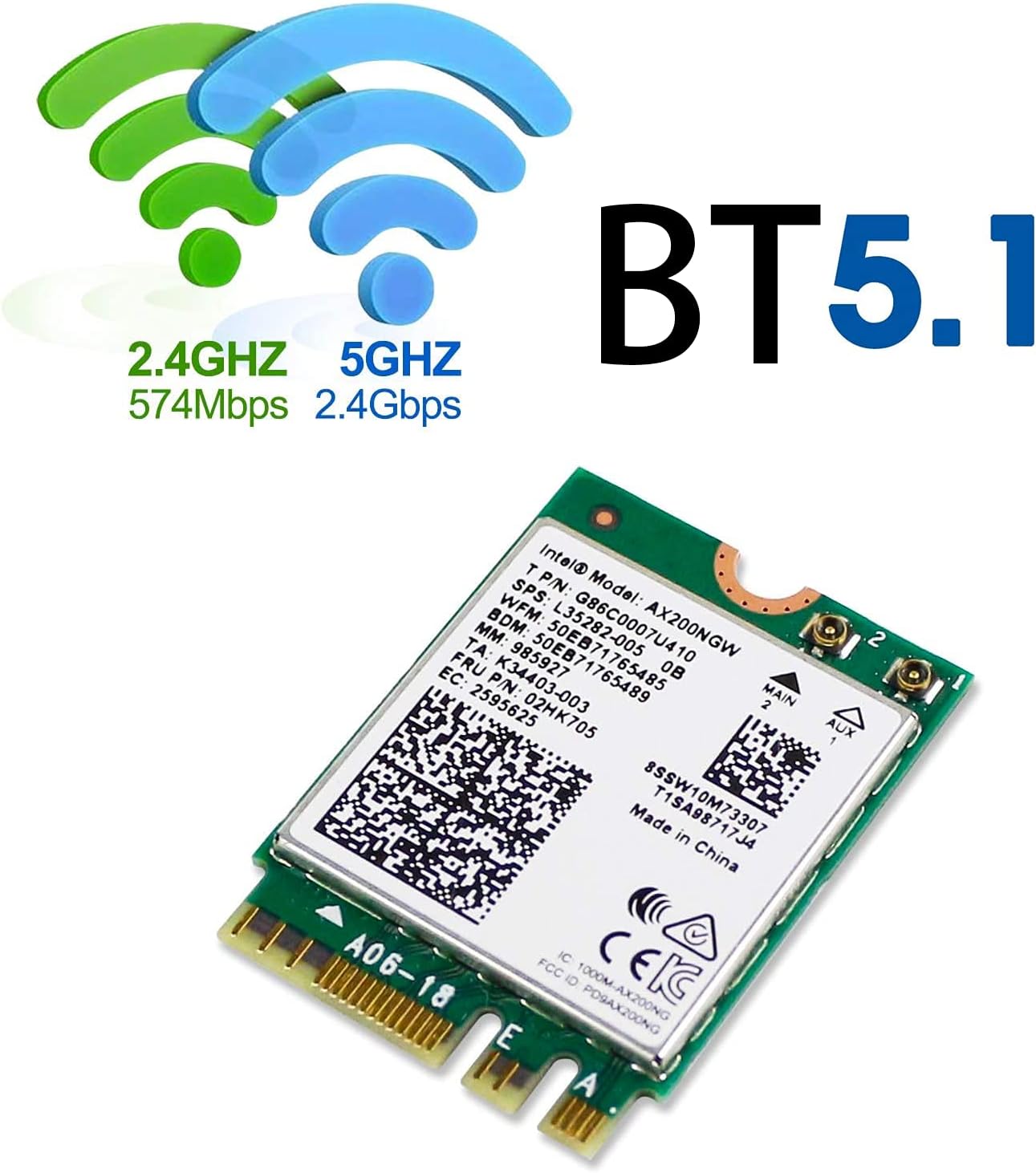
Image: Depiction of Wi-Fi signals (2.4GHz and 5GHz) and the prominent Bluetooth 5.1 logo, indicating dual functionality.
3. Whakatakotoranga
| Huanga | Taipitopito |
|---|---|
| Paerewa | 802.11 b/g/n/ac/ax |
| Dual Band Performance | 2.4Gbps (5GHz) + 574Mbps (2.4GHz), 160MHz |
| Putanga Nihokikorangi | Nihokikorangi 5.1 |
| Kawa Haumarutanga | WPA/WPA2/WPA3 |
| Atanga Antenna | IPEX4 (Antenna not included) |
| Pūnaha Tautoko | Windows 10 64-bit only |
| Atanga | M.2 2230 (Key A or E) |
| Hunga Hua | 1.18 x 0.87 x 0.09 inihi (30 x 22 x 2.3 mm) |
| Taumaha Tūemi | 1.76 hekere (50 karamu) |
| Tau tauira | 4018522 |
| UPC | 700161315172 |

Image: The physical dimensions of the AX200NGW card, illustrating its compact size relative to a 25-cent coin.
4. He aha kei roto i te Pouaka
I te whakatuwheratanga o te kohinga hua, me kitea e koe nga mea e whai ake nei:
- Intel AX200 Wi-Fi Card
- Driver CD (Note: Latest drivers should be downloaded online for best performance)
5. Whakaritenga Hototahi
To ensure proper functionality, the WISE TIGER AX200NGW Wireless Card has specific system requirements:
- Pūnaha Mahi: Exclusively supports Windows 10 64-bit. This module is not compatible with other operating systems.
- Atanga: Requires an M.2 slot (Key A or Key E) on your laptop or desktop motherboard. It is not compatible with M.2 Key M, Key B, or Mini PCIe slots, which are typically used for SSDs or other components.
- Tukatuka: Designed for use with Intel-based systems.
- Hotokoretanga: Do not use this module on motherboards that contain an Intel 9560 CNVi part, as this can lead to conflicts or malfunction.
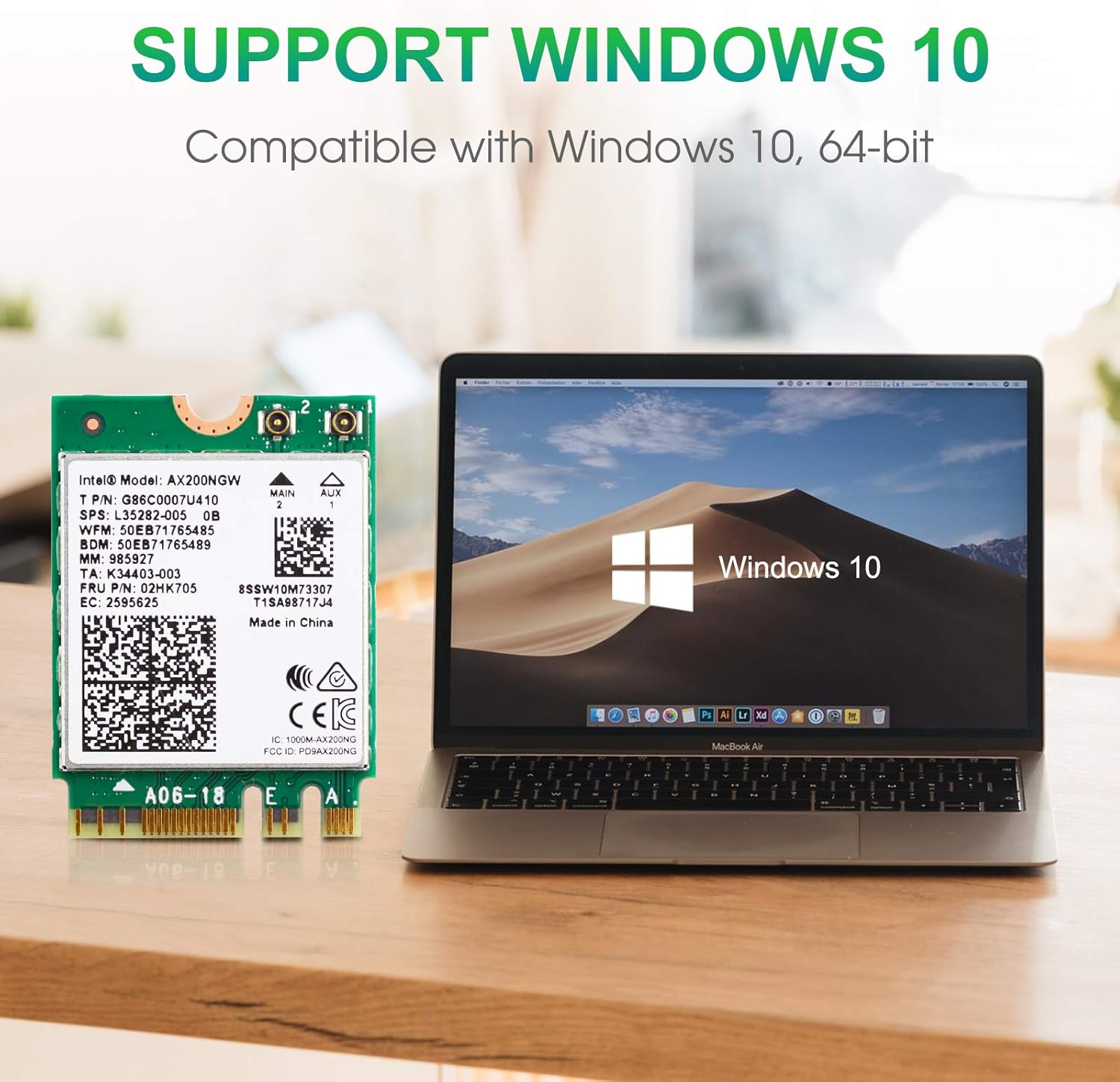
Image: The AX200NGW card positioned next to a laptop screen showing the Windows 10 operating system, emphasizing compatibility.

Image: A clear visual guide indicating the correct M.2 Key A and Key E slots for installation, and explicitly showing incompatible Key M and Mini PCIe slots.
6. Aratohu Whakauru
Follow these steps carefully to install the WISE TIGER AX200NGW Wireless Card into your compatible system:
- Whakaritehia to Pūnaha: Before beginning, power off your computer completely and disconnect it from the power source. For laptops, remove the battery if possible.
- Uru atu ki te Mokowā M.2: Open your laptop or desktop case to locate the M.2 slot. This may involve removing the back panel of a laptop or the side panel of a desktop. Refer to your computer's service manual for specific instructions on accessing internal components. The M.2 slot should be labeled with a "WiFi" logo or similar indicator.
- Insert the Wireless Card: Gently align the notch on the AX200NGW card with the key in the M.2 slot (Key A or Key E). Insert the card at a slight angle until it is fully seated.
- Tiakina te Kaari: Once inserted, push the card down until it lies flat. Secure it with the small screw provided with your computer or the wireless card.
- Connect Antennas (if applicable): If your system uses external antennas, carefully connect the IPEX4 antenna cables to the corresponding connectors on the AX200NGW card (Main and Aux). Ensure a secure connection.
- Reassemble Your System: Carefully reassemble your computer, ensuring all panels are securely closed and screws are tightened.
Warning: Handle the card by its edges to avoid touching the gold connectors or components. Static electricity can damage electronic components. Consider using an anti-static wrist strap.
7. Operating Instructions (Driver Installation)
After physical installation, drivers must be installed for the wireless card to function correctly:
- Whakaara Tuatahi: Power on your computer. Windows 10 may automatically detect the new hardware and attempt to install generic drivers.
- Tikiake Atekōkiri: For optimal performance and full functionality (including Bluetooth 5.1), it is highly recommended to download the latest drivers directly from the WISE TIGER official webpae. Rapua "Intel AX200NGW" drivers.
- Tāuta Atekōkiri Wi-Fi: Locate the downloaded Wi-Fi driver file (e.g., "WiFi_21.10.1_Driver64_Win10.exe" or similar). Double-click the executable file ka whai i nga tohutohu i runga-mata hei whakaoti i te whakaurunga.
- Tāuta Atekōkiri Nihokikorangi: If you intend to use Bluetooth functionality, download the corresponding Bluetooth driver (e.g., "BT_21.10.1_64_Win10.exe" or similar) from the WISE TIGER website. Double-click the executable file ka whai i nga tohutohu i runga-mata hei whakauru.
- Tīmata anō Rorohiko: After installing both drivers, restart your computer to ensure all changes take effect.
- Hono atu ki te Whatunga: Once restarted, you should be able to see available Wi-Fi networks and connect to them. Bluetooth devices can also be paired through Windows settings.
8. Te Raru
If you encounter issues with your WISE TIGER AX200NGW Wireless Card, consider the following troubleshooting steps:
- No Wi-Fi or Bluetooth Functionality After Installation:
- Ensure the card is correctly seated in the M.2 slot and securely fastened.
- Verify that you have installed the correct Wi-Fi and Bluetooth drivers for Windows 10 64-bit from the WISE TIGER webpae.
- Check Device Manager in Windows to see if the device is recognized and if there are any error codes. Reinstall drivers if necessary.
- Te ngoikore o te tohu Wi-Fi, te momotu pinepine rānei:
- Ensure that any internal antenna cables are securely connected to the card's IPEX4 ports.
- Tirohia mo nga arai tinana i waenga i to rorohiko me te pouara Wi-Fi.
- Whakahōuhia te mārō o tō pouara ki te putanga hōu.
- Consider the distance and number of walls between your device and the router.
- Bluetooth Devices Not Pairing:
- Ensure the Bluetooth driver is correctly installed.
- Verify that Bluetooth is enabled in Windows settings.
- Remove and re-pair the Bluetooth device.
- Check if the Bluetooth device is in pairing mode.
- System Instability or Blue Screens:
- Confirm that your system is Intel-based and running Windows 10 64-bit.
- Ensure your motherboard does not contain an Intel 9560 CNVi part, as this card is incompatible with such configurations.
- Uninstall and reinstall the drivers. If issues persist, consult your computer manufacturer's support.
9. Pūtāhui me te Tautoko
For any questions, technical assistance, or warranty inquiries regarding your WISE TIGER AX200NGW Wireless Card, please contact WISE TIGER customer support directly.
Tautoko Īmēra: sales@wise-tiger.com
Please provide your product model number (AX200NGW / 4018522) and a detailed description of your issue when contacting support to facilitate a quicker resolution.