
1. Kupu Whakataki
The Argox AS8520 is a high-performance cordless imager designed for efficient barcode scanning. It features advanced wireless communication technology, allowing for a data transmission range of up to 100 meters. Equipped with a long-lasting Li-ion battery and an IP42 sealing level, the AS8520 is built for durability and mobility across various environments, including offices, supermarkets, warehouses, and manufacturing facilities.
2. Hua Neke Atuview
The AS8520 barcode scanner is designed for comfortable handling and robust performance. Key components include the scanning window, trigger button, and ergonomic grip.
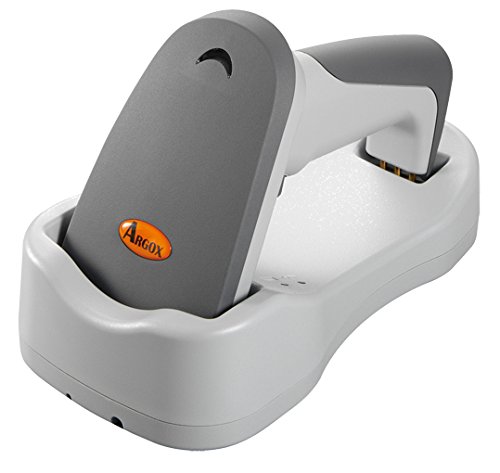
Whakaahua 2.1: Te taha view of the Argox AS8520 Barcode Scanner, showing the ergonomic handle and trigger button.
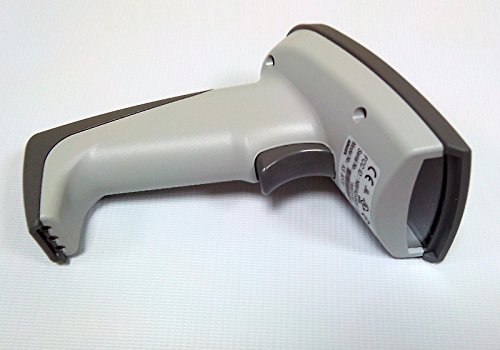
Whakaahua 2.2: Mua view of the Argox AS8520 Barcode Scanner, highlighting the scanning window and product labels.
3. Aratohu Tatūnga
3.1. Tāuta Pūhiko me te Whakatau
- Ensure the scanner is powered off before installing or removing the battery.
- Locate the battery compartment on the scanner handle.
- Whakauruhia te pākahiko Li-ion, kia tika ai te polarity.
- Katia kia mau te wahanga pākahiko.
- Connect the scanner to its charging base or power adapter using the provided cable. Allow the battery to fully charge before first use.
3.2. Te hono atu ki tētahi Pūrere Manaaki
The Argox AS8520 can connect wirelessly to various host devices, including desktops, laptops, and smartphones. Refer to the separate quick start guide for specific pairing instructions for your operating system or device type.
4. Nga Tohutohu Whakahaere
4.1. Matawai Taketake
- Me whakarite kei te whakakā te matawai, ā, kua honoa pai ki tō pūrere manaaki.
- Ātaina te matapihi matawai ki te waehere pae e hiahia ana koe ki te matawai.
- Press and hold the trigger button. A red LED light source (630nm Visible Red LED) will illuminate the barcode.
- Position the scanner at an appropriate distance (the AS8520 offers superior depth of field up to 40 inches on 40-mil codes) until the barcode is successfully read. A successful scan is typically indicated by an audible beep and/or a visual indicator.
- Tukua te paatene keu.
4.2. Āhuatanga Matawai Arā Atu Anō
- Rapid Scan Rate: The AS8520 provides a rapid scan rate of 450 scans/sec for efficient data capture.
- Barcode Symbology Support: Supports GS1 Databar (RSS) and CS (Composite Symbology) barcodes.
- Sunlight Readability: Designed to be readable under direct sunlight conditions.
5. Tiaki
5.1. Te horoi i te Matawai
- Me whakaweto te mana o te matawai i mua i te horoinga.
- Kia ngawari te whakamahi i te kakahu ngohengohe, karekau he ngongo dampened with water or a mild cleaning solution to wipe the exterior of the scanner.
- For the scanning window, use a lens cleaning cloth to avoid scratches.
- Do not use abrasive cleaners, solvents, or immerse the scanner in liquid. The IP42 sealing level protects against dust and light water splashes, but not full immersion.
5.2. Tiaki Pūhiko
- To maximize battery life, avoid fully discharging the Li-ion battery frequently.
- Penapenahia te matawai ki te wāhi hauhautanga, maroke hoki ina kore e whakamahia mō te wā roa.
- If the battery performance degrades significantly, consider replacing it with an authorized Argox replacement battery.
6. Te Raru
| Raruraru | Take pea | Rongoā |
|---|---|---|
| Karekau te Matawai i te hiko. | Kua tukuna te pākahiko, kaore ranei i te tika te whakauru. | Charge the battery. Ensure the battery is correctly seated in its compartment. |
| Karekau a Scanner e panui i nga tohupaepae. | Barcode is damaged, scanner is too far/close, or incorrect symbology settings. | Ensure the barcode is clear. Adjust scanning distance. Check scanner programming for supported barcode types. |
| Kāore he raraunga i tukuna ki te pūrere manaaki. | Scanner not paired or out of range. | Re-pair the scanner with the host device. Ensure the scanner is within the 100-meter transmission range. |
| Scanner is unresponsive. | Hapa rorohiko rangitahi. | Perform a soft reset by powering off and then on the scanner. If issues persist, consult the manufacturer's support. |
7. Whakatakotoranga Hangarau
| Āhuahira | Whakatakotoranga |
|---|---|
| Tauira | AS8520 |
| Reiti Matawai | 450 karapa/hekona |
| Puna Maama | 630nm Visible Red LED |
| Mahinga Matawai | Starting at 0.1mm (4 mil) |
| Te Hohonutanga o te Marae | Up to 40 inches on 40-mil codes |
| Awhe Whakawhiti Raraunga | 100 meters (wireless) |
| Pūrere Hototahi | Desktop, Laptop, Smartphone |
| Puna Mana | Battery Powered (Li-ion battery pack) |
| Te Waahi Mahi | 0°C ki te 50°C (32°F ki te 122°F) |
| Paemahana Rokiroki | -20°C ki te 70°C (-4°F ki te 158°F) |
| Te haumākū | 10% ki te 90% haumākū whanaunga, kore-condensing |
| Taumata Maama | Tae atu ki te 70,000 lux |
| Current - Operating | 225 mA @ 4.2 VDC |
| Current - Standby | 32 mA @ 4.2 VDC |
| Power - Operating | 900 mW |
| Power - Standby | 150 mW |
| Reliability (Trigger) | 1,000,000 wa |
| Reliability (Cable) | 320,000 times (90° bend) |
| Whakataka Whakatakotoranga | 1.5 mita |
| Sealing Level | IP42 |
| Taumaha Tūemi | 1.3 kg |
| GTIN/UPC | 702563636336 |
8. Pūtāhui me te Tautoko
For detailed warranty information, please refer to the warranty card included with your product or visit the official Argox website. For technical support, service, or replacement parts, please contact your authorized Argox reseller or Argox customer service directly.