
Kupu Whakataki
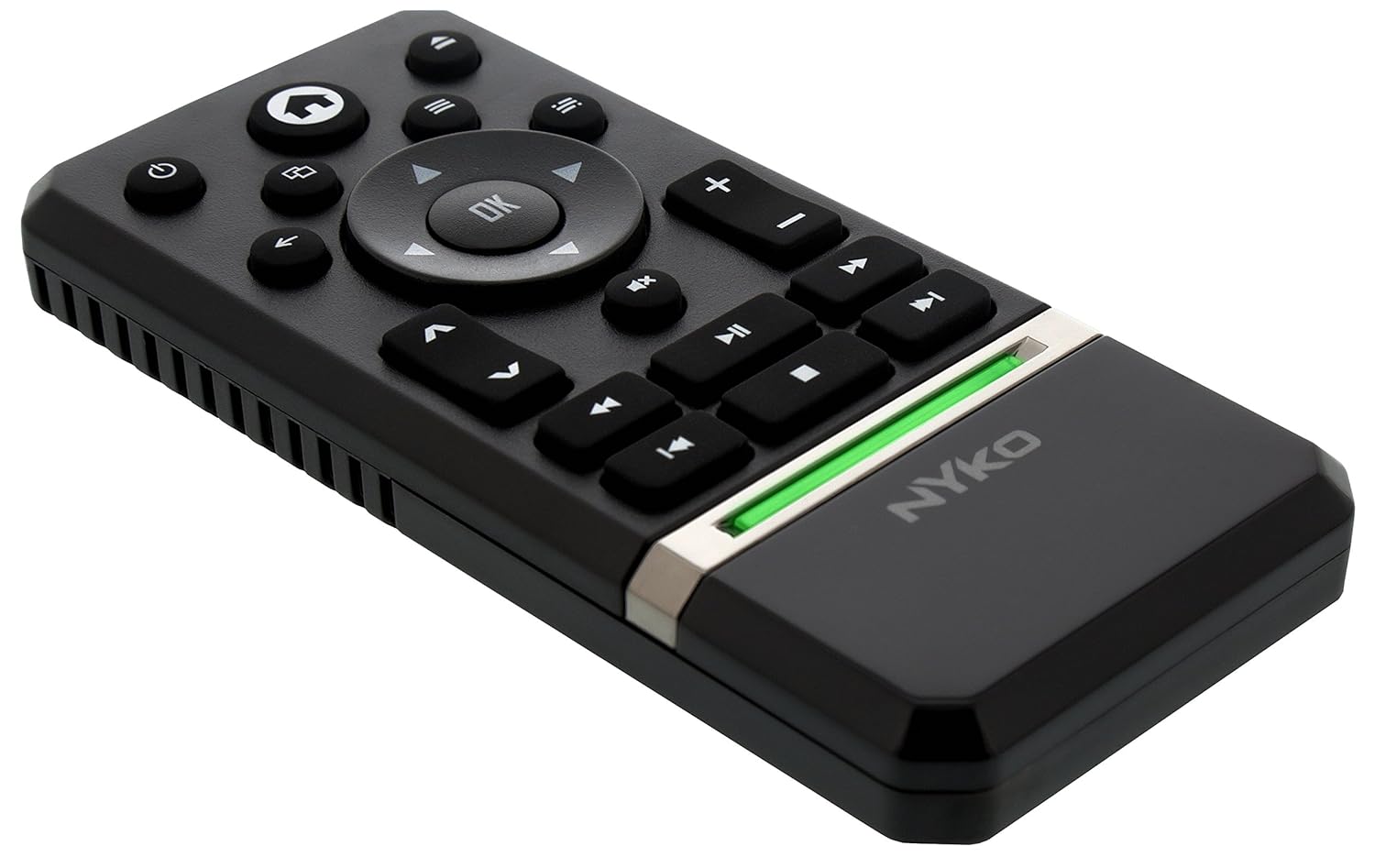
The Nyko Media Remote for Xbox One provides convenient control over your Xbox One console and various media applications. This remote simplifies navigation and playback of streaming content and physical media, offering dedicated buttons for common functions. It also features the ability to power your Xbox One on and off, and control basic functions of your television.

Image: Nyko Media Remote for Xbox One, front view.
Ihirangi mokete
- Nyko Media Remote for Xbox One (Model: 86116)
- Kia mōhio: Kāore ngā pākahiko AAA i roto, me hoko motuhake.

Image: Nyko Media Remote for Xbox One in its retail packaging.
Tatūnga
1. Tāuta Pūhiko
- Kimihia te wahanga pākahiko kei muri o te mamao.
- Peia te taupoki pākahiko ki raro kia tuwhera.
- Whakauruhia kia rua (2) pākahiko AAA, kia tika te polarity (+/-) e tohuhia ana ki roto i te waahanga.
- Whakakapihia te uhi o te pākahiko ma te paheke ki runga kia paato noa ki te waahi.
Whakaahua: Rear view of the remote with the battery cover removed, illustrating the AAA battery placement.
2. Hononga Tuatahi
The Nyko Media Remote uses infrared (IR) technology. No manual pairing is required for the Xbox One. Simply ensure a clear line of sight between the remote's IR emitter and the Xbox One's IR receiver.
For TV control functions (volume, channels, power), your TV must be configured to respond to the Xbox One's IR signals, typically through the Xbox One's OneGuide settings. The remote sends commands to the Xbox One, which then relays them to your TV via its IR blaster (if configured) or Kinect sensor.
Nga Tohutohu Whakahaere
The Nyko Media Remote provides comprehensive control for your Xbox One and various media applications. Refer to the diagram below for button identification and their primary functions.

Whakaahua: Mua view of the Nyko Media Remote, displaying all control buttons.
Nga Mahi Patene:
| Pātene | Mahi |
|---|---|
| Pātene Hiko (⏻) | Powers the Xbox One console on or off. |
| Pātene Kāinga (⌂) | Returns to the Xbox One Home screen. |
| View Pātene (🗀) | Accesses additional information or options within an app or game. |
| Patene Tahua (☰) | Ka whakatuwhera i ngā tahua, i ngā kōwhiringa rānei e pā ana ki te horopaki. |
| Papa Aronga (D-Pad) | Navigates through menus and content. |
| Patene OK | Confirms selections. Can also function as Play/Pause in some apps. |
| Patene Whakamuri (←) | Ka hoki ki te mata o mua, ki te tahua ranei. |
| OneGuide Button (📱) | Launches the Xbox OneGuide for live TV and media. |
| Rōrahi Whakarunga/Whakararo (⏸ / ⏷) | Adjusts the television volume (requires TV setup via Xbox One). |
| Patene Wahangu (🔇) | Mutes or unmutes television audio. |
| Hongere Runga/Whakararo (▲ / ▼) | Changes television channels (requires TV setup via Xbox One). |
| Whakahoki Tere (⏪) | Whakahoki ai i te pureitanga pāpāho. |
| Purei/Tatari (⏯) | Ka purei, ka whakamutu rānei i te pureitanga pāpāho. |
| Tere Whakamua (⏩) | Whakatere whakamua i te pureitanga pāpāho. |
| Tuhinga o mua (⏮) | Ka peke atu ki te tīmatanga o te ara o nāianei, o te ara o mua rānei. |
| Kati (⏹) | Ka whakamutu i te purei pāpāho. |
| Riro Panuku (⏭) | Ka peke atu ki te waiata, ki te upoko rānei e whai ake nei. |
Media and App Control:
The remote is designed for seamless control of various Xbox One applications, including:
- OneGuide
- Netflix
- Hulu Plus
- Ataata Inamata Amazon
- Other streaming services and Blu-ray/DVD playback
Dedicated playback buttons (Play, Pause, Fast Forward, Rewind, Stop, Skip) provide intuitive control for movies, music, and other media.
Te tiaki
Whakakapinga Pūhiko:
When the remote's performance diminishes or it stops responding, it is likely time to replace the batteries. Follow the "Battery Installation" steps in the Setup section to replace the two AAA batteries.
Te horoi:
To clean the remote, gently wipe it with a soft, dry cloth. Avoid using harsh chemicals, abrasive cleaners, or excessive moisture, as these can damage the remote's finish or internal components.
Raparongoā
- Mamao Kaore i te Whakautu:
- Me whakarite kia tika te tāutanga o ngā pākahiko AAA hou.
- Verify there is a clear line of sight between the remote and the Xbox One console. Obstructions can block the infrared signal.
- Move closer to the Xbox One console. The remote has a maximum effective range of approximately 9 meters (25 feet).
- TV Control (Volume, Channel, Power) Not Working:
- Confirm that your Xbox One's OneGuide settings are properly configured for your television. The remote sends commands to the Xbox One, which then controls the TV.
- Ensure any necessary IR blasters or Kinect sensors are correctly set up and positioned.
- Intermittent Response:
- This can sometimes occur due to weak batteries or environmental interference. Replace batteries and ensure a clear line of sight.
Whakatakotoranga
| Āhuahira | Taipitopito |
|---|---|
| Waitohu | Nyko |
| Ingoa Tauira | Mamao Media |
| Tau tauira | 86116 |
| Hangarau Hononga | Infrared (IR) |
| Pūrere Hototahi | Xbox One, Television (via Xbox One IR blaster/Kinect) |
| Momo Pūhiko | 2 x AAA pākahiko (kaore i whakauruhia) |
| Awhe Morahi | Tae atu ki te 9 mita (25 putu) |
| Taumaha Tūemi | 0.1 Pauna (tata ki te 45 karamu) |
| Tae | Kerei pouri |
| Nga waahanga taapiri | Ergonomic design, dedicated media playback controls. |
Pūtāhui me te Tautoko
Nyko products are designed for quality and reliability. For specific warranty details, please refer to the documentation included with your purchase or visit the official Nyko website. The product includes warranty information in multiple languages.
Tautoko Kiritaki:
- Īmēra: customer.support@nyko.com
- Waea: +1-888-400-6956
- Rēhita ipurangi: www.nyko.com
- He korero taapiri: http://uqr.me/nykotechnologies/qr/83215

Whakaahua: Rear view of the product packaging, detailing features and customer support contact information.