
1. Kupu Whakataki
The Nektar Panorama P6 is a 61-key USB MIDI Controller Keyboard designed for deep integration with various Digital Audio Workstations (DAWs). It offers extensive control over your music production environment with its comprehensive set of controls, including a motorized fader, velocity-sensitive keys, and aftertouch.
Āhuatanga matua:
- 61 semi-weighted, full-size, velocity-sensitive keys with aftertouch.
- 100mm ALPS motorized touch-sensitive high-resolution fader.
- Deep DAW integration for Cubase, Logic, Studio One, Bitwig Studio, Nuendo, Mainstage, Reason, and Reaper.
- Comprehensive MIDI functionality, compatible with all MIDI music software applications.
- Mac and PC compatible.
- Includes PreSonus Studio One Artist DAW license.
2. He aha kei roto i te Pouaka
Upon unpacking your Nektar Panorama P6, please ensure all the following items are present:
- Nektar Panorama P6 Keyboard
- Tauira USB
- Pukapuka Kaiwhakamahi (tenei tuhinga)
- PreSonus Studio One Artist License
3. Tatūnga
3.1 Connecting the Panorama P6
The Panorama P6 connects to your computer via a standard USB cable. It can also utilize MIDI ports for external hardware. For optimal performance and to enable the motorized fader, an external power supply (not included) may be required, though the unit can be USB bus-powered for basic functionality.
- Connect one end of the supplied USB cable to the USB port on the Panorama P6.
- Honoa te pito o te taura USB ki tetahi tauranga USB e waatea ana i runga i to rorohiko.
- If using an external power supply for the motorized fader, connect it to the DC input on the Panorama P6 and then to a power outlet.
- For MIDI hardware connections, use standard MIDI cables to connect the MIDI OUT port on the Panorama P6 to the MIDI IN port of your external device.

Whakaahua: Mua view of the Nektar Panorama P6, showcasing the 61 keys, control surface, and display.
3.2 Driver Installation and DAW Integration
The Panorama P6 is class-compliant on most operating systems (Mac and PC), meaning no specific drivers are usually required for basic MIDI functionality. However, for deep DAW integration, you will need to download and install the appropriate integration files from the Nektar webpae.
- Visit the official Nektar Technology webpae (www.nektartech.com) and navigate to the support section for the Panorama P6.
- Download the latest DAW integration files specific to your operating system and preferred DAW (e.g., Cubase, Logic, Reason, Studio One).
- Follow the installation instructions provided with the downloaded files. These typically involve running an installer and then configuring your DAW to recognize the Panorama P6 as a control surface.
- Refer to your DAW's user manual for specific instructions on setting up MIDI controllers and control surfaces.
4. Operating the Panorama P6
4.1 Mana Taketake
The Panorama P6 features a comprehensive control surface designed for intuitive interaction with your DAW and virtual instruments.
- Papapātuhi: The 61 semi-weighted keys provide a responsive playing experience with velocity sensitivity and aftertouch for expressive control.
- Papa: The 12 velocity-sensitive pads are ideal for drumming, triggering sampngā topenga whakarewa rānei.
- Nga Rere me nga Puka: A bank of faders and rotary knobs allows for precise control over mixer channels, instrument parameters, and effects. The 100mm motorized fader provides tactile feedback and automatically updates its position to match your DAW's mixer.
- Pātene: Dedicated buttons for transport control (Play, Stop, Record, etc.), navigation, and various functions streamline your workflow.
- Whakaatu: The integrated display provides visual feedback on parameters, settings, and DAW status.

Whakaahua: Kati-ake view of the Nektar Panorama P6's control surface, highlighting the pads, rotary knobs, and faders for detailed parameter manipulation.
4.2 Whakaurunga DAW
Once properly set up, the Panorama P6 offers deep integration with supported DAWs, allowing you to control various aspects of your software directly from the hardware.
- Mixer Control: Adjust volume, pan, sends, and other mixer parameters. The motorized fader will reflect the selected track's volume.
- Mana Taonga: Map controls to virtual instrument parameters for hands-on sound design and performance.
- Mana Waka: Start, stop, record, fast forward, and rewind your projects without touching your mouse or keyboard.
- Whakaterenga: Browse presets, tracks, and projects directly from the controller.
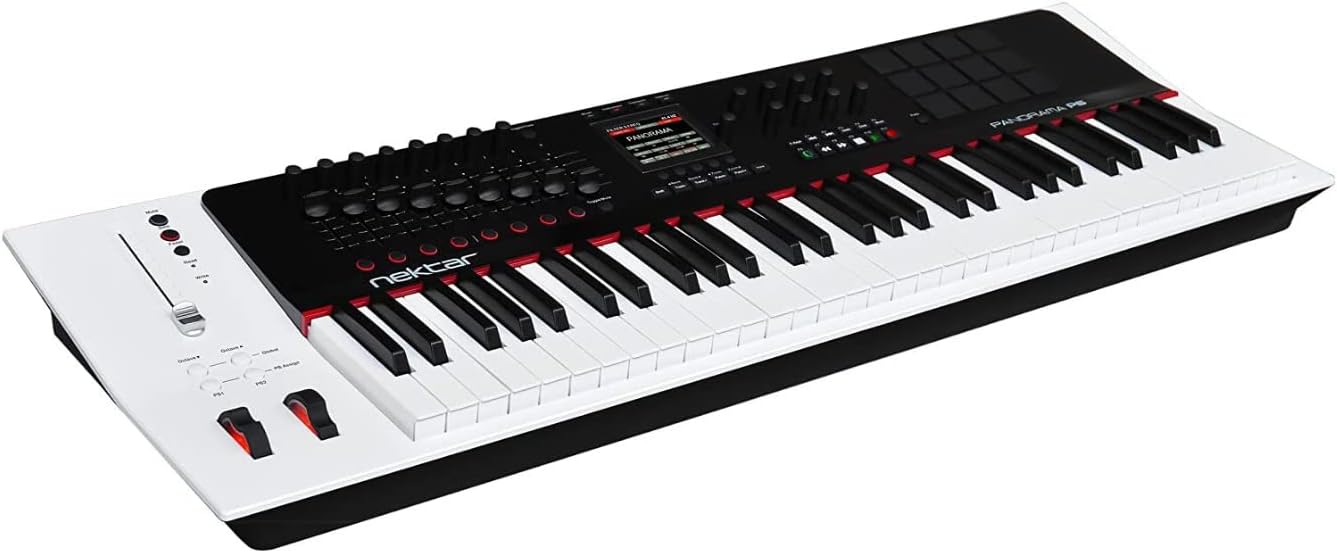
Whakaahua: Koki view of the Nektar Panorama P6, providing a perspective of the entire keyboard and its integrated control panel.
5. Tiaki
5.1 Te horoi
To maintain the appearance and functionality of your Panorama P6, follow these cleaning guidelines:
- Always disconnect the power and USB cable before cleaning.
- Use a soft, dry, lint-free cloth to wipe down the surface of the unit.
- Mo te paru maro, paku dampHoroia te kakahu ki te wai. Āta karohia te whakamahi i ngā matū kaha, i ngā kaihoroi whakakoi, i ngā whakarewa rānei, nā te mea ka kino pea te whakaotinga me ngā wāhanga hiko.
- Kaua e tukua ngā wai kia tomo ki roto i ngā pūaha.
5.2 Rokiroki
When not in use, store the Panorama P6 in a clean, dry environment away from direct sunlight, extreme temperatures, and excessive dust. Consider using a dust cover to protect the keys and control surface.
5.3 Whakahoutanga Firmware
Nektar periodically releases firmware updates to improve performance, add features, or address issues. Check the official Nektar Technology website regularly for the latest firmware and installation instructions.
6. Te Raru
If you encounter issues with your Nektar Panorama P6, try the following troubleshooting steps:
- No Power/Unit Not Responding:
- Ensure the USB cable is securely connected to both the Panorama P6 and your computer.
- If using an external power supply, verify it is correctly connected and plugged into a working power outlet.
- Ngana ki te hono atu ki tetahi tauranga USB rereke i runga i to rorohiko.
- DAW Not Recognizing Panorama P6:
- Confirm that the correct DAW integration files have been installed from the Nektar webpae.
- Check your DAW's preferences or settings to ensure the Panorama P6 is selected as a MIDI input device and control surface.
- Restart your DAW and/or computer.
- Motorized Fader Not Moving:
- The motorized fader requires an external power supply for full functionality. Ensure an appropriate power supply is connected.
- Verify that the DAW integration is correctly configured and communicating with the Panorama P6.
- Keys/Pads Not Responding:
- Check MIDI input settings in your DAW.
- Ensure the Panorama P6 is in the correct mode for sending MIDI notes (e.g., not in a control-only mode).
If these steps do not resolve your issue, please refer to the Nektar Technology support webpaetukutuku, whakapā atu ranei ki ta raatau tautoko kaihoko mo etahi atu awhina.
7. Whakatakotoranga
| Āhuahira | Whakatakotoranga |
|---|---|
| Tau tauira | P6 |
| Taumaha Tūemi | 17 pauna |
| Hunga Hua | 39.76 x 12.99 x 3.78 inihi |
| Tae | Mā |
| Momo Rawa | Te whakarewa |
| Te maha o nga Kī Papapātuhi | 61 |
| Momo Matua | Semi-weighted, Velocity Sensitive, Aftertouch |
| Hangarau Hononga | MIDI, USB |
| Momo Tuhono | USB |
| Atanga Pūmārō | USB |
| Pūrere Hototahi | Devices with USB and MIDI ports |
| Pūmanawa Tautoko | Cubase, Logic, Studio One, Bitwig Studio, Nuendo, Mainstage, Reason, Reaper |
| Āhuahira Motuhake | Keyboard Controller, Velocity Sensitive Key, Motorized Fader |
8. Pūtāhui me te Tautoko
8.1 Nga Korero Whakaputanga
Nektar products are covered by a limited warranty against defects in materials and workmanship. The specific terms and duration of the warranty may vary by region and product. Please retain your proof of purchase. For detailed warranty information, including coverage and how to make a claim, visit the official Nektar Technology webpae.
8.2 Tautoko Kiritaki
For technical assistance, product inquiries, or support, please visit the Nektar Technology support page:
- Webpae: www.nektartech.com/support
Ko te website provides FAQs, troubleshooting guides, driver downloads, and contact information for direct support.