
1. Kupu Whakataki
This manual provides essential information for the safe and efficient operation of your Sharp Aquos LC42D64U 42-Inch 1080p LCD HDTV. Please read these instructions thoroughly before using your television and retain them for future reference. The Sharp Aquos D64 series offers a slim design, Full HD 1080p resolution, and advanced features for an enhanced viewte wheako.
2. Nga Korero Haumaru Nui
Me whai tonu i nga tikanga tiaki haumaru ina whakamahi i tenei pouaka whakaata hei whakaiti i te tupono o te ahi, te ru hiko, me te whara.
- Puna Hiko: Honoa te pouaka whakaata anake ki te hiko e tohuhia ana i te tapanga.
- Whakahau: Me whakarite kia tika te hau. Kaua e araia nga whakatuwheratanga hau.
- Te wai me te makuku: Kaua e tukuna te pouaka whakaata ki te ua, ki te makuku ranei. Kaua e tuu i nga mea kua whakakiia ki te wai ki runga i te pouaka whakaata.
- Te horoi: Wewetehia te pouaka whakaata mai i te putanga o te pakitara i mua i te horoi. Whakamahia he kakahu ngohengohe, maroke.
- Ratonga: Kaua e tarai ki te mahi i tenei hua maau ake. Tirohia nga ratonga katoa ki nga kaimahi tohu tohu.
- Whakapiki: If wall-mounting, ensure the mount is compatible and installed by qualified personnel.
- Tamariki: Aroturukihia ngā tamariki kia kore ai rātou e piki ki runga, e tākaro rānei ki te pouaka whakaata.
3. He aha kei roto i te Pouaka
Manatokohia kei te noho nga waahanga katoa i mua i te haere ki te tatūnga.
- Sharp Aquos LC42D64U 42-Inch LCD HDTV
- Mana Mamao
- Tu Ripanga
- Waea hiko
- Pukapuka Kaiwhakamahi (tenei tuhinga)
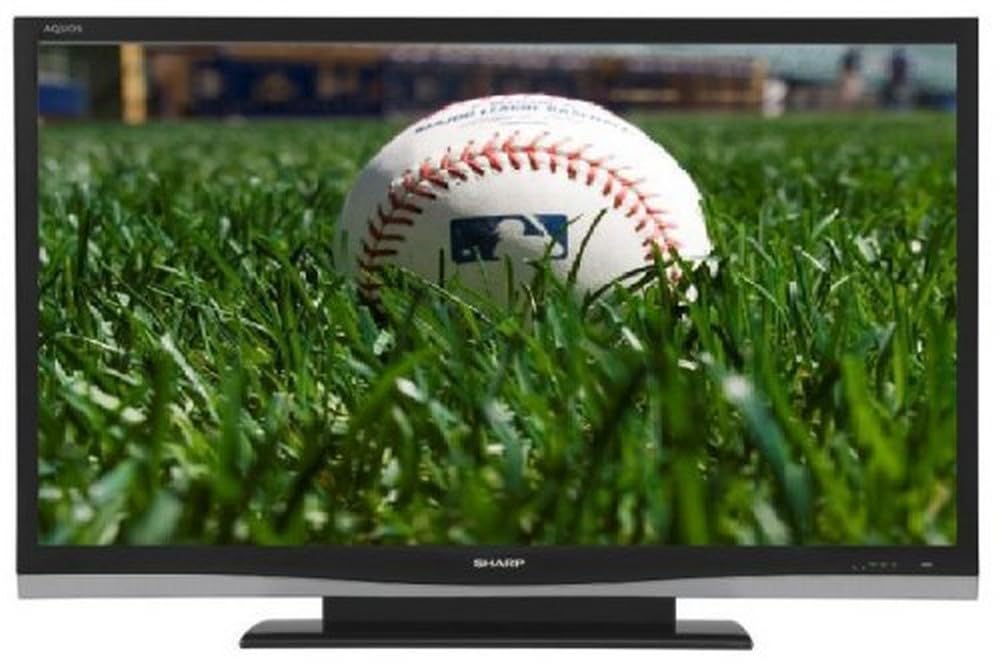
Whakaahua: Mua view of the Sharp Aquos LC42D64U 42-Inch LCD HDTV with its included table stand.
4. Tatūnga
4.1 Te Whakapiri i te Tūnga Tēpu
If you are not wall-mounting the television, attach the included table stand. Refer to the separate assembly guide for detailed instructions on securing the stand to the TV. Ensure all screws are tightened securely.
4.2 Te hono i nga taputapu o waho
Connect your external devices (e.g., cable box, Blu-ray player, game console) to the appropriate input terminals on the rear or side of the TV.
- HDMI: For high-definition digital video and audio. The TV features three HDMI 1.3 inputs (two rear, one side).
- Component Video (Y, Pb, Pr): For high-definition analog video. Two inputs are available.
- Composite Video (A/V): For standard-definition analog video and audio. One side and one rear input.
- S-Ataata: For standard-definition video. One side and one rear input.
- PC Input (D-Sub 15-pin): Honoa he rorohiko hei whakamahi hei aroturuki.
- RF Antenna Inputs: Two inputs for connecting an antenna or cable TV.
- Tauranga Itarangi: For network connectivity (DLNA).
4.3 Hononga Hiko
After connecting all desired devices, plug the power cord into the TV's power inlet and then into a wall outlet. The TV will enter standby mode.
5. Nga Tohutohu Whakahaere
5.1 Initial Power On and Channel Setup
- Pehia te MANA button on the remote control or the TV to turn it on.
- The first time you power on, the TV will guide you through the initial setup process, including language selection and channel scanning.
- Select your preferred language (English, Spanish, or French).
- Perform an "Easy Setup" or "Channel Setup" scan to detect available digital (ATSC, QAM) and analog (NTSC) channels.
5.2 Nga Mahi Mana Mamao Taketake
- MANA: Turns the TV on or off (standby).
- Whakauru: Cycles through available input sources (HDMI, Component, PC, etc.).
- CH +/-: Huri hongere.
- VOL +/-: Te whakatika i te rahinga.
- MENU: Ka uru atu ki te tahua kei runga i te mata mō ngā whakarerekētanga tautuhinga.
- PATA Pere: Whakatere i roto i nga whiringa tahua.
- Whakauru: Ka whakamana i nga whiringa.
- EXIT/RETURN: Puta atu i ngā tahua, hoki atu rānei ki te mata o mua.
5.3 Tahua Navigation me Tautuhinga
Pehia te MENU pātene hei uru atu ki ngā kāwai tautuhinga rerekē:
- Pikitia: Adjust brightness, contrast, color, tint, sharpness, and backlight. The OPC function automatically adjusts brightness based on room conditions.
- Ororongo: Control volume, bass, treble, balance, and select audio modes.
- Channel: Rescan channels, add/delete channels, and set up favorite channels.
- Tatūnga: General settings like language, time, sleep timer, and parental controls (V-Chip).
- Ngā Āhuahira Arā Atu Anō: Access settings for DLNA, Picture-in-Picture, and AQUOS LINK.
6. Āhuatanga Arā
6.1 AQUOS LINK (HDMI-CEC)
AQUOS LINK allows convenient control of compatible Sharp devices connected via HDMI using just your AQUOS TV remote. Ensure connected devices also support HDMI-CEC (Consumer Electronics Control) and are enabled in their respective settings.
6.2 DLNA Compatibility
The TV is DLNA-compatible, enabling interoperability with other DLNA-certified electronics, computers, and mobile devices. Connect the TV to your home network via the Ethernet port to access and share digital content (photos, videos, music) from compatible devices on your network.
6.3 Picture-in-Picture (PIP)
The Picture-in-Picture function allows simultaneous viewing of a TV program and a video or PC source. Consult the on-screen menu for PIP activation and source selection.
6.4 V-Chip System
The V-Chip system allows you to block TV and movie programs based on their rating, providing parental control over objectionable content. Access V-Chip settings through the TV's setup menu.
7. Tiaki
7.1 Te horoi i te Mata
Me ata horoia te mata ki te kakahu ngohengohe, kore-puru. Mo nga tohu pakeke, kia ngawari dampen te kakahu ki te wai ranei he horoi mata motuhake. Kaua use harsh chemicals, abrasive cleaners, or spray liquids directly onto the screen.
7.2 Te Whakapai i te Rūnanga Kāwanatanga
Wipe the TV cabinet with a soft, dry cloth. Avoid using solvents or abrasive materials.
7.3 Tiakitanga Whanui
- Wewetehia te pouaka whakaata i te wa e uira ana te tupuhi, i te kore e whakamahia mo te wa roa.
- Tiakina te pouaka whakaata mai i te ra tika, nga puna wera, me te puehu nui.
- Ensure adequate space around the TV for proper ventilation.
8. Te Raru
I mua i te whakapā atu ki te tautoko a nga kaihoko, ngana ki nga otinga e whai ake nei mo nga take noa:
| Raruraru | Rongoa pea |
|---|---|
| Karekau he kaha | Check if the power cord is securely plugged into the TV and the wall outlet. Ensure the outlet has power. |
| Karekau he pikitia, engari he oro | Manatokohia kua tohua te puna whakauru tika. Tirohia nga hononga taura ki nga taputapu o waho. |
| Karekau he oro, engari he pikitia kei reira | Check the volume level and mute setting. Ensure audio cables are correctly connected. |
| Ko te mana mamao kaore e mahi | Whakakapihia nga pākahiko. Me whakarite karekau he arai i waenga i te mamao me te pukoro IR o te pouaka whakaata. |
| "Hotel Mode" issue (as per customer review) | If the TV is stuck in a limited functionality mode, contact Sharp customer support for assistance in disabling "Hotel Mode." This typically requires a specific service menu sequence. |
9. Whakatakotoranga
| Āhuahira | Taipitopito |
|---|---|
| Tau tauira | LC42D64U |
| Rahi Mata | 42 Inihi |
| Hangarau Whakaatu | LCD |
| Whakatau | 1080p (Katoa HD) |
| Tauwehenga Purata | 10,000:1 Dynamic |
| Wā Whakautu | 4 Milihekona |
| Tauranga HDMI | 3 (2 tua, 1 taha) |
| Component Video Inputs | 2 |
| Nga Whakauru Ataata Hiato | 3 (1 taha, 2 muri) |
| S-Video Inputs | 2 (1 taha, 1 muri) |
| Whakauru PC | 1 (D-Sub 15-pin) |
| Tauranga Itarangi | Ae |
| Momo Tuner | ATSC, QAM, NTSC |
| Mana Matua | V-Chip |
| Taumaha | 70.2 Pauna (approx.) |
| Tau tauira | 2008 |
10. Pūtāhui me te Tautoko
10.1 Rarangi Whaiti
This Sharp Aquos LC42D64U television comes with a 1 Year Parts and 1 Year Labor Warranty from the date of original purchase. This warranty covers manufacturing defects in materials and workmanship under normal use. It does not cover damage caused by misuse, accident, modification, or unauthorized repair.
Tena koa pupurihia to tohu mo te hoko mo nga kereme whakamana.
10.2 Tautoko Kiritaki
For technical assistance, troubleshooting beyond this manual, or warranty service, please contact Sharp Customer Support. Refer to the contact information provided with your product documentation or visit the official Sharp webpae mo nga taipitopito tautoko o naianei.
When contacting support, please have your model number (LC42D64U) and serial number ready.