
Kupu Whakataki
The Nyko 80610 Airflo PC Game Controller is designed to enhance your PC and Mac gaming experience. This controller features an ergonomic design for comfortable use and an integrated airflow system to help keep your hands cool during extended gaming sessions. This manual provides detailed instructions for setting up, operating, maintaining, and troubleshooting your Airflo controller.
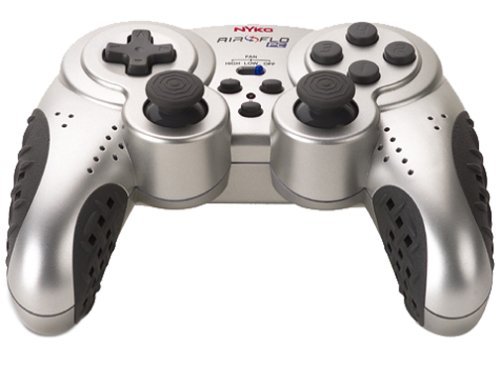
Image of the Nyko 80610 Airflo PC Game Controller, showcasing tona hoahoa ergonomic me te whakatakotoranga paatene.
Tatūnga
Ihirangi mokete
- Nyko 80610 Airflo PC Game Controller (Set of two 12-button gamepads)
- Driver Installation CD (if applicable)
- Pukapuka Kaiwhakamahi (tenei tuhinga)
Nga Whakaritenga Pūnaha
- Operating System: Windows 2000/XP/Vista/7/8, Mac-Intel OS X
- Waea USB e waatea ana
Tāutatanga
- Ensure your computer is powered on and running.
- Kimihia he tauranga USB e waatea ana i runga i to rorohiko.
- Plug the USB connector of the Nyko Airflo controller into the USB port.
- For most Windows operating systems, the controller will be automatically detected and drivers installed. If prompted, follow the on-screen instructions.
- If automatic installation does not occur, insert the provided Driver Installation CD into your computer's optical drive and follow the installation wizard.
- Once installed, the controller is ready for use. It is recommended to have the gamepad plugged in and ready before launching a game to ensure proper recognition.
Nga Tohutohu Whakahaere
Mana Taketake
The Nyko Airflo controller features a standard gamepad layout, including:
- Two Analog Sticks: For precise movement and camera control.
- D-Pad (Directional Pad): For directional input.
- Action Buttons: Typically labeled for in-game actions.
- Shoulder Buttons/Triggers: Located on the top of the controller.
- Start and Select/Back Buttons: For menu navigation and game functions.
Airflow Feature
The integrated airflow system helps to cool your hands during intense gaming. The controller includes a switch or button to activate and adjust the fan speed. While effective, the fan may produce some noise, especially on higher settings.
- Locate the fan control switch/button on the controller.
- Toggle the switch or press the button to turn the fan on/off or cycle through different speed settings.
Whirihoranga keemu
Most PC games allow for controller configuration within their settings menu. You may need to:
- Navigate to the 'Controls' or 'Options' section of your game.
- Select 'Gamepad' or 'Controller' as the input device.
- Map the in-game actions to the corresponding buttons and sticks on your Nyko Airflo controller.
- The controller may come with mapping software that allows for custom button assignments, which can be useful for games that do not natively support the controller's default layout or for remapping keyboard commands.
Te tiaki
- Te horoi: Whakamahia he kakahu ngohengohe, maroke hei muru i te kaiwhakahaere. Mo te paru maro, paku dampen te kakahu ki te wai. A ape i te whakamahi i nga matū kino, i nga horoi horoi ranei.
- Rokiroki: Store the controller in a clean, dry place away from direct sunlight and extreme temperatures. Avoid wrapping the cable too tightly to prevent damage.
- Tiaki taura: Do not pull the controller by its cable. Always grasp the USB connector when plugging or unplugging it from your computer.
Raparongoā
- Kāore i te Mōhiotia te Kaiwhakahaere:
- Ensure the USB cable is securely connected to both the controller and the computer.
- Whakamātauria te mono i te pūmana ki tētahi atu tauranga USB.
- Restart your computer with the controller connected.
- Verify that the necessary drivers are installed (refer to the Installation section).
- Analog Stick or D-Pad Issues:
- If analog sticks are not calibrated correctly in-game, try unplugging the gamepad, closing the game, plugging the gamepad back in, and then restarting the game.
- Some users have reported that the D-pad may not register diagonal inputs reliably or may simultaneously press adjacent directions. This can be a characteristic of the controller's design.
- Buttons Sticking or Requiring Heavy Pressing:
- Me mohio kei te ma te kaiwhakahaere me te kore o nga otaota huri noa i nga paatene.
- If the issue persists, it may indicate wear or a manufacturing characteristic.
- Haruru Fan:
- The airflow fan may produce audible noise, especially on higher settings. This is normal operation.
Whakatakotoranga
| Waitohu | Nyko |
| Tauira | 80610 Airflo |
| Pūrere Hototahi | Mac, Matapihi |
| Momo Kaiwhakahaere | Papa takaro |
| Hangarau Hononga | USB (Waea Hiko) |
| Tae | Pango/Hiwawa |
| Nga waahanga taapiri | Ergonomic, Integrated Airflow System |
| Rahi Pātene | 12 (per gamepad) |
| Pūmārō Pūmārō | PC |
| Te roa o te taura | He roa ake |
| GTIN/UPC | 743840806103 |
| ASIN | B0000TNJWM |
Pūtāhui me te Tautoko
For information regarding warranty coverage, technical support, or replacement parts, please contact Nyko customer service directly. Details can typically be found on the manufacturer's official webte waahi, te kohinga hua ranei.
Tena koa pupurihia to tohu mo te hoko mo etahi kereme whakamana.