
Honeywell 1902GSR
Honeywell Xenon 1902GSR Wireless Handheld Barcode Reader User Manual
Model: 1902GSR
1. Fampidirana
The Honeywell Xenon 1902GSR is a high-performance wireless handheld barcode scanner designed for efficient and reliable data capture. This device utilizes advanced area-imaging technology to read both 1D and 2D barcodes, including those that are damaged, smudged, or displayed on digital screens. With Bluetooth connectivity, it offers cordless operation, enhancing mobility and reducing workspace clutter. This manual provides essential information for the proper setup, operation, and maintenance of your barcode reader.
2. Information momba ny fiarovana
- Do not expose the device to extreme temperatures, moisture, or corrosive substances.
- Avoid direct eye exposure to the scanner's light source.
- Ireo kojakoja sy adaptatera herinaratra eken'ny mpanamboatra ihany no ampiasao.
- Aza manandrana manongotra na manamboatra ilay fitaovana. Jereo ny mpiasan'ny serivisy mahafeno fepetra.
- Ario ny bateria araka ny fitsipika eo an-toerana.
3. Ny votoatin'ny fonosana
Hamarino fa ao anatin'ny fonosanao ny entana rehetra:
- Honeywell Xenon 1902GSR Barcode Reader
- Communication/Charging Cradle (CCB01-010BT)
- USB Cable
- Torolàlana fanombohana haingana (ity boky ity)
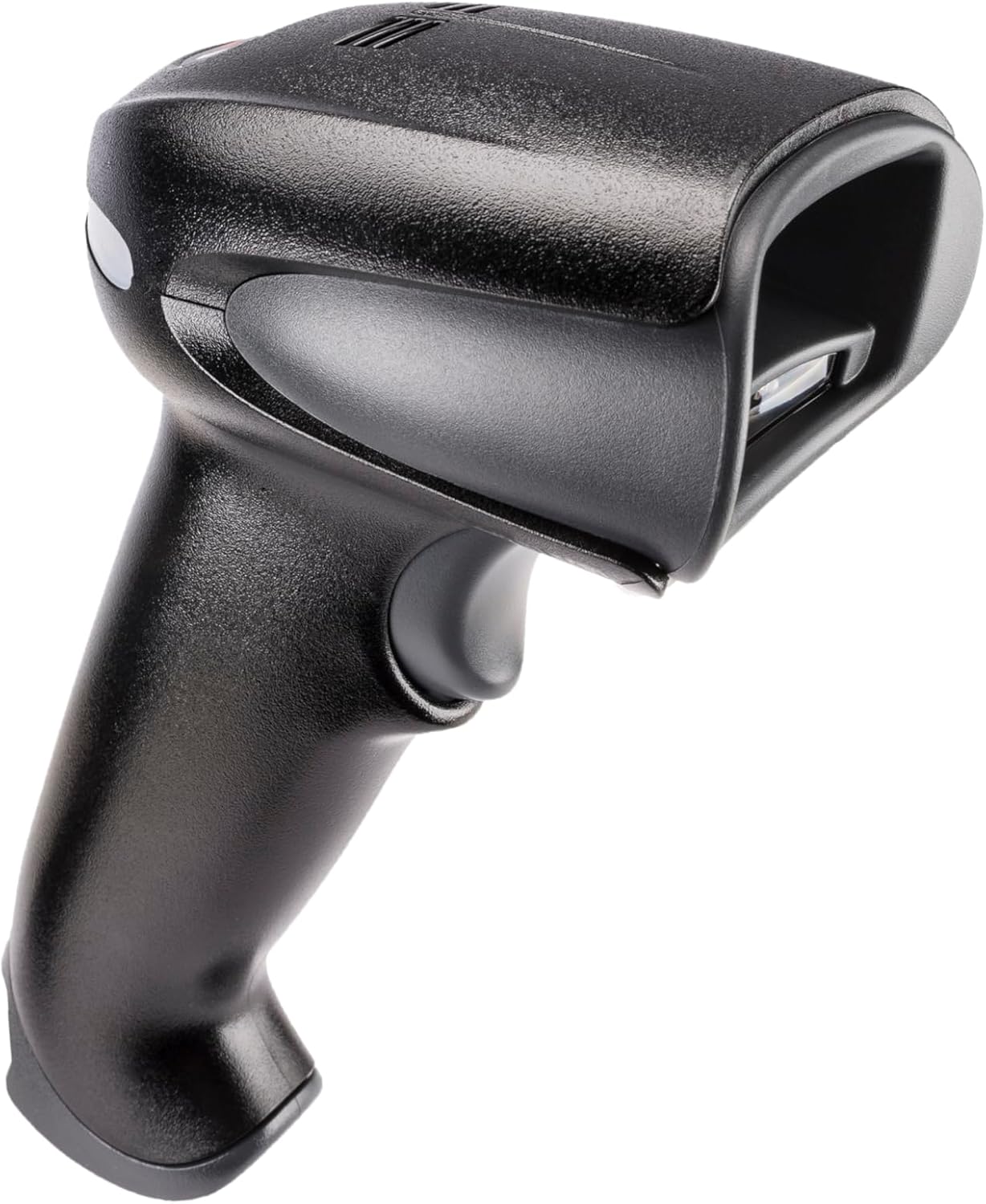
Figure 1: Honeywell Xenon 1902GSR Barcode Reader (Handheld Unit)

Figure 2: Honeywell Xenon 1902GSR Barcode Reader with its Communication/Charging Cradle
4. Fametrahana sy fametrahana
4.1 Famandrihana ny bateria
- Connect the USB cable to the communication/charging cradle.
- Plug the other end of the USB cable into a powered USB port on your computer or a USB wall adapter.
- Place the barcode reader into the cradle. Ensure it is seated correctly.
- The scanner's indicator light will show charging status. Allow several hours for a full charge before first use.
4.2 Connecting the Cradle to a Host System
The cradle connects to your host system (e.g., computer, POS terminal) via the supplied USB cable.
- Ensure the host system is powered on.
- Connect the USB cable from the cradle to an available USB port on your host system.
- The system should automatically detect and install the necessary drivers. If not, refer to the Honeywell support webtranokala fampidinana mpamily.
4.3 Pairing the Scanner with the Cradle
The scanner and cradle are typically pre-paired at the factory. If re-pairing is necessary:
- Ensure the scanner is charged and powered on.
- Scan the "Link" barcode found on the bottom of the communication/charging cradle.
- The scanner will emit a series of beeps to indicate successful pairing.
5. Torolàlana miasa
5.1 Fijerena fototra
- Hold the scanner with the scan window facing the barcode.
- Press and hold the trigger button. An aiming beam will appear.
- Aforeto eo ambonin'ny barcode ny taratra mikendry.
- Once the barcode is successfully read, the scanner will emit a beep and the indicator light will flash green.
- Alefaso ny trigger.
5.2 Reading 1D and 2D Barcodes
The Xenon 1902GSR is capable of reading a wide variety of 1D (e.g., UPC/EAN, Code 39) and 2D (e.g., QR Code, Data Matrix, PDF417) barcodes. For optimal performance, ensure the barcode is well-lit and the scanner is held at an appropriate distance.
5.3 Sahan'ny Bluetooth
The scanner operates wirelessly up to 33 feet (10 meters) from its communication cradle. Performance may vary depending on environmental factors and obstacles.
6. Fikojakojana
6.1 Fanadiovana ny fitaovana
- Use a soft, clean cloth dampened with water or a mild cleaning solution to wipe the exterior of the scanner and cradle.
- Aza mampiasa fanadiovana, solvents, na zavatra simika mahery vaika.
- Keep the scan window clean and free of dust and smudges for optimal reading performance.
6.2 Fikarakarana bateria
- For best battery life, avoid fully discharging the battery frequently.
- Tehirizo ao amin'ny toerana mangatsiatsiaka sy maina ilay fitaovana rehefa tsy ampiasaina mandritra ny fotoana maharitra.
- If the battery performance significantly degrades, it may need replacement. Contact Honeywell support for authorized battery replacement options.
7. Famahana olana
| OLANA | Antony mety hitranga | vahaolana |
|---|---|---|
| Tsy mandeha ny scanner | Bateria kely na lany | Place scanner in cradle to charge. Ensure cradle is powered. |
| Tsy mamaky kaody bara ny scanner | Barcode damaged/poor quality; improper scanning technique; dirty scan window | Try scanning a different barcode. Adjust distance/angle. Clean scan window. |
| No data transmitted to host | Scanner not paired; USB cable disconnected; incorrect host interface settings | Re-pair scanner with cradle. Check USB cable connection. Verify host system settings. |
| Fifandraisana miato | Out of range; interference | Move scanner closer to cradle. Reduce sources of interference (e.g., other Bluetooth devices, Wi-Fi routers). |
8. Famaritana
| endri-javatra | antsipirihany |
|---|---|
| MODELY | 1902GSR |
| fifandraisana | Bluetooth Class 2, v2.1 EDR; USB (via cradle) |
| Scan Pattern | Area Image (838 x 640 pixel array) |
| Fahaizana decode | 1D, 2D, PDF417 |
| Wireless Range | Up to 33 ft (10 m) line of sight |
| Batterie | Lithium-Ion, 1800 mAh (minimum) |
| Dimensions (Scanner) | 4 x 6 x 3 santimetatra (eo ho eo) |
| Weight (Scanner) | 1 kilao (eo ho eo) |
| Temperature miasa | 0°C hatramin'ny 50°C (32°F hatramin'ny 122°F) |
9. Warranty sy fanohanana
Honeywell products are designed for reliability and performance. For specific warranty details, please refer to the warranty card included with your product or visit the official Honeywell website. For technical support, driver downloads, or service inquiries, please visit www.honeywell.com/us/en/support or contact your local Honeywell representative.
ASIN: B0G1PTY418
Daty misy voalohany: 10 Novambra 2025
Ask a question about this manual
Ask about setup, troubleshooting, compatibility, parts, safety, or missing instructions. Manuals+ will review the question and use this page’s manual context to help answer it.