
INPHIC B0FQCFSHPQ
INPHIC Tri-Mode Wireless Mouse User Manual
Model: B0FQCFSHPQ
Sava lalana
This manual provides comprehensive instructions for the INPHIC Tri-Mode Wireless Mouse, Model B0FQCFSHPQ. It covers setup, operation, maintenance, and troubleshooting to ensure optimal performance and user experience. Please read this manual thoroughly before using the product.
Vita ny vokatraview
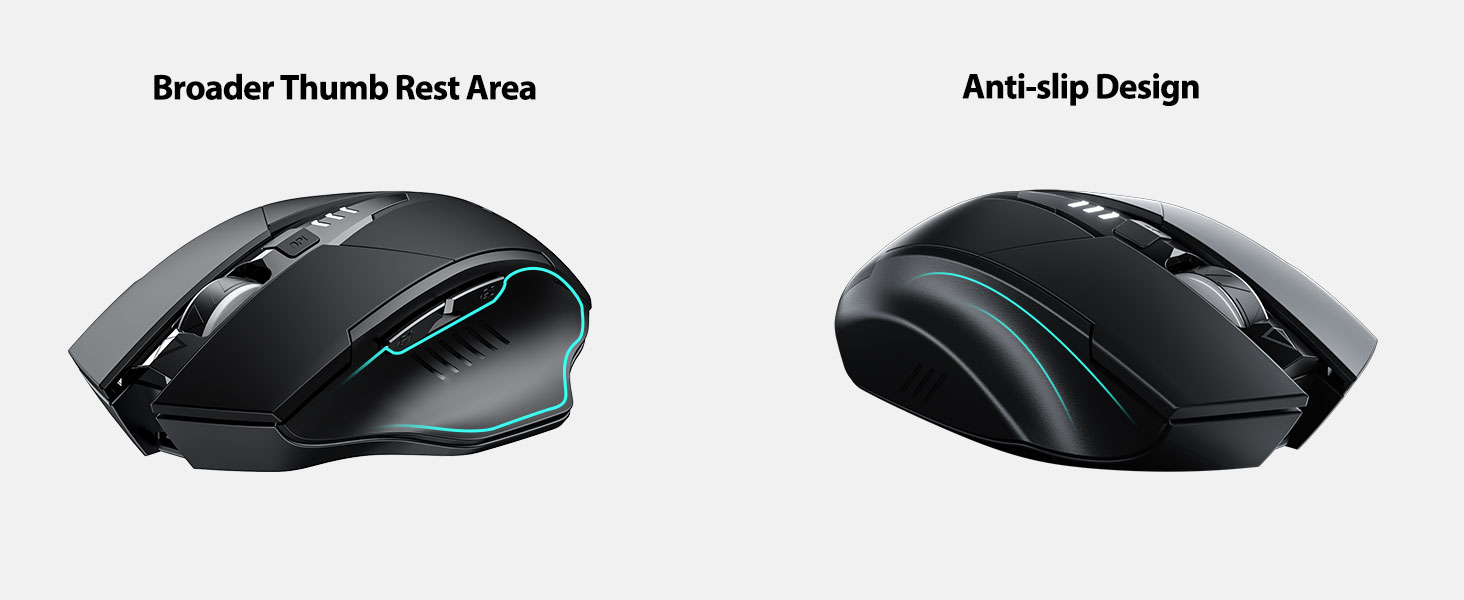
The INPHIC Tri-Mode Wireless Mouse offers versatile connectivity options (Bluetooth 5.0, Bluetooth 4.0, and 2.4G USB) and an ergonomic design for comfortable use. Key features include a visible battery indicator, silent click buttons, and adjustable DPI settings.
Fonosana fonosana
- INPHIC Tri-Mode Wireless Mouse
- USB Receiver (voatahiry ao anaty totozy)
- USB-C Charging Cable
- User Manual (ity antontan-taratasy ity)
Fitaovana totozy

- bokotra havia/kavanana: Hetsika mangina.
- Kodiaran'ny horonam-boky: Ho an'ny fikorisa mitsangana.
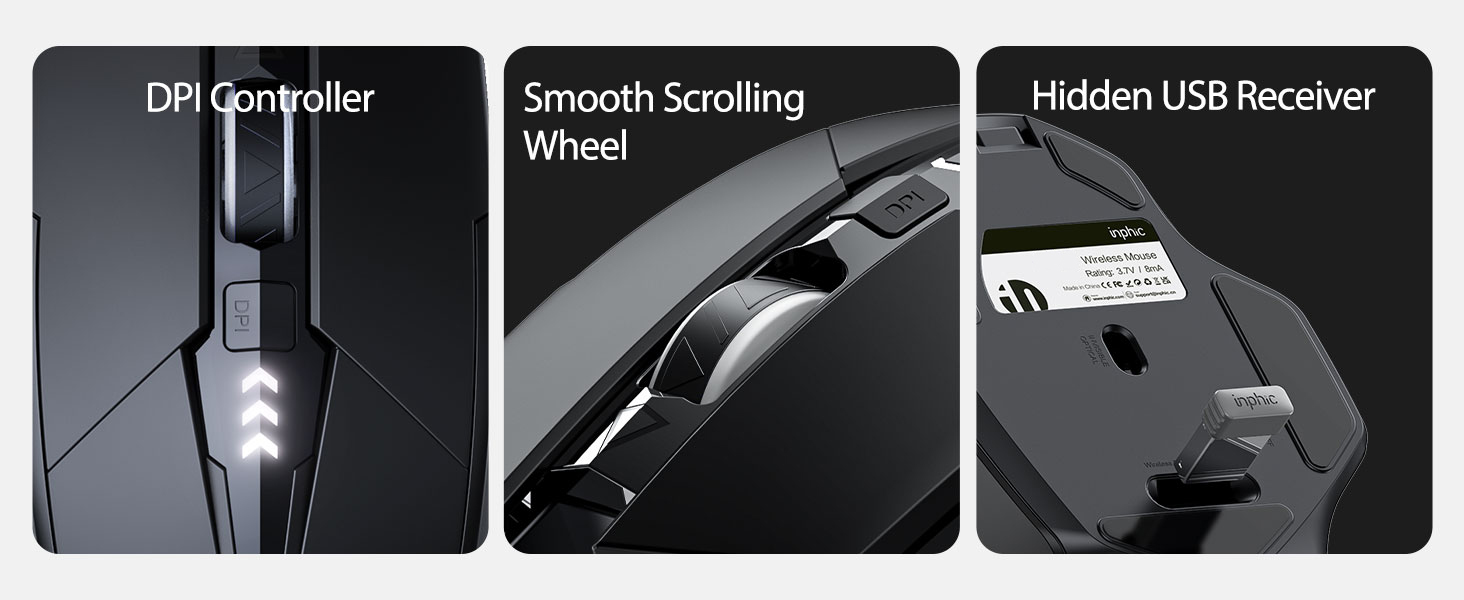
- bokotra DPI: Adjusts cursor speed (800/1200/1600/2000/2400 DPI).
- Forward/Backward Buttons (Side): Ho an'ny fitetezana ao amin'ny web navigateur na file mpikaroka.
- Tondro bateria: LED lights on top display remaining battery level.
- Connection Type Switch (Bottom): Toggles between 2.4G USB, Bluetooth 4.0, and Bluetooth 5.0 modes.
- Power Switch (Bottom): ON/OFF switch.
- USB Receiver Slot (Bottom): Stores the 2.4G USB receiver.
- Charging Port (Front): Port USB-C hamerenana ny bateria anatiny.
Hametraka
Fametrahana voalohany
Before first use, fully charge the mouse for approximately 1 hour. Connect the USB-C charging cable to the mouse's charging port and to a USB power source (e.g., computer USB port, USB wall adapter).

Mampifandray ny totozy
The mouse supports three connection modes: 2.4G USB, Bluetooth 4.0, and Bluetooth 5.0. Use the switch on the bottom of the mouse to select your desired mode.
2.4G USB fifandraisana
- Tadiavo ao amin'ny toerana eo ambanin'ny totozy ny mpandray USB voatahiry.
- Ampidiro amin'ny seranana USB misy eo amin'ny solosainao ny mpandray USB.
- Switch the connection mode on the bottom of the mouse to "2.4G".
- Turn on the mouse using the power switch. The mouse should connect automatically.
Bluetooth Connection (BT 4.0 / BT 5.0)
- Switch the connection mode on the bottom of the mouse to "BT 4.0" or "BT 5.0".
- Alefaso ny totozy amin'ny alàlan'ny fametahana herinaratra.
- On your device (laptop, tablet, etc.), open Bluetooth settings.
- Hitady ny new Bluetooth devices. The mouse should appear as "INPHIC Mouse" or similar.
- Fidio ny totozy hampiarahana.
- Rehefa mifandray ny totozy dia vonona hampiasaina.
Fanamarihana: Bluetooth 5.0 is compatible with Windows 8/10 (not Windows 7 or XP), Android, and Mac OS systems. iOS systems (iPad and iPhone) require iOS 14 or later for Bluetooth 5.0 compatibility.
Torolàlana miasa
Power On/off
Use the ON/OFF switch located on the bottom of the mouse to power the device. To conserve battery, turn off the mouse when not in use for extended periods.
Manova ny fomba fifandraisana
The mode switch button on the bottom of the mouse allows you to cycle between 2.4G USB, Bluetooth 4.0, and Bluetooth 5.0 connections. This enables seamless switching between multiple paired devices.

Fanitsiana ny DPI (Hafainganan'ny cursor)
Press the DPI button located on the top of the mouse, below the scroll wheel, to cycle through 5 adjustable DPI levels: 800, 1200, 1600, 2000, and 2400. This allows you to customize cursor sensitivity to your preference.

Tondro bateria
The mouse features a visible battery indicator on its top surface. LED lights illuminate to show the remaining battery power, providing a clear visual cue for when recharging is needed.

Fomba fatoriana mandeha ho azy
To conserve power, the mouse will automatically enter sleep mode after 5 minutes of inactivity. To wake the mouse, simply click any button.
fikarakarana
FANADIOVANA
Wipe the mouse with a soft, dry cloth. For stubborn dirt, a slightly damp cloth can be used, ensuring no moisture enters the internal components. Avoid harsh chemicals or abrasive cleaners.
Fikarakarana bateria
- Recharge the mouse when the battery indicator shows low power.
- Fadio ny fanalana tanteraka ny bateria matetika mba hanalava ny androm-piainany.
- Tehirizo ao amin'ny toerana mangatsiaka sy maina ny totozy rehefa tsy ampiasaina mandritra ny fotoana maharitra.
Fanamboarana
| OLANA | Antony mety hitranga | vahaolana |
|---|---|---|
| Tsy mamaly ny totozy |
|
|
| Mikorontana na miadana ny fihetsehan'ny cursor |
|
|
| Olana amin'ny fifandraisana Bluetooth |
|
|
fepetra arahana
| endri-javatra | antsipirihany |
|---|---|
| MODELY | B0FQCFSHPQ |
| Teknolojia fifandraisana | Bluetooth 5.0 / Bluetooth 4.0 / 2.4G USB Wireless |
| DPI Levels | 800 / 1200 / 1600 / 2000 / 2400 (Adjustable) |
| bokotra | 6 (Havia, Havanana, Kodiarana Mikorisa, DPI, Mandroso, Mihemotra) |
| Karazana bateria | Rechargeable (400mAh built-in) |
| Charging Port | USB-C |
| Lavitra miasa | Haavo 10 metatra (33 feet) |
| Ny refin'ny vokatra | 4.7 x 3.1 x 0.04 santimetatra |
| Lanja entana | 3.36 oz |
| mifanentana | Windows 7/8/10/XP, Vista, Mac OS. Bluetooth 5.0: Windows 8/10, Android, Mac OS, iOS 14+ (iPad/iPhone). 2.4G USB: Any USB-enabled device. |

Warranty sy fanohanana
INPHIC products are designed for reliability and performance. For warranty information and technical support, please refer to the official INPHIC webtranokala na mifandray mivantana amin'ny serivisy mpanjifany.
- Mpanamboatra: INPHIC
- Mpivarotra: YingFeiTe (on Amazon)
- Politika famerenana: Refer to Amazon's current return policy.
- Fifandraisana fanohanana: Raha mila fanampiana, tsidiho ny INPHIC Store on Amazon na ny mpiasan'ny mpanamboatra website.
Fampahalalana manan-danja momba ny fiarovana
- Aza aseho amin'ny hafanana tafahoatra na ny hamandoana ny totozy.
- Fadio ny milatsaka na mametraka ny totozy amin'ny fiantraikany mahery vaika.
- Do not attempt to disassemble or repair the mouse yourself. This may void the warranty.
- Arovy amin'ny ankizy.
Video vokatra
Video Description: An official product video from INPHIC demonstrating the features and usage of the INPHIC Bluetooth Mouse. It shows the mouse being unboxed, its various components, connection methods, and ergonomic design in action.
Ask a question about this manual
Ask about setup, troubleshooting, compatibility, parts, safety, or missing instructions. Manuals+ will review the question and use this page’s manual context to help answer it.