
1. Fampidirana
This manual provides essential information for setting up, operating, and maintaining your KUU XBOOK-3 14.1 inch Laptop. Please read this guide thoroughly before using your device to ensure proper function and longevity. Keep this manual for future reference.
2. Information momba ny fiarovana
- Aza atao amin'ny mari-pana tafahoatra, tara-masoandro mivantana, na hamandoana be ny solosaina finday.
- Fadio ny mametraka zavatra mavesatra eo ambonin'ny solosaina finday.
- Ampiasao ihany ny adaptatera herinaratra tany am-boalohany nomena miaraka amin'ilay fitaovana.
- Keep the laptop away from liquids and strong magnetic fields.
- Do not attempt to disassemble or repair the laptop yourself. Contact qualified service personnel for assistance.
- Hamarino tsara ny rivotra mba hisorohana ny hafanana be loatra.
3. Ny votoatin'ny fonosana
Upon unpacking your KUU XBOOK-3 Laptop, please verify that all items listed below are present:
- KUU XBOOK-3 14.1 inch Laptop
- Power Adapter (12V 2A DC 3.5 Input)
- Keyboard Stickers (Spanish, Italian, German, French)
- User Manual (ity antontan-taratasy ity)
4. Vokatra mihoatraview
Familiarize yourself with the key components and features of your KUU XBOOK-3 Laptop.
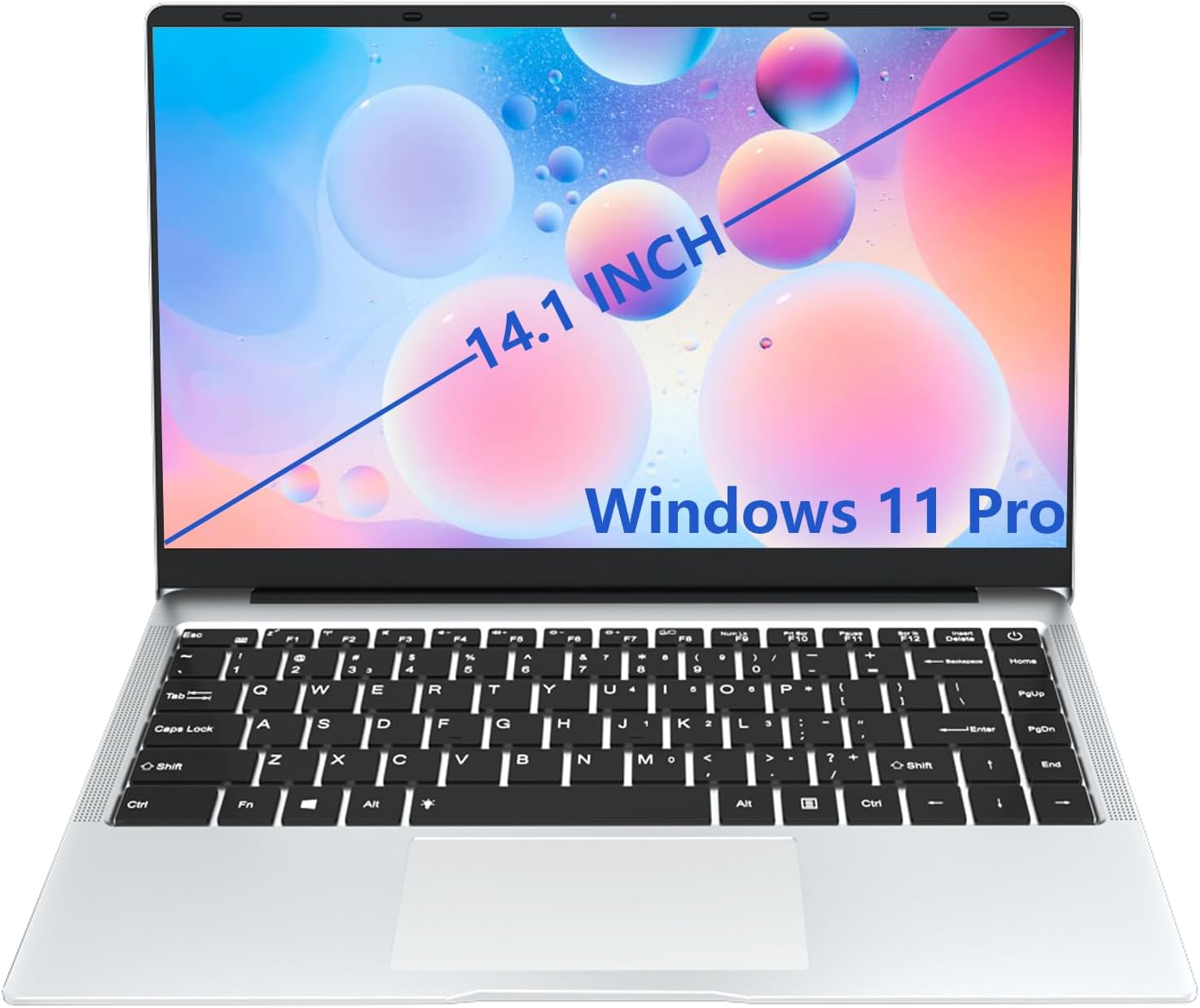
Sary 4.1: The KUU XBOOK-3 Laptop in its standard open position, showcasing the 14.1-inch display and Windows 11 Pro operating system.
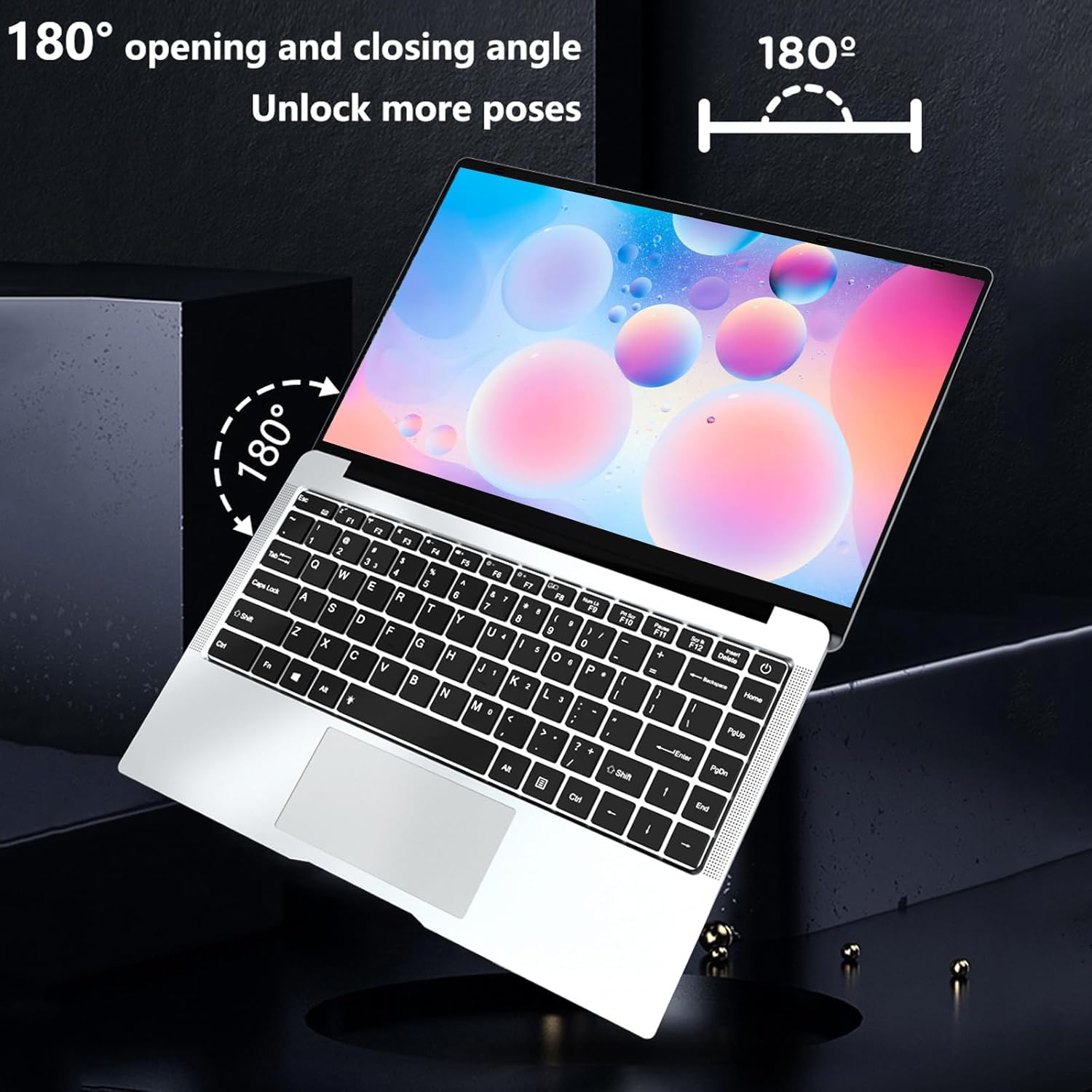
Sary 4.2: The KUU XBOOK-3 Laptop's screen can open up to 180 degrees, offering flexible viewing angles for various tasks.
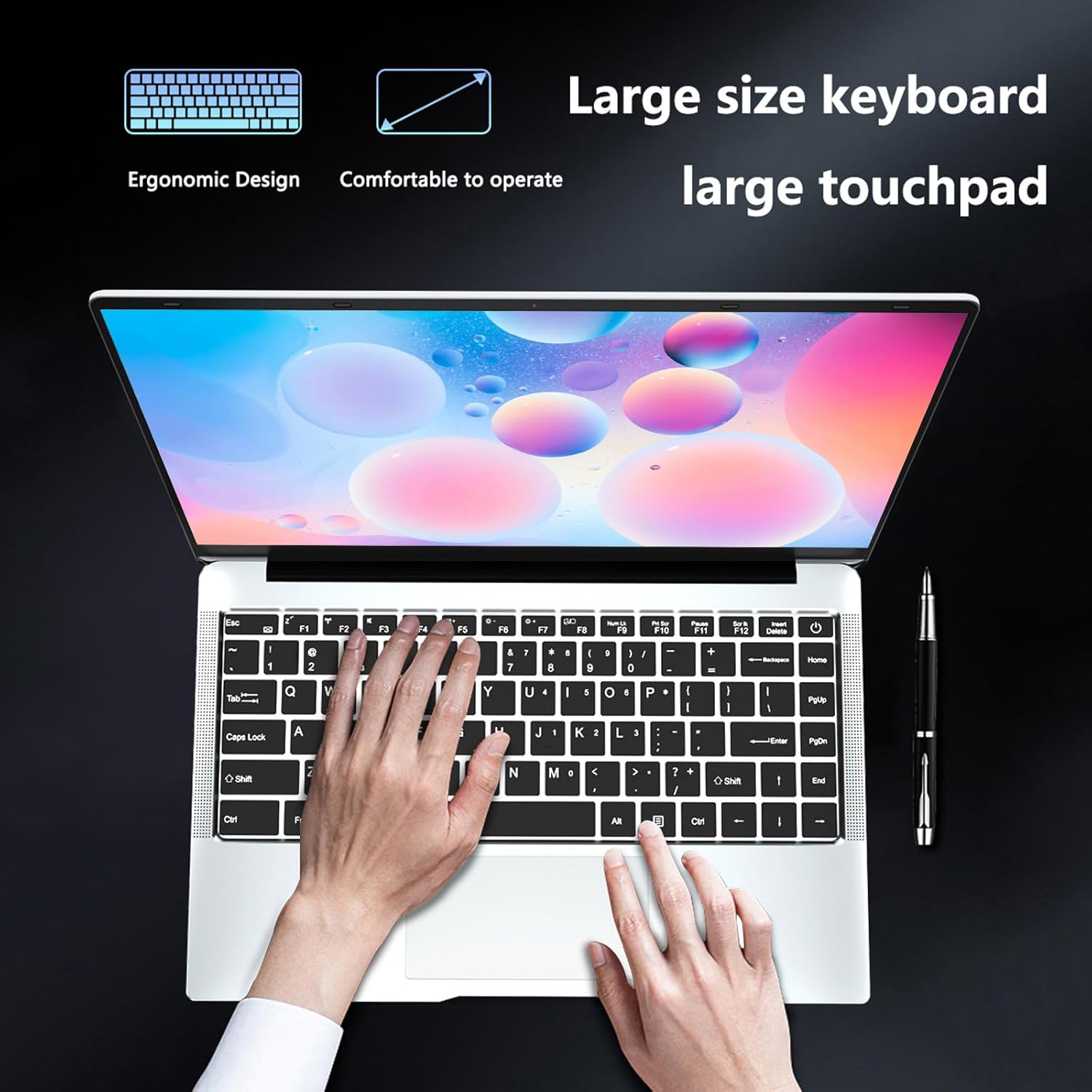
Sary 4.3: The ergonomic design of the KUU XBOOK-3 features a large keyboard and a spacious touchpad for comfortable and efficient operation.

Sary 4.4: sisiny view of the KUU XBOOK-3 Laptop, highlighting the available ports for connectivity, including miniSD, earphone jack, USB 2.0, USB 3.0, DC 3.5 charging port, and Mini HDMI.
5. Fametrahana
5.1 Herin'ny voalohany
- Ampidiro ny bateria: Before first use, connect the power adapter to the DC 3.5 charging port on the laptop and then to a power outlet. Allow the laptop to charge for at least 30 minutes.
- Herim-batana: Press and hold the power button (usually located on the top right of the keyboard) until the screen illuminates.
- Windows 11 Pro Setup: Follow the on-screen instructions to complete the initial setup of Windows 11 Pro. This includes selecting your language, region, connecting to a Wi-Fi network, and creating a user account.
5.2 Fampifandray ny periferika
Your KUU XBOOK-3 Laptop supports various external devices:
- Fitaovana USB: Connect USB mice, keyboards, external hard drives, or flash drives to the USB 2.0 or USB 3.0 ports.
- Fampisehoana ivelany: Use the Mini HDMI port to connect to an external monitor or projector. You may need an adapter (not included) for standard HDMI connections.
- Fitaovana Audio: Plug headphones or external speakers into the standard 3.5mm headphone jack.
6. Fampandehanana ny solosainao
6.1 Windows 11 Pro Basics
Your laptop comes pre-installed with Windows 11 Pro, offering a secure and responsive operating environment. Familiarize yourself with the Start Menu, Taskbar, and File Explorer for efficient navigation.
6.2 Kitendry sy Touchpad
The laptop features a full-size QWERTY keyboard and a large touchpad. Keyboard stickers are provided for various language layouts if needed.
- Fihetsika amin'ny touchpad: Refer to Windows 11 settings for customizing touchpad gestures (e.g., two-finger scroll, pinch-to-zoom).
- Fanalahidy fiasa (Fn): Use the 'Fn' key in combination with the F1-F12 keys to access special functions like brightness control, volume adjustment, and Wi-Fi toggle.
6.3 Fikirana fampisehoana
The 14.1-inch IPS FHD (1920x1080) display offers clear visuals. You can adjust display settings through Windows 11:
- Right-click on the desktop and select 'Display settings' to change resolution, scale, and orientation.
- The screen supports a 180-degree opening angle for versatile use.

Sary 6.1: The KUU XBOOK-3 features a micro-border full screen with a 5mm ultra-narrow frame, providing an immersive viewing experience with a 178° wide viewing zoro.
6.4 Fifandraisana (Wi-Fi, Bluetooth)
- Wifi: The laptop supports Dual Band Wi-Fi (802.11 A/B/G/N) for stable wireless internet access. To connect, click the Wi-Fi icon in the taskbar, select your network, and enter the password.
- Bluetooth: Bluetooth 4.2 allows connection to wireless peripherals like headphones, speakers, or mice. Enable Bluetooth in Windows settings and pair your devices.
6.5 Ports and External Devices
The KUU XBOOK-3 is equipped with the following ports:
- 1 x USB 3.0 seranana
- 1 x USB 2.0 seranana
- 1 x Mini HDMI port
- 1 x Standard 3.5mm Headphone Jack
- 1 x MiniSD (TF Card) slot
- 1 x DC 3.5 charging port
7. Fikojakojana
7.1 Fanadiovana
- Mampiasà lamba malefaka sady tsy misy loko mba hanadiovana ny efijery sy ny ivelany.
- Ho an'ny marika mafy loha, kely dampen ilay lamba misy rano na mpanadio azo antoka.
- Avoid spraying liquids directly onto the laptop.
- Regularly clean the keyboard and touchpad to remove dust and debris.
7.2 Fikarakarana bateria
- Mba hampitomboana ny androm-piainan'ny bateria dia aza ampiasaina matetika ny bateria mba tsy ho very tanteraka ny heriny.
- Store the laptop in a cool, dry place if not used for extended periods, with the battery charged to around 50%.
- The integrated Lithium Polymer battery (3800mAh, 7.6V) is not user-replaceable.
7.3 Fanitarana ny fitahirizana
The KUU XBOOK-3 comes with a 256GB SATA SSD. You can expand storage:
- Karatra TF: Insert a MicroSD (TF) card into the dedicated slot for additional storage, up to 1TB.
- External SSD: Connect an external SSD via the USB 3.0 port for portable storage.
8. Famahana olana
This section addresses common issues you might encounter with your KUU XBOOK-3 Laptop.
| OLANA | Antony mety hitranga | vahaolana |
|---|---|---|
| Tsy mandeha ny laptop. | Olana amin'ny bateria ambany na ny adaptatera herinaratra. | Ensure the power adapter is securely connected and the laptop is charged. Try a different power outlet. |
| Olana amin'ny fifandraisana Wi-Fi. | Incorrect password, router problem, or Wi-Fi disabled. | Verify Wi-Fi password. Restart your router. Check if Wi-Fi is enabled in Windows settings or via Fn key. |
| Fahombiazana miadana. | Too many applications running, low storage, or outdated drivers. | Close unnecessary applications. Free up disk space. Update Windows and device drivers. |
| External display not detected. | Incorrect cable, display input, or Windows display settings. | Ensure Mini HDMI cable is connected properly. Select the correct input on your monitor. Press Windows key + P to cycle through display modes. |
If you encounter issues not covered here, please refer to the support section.
9. Famaritana
Detailed technical specifications for the KUU XBOOK-3 Laptop:
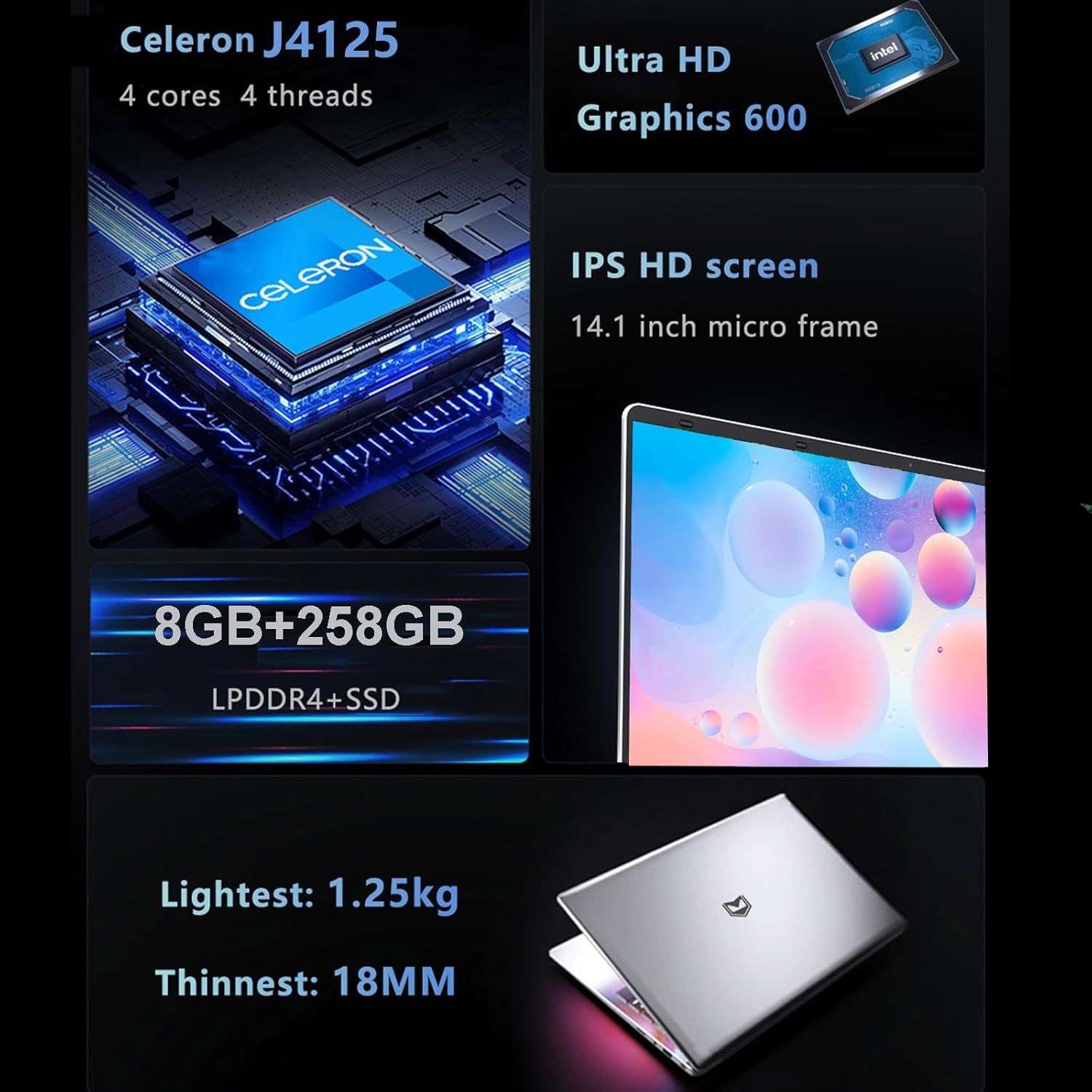
Sary 9.1: Visual summary of the KUU XBOOK-3's core specifications, including processor, graphics, memory, storage, display, and physical attributes.
| endri-javatra | famaritana |
|---|---|
| MODELY | XBOOK-3 |
| Rafitra fikirakirana | Windows 11 Pro |
| processeur | Intel Celeron J4125 (4 cores, 4 threads, 2GHz base, up to 2.7GHz burst) |
| Saripika | Intel UHD Graphics 600 |
| ram | 8 GB LPDDR4 |
| fitahirizana | 256GB SATA SSD (expandable via TF card up to 1TB) |
| miseho | 14.1 inch IPS FHD (1920x1080) |
| Camera | 0.3 Megapixels (300,000 pixels) |
| teny | Built-in 8R/1.0W*2 Stereo Speaker |
| Wifi | Dual Band Wi-Fi (802.11 A/B/G/N) |
| Bluetooth | Bluetooth 4.2 |
| seranana | 1x USB 3.0, 1x USB 2.0, 1x Mini HDMI, 1x 3.5mm Headphone Jack, 1x MiniSD (TF Card) slot, 1x DC 3.5 Charging Port |
| Batterie | 3800mAh, 7.6V Li-ion polymer battery |
| lafiny | 322 mm x 210 mm x 21 mm |
| lanja | 1.4 kg |
10. Warranty sy fanohanana
Your KUU XBOOK-3 Laptop comes with a one-year VIP warranty service. For any questions or technical assistance, please contact KUU customer support through the retailer where you purchased the product or visit the official KUU webtranokala ho an'ny loharano fanohanana.
Azafady, tehirizo ny porofon'ny fividiananao ho an'ny fitakiana fiantohana.