1. Fampidirana
This manual provides essential information for the safe and efficient operation of your iProda 2 in 1 Laptop, Model M1169YM. Please read this manual thoroughly before using the device and retain it for future reference. This convertible laptop features an 11.6-inch touchscreen, powered by an Intel N4100 processor, and runs on Windows 10 Pro.

Image: The iProda 2 in 1 Laptop can be used in multiple configurations, including traditional laptop, tent, stand, and tablet modes, showcasing ny fahaizany.
2. Information momba ny fiarovana
Observe the following safety precautions to prevent damage to your device or injury to yourself:
- Aza apetraka amin'ny hafanana tafahoatra, ny tara-masoandro mivantana, na ny hamandoana be ny fitaovana.
- Fadio ny milatsaka na mametraka ilay fitaovana amin'ny fiantraikany mafy.
- Use only the provided or approved power adapter for charging.
- Arovy amin'ny rano sy ranon-javatra hafa ilay fitaovana.
- Aza manandrana manongotra na manamboatra ilay fitaovana. Jereo ny mpiasan'ny serivisy mahafeno fepetra.
3. Ny votoatin'ny fonosana
Hamarino fa ao anatin'ny fonosanao ny entana rehetra:
- iProda 2 in 1 Laptop (Model M1169YM)
- Power Adapter
- User Manual (ity antontan-taratasy ity)
4. Vokatra mihoatraview
The iProda 2 in 1 Laptop is designed for versatility, offering multiple usage modes and essential connectivity options.
4.1. Endri-javatra fototra
- Ecran tactile IPS 11.6-inch: A responsive 10-point precision touchscreen with 1920x1080 resolution for interactive use.
- Famolavolana azo ovaina: 360-degree hinge allows seamless transition between laptop, tablet, tent, and stand modes.
- Processeur Intel N4100: Provides efficient performance for daily tasks.
- Windows 10 Pro: Pre-installed operating system for productivity and security.
- Fitehirizana azo itarina: Supports M.2 2242 SSD for additional storage capacity.

Image: Key features of the iProda laptop, including its touchscreen, operating system, display specifications, and camera resolution.

Image: The laptop's 360-degree hinge allows it to convert into a tablet, enabling direct interaction via its precision touchscreen.
4.2. Ports sy bokotra
Familiarize yourself with the various ports and buttons on your laptop:
- Type-C Port: Used for power supply and data transfer.
- Micro HDMI: Mba hifandraisana amin'ny fampisehoana ivelany.
- Micro USB: Mba hampifandraisana ireo fitaovana USB.
- TF Card TF: Ho an'ny fanitarana ny fitahirizana amin'ny alàlan'ny karatra TF (MicroSD).
- Bokotra hery: Mba hampandeha/hamono ny fitaovana na hampatory azy.
- Botom-peo: Hanitsiana ny famoahana feo.
- Earphone Jack: Ho an'ny fampifandraisana écouteur na speaker ivelany.

Sary: A antsipirihany view of the laptop's side panels, indicating the location and function of each port and button for easy identification.
5. Fametrahana
5.1. Fametrahana ny bateria
Before first use, fully charge the laptop's battery. Connect the provided power adapter to the Type-C port on the laptop and plug it into a power outlet. The charging indicator light will illuminate.
5.2. Fampidirana voalohany sy fametrahana Windows
- Tsindrio ary hazòny ny bokotra Hery mandra-pirehitra ny efijery.
- Araho ny torolàlana eo amin'ny efijery hamita ny Windows 10 Pro setup voalohany, ao anatin'izany ny fifantenana ny fiteny, ny fifandraisana amin'ny tambajotra ary ny famoronana kaonty mpampiasa.
6. Fampandehanana ny solosainao
6.1. Mampiasa ny Ecran Touch
The 10-point precision touchscreen allows for intuitive interaction with Windows 10 Pro. Use gestures such as tapping, swiping, pinching, and stretching to navigate, zoom, and interact with applications.
6.2. Fitendry sy Takelaka Tactile
The integrated keyboard and touchpad provide traditional input methods. The touchpad supports multi-touch gestures for scrolling, zooming, and switching applications.

Image: The laptop's full-size American keyboard and responsive touchpad, designed for comfortable typing and navigation.
6.3. Fomba azo ovaina
The 360-degree hinge allows you to switch between various modes:
- Fomba finday: Standard configuration for typing and productivity.
- Fomba takelaka: Fold the screen back completely for a tablet experience, ideal for browsing or drawing.
- Fomba lay: Position the laptop like a tent for media consumption or presentations.
- Fomba fijoroana: Flip the keyboard face down to use the screen as a display, suitable for watching videos.

Image: The laptop configured in tent mode, demonstrating its flexibility for viewing content without the keyboard in the way.
7. Fanitarana fitahirizana
The laptop comes with 64GB eMMC storage. You can expand the storage capacity by installing an M.2 2242 SSD (128GB/256GB/512GB, not included).
7.1. Installing an M.2 2242 SSD
To install an M.2 2242 SSD:
- Power off the laptop and disconnect the power adapter.
- Carefully open the back cover of the laptop.
- Locate the M.2 slot.
- Insert the M.2 2242 SSD into the slot and secure it with the appropriate screw (if provided).
- Soloy ny fonony aoriana.
- Upon booting, you may need to initialize and format the new SSD through Windows Disk Management.
Note: If you are unsure about this procedure, it is recommended to seek professional assistance.

Image: Visual representation of the M.2 SSD slot, illustrating how additional storage can be integrated into the laptop.
8. fifandraisana
8.1. Fifandraisana Wi-Fi
The laptop supports dual-frequency 2.4GHz/5GHz Wi-Fi. To connect to a wireless network:
- Tsindrio ny kisary Wi-Fi ao amin'ny fitoeran'ny rafitra.
- Safidio ny tambajotra tianao amin'ny lisitra.
- Ampidiro ny tenimiafina tambajotra raha asaina ary tsindrio ny 'Connect'.
8.2. External Display (Micro HDMI)
Connect an external monitor or TV using a Micro HDMI to HDMI cable. Once connected, you can configure display settings (duplicate, extend, second screen only) through Windows display settings.
8.3. Fitaovana USB
Use the Micro USB port or the Type-C port (with an appropriate adapter) to connect peripherals such as a mouse, keyboard, or external storage devices.
9. Fikojakojana
9.1. Fanadiovana
To clean the laptop, power it off and disconnect the power adapter. Use a soft, lint-free cloth slightly dampened with water or a screen cleaner for the display. Avoid harsh chemicals or abrasive materials.
9.2. Fikarakarana bateria
Hanalava ny androm-piainan'ny bateria:
- Fadio ny fanalana tanteraka ny bateria matetika.
- Do not expose the laptop to high temperatures.
- If storing the laptop for an extended period, ensure the battery is charged to around 50-70%.
10. Famahana olana
Ireto misy vahaolana amin'ny olana mahazatra mety hanjo anao:
| OLANA | vahaolana |
|---|---|
| Tsy mandeha ny laptop. | Ensure the battery is charged. Connect the power adapter and try again. If still unresponsive, perform a hard reset by holding the power button for 10-15 seconds. |
| Banga na miredareda ny efijery. | Restart the laptop. Check if an external display is connected and interfering. Update display drivers if possible. |
| Olana amin'ny fifandraisana Wi-Fi. | Hamarino tsara fa mandeha ny Wi-Fi. Avereno indray ny router-nao sy ny solosainao finday. Jereo ny fikirana tambajotra ao amin'ny Windows. |
| Tsy mamaly ny écran touche. | Restart the laptop. Ensure the screen is clean. Check for any pending Windows updates or driver updates for the touchscreen. |
11. Famaritana
Technical specifications for the iProda 2 in 1 Laptop (Model M1169YM):
| endri-javatra | antsipirihany |
|---|---|
| Marika | iProda |
| Laharana modely | M1169YM |
| Rafitra fikirakirana | Windows 10 Pro |
| Haben'ny efijery | 11.6 santimetatra |
| Fanapahan-tsary | 1920 x 1080 teboka (1080p) |
| processeur | Intel N4100 (up to 2.4 GHz Burst Frequency) |
| ram | 4 GB DDR4 |
| Hard Drive | 64 GB eMMC |
| Karatra sary | Integrated (UHD 600 Graphics) |
| Karazana Wireless | 2.4 GHz / 5 GHz Dual-frequency Wi-Fi |
| Salanisan'ny fiainana bateria | 8 Hours (3500mAh, 27Wh) |
| Lanja entana | 3.63 kg |
| Ny refin'ny vokatra | 11.99 x 11.6 x 0.5 santimetatra |
| Teknolojia fifandraisana | HDMI, USB Type-C, Micro USB |
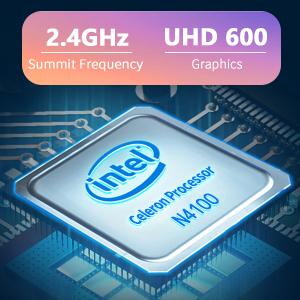
Image: The Intel Celeron N4100 processor, central to the laptop's performance, highlighting its clock speed and integrated graphics capabilities.

Image: The laptop's battery specifications, indicating its power capacity for extended use.
12. Warranty sy fanohanana
For warranty information and technical support, please refer to the documentation included with your purchase or visit the official iProda website. Contact information for customer service can typically be found on the manufacturer's support page.