
1. Įvadas
The S25HH0 303DH US KVM Switch allows you to control up to three computers using a single set of keyboard, mouse, and three monitors. This device supports high-resolution video output and USB 3.0 peripheral sharing, enhancing productivity in multi-computer environments.
Please read this manual thoroughly before installation and operation to ensure proper use and to maximize the performance of your KVM switch.
2. Saugos informacija
- Ensure the KVM switch is placed on a stable, flat surface.
- Saugokite įrenginį nuo vandens, drėgmės ar ekstremalių temperatūrų.
- Naudokite tik pridėtą maitinimo adapterį. Naudojant netinkamą adapterį, galite sugadinti įrenginį ir panaikinti garantiją.
- Venkite užkimšti ventiliacijos angas, kad išvengtumėte perkaitimo.
- Nebandykite patys atidaryti ar taisyti įrenginio. Visus techninės priežiūros darbus patikėkite kvalifikuotiems specialistams.
- Disconnect power before cleaning. Clean the device with a soft, dry cloth.
3. Pakuotės turinys
Gavę prekę, patikrinkite pakuotės turinį. Jei trūksta kokių nors prekių arba jos pažeistos, susisiekite su pardavėju.
- S25HH0 303DH US Triple Monitor KVM Switch
- Maitinimo adapteris
- Laidinis nuotolinio valdymo jungiklis
- USB 3.0 Cables (Quantity may vary based on package)
- HDMI Cables (Quantity may vary based on package)
- Vartotojo vadovas (šis dokumentas)
4. Produktas baigtasview
The KVM switch features multiple ports for connecting your computers, monitors, and USB peripherals. Familiarize yourself with the port layout before proceeding with installation.

Vaizdas: Priekyje ir gale view of the S25HH0 303DH US KVM Switch. This image illustrates the various input and output ports, including HDMI, USB 3.0, and the power input, along with the physical switch buttons for PC selection.
Priekinis skydelis
- PC Selection Buttons: Used to manually switch between connected computers.
- USB 3.0 prievadai: For connecting keyboard, mouse, and other USB 3.0 peripherals.
- LED indikatoriai: Show which computer is currently selected.
Galinis skydelis
- HDMI Input Ports (PC1, PC2, PC3): Connect to the HDMI output of your computers.
- USB 3.0 Input Ports (PC1, PC2, PC3): Connect to the USB 3.0 ports of your computers.
- HDMI Output Ports (Monitor 1, Monitor 2, Monitor 3): Connect to your monitors.
- DC 12V maitinimo įvestis: Prijunkite pridedamą maitinimo adapterį.
- Remote Switch Port: Connect the wired remote control for switching.
5. Sąrankos instrukcijos
Norėdami prijungti KVM jungiklį, atlikite šiuos veiksmus:
- Išjungimo įrenginiai: Prieš jungdami bet kokius įrenginius, įsitikinkite, kad visi kompiuteriai ir monitoriai yra išjungti.
- Monitorių prijungimas: Connect your three monitors to the HDMI Output ports (Monitor 1, Monitor 2, Monitor 3) on the KVM switch using HDMI cables.
- Connect Computers (PC1):
- Connect the HDMI output from your first computer to the HDMI Input (PC1) on the KVM switch.
- Connect a USB 3.0 cable from your first computer's USB 3.0 port to the USB 3.0 Input (PC1) on the KVM switch.
- Prijunkite kompiuterius (PC2 ir PC3): Repeat step 3 for your second and third computers, connecting them to the respective HDMI Input (PC2/PC3) and USB 3.0 Input (PC2/PC3) ports.
- Prijunkite išorinius įrenginius: Connect your keyboard, mouse, and any other USB 3.0 peripherals to the USB 3.0 ports on the front panel of the KVM switch.
- Connect Wired Remote (Optional): If desired, connect the wired remote switch to the dedicated port on the KVM switch.
- Maitinimas: Connect the provided 12V power adapter to the DC 12V input on the KVM switch, then plug it into a power outlet.
- Įjungiami įrenginiai: Power on your monitors, then power on your computers.

Vaizdas: Connection diagram illustrating how two PCs share four USB 3.0 devices and multiple monitors through the KVM switch. This highlights the USB 3.0 ports for peripherals like keyboards, mice, and printers.
6. Naudojimo instrukcijos
6.1 Perjungimas tarp kompiuterių
You can switch between connected computers using two methods:
- Physical Button Switch: Press the corresponding PC selection button (PC1, PC2, or PC3) on the front panel of the KVM switch. The LED indicator will light up for the selected computer.
- Wired Remote Switch: Use the wired remote control to switch between computers. Press the button on the remote to cycle through the connected PCs.
Vaizdas: Two switching methods for the KVM switch: the physical buttons on the device and the external wired remote control. This illustrates the flexibility in controlling which computer is active.
6.2 Display Modes (Extend Mode / Copy Mode)
After connecting correctly, you can choose your desired display mode:
- Paspauskite "Windows + P" klaviatūroje.
- A pop-up window will appear, allowing you to select between display modes such as Prailginti or Duplicate (Copy).

Vaizdas: Comparison of Extend Mode and Copy Mode. In Extend Mode, each monitor displays unique content, expanding the desktop. In Copy Mode, all three monitors display the same content, duplicating the desktop.
6.3 USB 3.0 įrenginio bendrinimas
The KVM switch allows up to four USB 3.0 devices to be shared between the connected computers. When you switch to a different computer, the connected USB peripherals (keyboard, mouse, USB drives, etc.) will automatically switch to that computer.
USB 3.0 offers a faster transfer rate of 5Gbps compared to USB 2.0's 480Mbps, ensuring efficient data transfer for your peripherals.
7. Display Resolution and Refresh Rate
The KVM switch supports high-resolution video outputs, ensuring a clear and smooth visual experience.
- DisplayPort (DP1.4) Support: Up to 8K@30Hz, 4K@144Hz, 4K@120Hz. Backward compatible with lower resolutions and refresh rates.
- HDMI (HDMI2.1) Support: Up to 8K@60Hz, 4K@120Hz. Backward compatible with lower resolutions and refresh rates.
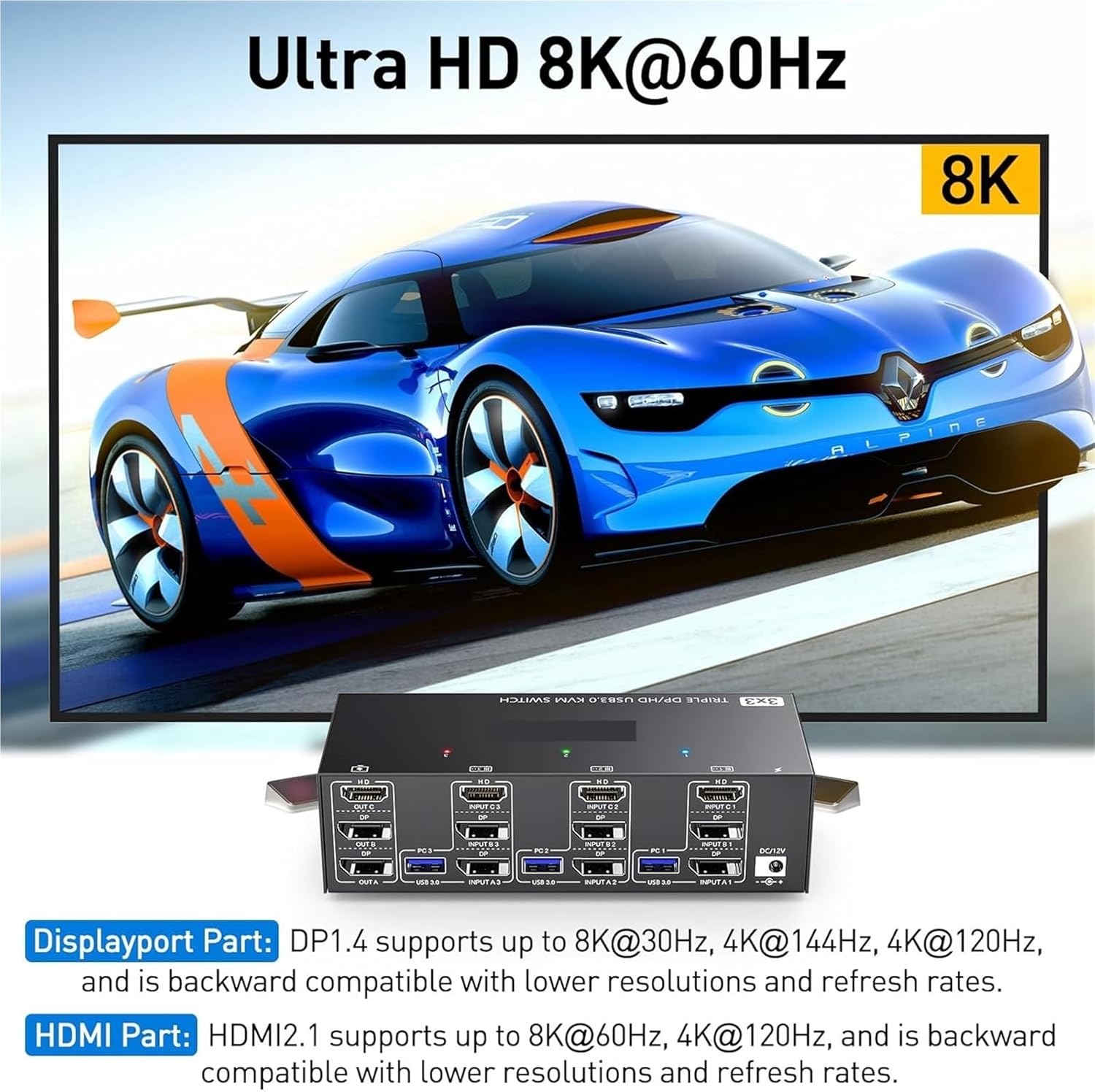
Vaizdas: Visual representation of Ultra HD 8K@60Hz capability. This image details the supported resolutions and refresh rates for both DisplayPort 1.4 and HDMI 2.1 connections, emphasizing high-quality video output.
8. Priežiūra
- Keep the KVM switch in a cool, dry place away from direct sunlight.
- Regularly clean the exterior of the device with a soft, dry, lint-free cloth.
- Do not use liquid or aerosol cleaners, as they may contain flammable substances or chemicals that can damage the device.
- Ensure all cables are securely connected and free from kinks or damage.
9. Problemų sprendimas
Jei kyla problemų dėl KVM komutatoriaus, žr. šias dažniausiai pasitaikančias problemas ir sprendimus:
| Problema | Galima priežastis / sprendimas |
|---|---|
| No display on monitors. |
|
| Keyboard or mouse not working. |
|
| Cannot switch between computers. |
|
| Prasta vaizdo kokybė arba mirgėjimas. |
|
10. Specifikacijos
| Funkcija | Specifikacija |
|---|---|
| Prekės ženklas | S25HH0 |
| Modelis | 303DH US |
| Įvesties prievadai | 3 x HDMI, 3 x USB 3.0 |
| Išvesties prievadai | 3 x HDMI, 4 x USB 3.0 |
| Vaizdo įrašų standartas | HDMI 2.1, DisplayPort 1.4 (backward compatible) |
| Max Resolution (HDMI) | 8K@60Hz, 4K@120Hz |
| Max Resolution (DisplayPort) | 8K@30Hz, 4K@144Hz, 4K@120Hz |
| USB standartas | USB 3.0 (5 Gb/s) |
| Kontrolės metodas | Physical Button, Wired Remote |
| Veiklos ttage | 12 voltų |
| Prekės svoris | 50 gramų |
| Sertifikatai | CE, RoHS |
11. Garantija ir palaikymas
This product comes with a standard manufacturer's warranty. Please refer to the warranty card included in your package or contact your retailer for specific warranty terms and conditions.
For technical support or further assistance, please contact your vendor or the manufacturer's customer service. Contact information can typically be found on the product packaging or the manufacturer's official websvetainę.