
1. Įvadas ir pabaigaview
The MILOUZ TK-Pro Remote Control with Phone Stand is a versatile device designed to enhance your digital experience across various platforms. It combines a stable phone stand with a multi-functional Bluetooth remote, allowing for hands-free interaction with your smartphone or tablet.
This device supports remote control for popular short video applications like TikTok and YouTube, enabling actions such as scrolling, volume adjustment, pausing/playing, and liking content. It also functions as an e-book page turner for reading apps (not compatible with Kindle devices) and a Bluetooth camera shutter for remote photo and video capture.

Image: MILOUZ TK-Pro Remote Control and Phone Stand in use with a smartphone displaying TikTok content.
Vaizdo įrašas: Užbaigtaview of the MILOUZ Multi-functional Remote Control with Phone Holder, demonstrating its various uses.
2. Kas yra dėžutėje
- Nuotolinio valdymo pultas
- Telefono stovas
- USB-C įkrovimo laidas
- Vartotojo vadovas
3. Sąranka
3.1 Nuotolinio valdymo pulto įkrovimas
Before first use, fully charge the remote control using the provided USB-C charging cable. A full charge takes approximately 1.5 hours and provides 70-80 hours of use.
3.2 Bluetooth poravimas
- Įjunkite nuotolinio valdymo pultą: Long press the power button (usually located on the top or side) for 3 seconds until the indicator light flashes.
- Įjunkite „Bluetooth“ savo įrenginyje: Go to your phone or tablet's Settings and ensure Bluetooth is turned on.
- Connect to "TK-PRO": In the Bluetooth settings, locate and select "TK-PRO" from the list of available devices to pair.
- (For iOS Users - Important Accessibility Setting): To ensure full functionality, especially for scrolling, navigate to your iOS device's Settings > Accessibility > Zoom. Turn on Zoom. If the screen becomes zoomed, double-tap the screen with three fingers to restore the normal view. This step is crucial for the remote's scrolling features to work correctly on iOS.
- Pradėkite naudoti: Once paired, you can open your desired app (TikTok, Kindle App, Camera) and begin using the remote.
Video: Detailed guide on connecting the MILOUZ TK-Pro remote control to iOS devices for TikTok scrolling.
4. Naudojimo instrukcijos
4.1 Nuotolinio valdymo pulto funkcijos

Image: MILOUZ TK-Pro Remote Control button layout and corresponding functions.
- Slinkti aukštyn / žemyn: Use the up/down arrow buttons to scroll content vertically.
- Slide Left/Right: Use the left/right arrow buttons to navigate horizontally (e.g., turn pages in e-books).
- Tūris +/-: Adjust media volume using dedicated buttons.
- Pristabdyti / paleisti: The 'OK' button typically functions as pause/play.
- Like/Continuous Likes: Pressing a specific button (often 'OK' or a designated 'like' button) can register a like. Double-clicking may enable continuous liking in some apps.
- Fotoaparato užraktas: Press the camera button to remotely take photos or start/stop video recording. Long press for 2 seconds to focus for clearer shots.
4.2 Using with TikTok and Short Video Apps
Place your phone on the stand. Use the up/down buttons to scroll through videos. Use the 'OK' button to pause/play or like videos. The remote allows for hands-free viewsąveika.

Image: Remote control functions for TikTok, including slide up/down, left/right, volume, pause/play, and liking.
4.3 Using as an E-book Page Turner
For reading apps (e.g., Kindle App, not Kindle devices), use the left/right arrow buttons to turn pages forward or backward. This provides a comfortable reading experience without needing to touch the screen.
Pastaba: Not compatible with dedicated Kindle e-readers (e.g., Paperwhite, Oasis).

Image: MILOUZ TK-Pro remote control used as an e-book page turner for various devices, highlighting incompatibility with Kindle devices.

Image: Demonstrating the remote control's use for scrolling through e-books on a tablet.
4.4 Using as a Bluetooth Camera Shutter
Open your device's camera app. Use the camera button on the remote to take photos or start/stop video recording from a distance. This is ideal for selfies, group photos, or stable video recording.

Image: Remote control functionality for taking photos and videos, including focusing for clearer shots.
4.5 Phone Stand Features
The integrated phone stand can rotate 360° to switch between horizontal and vertical screen orientations. It provides a stable base for your device, allowing for comfortable viewing.

Image: The phone stand's 180-degree rotation for horizontal/vertical viewing and the magnetic storage feature for the remote.
4.6 Magnetic Storage
The remote control is magnetically stored within the phone stand, preventing loss and ensuring it's always ready for use.
Video: Demonstration of the remote control's magnetic storage within the phone holder.
5. Priežiūra
- Valymas: Valykite įrenginį minkštu, sausu skudurėliu. Venkite naudoti stiprias chemines medžiagas ar abrazyvines medžiagas.
- Saugykla: Store the device in a cool, dry place when not in use. Ensure the remote is securely stored in its magnetic slot.
- Įkrovimas: Charge the remote regularly to maintain battery health, even if not used frequently.
6. Problemų sprendimas
- Nuotolinio valdymo pultas neprisijungia:
- Ensure the remote is charged and powered on.
- Patikrinkite, ar jūsų įrenginyje įjungtas „Bluetooth“.
- Pamirškite įrenginį „Bluetooth“ nustatymuose ir bandykite susieti dar kartą.
- Įsitikinkite, kad kiti „Bluetooth“ įrenginiai netrukdo.
- Scrolling Not Working (iOS):
- Verify that the Accessibility > Zoom setting is enabled as described in the Setup section.
- Nuotolinio valdymo pultas nereaguoja:
- Įkraukite nuotolinio valdymo pultą.
- Restart your phone/tablet and try reconnecting.
- Incompatible with Kindle Devices:
- The remote is designed for reading apps on smartphones and tablets, not for dedicated Kindle e-readers.
7. Specifikacijos
| Funkcija | Detalė |
|---|---|
| Modelio numeris | TK-Pro |
| Pakuotės matmenys | 5.2 x 3.66 x 1.73 colio |
| Prekės svoris | 5.3 uncijos |
| Baterijos | Reikalinga 1 A baterija (pridedama) |
| Įkrovimo laikas | apytiksliai 1.5 valandas |
| Naudokite laiką | apytiksliai 70-80 valandos |
| Ypatinga funkcija | Remote control, Phone Stand |
| Spalva | Juoda |
| Maksimalus palaikomų įrenginių skaičius | 1 |
| Suderinami įrenginiai | iPhone, Android, iPad, Tablet (Incompatible Devices: Amazon Fire HD 10 (10th/11th generation)) |
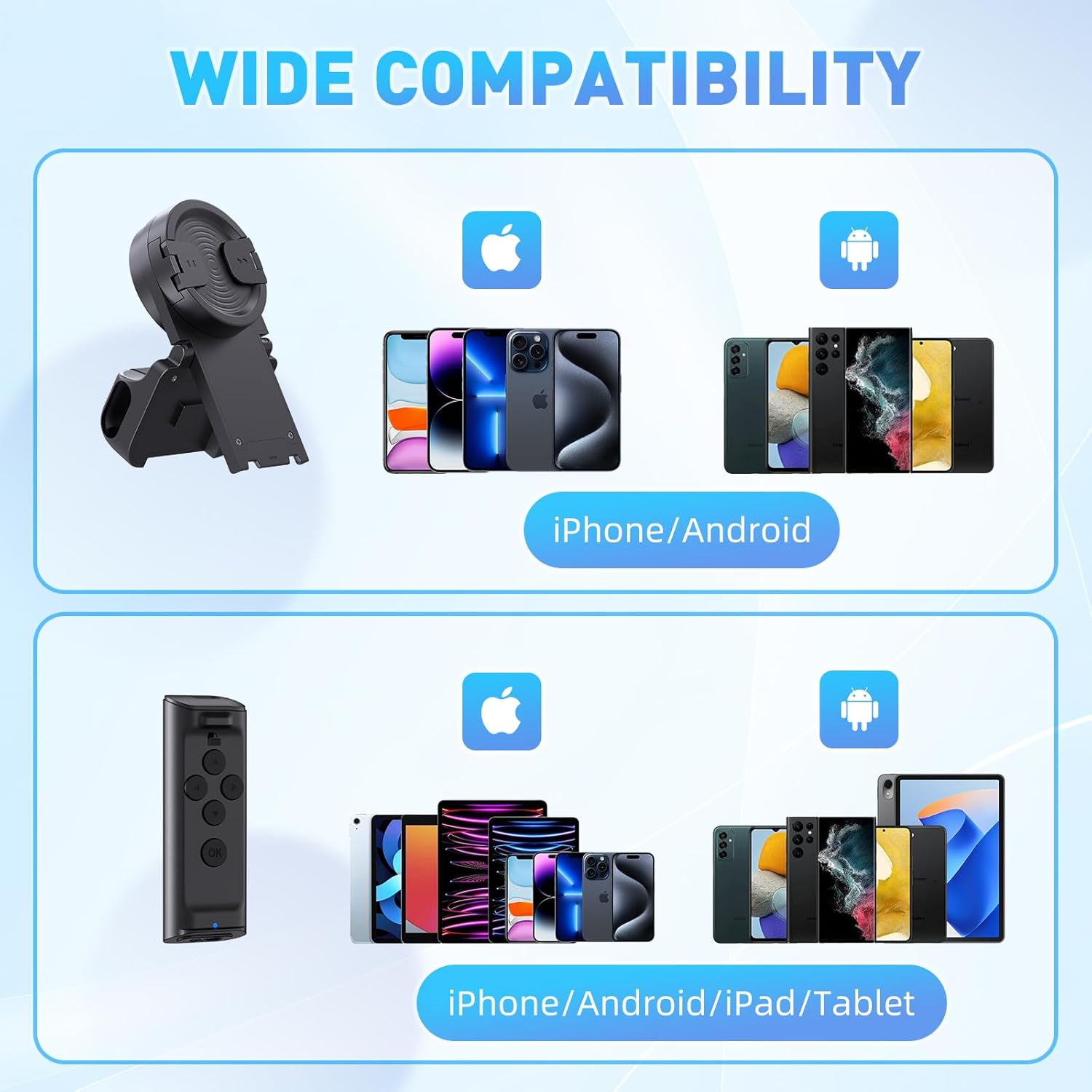
Image: Illustrates the wide compatibility of the MILOUZ TK-Pro with various mobile devices.
8. Garantija ir palaikymas
For warranty information, technical support, or any inquiries regarding your MILOUZ TK-Pro Remote Control with Phone Stand, please refer to the contact information provided with your purchase or visit the official MILOUZ websvetainę. Išsaugokite pirkimo čekį garantiniams reikalavimams.