
GOOJODOQ GOOJODOQ
GOOJODOQ „Magic“ klaviatūros dėklo naudotojo vadovas
Model: GOOJODOQ
1. Įvadas
The GOOJODOQ Magic Keyboard Case is designed to enhance your iPad experience, offering a comfortable typing solution, an integrated pencil holder, and an upgraded iPad pencil. This product is compatible with iPad 11" and iPad Air 5th generation models. It features an LED display for real-time Bluetooth connection status and keyboard battery level.
The included GOOJODOQ pencil holder is specifically designed for the Apple Pencil 2nd Generation, ensuring secure storage and compatibility with various iPad cases. The upgraded GD13 pencil supports magnetic charging and palm rejection for a natural writing experience.
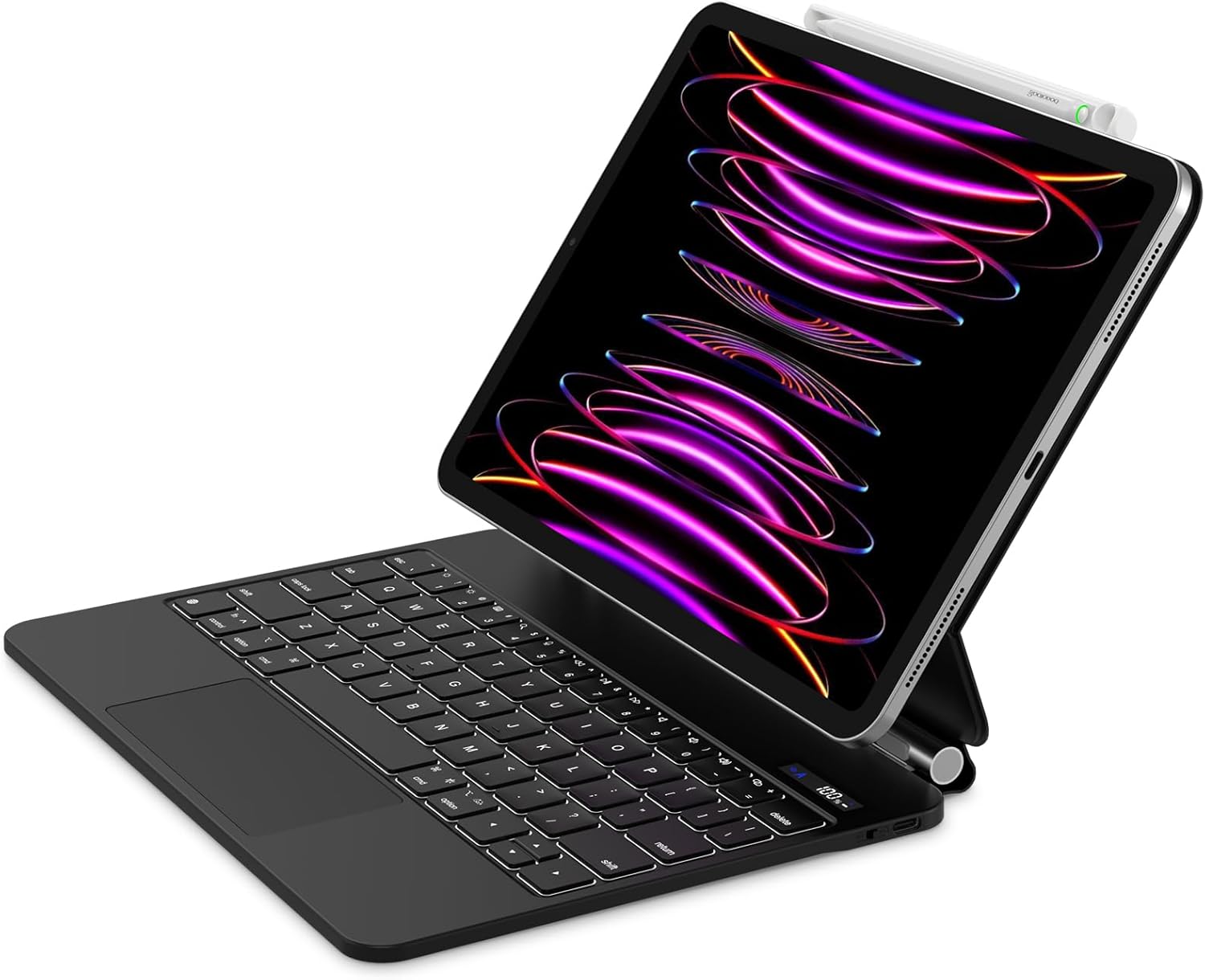
Figure 1.1: The GOOJODOQ Magic Keyboard Case with an iPad and the included pencil.
2. Pakuotės turinys
Patikrinkite, ar jūsų siuntinyje yra visi toliau išvardyti daiktai:
- GOOJODOQ Magic Keyboard (x1)
- GOOJODOQ Pencil Holder (x1)
- GOOJODOQ iPad Pencil (x1)
- USB laidas (x1)
3. Sąranka
3.1 Installing the iPad and Pencil Holder
The keyboard and your iPad are designed for magnetic attachment, ensuring a secure and stable connection. The pencil holder is installed between the iPad and the keyboard/case.
- Align your iPad with the magnetic area on the keyboard case. The magnets will automatically secure the iPad in place.
- Position the GOOJODOQ pencil holder between the iPad and the keyboard. It is designed to fit snugly and securely.

Figure 3.1: Illustration of installing the pencil holder between the iPad and the keyboard case.

Figure 3.2: The stable design ensures the iPad remains securely attached to the keyboard case.
3.2 Bluetooth Connection for Keyboard
To connect your keyboard to your iPad via Bluetooth:
- Įsitikinkite, kad klaviatūra įkrauta.
- Įjunkite klaviatūrą.
- Savo „iPad“ įrenginyje eikite į Nustatymai > Bluetooth ir įjunkite „Bluetooth“.
- Look for "GOOJODOQ Keyboard" or a similar name in the list of devices and tap to connect.
- The keyboard's LED display will show the Bluetooth connection status and battery level in real time.
4. Naudojimo instrukcijos
4.1 Klaviatūros naudojimas
- Foninio apšvietimo valdymas: The keyboard features 7-color backlighting. Use the dedicated key (often a light bulb icon) to cycle through colors and adjust brightness.
- Skystųjų kristalų ekranas: Monitor your keyboard's battery level and Bluetooth connection status directly on the integrated LED display.
- Funkciniai klavišai: Utilize the top row of function keys for quick access to iPad features like volume control, media playback, and screen lock.
4.2 Using the GOOJODOQ iPad Pencil
The included GOOJODOQ iPad Pencil (GD13) offers advanced features for a seamless writing and drawing experience.
- Magnetinis įkrovimas: Simply attach the GD13 pencil to the side of a compatible iPad via magnet to charge it immediately. No charging cable or Bluetooth pairing is needed for charging.
- Delno atmetimas: Rest your hand naturally on the iPad screen while writing or drawing without causing unintended marks. This feature allows for comfortable and precise input.

Figure 4.1: The GOOJODOQ pencil supports magnetic charging by attaching to the side of the iPad.

Figure 4.2: The pencil charges wirelessly when magnetically attached to the iPad.

Figure 4.3: Palm rejection allows for natural hand placement on the screen while using the pencil.

Figure 4.4: The pencil holder features an incision for easy removal of the pencil.
5. Priežiūra
To ensure the longevity and optimal performance of your GOOJODOQ Magic Keyboard Case and Pencil, follow these maintenance guidelines:
- Valymas: Use a soft, lint-free cloth to gently wipe the surfaces of the keyboard and case. For stubborn smudges, slightly dampNuvalykite šluostę vandeniu. Venkite naudoti stiprias chemines medžiagas ar abrazyvines medžiagas.
- Saugykla: Kai nenaudojate, laikykite klaviatūros dėklą vėsioje, sausoje vietoje, toliau nuo tiesioginių saulės spindulių ir ekstremalių temperatūrų.
- Įkrovimas: Regularly charge the keyboard to maintain battery health. Avoid completely draining the battery frequently.
- Pencil Care: Keep the pencil tip clean. If the tip becomes worn, replacement tips may be available from the manufacturer.
6. Problemų sprendimas
If you encounter issues with your GOOJODOQ Magic Keyboard Case, refer to the following common troubleshooting steps:
- Keyboard Not Connecting via Bluetooth:
- Įsitikinkite, kad klaviatūra įjungta ir visiškai įkrauta.
- Turn off and then on your iPad's Bluetooth.
- Forget the device in your iPad's Bluetooth settings and try pairing again.
- Iš naujo paleiskite ir „iPad“, ir klaviatūrą.
- Klaviatūros foninis apšvietimas neveikia:
- Check if the keyboard battery is low. Charge the keyboard.
- Press the backlight control key to ensure it's not turned off or at the lowest brightness setting.
- Pencil Not Charging:
- Ensure the pencil is correctly aligned and magnetically attached to the side of your compatible iPad.
- Verify your iPad's battery level is sufficient.
- Pencil Not Responding / Palm Rejection Issues:
- Ensure the pencil is charged.
- Patikrinkite, ar jūsų „iPad“ programinė įranga yra atnaujinta.
- Iš naujo paleiskite „iPad“.
Jei šie veiksmai neišsprendžia problemos, susisiekite su klientų aptarnavimo tarnyba.
7. Specifikacijos
| Funkcija | Aprašymas |
|---|---|
| Prekės ženklas | GOOJODOQ |
| Modelio numeris | GOOJODOQ |
| Suderinami įrenginiai | iPad Pro 11 inch (4th/3rd/2nd/1st Gen), iPad Air 5th Gen |
| Ryšio technologija | Bluetooth |
| Klaviatūros aprašymas | Bluetooth klaviatūra |
| Ypatingos savybės | Backlit, Rechargeable, LED Display, Magnetic Attachment |
| Foninio apšvietimo spalva | 7-color backlit (Single Color support) |
| Raktų skaičius | 78 |
| Pencil Compatibility | Apple Pencil 2nd Generation (for holder), GOOJODOQ GD13 Pencil included |
| Pencil Features | Magnetic Charging, Palm Rejection |
8. Garantija ir palaikymas
For warranty information and customer support, please refer to the documentation included with your purchase or visit the official GOOJODOQ website. You may also contact the seller directly through the platform where the product was purchased.
Typical return policies allow for returns or replacements within 30 days of purchase, subject to the seller's terms and conditions.
Susiję dokumentai - GOOJODOQ
 |
GOOJODOQ GD13 pieštuko naudotojo vadovas ir instrukcijos Išsamus „GOOOJODOQ GD13“ pieštuko vadovas, kuriame pateikiama išsami informacija apie gaminį, naudojimo instrukcijos, įkrovimo būdai ir suderinamumas su įvairiais „iPad“ modeliais. Sužinokite, kaip susieti, naudoti tokias funkcijas kaip delno atmetimas ir pakreipimo jautrumas, bei valdyti akumuliatoriaus veikimo laiką. |
 |
GD13 rašiklio naudotojo vadovas – suderinamas su belaidžiu įkrovimu įkraunamais „iPad“ planšetiniais kompiuteriais GD13 rašiklio naudotojo vadovas, kuriame išsamiai aprašomos suderinamų „iPad“ modelių funkcijos, specifikacijos ir naudojimo instrukcijos, įskaitant belaidžio įkrovimo galimybes. Sužinokite, kaip susieti, naudoti gestus ir valdyti akumuliatoriaus veikimo laiką. |
 |
GOOJODOQ GD13 Pencil User Manual User manual and setup guide for the GOOJODOQ GD13 stylus pencil, featuring wireless charging, palm rejection, and tilt sensitivity for compatible iPad models. |
 |
GOOJODOQ A1895 Pro belaidės klaviatūros vartotojo vadovas „GOOODOQ A1895 Pro“ belaidės klaviatūros naudotojo vadovas, kuriame pateikiamas išsamus gaminio aprašymas, naudojimo instrukcijos, jutiklinės planšetės gestai, indikatoriaus lemputės ir gaminio parametrai. |
 |
„GOOODOQ A1895 Pro“ belaidė klaviatūra 12.9 colių planšetiniams kompiuteriams – naudotojo vadovas Šiame naudotojo vadove pateikiamos instrukcijos, kaip nustatyti ir naudoti belaidę „GOOODOQ A1895 Pro“ klaviatūrą 12.9 colių planšetiniams kompiuteriams. Jame pateikiamas gaminio aprašymas, naudojimo instrukcijos, „iOS“ jutiklinės planšetės gestai, indikatoriaus lemputės, gaminio parametrai ir naudojimo bei priežiūros patarimai. |
 |
GOOJODOQ A1895 Pro belaidės klaviatūros vartotojo vadovas Išsamus belaidės „GOOOJODOQ A1895 Pro“ klaviatūros naudotojo vadovas, kuriame išsamiai aprašomos gaminio savybės, sąrankos instrukcijos, „iOS“ jutiklinės planšetės gestai ir techninės specifikacijos. |
Ask a question about this manual
Ask about setup, troubleshooting, compatibility, parts, safety, or missing instructions. Manuals+ will review the question and use this page’s manual context to help answer it.