
1. Įvadas
The Yamaha AG08 is an 8-channel live streaming loopback mixer and USB audio interface designed for a wide range of audio applications, including live streaming, podcasting, gaming, and music production. It combines essential mixing functionalities with versatile I/O and USB routing options, expanded footswitch capabilities, and a suite of DSP effects to deliver high-quality audio performance.
2. Pagrindinės savybės
- Two Condenser Mic Inputs with Two Headphone Outputs: Allows for class-leading sound capture and independent headphone monitoring for two individuals simultaneously.
- Three Assignable Faders for Versatile USB I/O: Supports diverse streaming applications by allowing individual assignment of multiple app signals from a USB-connected PC or analog line inputs, and three USB mixed outputs to various PC applications.
- Four Effects Preset Buttons for Channel 1: Optimize vocal processing for different streaming scenarios with physical controls.
- Five DSP Effects: Enhance and color your voice, prioritize between voice and other sound sources using effects like Voice Changer, Amp Sim, Comp & EQ, Delay & Reverb, Ducker, and Maximizer.
- Six Assignable Sound Pads: Integrate sound effects in real-time to add entertainment value to your streams.
3. Sąranka ir jungtys
Before connecting any devices, ensure the AG08 unit and all connected equipment are powered off. Connect your microphones, instruments, and speakers according to the connection examples provided below. For optimal performance, use high-quality cables.
3.1 Priekinio skydelio viršusview

Figure 1: Front panel of the Yamaha AG08 mixer, displaying all controls and inputs.
3.2 Galinio skydelio jungtys

Figure 2: Rear panel of the Yamaha AG08, detailing XLR, line, and USB connections.
3.3 USB garso sąsajos prijungimas
To connect the AG08 to a computer for USB audio, use a USB-C cable (not included). Ensure the USB cable is securely connected to the unit and your computer. The AG08 supports high-resolution audio up to 24-bit/192kHz.
Video: A Closer Look at the Yamaha AG08. This video provides a detailed overview of the mixer's physical features and connectivity options.
4. Maišytuvo valdymas
The AG08 offers intuitive controls for managing your audio. Familiarize yourself with the various knobs, faders, and buttons to effectively mix and process your sound.
4.1 Kanalų valdikliai

3 pav. Išsamus view of channel faders, gain knobs, and effect controls.
Each channel features a gain knob to adjust input sensitivity, and a fader for precise volume control. Channels 1 and 2 include +48V phantom power for condenser microphones, and dedicated buttons for compression/EQ and amp modeliavimas.
4.2 DSP Effects and Voice Changer

Figure 4: A hand adjusting a pitch/formant knob, highlighting the voice changer and effect controls.
The AG08 integrates various DSP effects, including reverb, delay, compression, and EQ. Channel 1 also features a voice changer with pitch and formant controls. These effects can be activated and adjusted using the dedicated buttons and knobs on the mixer's surface.
4.3 Garso pagalvėlės

Figure 5: A hand interacting with the assignable sound pads, which can trigger various audio effects.
The six assignable sound pads allow you to trigger pre-loaded or custom sound effects during your live streams or performances. Use the SHIFT button to access additional functions or banks of sounds.
5. USB Audio Routing
The AG08 offers flexible USB audio routing capabilities, allowing you to manage multiple audio sources and destinations for complex streaming and recording setups.
5.1 Assignable Faders for USB Input/Output
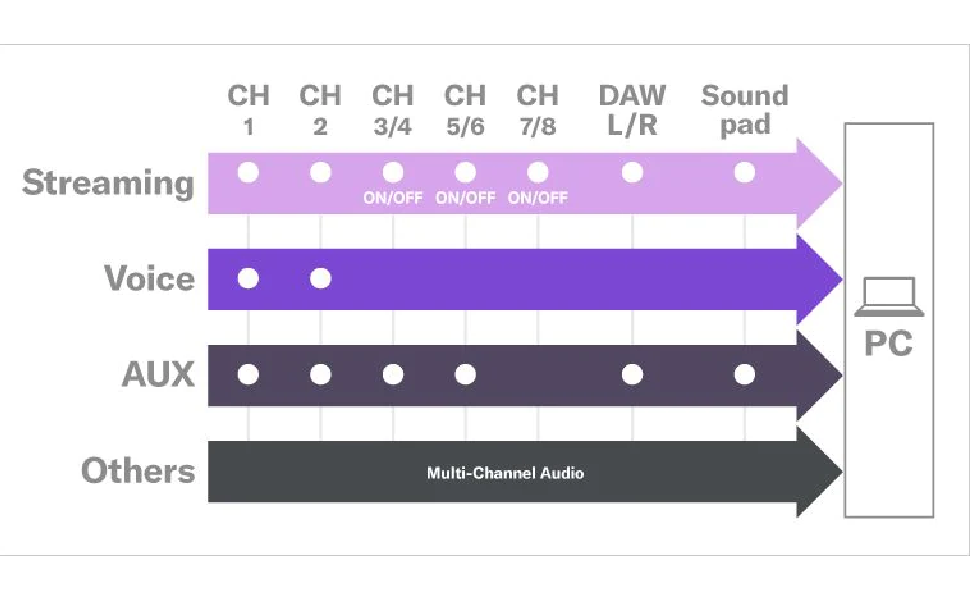
Figure 6: USB audio routing diagram, showing how different channels can be assigned for streaming, voice, AUX, and multi-channel audio to a PC.
Signals from multiple applications on a USB-connected PC or analog line inputs can be individually assigned and mixed using the faders. Conversely, three USB mixed outputs from the AG08 can be individually assigned to various applications on the PC via USB connection. This functionality facilitates real-time interaction, such as sharing mixed audio with chat partners or listeners during live streams.
5.2 Multi-Channel Recording
For ASIO-supported applications like DAW software, the direct output from each input channel (Channels 1, 2, 3/4, 5/6, and 7/8) and three mixed channels can be used in parallel. This enables multi-channel recording even during live streams, providing greater flexibility for post-production.
6. Sistemos reikalavimai
To ensure proper functionality when connecting the AG08 to a computer, verify that your system meets the following minimum requirements:
- RAM: 2 GB ar daugiau
- Free HDD Space: 4 GB ar daugiau
- Ekrano skiriamoji geba: 1280 x 800 recommended
- Interneto ryšys: Required for software downloads and registration
- USB kabelis: Sold separately (USB-C to USB-A or USB-C to USB-C, depending on your computer's ports)
- Operacinė sistema: Compatible with Windows and macOS. Refer to the Yamaha website for the latest driver and software compatibility information.
7. Specifikacijos
| Funkcija | Specifikacija |
|---|---|
| Prekės svoris | 7.43 svaro |
| Gaminio matmenys | 11.5 x 8.8 x 3.5 colio |
| Prekės modelio numeris | AG08 |
| Techninės įrangos sąsaja | USB |
| Medžiagos tipas | Nerūdijantis plienas |
| Maitinimo šaltinis | Su laidu elektra |
| Kanalų skaičius | 8 |
| Ryšio technologija | USB |
| Išvesties jungties tipas | USB tipas B |
8. Software Suite
The Yamaha AG08 includes a Steinberg Software Suite, which typically comprises applications like Cubase AI, WaveLab Cast, and Cubasis LE. These software tools enhance your audio production and editing capabilities, offering features for recording, mixing, mastering, and podcast creation. Ensure you download and register the software using the provided access codes and follow the instructions on the Yamaha websvetainę.
9. Problemų sprendimas
- Nėra garso: Verify all cables are securely connected. Check volume levels on the AG08 and connected devices. Ensure the correct input/output settings are selected on your computer.
- Iškraipytas garsas: Reduce input gain levels on the AG08. Check for clipping indicators (PEAK LEDs). Ensure speakers/headphones are not set too loud.
- No Effects Applied: Confirm the FX ON switch is engaged. Adjust the FX RTN LEVEL knob and individual channel FX knobs.
- Phantom Power Issue: Ensure +48V phantom power is enabled for condenser microphones.
- USB ryšio problemos: Verify the USB cable is correctly connected. Check your computer's device manager or sound settings to ensure the AG08 is recognized. Reinstall drivers if necessary.
10. Garantija ir palaikymas
For warranty information, technical support, and additional resources, please visit the official Yamaha website or contact your local Yamaha dealer. Keep your proof of purchase for warranty claims.